

Introduction
Ninety percent of people use Android smartphones. There are a lot of third party applications authenticating our users by using Google authentication API. I will show you how to use Google authentication API in your Application, using Android Studio. Android is a kernel-based operating system. It allows the user to modify the GUI components and the source code.
Requirements
- Android Studio.
- Stable internet connection.
- Little bit XML and Java knowledge.
Download link (Android Studio) https//developer.android.com/studio/index.html
Steps to be followed are given below
Carefully follow my steps to use Google authentication API in your Application, using an Android Studio and I have included the source code given below.
Step 1
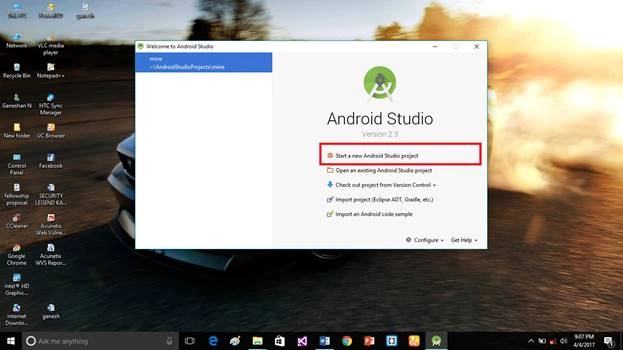
Open Android Studio and start the new project.
Step 2
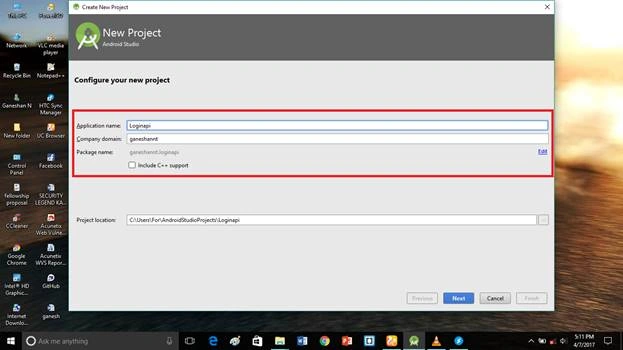
Put the Application name and company domain. If you wish to use C++ to code the project, mark the Include C++ support, followed by clicking Next.
Step 3
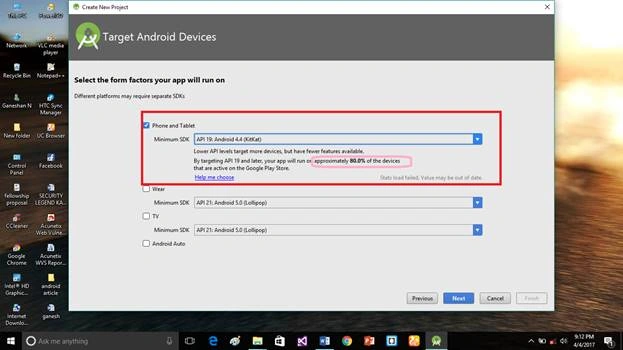
Select Android minimum SDK. Afterward, you chose the minimum SDK and it will show the approximate percentage of people, who use SDK, followed by clicking Next.
Step 4
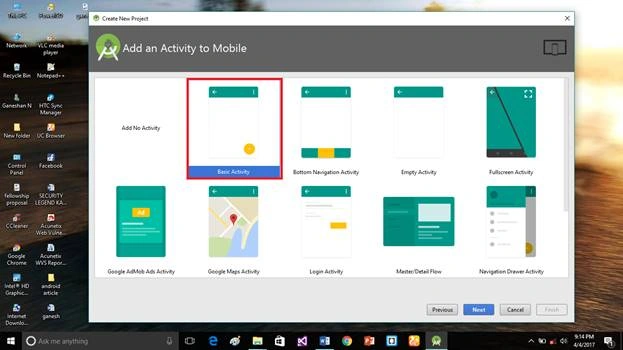
Choose the empty activity, followed by clicking Next.
Step 5
Put the activity name and layout name. Android Studio basically takes Java class name and you need to provide the activity name. Click Finish.
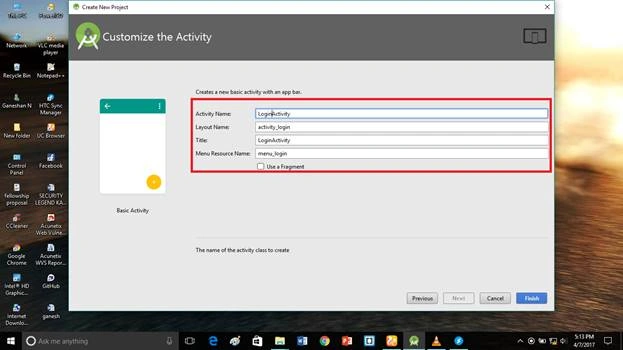
Step 6
The website link is https//developers.google.com/identity/sign-in/android/start.
Sign in with your Gmail account and create a project.
Go to the link above and click GET A CONFIGURATION FILE
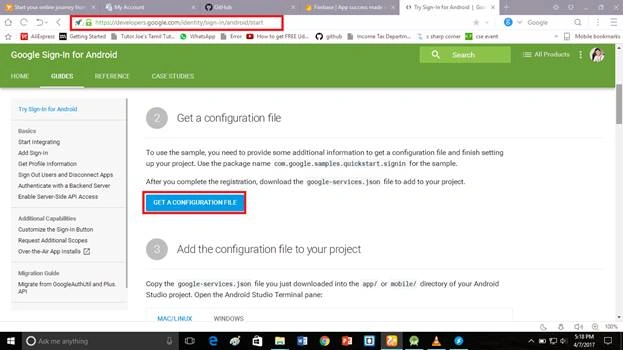
Step 9
Put your app name and unique app package name.
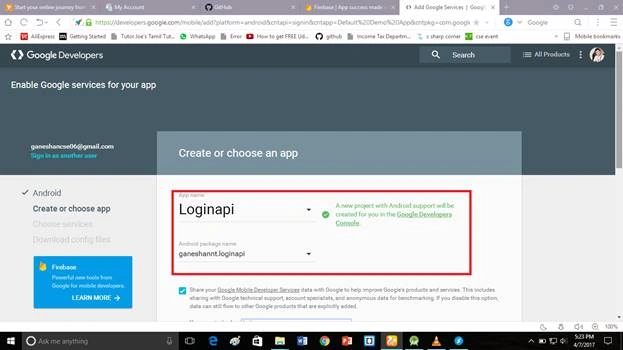
Step 10
Select your country region and click Choose and configure Service.
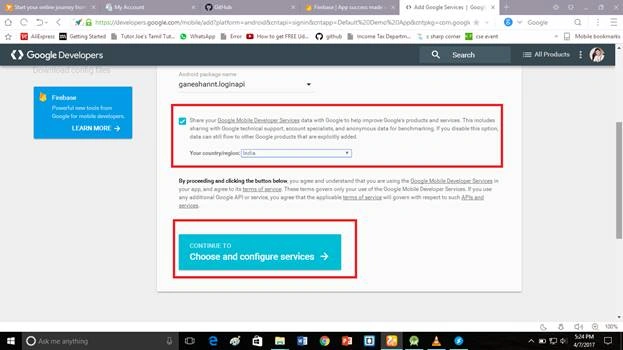
Step 11
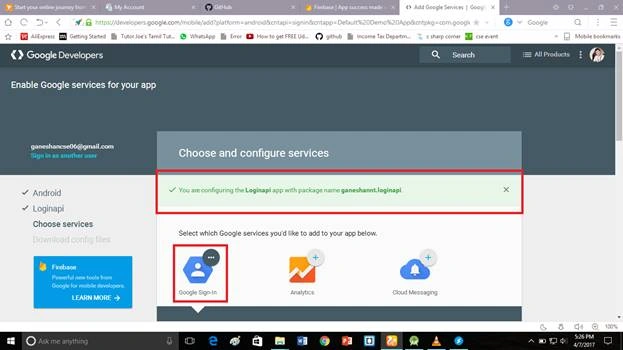
Your API file was ready to use and it will be shown in Green color. After clicking Google sign-in, the screen given below will come.
Step 12
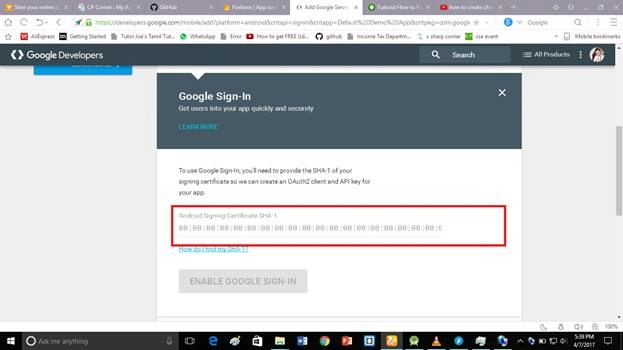
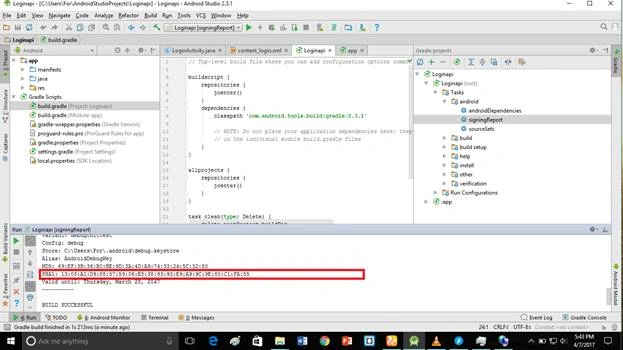
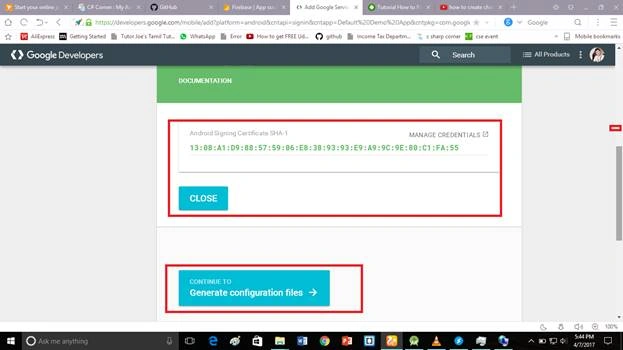
Now, you must provide your app SHA1 value. Go to your project (Gradle project) and double click SigningReport. It will show you the SHA1 value. Copy the value.
Step 13
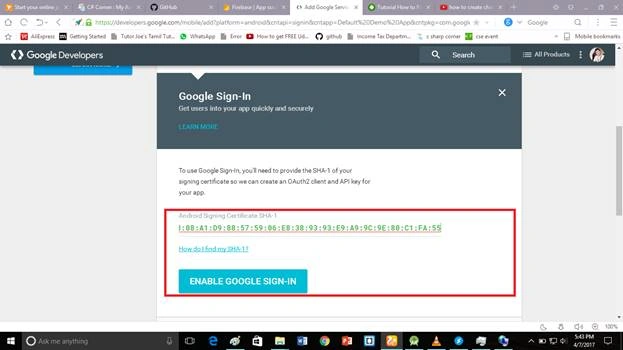
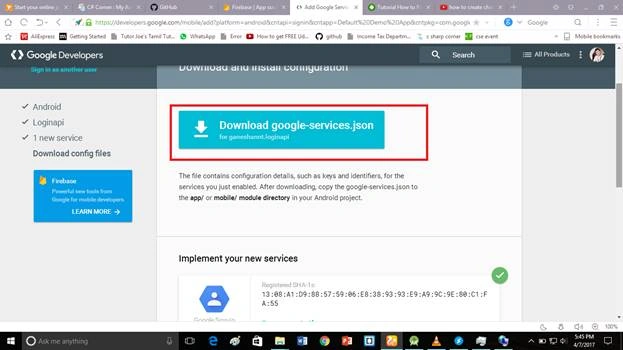
Paste SHA1 value and download your googleservice.json file.
Step 14
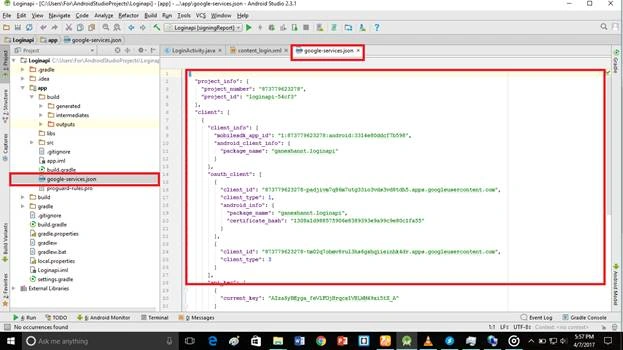
Add the Google-services.json file into your app folder.
Step 15
Go to activity_main.xml, followed by clicking the text bottom. This XML file contains the designing code for an Android app. Into the activity_main.xml, copy and paste the code given below.
activity_main.xml code
- <?xml version="1.0" encoding="utf-8"?>
- <LinearLayout xmlns:android="http://schemas.android.com/apk/res/android"
- xmlns:tools="http://schemas.android.com/tools"
- android:layout_width="match_parent"
- android:layout_height="match_parent"
- android:orientation="vertical"
- android:padding="@dimen/activity_horizontal_margin"
- android:gravity="center"
- tools:context=".MainActivity">
- <LinearLayout
- android:id="@+id/llProfile"
- android:layout_width="fill_parent"
- android:layout_height="wrap_content"
- android:layout_marginBottom="20dp"
- android:orientation="horizontal"
- android:visibility="gone"
- android:weightSum="3">
- <ImageView
- android:id="@+id/imgProfilePic"
- android:layout_width="80dp"
- android:layout_height="wrap_content"
- android:layout_weight="1" />
- <LinearLayout
- android:layout_width="wrap_content"
- android:layout_height="wrap_content"
- android:layout_marginLeft="10dp"
- android:layout_weight="2"
- android:orientation="vertical">
- <TextView
- android:id="@+id/txtName"
- android:layout_width="wrap_content"
- android:layout_height="wrap_content"
- android:padding="5dp"
- android:textSize="20dp" />
- <TextView
- android:id="@+id/txtEmail"
- android:layout_width="wrap_content"
- android:layout_height="wrap_content"
- android:padding="5dp"
- android:textSize="18dp" />
- </LinearLayout>
- </LinearLayout>
- <com.google.android.gms.common.SignInButton
- android:id="@+id/btn_sign_in"
- android:layout_width="fill_parent"
- android:layout_height="wrap_content"
- android:layout_marginBottom="20dp" />
- <Button
- android:id="@+id/btn_sign_out"
- android:layout_width="fill_parent"
- android:layout_height="wrap_content"
- android:layout_marginBottom="10dp"
- android:text="@string/btn_logout_from_google"
- android:visibility="gone" />
- </LinearLayout>
Step 16
In MainActivity.java, copy and paste the code given below. Java programming is the backend language for Android. Do not replace your package name, else an app will not run. The code given below contains my package name.
- package com.nikshit.gplusdemo;
- import android.app.ProgressDialog;
- import android.content.Intent;
- import android.os.Bundle;
- import android.support.annotation.NonNull;
- import android.support.v7.app.AppCompatActivity;
- import android.util.Log;
- import android.view.View;
- import android.widget.Button;
- import android.widget.ImageView;
- import android.widget.LinearLayout;
- import android.widget.TextView;
- import com.bumptech.glide.Glide;
- import com.bumptech.glide.load.engine.DiskCacheStrategy;
- import com.google.android.gms.auth.api.Auth;
- import com.google.android.gms.auth.api.signin.GoogleSignInAccount;
- import com.google.android.gms.auth.api.signin.GoogleSignInOptions;
- import com.google.android.gms.auth.api.signin.GoogleSignInResult;
- import com.google.android.gms.common.ConnectionResult;
- import com.google.android.gms.common.SignInButton;
- import com.google.android.gms.common.api.GoogleApiClient;
- import com.google.android.gms.common.api.OptionalPendingResult;
- import com.google.android.gms.common.api.ResultCallback;
- import com.google.android.gms.common.api.Status;
- public class MainActivity extends AppCompatActivity implements View.OnClickListener, GoogleApiClient.OnConnectionFailedListener {
- private static final String TAG = MainActivity.class.getSimpleName();
- private static final int RC_SIGN_IN = 420;
- private GoogleApiClient mGoogleApiClient;
- private ProgressDialog mProgressDialog;
- private SignInButton btnSignIn;
- private Button btnSignOut;
- private LinearLayout llProfileLayout;
- private ImageView imgProfilePic;
- private TextView txtName, txtEmail;
- @Override
- protected void onCreate(Bundle savedInstanceState) {
- super.onCreate(savedInstanceState);
- setContentView(R.layout.activity_main);
- initializeControls();
- initializeGPlusSettings();
- }
- private void initializeControls(){
- btnSignIn = (SignInButton) findViewById(R.id.btn_sign_in);
- btnSignOut = (Button) findViewById(R.id.btn_sign_out);
- llProfileLayout = (LinearLayout) findViewById(R.id.llProfile);
- imgProfilePic = (ImageView) findViewById(R.id.imgProfilePic);
- txtName = (TextView) findViewById(R.id.txtName);
- txtEmail = (TextView) findViewById(R.id.txtEmail);
- btnSignIn.setOnClickListener(this);
- btnSignOut.setOnClickListener(this);
- }
- private void initializeGPlusSettings(){
- GoogleSignInOptions gso = new GoogleSignInOptions.Builder(GoogleSignInOptions.DEFAULT_SIGN_IN)
- .requestEmail()
- .build();
- mGoogleApiClient = new GoogleApiClient.Builder(this)
- .enableAutoManage(this, this)
- .addApi(Auth.GOOGLE_SIGN_IN_API, gso)
- .build();
- // Customizing G+ button
- btnSignIn.setSize(SignInButton.SIZE_STANDARD);
- btnSignIn.setScopes(gso.getScopeArray());
- }
- private void signIn() {
- Intent signInIntent = Auth.GoogleSignInApi.getSignInIntent(mGoogleApiClient);
- startActivityForResult(signInIntent, RC_SIGN_IN);
- }
- private void signOut() {
- Auth.GoogleSignInApi.signOut(mGoogleApiClient).setResultCallback(
- new ResultCallback<Status>() {
- @Override
- public void onResult(Status status) {
- updateUI(false);
- }
- });
- }
- private void handleGPlusSignInResult(GoogleSignInResult result) {
- Log.d(TAG, "handleSignInResult:" + result.isSuccess());
- if (result.isSuccess()) {
- // Signed in successfully, show authenticated UI.
- GoogleSignInAccount acct = result.getSignInAccount();
- //Fetch values
- String personName = acct.getDisplayName();
- String personPhotoUrl = acct.getPhotoUrl().toString();
- String email = acct.getEmail();
- String familyName = acct.getFamilyName();
- Log.e(TAG, "Name: " + personName +
- ", email: " + email +
- ", Image: " + personPhotoUrl +
- ", Family Name: " + familyName);
- //Set values
- txtName.setText(personName);
- txtEmail.setText(email);
- //Set profile pic with the help of Glide
- Glide.with(getApplicationContext()).load(personPhotoUrl)
- .thumbnail(0.5f)
- .crossFade()
- .diskCacheStrategy(DiskCacheStrategy.ALL)
- .into(imgProfilePic);
- updateUI(true);
- } else {
- // Signed out, show unauthenticated UI.
- updateUI(false);
- }
- }
- @Override
- public void onClick(View v) {
- int id = v.getId();
- switch (id) {
- case R.id.btn_sign_in:
- signIn();
- break;
- case R.id.btn_sign_out:
- signOut();
- break;
- }
- }
- @Override
- public void onActivityResult(int requestCode, int resultCode, Intent data) {
- super.onActivityResult(requestCode, resultCode, data);
- // Result returned from launching the Intent from GoogleSignInApi.getSignInIntent(...);
- if (requestCode == RC_SIGN_IN) {
- GoogleSignInResult result = Auth.GoogleSignInApi.getSignInResultFromIntent(data);
- handleGPlusSignInResult(result);
- }
- }
- @Override
- public void onStart() {
- super.onStart();
- OptionalPendingResult<GoogleSignInResult> opr = Auth.GoogleSignInApi.silentSignIn(mGoogleApiClient);
- if (opr.isDone()) {
- // If the user's cached credentials are valid, the OptionalPendingResult will be "done"
- // and the GoogleSignInResult will be available instantly.
- Log.d(TAG, "Got cached sign-in");
- GoogleSignInResult result = opr.get();
- handleGPlusSignInResult(result);
- } else {
- // If the user has not previously signed in on this device or the sign-in has expired,
- // this asynchronous branch will attempt to sign in the user silently. Cross-device
- // single sign-on will occur in this branch.
- showProgressDialog();
- opr.setResultCallback(new ResultCallback<GoogleSignInResult>() {
- @Override
- public void onResult(GoogleSignInResult googleSignInResult) {
- hideProgressDialog();
- handleGPlusSignInResult(googleSignInResult);
- }
- });
- }
- }
- @Override
- public void onConnectionFailed(@NonNull ConnectionResult connectionResult) {
- // An unresolvable error has occurred and Google APIs (including Sign-In) will not
- // be available.
- Log.d(TAG, "onConnectionFailed:" + connectionResult);
- }
- private void showProgressDialog() {
- if (mProgressDialog == null) {
- mProgressDialog = new ProgressDialog(this);
- mProgressDialog.setMessage(getString(R.string.loading));
- mProgressDialog.setIndeterminate(true);
- }
- mProgressDialog.show();
- }
- private void hideProgressDialog() {
- if (mProgressDialog != null && mProgressDialog.isShowing()) {
- mProgressDialog.hide();
- }
- }
- private void updateUI(boolean isSignedIn) {
- if (isSignedIn) {
- btnSignIn.setVisibility(View.GONE);
- btnSignOut.setVisibility(View.VISIBLE);
- llProfileLayout.setVisibility(View.VISIBLE);
- } else {
- btnSignIn.setVisibility(View.VISIBLE);
- btnSignOut.setVisibility(View.GONE);
- llProfileLayout.setVisibility(View.GONE);
- }
- }
- }
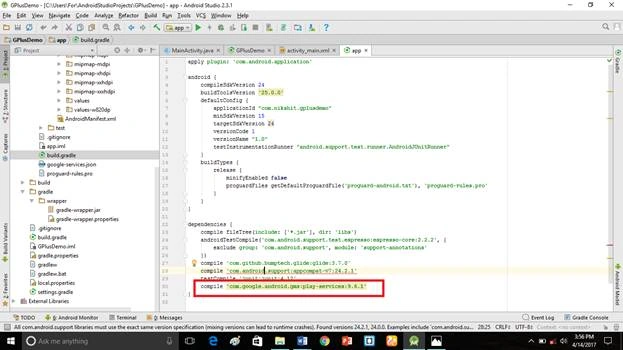
Step 18
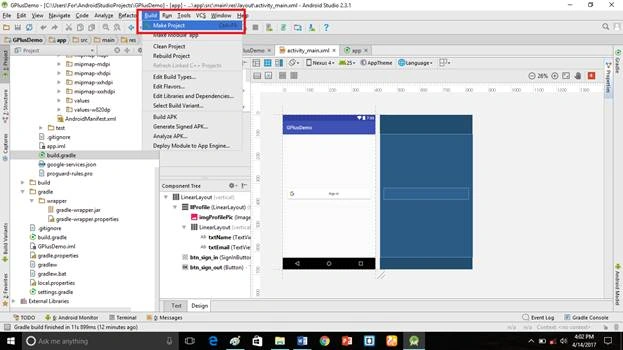
This is our user interface of the Application. Click Make project option.
Deliverables
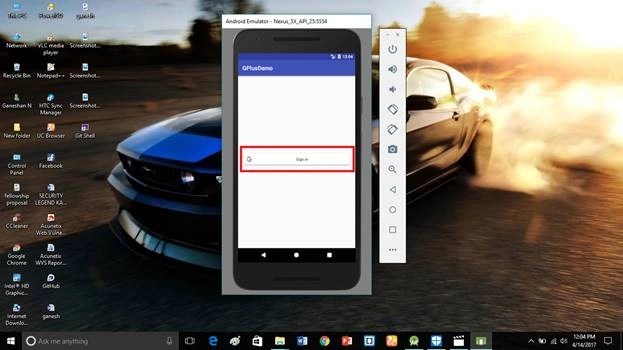
Here, we successfully used Google authentication API in our Application, using an Android Studio Application and executed it.
Click Sign in button, followed by already signed Gmail id, which was shown. You just need to use it, else you can create mail id and sign in.
 If you have any doubts, just comment.
Join the conversation! Your thoughts help the community grow.