

Part 1 - Manual testing with Fiddler
If you are a developer, tester, or manager, sometimes understanding the various methods of API can be a challenge when building and consuming the application.
Generating good documentation and help pages for your Web API, using Fiddler with .NET is as easy as making some HTTP calls.
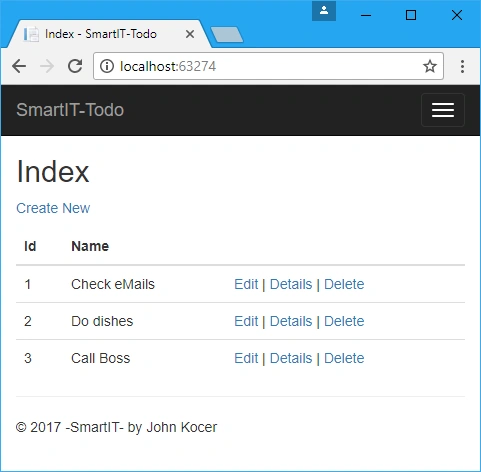
Let’s start by downloading simple To-do projects from GitHub.
Download and run the below TodoMvcSolution from the below link.
Download Fiddler
Fiddler is one of the best tools for analyzing and testing network traffic including Web API calls.
You can download and install Fiddler from the below website.
Here are the APIs we want to test; Get, Post, Put, and Delete for this application.
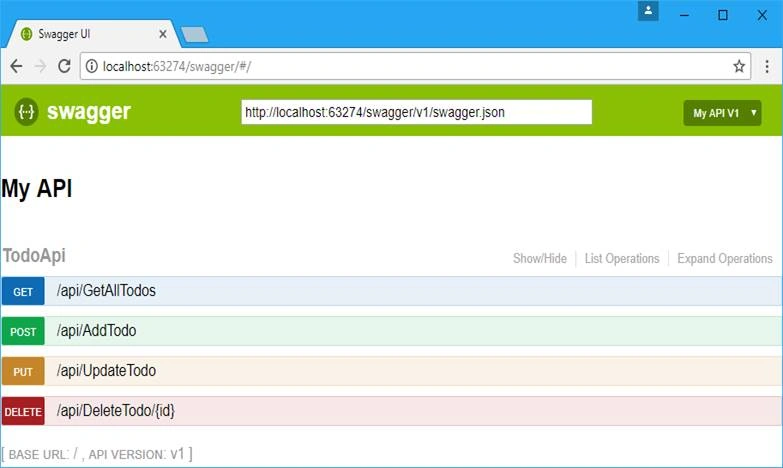
Here are the Web APIs we want to test.
// Copyright 2017 (c) SmartIT. All rights reserved.
// By John Kocer
// This file is for Swagger test, this application does not use this file

using System.Collections.Generic;
using Microsoft.AspNetCore.Mvc;
using SmartIT.Employee.MockDB;

namespace TodoAngular.Ui.Controllers
{
    [Produces("application/json")]
    [Route("api/Todo")]
    public class TodoApiController : Controller
    {
        TodoRepository _todoRepository = new TodoRepository();

        [Route("~/api/GetAllTodos")]
        [HttpGet]
        public IEnumerable<SmartIT.Employee.MockDB.Todo> GetAllTodos()
        {
            return _todoRepository.GetAll();
        }

        [Route("~/api/AddTodo")]
        [HttpPost]
        public SmartIT.Employee.MockDB.Todo AddTodo([FromBody]SmartIT.Employee.MockDB.Todo item)
        {
            return _todoRepository.Add(item);
        }

        [Route("~/api/UpdateTodo")]
        [HttpPut]
        public SmartIT.Employee.MockDB.Todo UpdateTodo([FromBody]SmartIT.Employee.MockDB.Todo item)
        {
            return  _todoRepository.Update(item);
        }

        [Route("~/api/DeleteTodo/{id}")]
        [HttpDelete]
        public void Delete(int id)
        {
            var findTodo = _todoRepository.FindById(id);
            if (findTodo != null)
                _todoRepository.Delete(findTodo);
        }
    }
}
Note
Your local port number may be different than ours use your local port number.
- http://localhost:63274/api/GetAllTodos // GET
- http://localhost:63274/api/AddTodo //POST
- http://localhost:63274/api/UpdateTodo //PUT
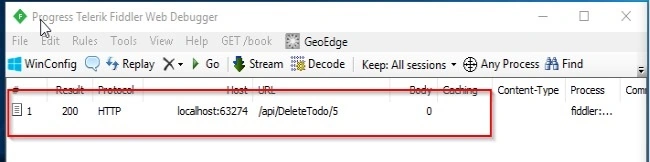
- http://localhost:63274/api/DeleteTodo/5 // DELETE
Testing GET with Fiddler
- Testing GET is very easy.
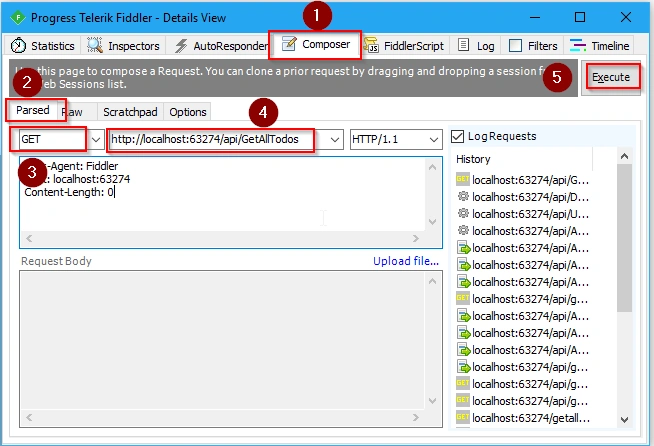
- First, we need to click the Composer tab on the Fiddler app.
- Next, select a Parsed tab below the Execute line.
- Then, set Http Action from the dropdown list as GET.
- Then, we need to type or paste it into the API URL box(http://localhost:63274/api/GetAllTodos).
- Then, click Execute.
To see the resold version, we need to double-click our API link on the Progress Telerik Fiddler Web Debugger window.
If the GET is successful, we see the status: 200 OK.
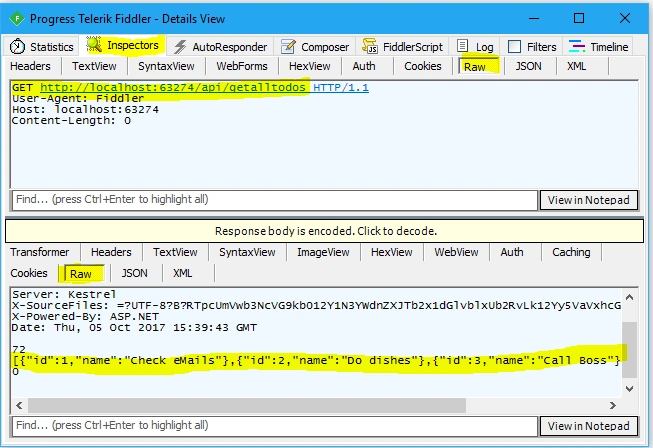
This will bring the Fiddler --Detail View with GET information loaded like below. We have to make sure to select the correct tabs to see the return list.
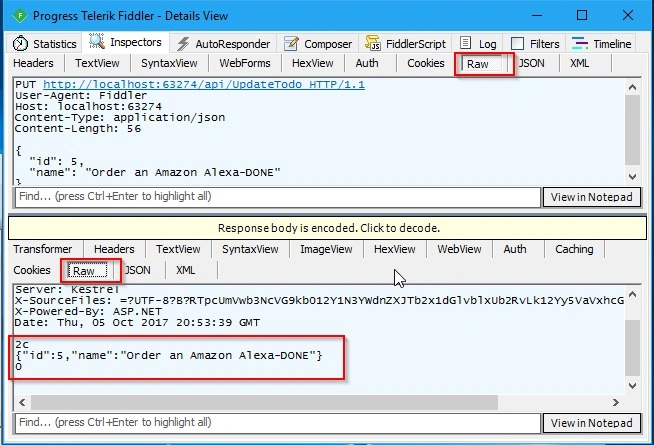
To see what we sent as Raw MENU Inspectors >> Raw Tab.
To see to response as Raw Response Raw Tab.
Testing POST with Fiddler
- First, we need to set HTTP Action from the dropdown list as POST.
- Then, we need to type or paste it into the API URL box.
- AddTodo API accepts a Todo object in JSON format. We need to pass a new Todo JSON data.(http://localhost:63274/api/AddTodo)
- To pass JSON data we need to Select Body Tap.
- Select the Raw
- Add Content-Type: application/json into the post request option under Host.
- Write or paste your Todo JSON data.
{ "id": 0, "name": "Order an Amazon Alexa" } - Then, click Execute.
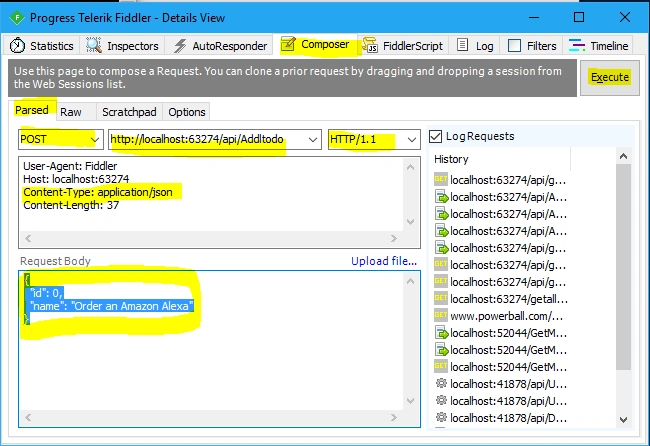
If the GET is successful we see the status: 200 OK.
You will see Status:200 for success and the return value in the Return Body Tap. We sent Publish Fiddler Todo item with id=0 and we received id=5 as a result.
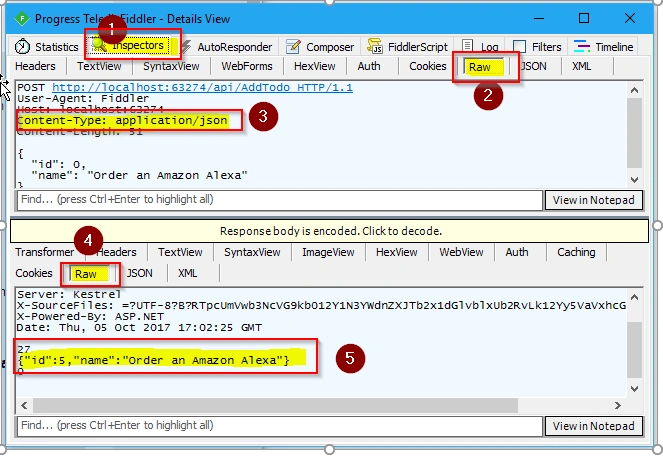
Testing PUT with Fiddler
- First, we need to set HTTP Action from the dropdown list.
- Then, we need to type or paste it into the API URL. (http://localhost:63274/api/UpdateTodo)
- UpdateTodo API accepts a Todo object in JSON format. We need to pass an existing Todo JSON data.
- To pass JSON data we need to Select Body Tab.
- Select the Raw format.
- Add Content-Type: application/json into the post request option under Host.
- Write or paste your Todo JSON.
{ "id": 5, "name": "Order an Amazon Alexa-DONE" } - Then click the blue Execute.
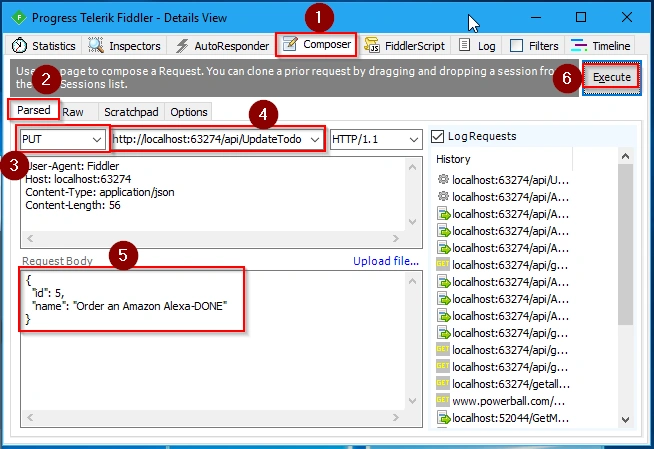
If the GET is successful, we see the status: 200 OK.
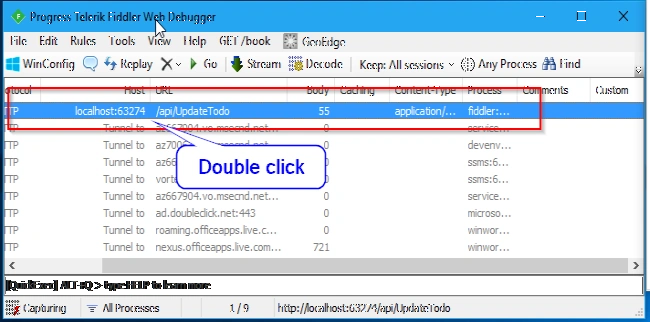
You will see Status:200 for success and the return value in the Return Body Tap. We sent Publish Fiddler Todo item with "name". " Order an Amazon Alexa-DONE " and we received an updated todo result.
Testing DELETE with Fiddler
- First, we need to set HTTP Action from the dropdown list as DELETE.
- Then, we need to type or paste it into the API URL box.
- DeleteTodo/5 API accepts an ID on the We need to pass an existing Todo with an Id value.
- Then, click Execute.
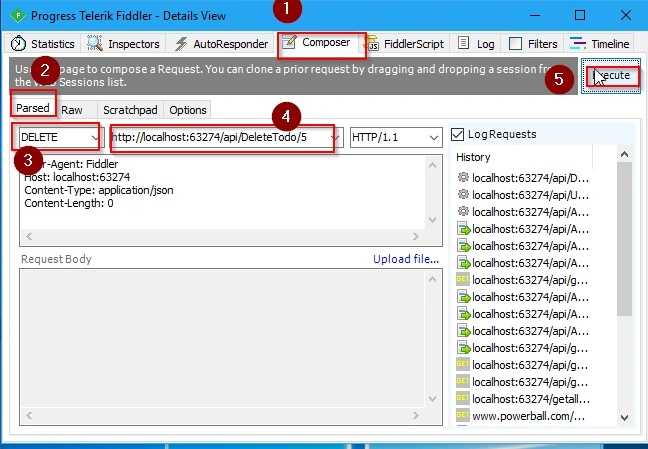
If the GET is successful, we see the status: 200 OK.
This will complete the Fiddler tutorial.
Summary
In this article, we have learned how to use Fiddler with ASP.NET Core Web APIs. Download the source code from GitHub.
Thank you for reading this article. You may be interested in reading the below training articles too.
Manas MohapatraPosted Oct 12, 2017, 1:05 AM
Good information about how to use Fiddler plugin...