

Introduction
In this article, I will explain how to use a checkbox in tkinter in Python.
Definition
The Checkbutton keyword is used to display a number of options to a user as toggle buttons. The customer selects one or more options by clicking the button corresponding to each option.
Syntax
- w = Checkbutton ( a, option) #C is capital letter.
Parameters
a − This represents the parent window of the computer.
option − The list of most used options for this widget.
Options & Descriptions
-
active background - The active background is used to change Background color when the button is under the cursor.
-
active foreground - The active foreground is used to change the Foreground color when the button is under the cursor.
-
bd - The bd is used to change the border width in pixels. The default is 2.
-
bg - The bg is used to change the normal background color background.
-
command - The command is used to call a function or method when the button is clicked
-
Offvalue - checkbutton is an associated control variable that will be set to 0 when it is cleared (off).
-
OnValue - checkbutton is an associated control variable that will be set to 1 when it is cleared (on).
Program
- from tkinter import *
- import tkinter.messagebox
- a= Tk()
- a.geometry("400x400")
- def music():
- tkinter.messagebox.showinfo(title="music",message="you select music")
- def video():
- tkinter.messagebox.showinfo(title="video",message="you select video")
- def photo():
- tkinter.messagebox.showinfo(title="photo",message="you select photo")
- CheckVar1 = IntVar()
- CheckVar2 = IntVar()
- CheckVar3 = IntVar()
- C1 = Checkbutton(a, text = "Music",activebackground="black" , activeforeground="white"\
- ,bg="green",bd=10,variable = CheckVar1,\
- onvalue = 1, offvalue = 0,command = music).pack()
- Label(a, text="").pack()#space
- C2 = Checkbutton(a, text = "video",activebackground="black" ,activeforeground="white"\
- ,bg="green",bd=10,variable = CheckVar2\
- ,onvalue = 1, offvalue = 0,command = video).pack()
- Label(a, text="").pack()#space
- C3 = Checkbutton(a, text = "photo",activebackground="black" , activeforeground="white"\
- ,bg="green",bd=10,variable = CheckVar3,\
- onvalue = 1, offvalue = 0,command = photo).pack()
- a.mainloop()
Output
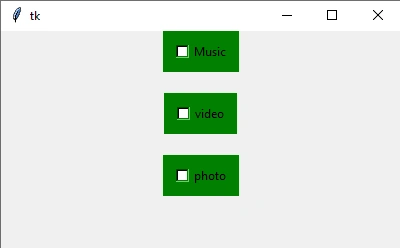
-
fg - The fg is used to change the normal foreground (text) color.
-
font - The font is used to change the text font to be used for the button's label.
-
height - The height is used to change the height of the button in text lines (ftext buttons) or pixels (images).
-
width- The width is used to change the width of the button in letters.
-
highlight color - The highlight color is used to change the color of the focus highlight when the widget has focus.
-
image - Image keyword is used to be displayed on the button.
Program
- from tkinter import *
- import tkinter.messagebox
- a= Tk()
- a.geometry("400x400")
- def music():
- tkinter.messagebox.showinfo(title="music",message="you select music")
- C1 = Checkbutton(a, text ="music",fg="red",bg="green",font="Castellar",height=5,width=5,\
- relief="solid",command = music)
- C1.pack()
- a.mainloop()
Output
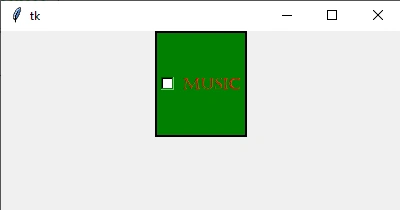
-
Justify - The justify is used to change the arrangement order LEFT, CENTER, RIGHT.
-
Padx - The padx is used to change the additional padding left and right of the text.
-
Pady - The pady is used to changing the additional padding above and below the text.
-
Relief - Relief is used to specify the type of the border. The values are SUNKEN, RAISED, GROOVE, and RIDGE.
-
State - The state is used to set this option to DISABLED to gray out the button and make it unresponsive.
-
Underline - The underline is used to change the corresponding text character and will be underlined.
Program
- from tkinter import *
- import tkinter.messagebox
- a= Tk()
- a.geometry("400x400")
- def music():
- tkinter.messagebox.showinfo(title="music",message="you select music")
- C1 = Checkbutton(a, text ="music",state=DISABLED,justify=RIGHT,padx=10,pady=10\
- ,relief="solid",command = music)
- C1.pack()
- a.mainloop()
Output
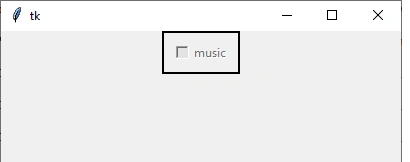
Conclusion
In this article, we have seen how to use a checkbox in tkinter in Python. I hope this article was useful to you. Thanks for reading!
Join the conversation! Your thoughts help the community grow.