

Introduction
In this article, I will explain how to create a Bootstrap Carousel in ReactJS. Carousel is a slideshow for cycling a series of images or videos. A carousel rotates the images horizontally or vertically with some effect.
Prerequisites
- Basic knowledge of React.js
- Visual Studio Code
- Node and NPM installed
- Bootstrap
Create ReactJS project
Let's first create a React application using the following command.
- npx create-react-app firsttutorial
- npm install react-bootstrap bootstrap
- import 'bootstrap/dist/css/bootstrap.min.css';
Now, right-click on the public folder. Add a new folder 'assets' and under it add a new folder and rename that to 'img' and add some demo images to this folder
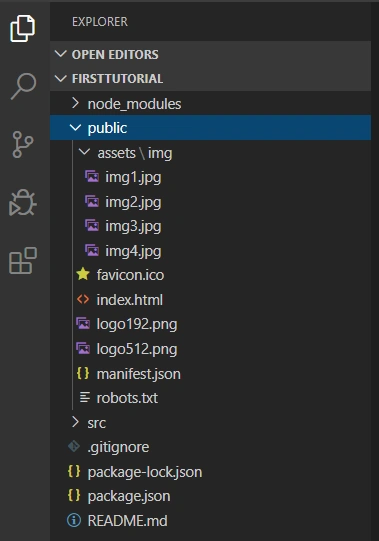
Now go to src folder and create a new component 'BootstrapCarousel .js' and add the following reference in this component
- import Carousel from 'react-bootstrap/Carousel'
Add the following code in this component:
- import React, { Component } from 'react'
- import Carousel from 'react-bootstrap/Carousel'
- export class BootstrapCarousel extends Component {
- render() {
- return (
- <div>
- <div class='container-fluid' >
- <div className="row title" style={{ marginBottom: "20px" }} >
- <div class="col-sm-12 btn btn-warning">
- How To Use Bootstrap Carousel In ReactJS
- </div>
- </div>
- </div>
- <div className='container-fluid' >
- <Carousel>
- <Carousel.Item style={{'height':"300px"}} >
- <img style={{'height':"300px"}}
- className="d-block w-100"
- src={'assets/img/img2.jpg'} />
- <Carousel.Caption>
- <h3>First Demo </h3>
- </Carousel.Caption>
- </Carousel.Item >
- <Carousel.Item style={{'height':"300px"}}>
- <img style={{'height':"300px"}}
- className="d-block w-100"
- src={'assets/img/img1.jpg'} />
- <Carousel.Caption>
- <h3>Second Demo</h3>
- </Carousel.Caption>
- </Carousel.Item>
- <Carousel.Item style={{'height':"300px"}}>
- <img style={{'height':"300px"}}
- className="d-block w-100"
- src={'assets/img/img3.jpg'} />
- <Carousel.Caption>
- <h3>Third Demo</h3>
- </Carousel.Caption>
- </Carousel.Item>
- </Carousel>
- </div>
- </div>
- )
- }
- }
- export default BootstrapCarousel
- import React from 'react';
- import logo from './logo.svg';
- import './App.css';
- import BootstrapCarousel from './BootstrapCarousel'
- function App() {
- return (
- <div className="App">
- <BootstrapCarousel></BootstrapCarousel>
- </div>
- );
- }
- export default App;
Now run the project by using 'npm start' and check the result:
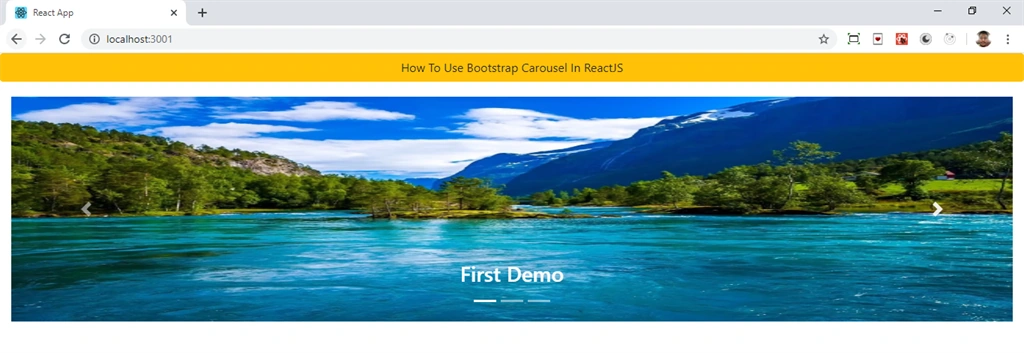
We can also pause slider on mouse hover and set time intervals. Let's create a component 'BootstrapCarouselDemo.js' and add the following reference in this component.
- import React, { Component } from 'react'
- export class BootstrapCarouselDemo extends Component {
- render() {
- return (
- <div>
- <div class='container-fluid' >
- <div className="row title" style={{ marginBottom: "20px" }} >
- <div class="col-sm-12 btn btn-warning">
- How To Use Bootstrap Carousel In ReactJS
- </div>
- </div>
- </div>
- <div className='container-fluid' >
- <Carousel interval={600} keyboard={false} pauseOnHover={true}>
- <Carousel.Item style={{'height':"300px"}} >
- <img style={{'height':"300px"}}
- className="d-block w-100"
- src={'assets/img/img2.jpg'} />
- <Carousel.Caption>
- <h3>First Demo </h3>
- </Carousel.Caption>
- </Carousel.Item >
- <Carousel.Item style={{'height':"300px"}}>
- <img style={{'height':"300px"}}
- className="d-block w-100"
- src={'assets/img/img1.jpg'} />
- <Carousel.Caption>
- <h3>Second Demo</h3>
- </Carousel.Caption>
- </Carousel.Item>
- <Carousel.Item style={{'height':"300px"}}>
- <img style={{'height':"300px"}}
- className="d-block w-100"
- src={'assets/img/img3.jpg'} />
- <Carousel.Caption>
- <h3>Third Demo</h3>
- </Carousel.Caption>
- </Carousel.Item>
- </Carousel>
- </div>
- </div>
- )
- }
- }
- export default BootstrapCarouselDemo
Now open app.js file and add the following code:
- import React from 'react';
- import logo from './logo.svg';
- import './App.css';
- import BootstrapCarouselDemo from './BootstrapCarouselDemo'
- function App() {
- return (
- <div className="App">
- <BootstrapCarouselDemo></BootstrapCarouselDemo>
- </div>
- );
- }
- export default App;
Now run the project using 'npm start' and check your results.
Summary
In this article, we learned how to implement Bootstrap Carousel in a ReactJS application.
Join the conversation! Your thoughts help the community grow.