

Introduction
In this article, I will explain how to create a Bootstrap Carousel in Angular 8. Carousel is a slideshow for cycling a series of images or videos. A carousel rotates the images horizontally or vertically with some effect.
Prerequisites
- Knowledge of Angular 2 or higher
- Visual Studio Code
- Node and NPM installed
- Bootstrap
Step 1
Create an Angular project by using the following command.
ng new Bootstrapcarousel

Step 2
Open this project in Visual Studio Code.
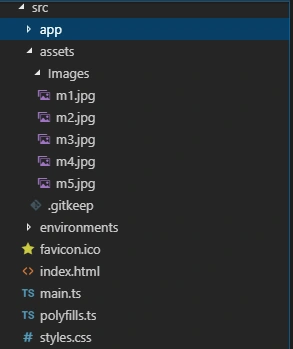
Expand the src folder and right-click on the Assets folder. Add a new folder under it and rename that to 'Images' and add some demo images to this folder.
Step 3
Now, install Bootstrap by using the following command.
- npm install --save @ng-bootstrap/ng-bootstrap
Step 4
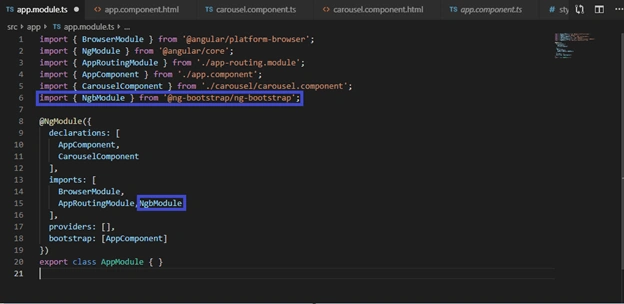
Configure NgbModule in app.module.ts file. Let's import the required module in this file.
- import { BrowserModule } from '@angular/platform-browser';
- import { NgModule } from '@angular/core';
- import { AppRoutingModule } from './app-routing.module';
- import { AppComponent } from './app.component';
- import { CarouselComponent } from './carousel/carousel.component';
- import { NgbModule } from '@ng-bootstrap/ng-bootstrap';
- @NgModule({
- declarations: [
- AppComponent,
- CarouselComponent
- ],
- imports: [
- BrowserModule,
- AppRoutingModule,NgbModule
- ],
- providers: [],
- bootstrap: [AppComponent]
- })
- export class AppModule { }
Step 5
Now create a new component by using the following command.
ng g c Carousel
Step 6
Add the following code into carousel.component.ts file.
- import { Component, OnInit } from '@angular/core';
- import { NgbCarouselConfig } from '@ng-bootstrap/ng-bootstrap';
- @Component({
- selector: 'app-carousel',
- templateUrl: './carousel.component.html',
- styleUrls: ['./carousel.component.css']
- })
- export class CarouselComponent implements OnInit {
- constructor(config: NgbCarouselConfig) {
- config.interval = 2000;
- config.wrap = true;
- config.keyboard = false;
- config.pauseOnHover = false;
- }
- ngOnInit() {
- }
- }
Step 7
Add the following HTML code in carousel.component.html file.
- <div class='container-fluid'>
- <div class="row" style="padding: 20px;">
- <div class="col-sm-12 btn btn-success">
- Use Bootstrap carousel in Angular 8 Project
- </div>
- </div>
- <div class='col-12'>
- <ngb-carousel>
- <ng-template ngbSlide>
- <img src="../assets/Images/m2.jpg" alt="Delhi Metro">
- <div class="carousel-caption">
- <h3 style="color: yellow">Delhi Metro</h3>
- </div>
- </ng-template>
- <ng-template ngbSlide>
- <img src="../assets/Images/m1.jpg" alt="Bangalore Metro">
- <div class="carousel-caption">
- <h3 style="color: yellow">Bangalore Metro</h3>
- </div>
- </ng-template>
- <ng-template ngbSlide>
- <img src="../assets/Images/m4.jpg" alt="Channai Metro">
- <div class="carousel-caption">
- <h3 style="color: yellow">Channai Metro</h3>
- </div>
- </ng-template>
- <ng-template ngbSlide>
- <img src="../assets/Images/m5.jpg" alt="Jaipur Metro">
- <div class="carousel-caption">
- <h3 style="color: yellow">Jaipur Metro</h3>
- </div>
- </ng-template>
- <ng-template ngbSlide>
- <img src="../assets/Images/m3.jpg" alt="Mumbai Metro">
- <div class="carousel-caption">
- <h3 style="color: yellow">Mumbai Metro</h3>
- </div>
- </ng-template>
- </ngb-carousel>
- </div>
- </div>
Step 8
Open app.component.html and add the following code
- <app-carousel></app-carousel>
Step 9
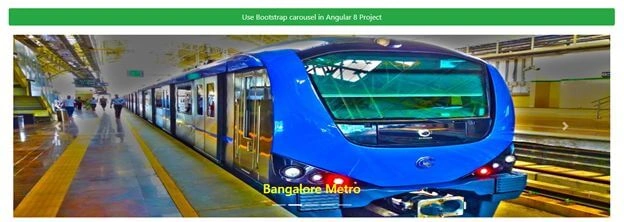
Now, run the project and check the result.
Summary
In this article, we learned how to implement Bootstrap Carousel in an Angular 8 project.
bishoe nbPosted Jan 10, 2020, 6:35 AM
Thank you ..
Vadim OrlobPosted Sep 4, 2019, 11:29 AM
I learned may from you
muji mujiiPosted Aug 18, 2019, 3:23 PM
The images are showing vertically