

Introduction
In this article, we are going to learn how to set up an Angular 2 development environment in Visual Studio and run the project by pressing ctr+F5. We don’t need to run the project from Command Prompt.
Step 1
Install node.js and npm. Both can be done with a single file installation.
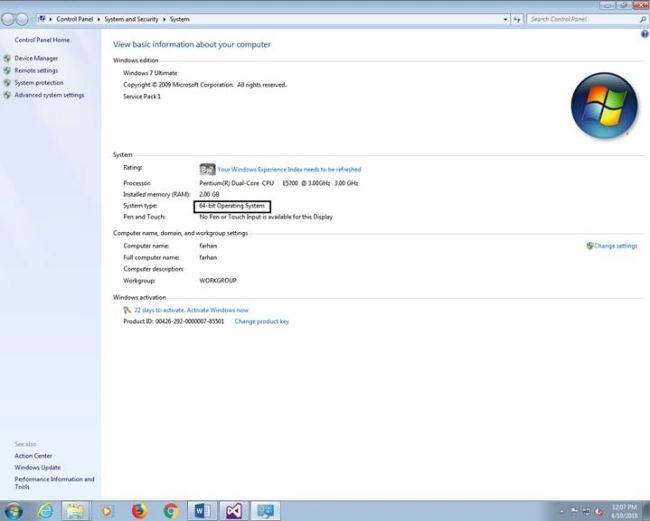
Download and install node from this link: https://nodejs.org/en/download/ based on your Windows version. Right-click on "My Computer" >> select Property >> check the bit of operating system.
Step 2
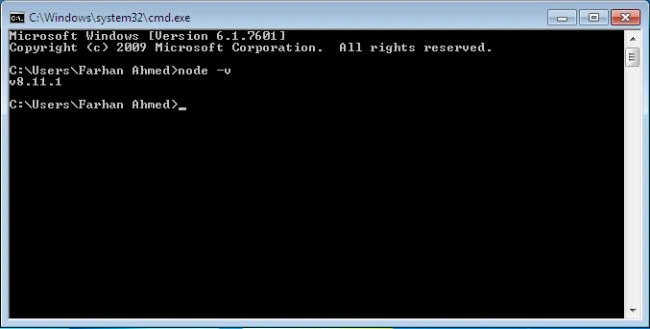
Check the version of node installed. For that, open command prompt by pressing Windows+ R key and typing cmd. The command prompt will open; type node -v and hit Enter.
Step 3
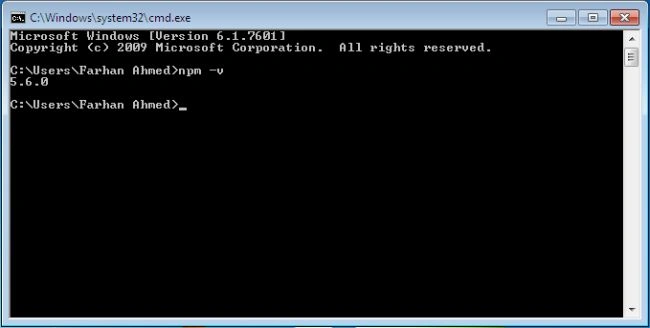
Check the version of npm installed. For that, open the command prompt and type npm -v followed by hitting the Enter key.
Step 4
Install Microsoft Visual Studio 2015 update 3 from http://download.microsoft.com/download/b/e/d/bedddfc4-55f4-4748-90a8-ffe38a40e89f/vs2015.3.com_enu.iso
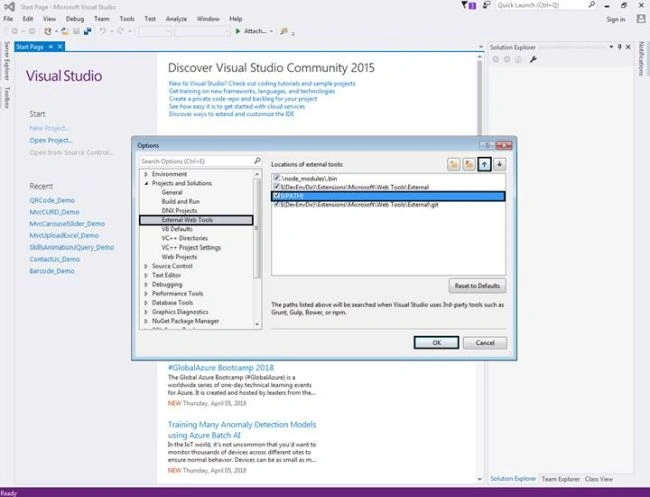
After installation of VS 2015 update 3, open it and click on Tools >> Options.
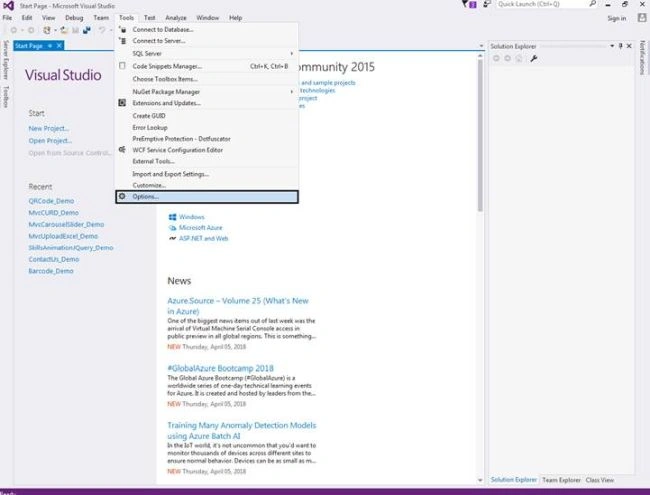
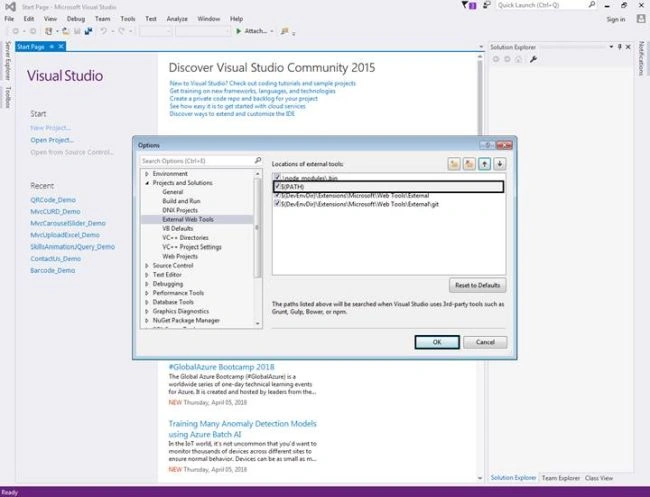
Open the project and solution, go to External Web Tools, move $(PATH) on the second position by clicking on the up arrow. This tells Visual Studio to look for an external tool like npm globally, before other external tools.
Step 5
Install TypeScript for Visual Studio 2015 from https://www.microsoft.com/en-us/download/details.aspx?id=48593
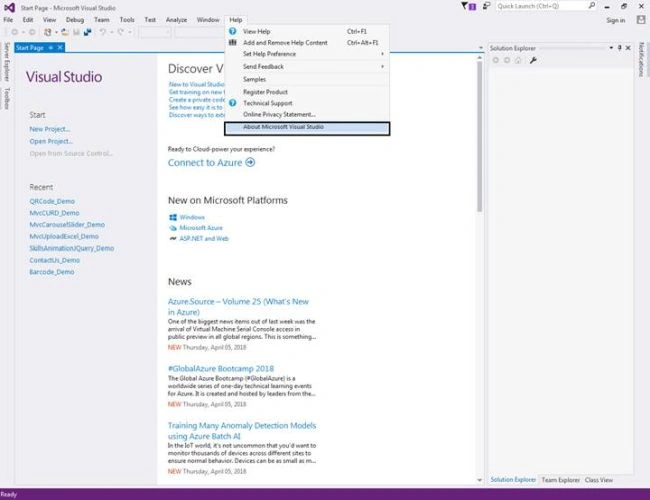
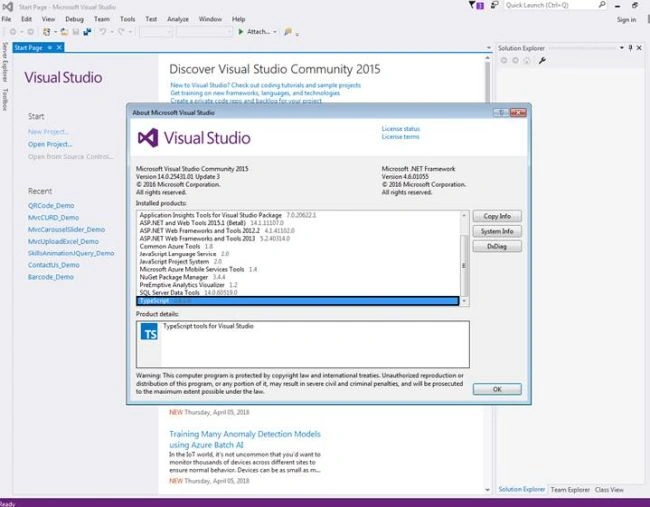
For developing Angular 2 applications, we need TypeScript 2.2.0 or later version. To verify TypeScript version, open Visual Studio, click on Help >> About Microsoft Visual Studio and check TypeScript.
Step 6
Create Empty ASP.NET Web Application project.
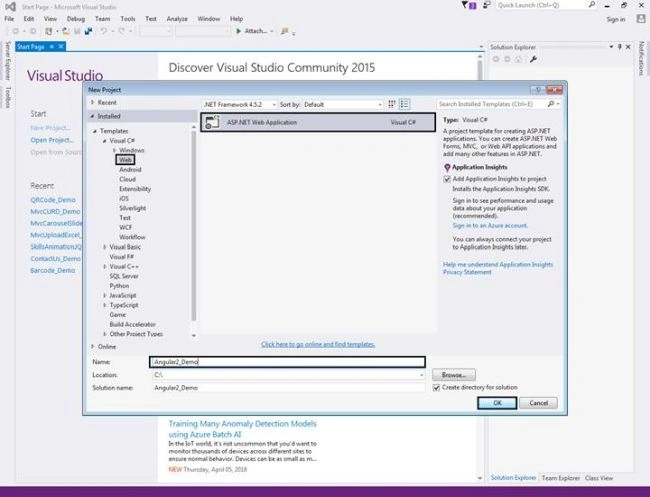
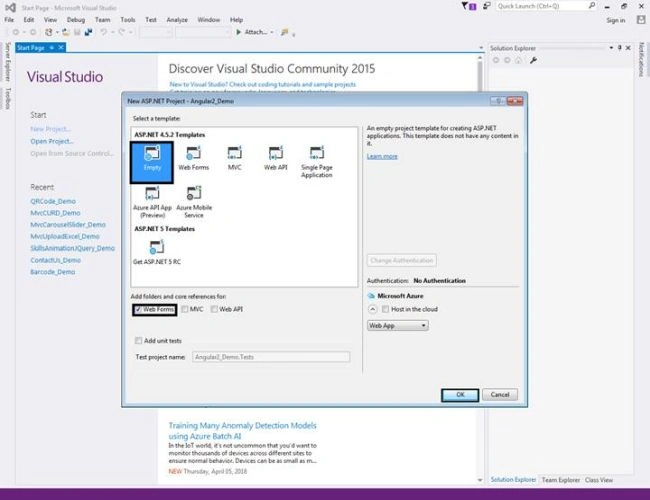
Step 7
Download the "Quick Start Files" from the Angular web site.
https://github.com/angular/quickstart
Step 8
Copy the required "Starter files" to the web application project.
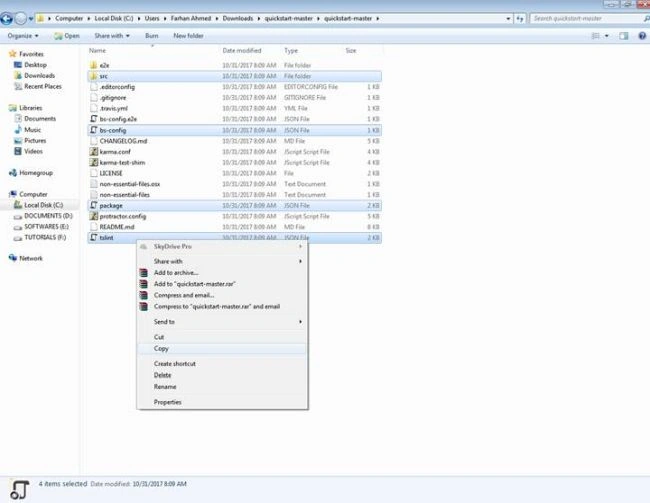
Step 9
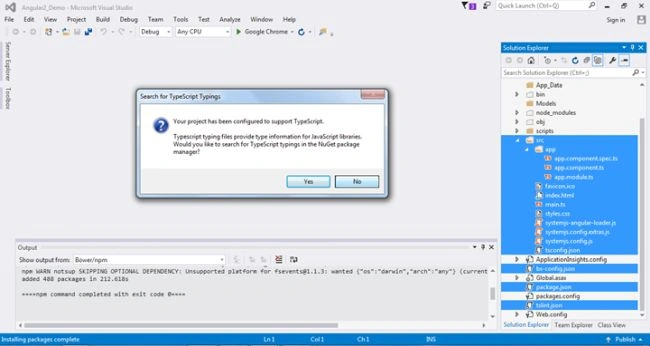
Restore the required packages.
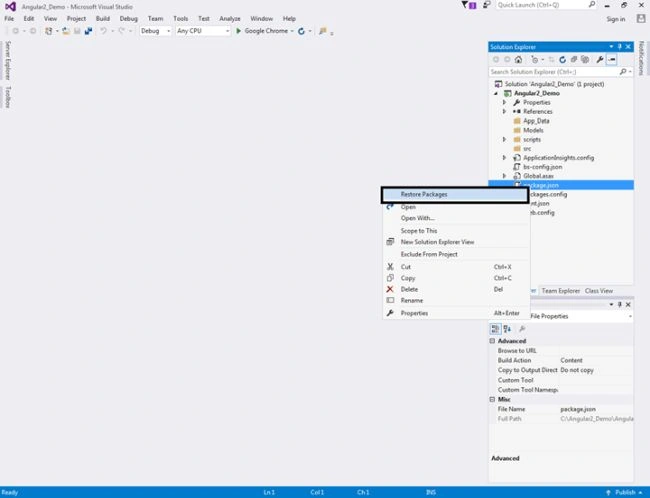
- In the "Solution Explorer" right click on "package.json" file and select "Restore Packages" from the context menu.
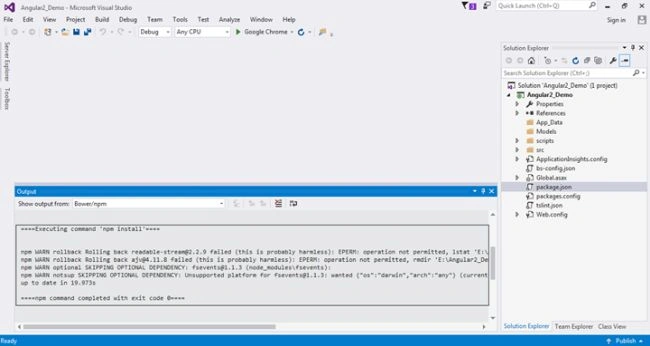
- This takes a few minutes to load all the modules. You can see the status in "Visual Studio Output" window.
- After the restoration is complete, you will see a message "Installing Packages Complete". To see all the installed node modules, click on "Show all Files" icon in Solution Explorer.
- DO NOT include "node modules" folder in the project.
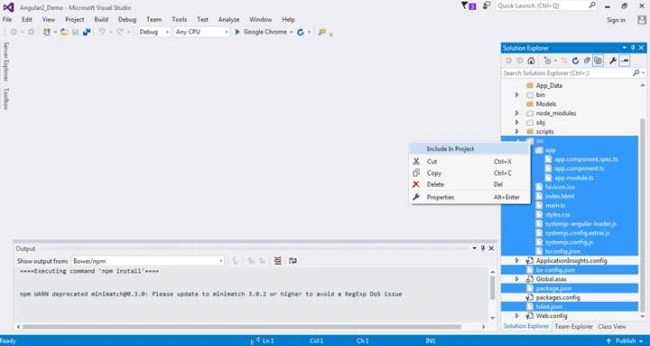
Step 10
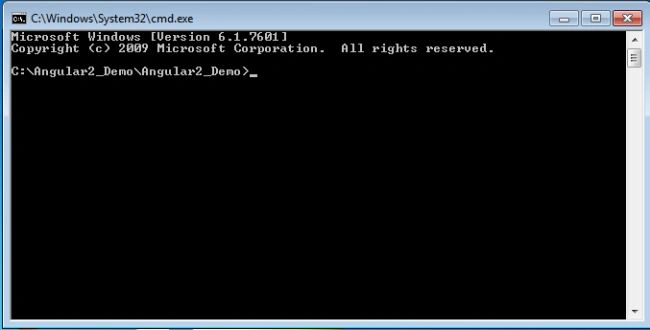
- Run the project in the "RUN" window, type "cmd" and press Enter. Change the directory in the command prompt to the directory where you have the web application project.
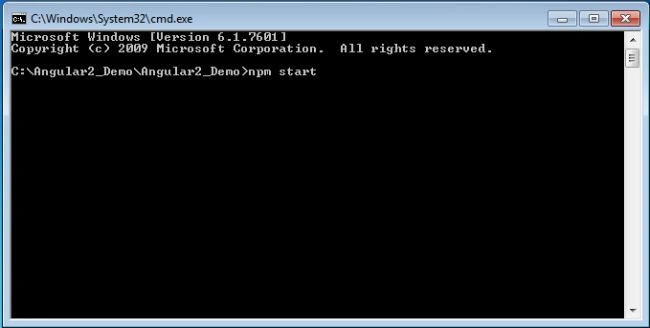
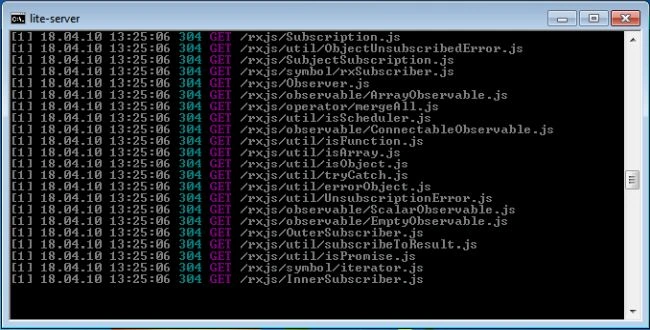
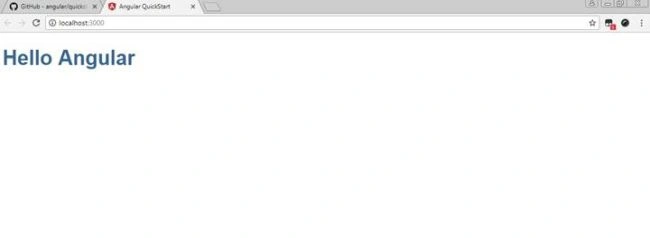
- Type "npm start" and press "Enter" key. This launches the TypeScript Compiler (tsc) which compiles the application and waits for changes. It also starts the lite-server and launches the browser where you will see the output - Hello Angular.
- At this point, open "app.component.ts" file from "Solution Explorer". This file is present in "app" folder in "src" folder. Change the "name" value from "Angular" to "Angular 2!" and you will see the changes reflected on the web page automatically.
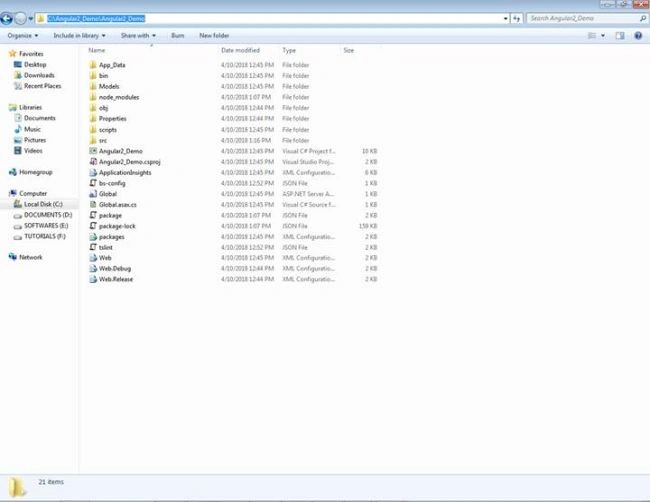
- You can also run it by opening the project location and typing cmd on location bar and pressing enter. It will open directly in the command prompt.
Step 11
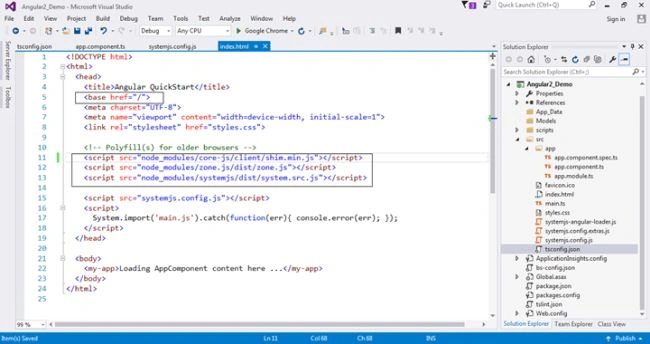
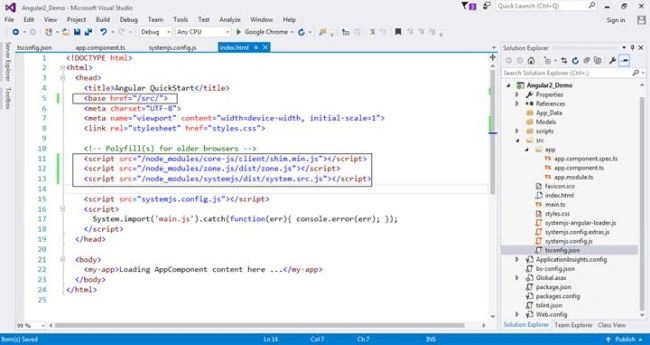
At the moment, if we run the application from Visual Studio, using F5 or CTRL+F5, we get the message "Loading AppComponent content here ..." but nothing happens beyond that. To be able to run the application using F5 or CTRL+F5, we need to make the following changes. Open index.htm file under source, make some changes as below for running as ctr+F5.
index.html file, change [base href="/"] to [base href="/src/"]
CHANGE
- [script src="node_modules/core-js/client/shim.min.js"][/script]
- [script src="node_modules/zone.js/dist/zone.js"][/script]
- [script src="node_modules/systemjs/dist/system.src.js"][/script]
TO
- [script src="/node_modules/core-js/client/shim.min.js"][/script]
- [script src="/node_modules/zone.js/dist/zone.js"][/script]
- [script src="/node_modules/systemjs/dist/system.src.js"][/script]
Step 12
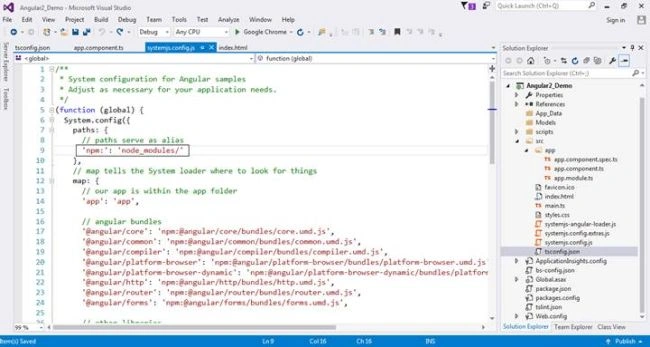
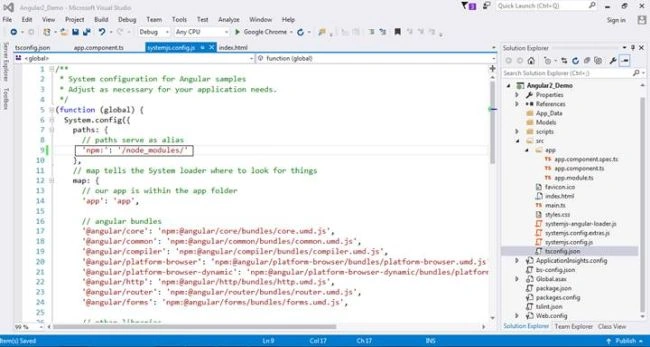
Open systemjs.config.js file makes changes as below. Also, in systemjs.config.js file, CHANGE 'npm:': 'node_modules/' TO 'npm:': '/node_modules/'
Step 13
Open tslint.json file to make changes.
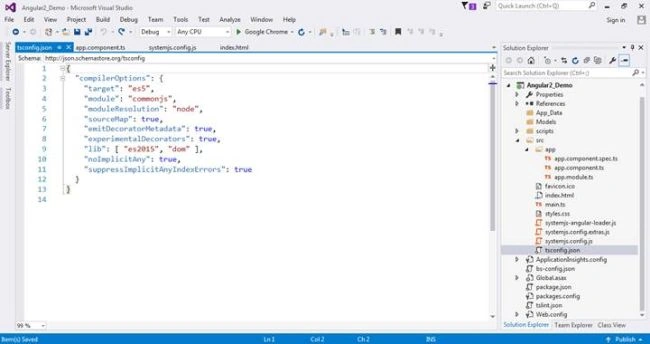
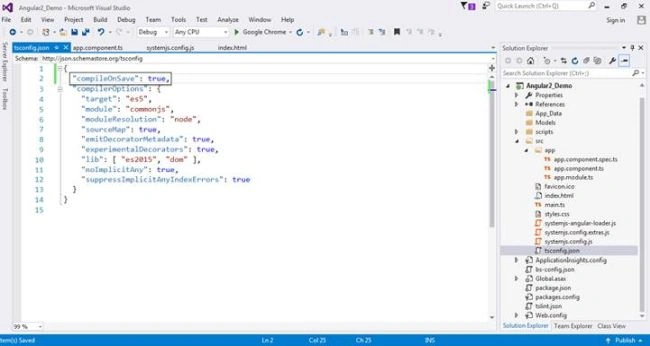
Step 14
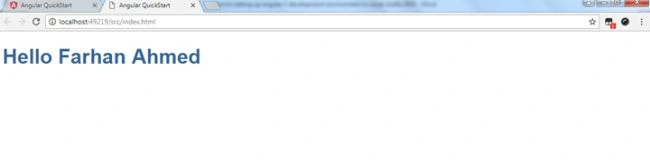
Build the project and run the project by pressing ctr+F5.
Final output
C# CornerPosted Apr 15, 2018, 9:57 AM
This is great, very well explained step-by-step. Thanks Farhan
Tridip BhattacharjeePosted Apr 13, 2018, 3:15 AM
Thanks for very nice and detail article.
Mahesh VermaPosted Apr 12, 2018, 3:42 AM
Nice article, great explanation.......
Arvind SinghPosted Apr 11, 2018, 11:19 PM
Very nice article Farhan, nice explanation...