

Hello developers! 👋
Today, I’ll show you a cool way to run JavaScript directly inside Power Automate Desktop (PAD) — no browsers, no external files — just using the built-in "Run JavaScript" action.
I stumbled upon this while watching a demo video where they used WScript.Echo() to pass data back into the flow. Honestly, it’s a pretty neat trick, especially if you’re coming from a JavaScript background like me.
Let’s break this down in a simple step-by-step format — just like how we desi devs love it! 😎
🎯 Use Case
Let’s say you want to:
- Create a small object with some properties
- Convert it to JSON format
- Pass it back to PAD for use in your flow
Sounds simple? Let’s do it!
🧱 Step-by-Step Guide
✅ Step 1. Open Power Automate Desktop & Add “Run JavaScript”
Open your PAD flow or create a new one, then:
- Search for Run JavaScript in the actions pane
- Drag it into your flow
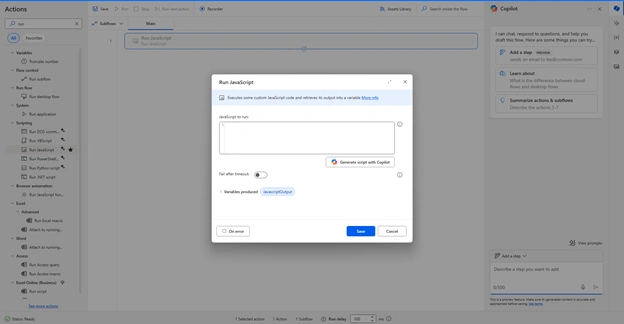
This action is under the Scripting category and runs JScript.NET, which is Microsoft’s flavor of JavaScript for desktop scripting.
✅ Step 2. Write JavaScript to Build and Output a JSON Object
Paste the following code in the script editor:
var now = new Date();

var year = now.getFullYear();
var month = now.getMonth() + 1; // Months are 0-based
var day = now.getDate();
var hour = now.getHours();
var minute = now.getMinutes();
var second = now.getSeconds();

// Format as yyyy-mm-dd hh:mm:ss
var formatted = year + "-" +
               (month < 10 ? "0" + month : month) + "-" +
               (day < 10 ? "0" + day : day) + " " +
               (hour < 10 ? "0" + hour : hour) + ":" +
               (minute < 10 ? "0" + minute : minute) + ":" +
               (second < 10 ? "0" + second : second);

WScript.Echo(formatted);
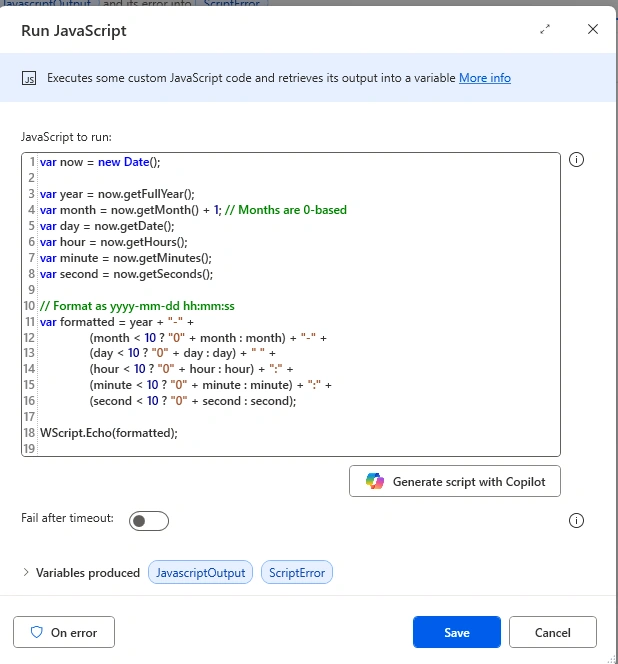
💡 Important: WScript.Echo() is how you return a value back into PAD from JavaScript.
✅ Step 3. Capture the Output in a PAD Variable
When you run this action, the result (i.e., the JSON string) is saved in a variable like %JavaScriptOutput%.
You can rename it to something like %docJson% for clarity.
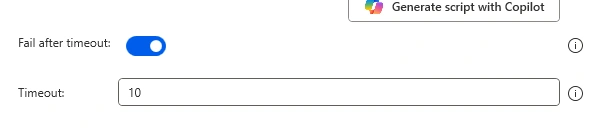
And enable Fail after timeout for safer side,
✅ Step 4. Use the Result in Your Flow
You can now:
- Display it using a Display Message action
- Parse it using Convert from JSON
- Save it to a file using Write Text to File
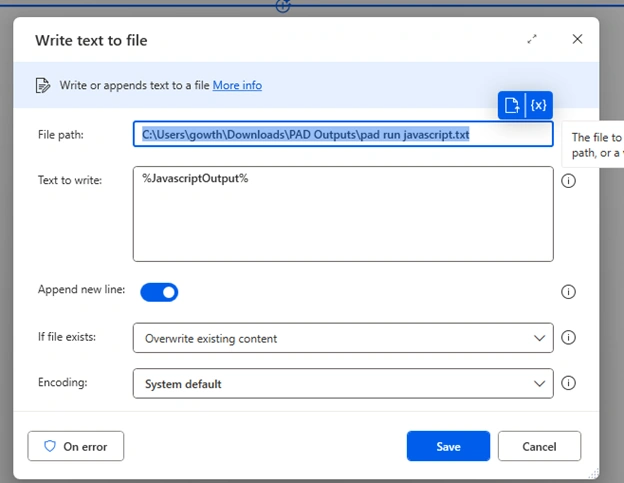
Example (Write to File):
Write text to file
- File path: C:\Users\gowth\Downloads\PAD Outputs\pad run javascript.txt
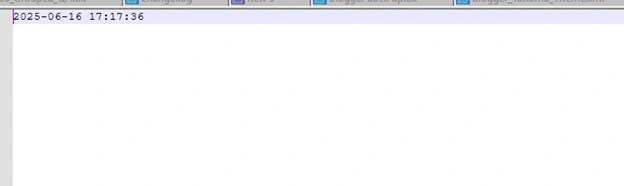
- Text to write: %JavaScriptOutput%.
Output
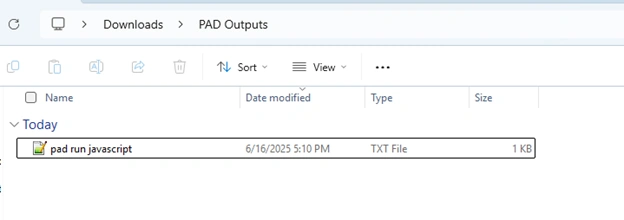
Open the file
💡 Why This Is Useful
This technique is super handy when:
- You need to do lightweight data transformations
- You prefer JS syntax over Power Automate expressions
- You want to quickly build data objects and pass them to other systems
It’s also faster and cleaner than calling PowerShell or saving files just to manipulate data.
⚠️ A Few Things to Keep in Mind
| Limitation | Notes |
|---|---|
| JScript.NET only | This is not modern browser JS (no DOM or window objects) |
| Basic JS support | Works with objects, arrays, math, etc. But no fancy ES6+ features |
| Output format | Always returned as a string via WScript.Echo() |
| Trailing line breaks | Sometimes there’s a \r\n, so trim it before parsing as JSON |
🧠 Pro Tip
You can combine this method with "Convert from JSON" in PAD to fully extract all properties into separate variables.
🎬 Quick Recap
- Use the Run JavaScript action to write JS logic inside PAD
- Create your object and convert it to JSON
- Use WScript.Echo() to return it
- Capture it and use it as needed!
💬 Conclusion
That’s it, folks! If you thought JavaScript was only for web development, think again. With this method, you can bring your JS skills directly into Power Automate Desktop automation.
Let me know if you’ve tried this or have other smart ways to use JavaScript in PAD. Comment below and let’s share the knowledge!
Happy automating! 🚀
Join the conversation! Your thoughts help the community grow.