

Introduction
Sometimes, we want a script to run automatically, like sending a reminder, checking something, or logging a message every few minutes. In this article, we’ll learn how to schedule a small Python script on AWS Lambda using CloudWatch Events step by step. No complex setup, just simple clicks and code.
Step 1. Create a Simple Python Script.
Let’s first create a small Python function that just prints a message.
def lambda_handler(event, context):
    print("Hello! This Lambda ran on a schedule.")
This function will be triggered by AWS on a schedule we set. For now, it just prints a message.
Step 2. Create a Lambda Function.
- Log in to your AWS account and go to AWS Lambda.
- Click on Create function.
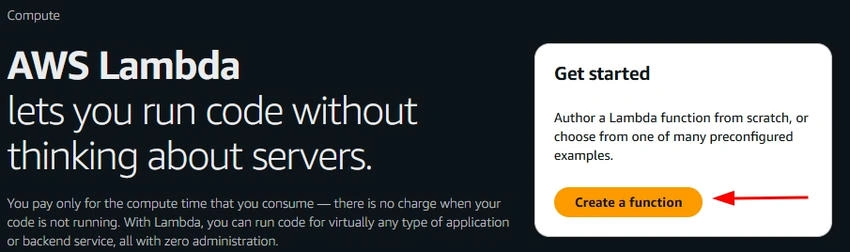
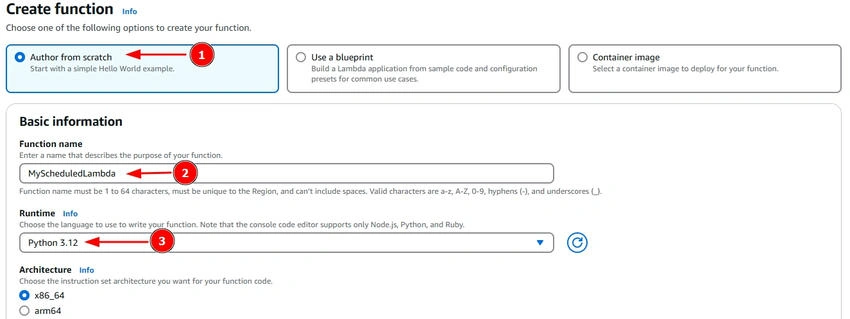
- Choose Author from scratch.
- Give your function a name like MyScheduledLambda.
- Choose Python 3.12 (or the latest Python version).
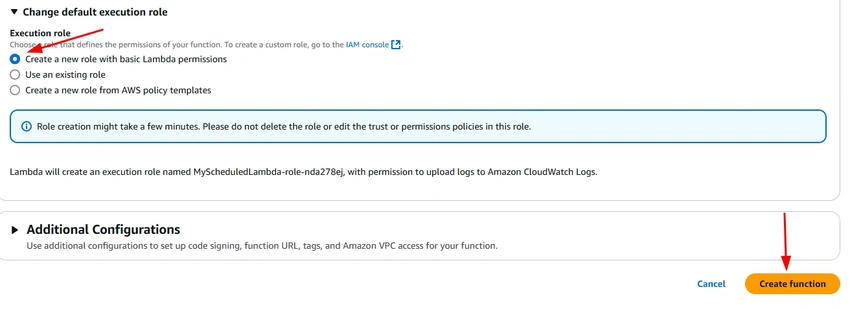
- For permissions, choose Create a new role with basic Lambda permissions.
- Click Create Function.
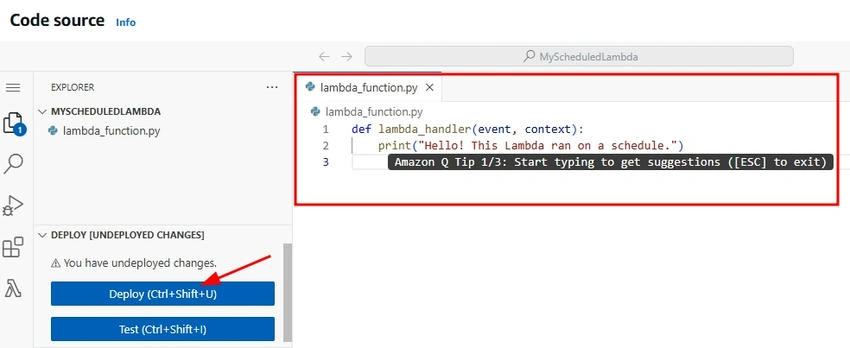
Now, scroll down to the Code Source section and replace the default code with our script.
def lambda_handler(event, context):
    print("Hello! This Lambda ran on a schedule.")
Click Deploy to save the changes.
Step 3. Test Your Lambda Function.
Before scheduling it, let’s make sure it works.
- Click the Test button.
- Create a new test event (just use the default settings).
- Click Test again.
You should see the output in the console area saying.
Hello! This Lambda ran on a schedule.

Step 4. Schedule It with CloudWatch Events.
Now, it’s time to make this function run automatically.
- Go to CloudWatch from the AWS Services menu.
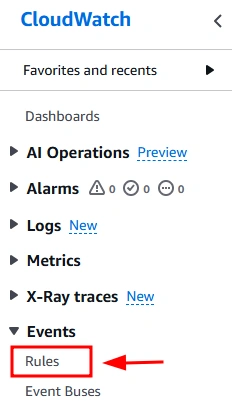
- In the left sidebar, click on Rules.
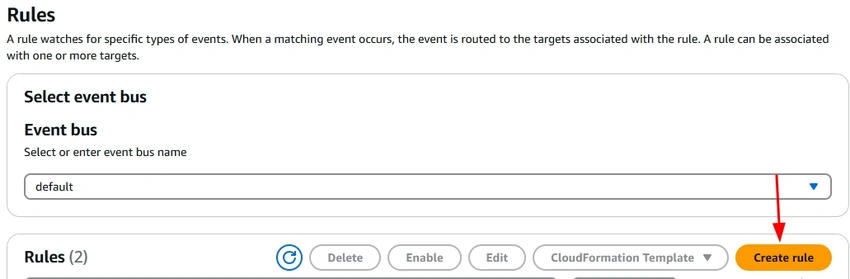
- Click Create Rule.
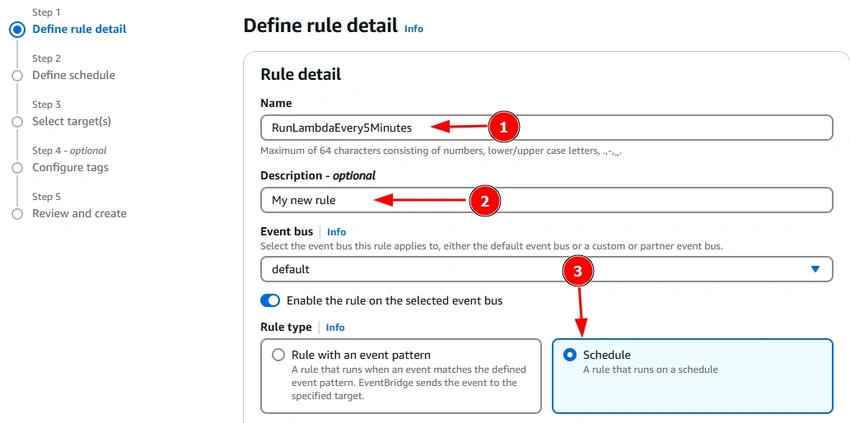
- Name your rule, like RunLambdaEvery5Minutes.
- Choose Schedule pattern – for example,
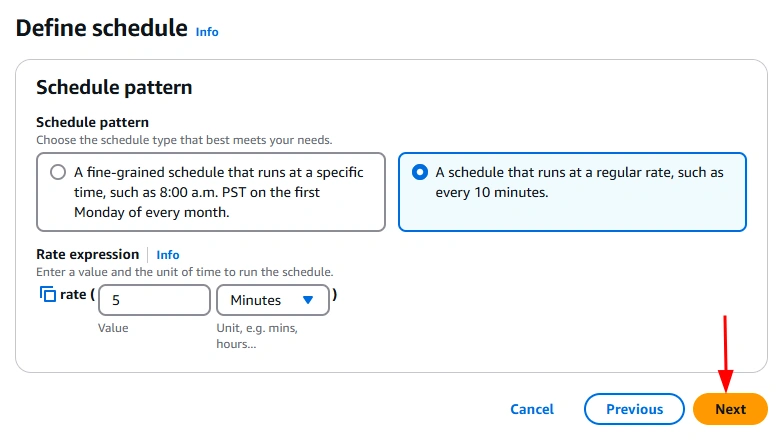
- rate(5 minutes) — to run every 5 minutes
- Or use cron if you prefer custom times
- In the Targets section
- Choose Lambda function
- Select the Lambda you created (MyScheduledLambda)
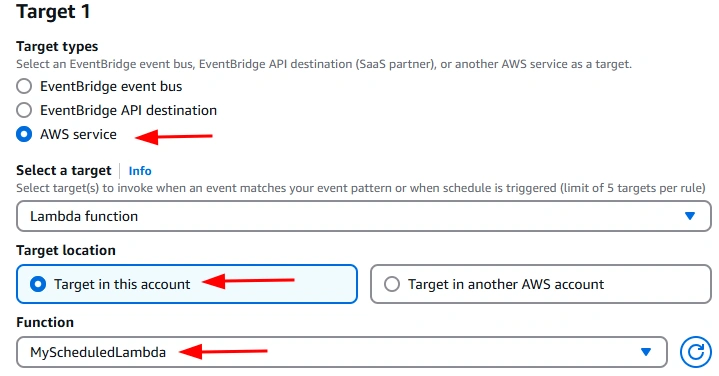
- Click Create Rule.
That’s it. Your Python script is now scheduled to run automatically every few minutes.
Step 5. Check If It’s Working.
After you’ve created the schedule, AWS will automatically trigger your Lambda function based on the time you set (like every 5 minutes).
To check if it actually ran, follow these steps.
Go to CloudWatch
In the AWS Console, type CloudWatch in the search bar and click on it.
Click on Logs
- In the left-hand menu of CloudWatch, click on Log groups.
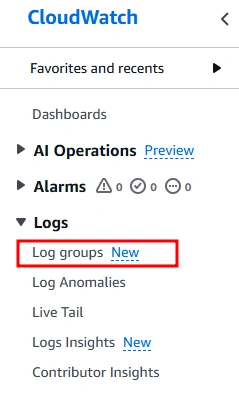
- You’ll see a list of log groups (these are like folders for logs).
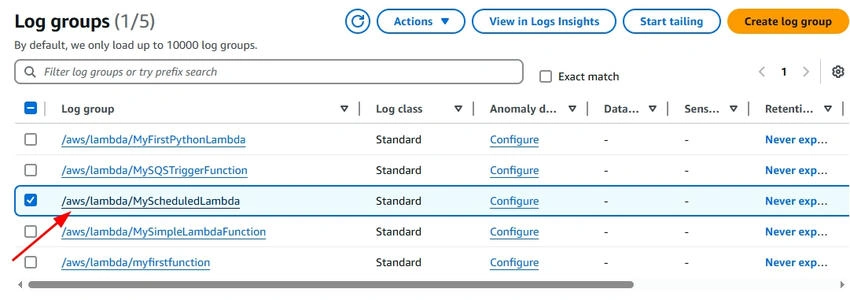
Find Your Lambda's Log Group
- Look for a log group named something like.
/aws/lambda/MyScheduledLambda - This name matches your Lambda function.
- Click on it.
Open the Most Recent Log Stream
- Inside the log group, you’ll see Log Streams (these are logs from each time your function ran).
- Click on the top (latest) log stream; it’s usually the most recent run.

Check the Log Messages
- Inside the log stream, you’ll see messages printed from your function.
- You should see something like this.
Hello! This Lambda ran on a schedule.
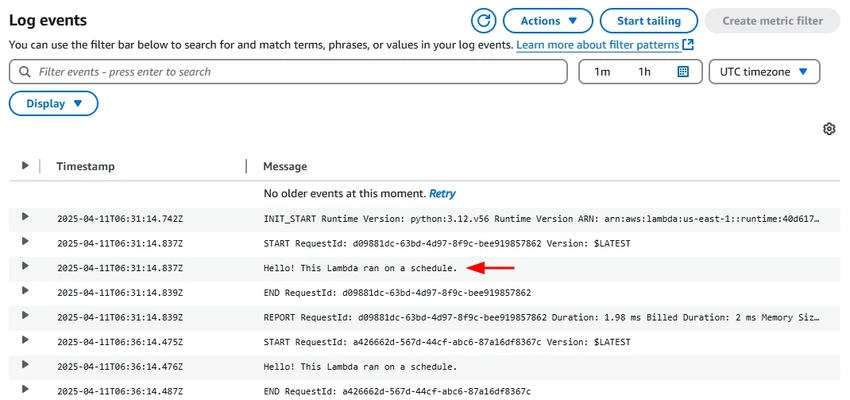
That means your Lambda function ran successfully at the scheduled time.
Conclusion
That’s it. You just created a Python script, set it up on AWS Lambda, and scheduled it to run on its own. This is a great way to automate small tasks without keeping your computer on. And the best part it’s all free if you’re using the AWS Free Tier.
Join the conversation! Your thoughts help the community grow.