

Here we all know the WPF Datagrid always comes with the extra column at the end, so multiple people are asking why the extra column is showing in the Datagrid, example: where the DB (Database) table or Model class contains 5 columns but after the source added the columns showing 6, without header.
Here, Datagrid is an XAML control in the WPF framework, where DataGrid cannot show the columns count on its own, so every time after passing the itemsource value it is showing by default columns with value. This extra column depends on the header it is mentioning and the width of the columns, which is nothing but the width distribution of DataGrid.
Below I will show you how to resolve this issue.
- Create WPF Application
- Add DataGridWindow.xaml item into the project.
- Add DataGrid control into the new item
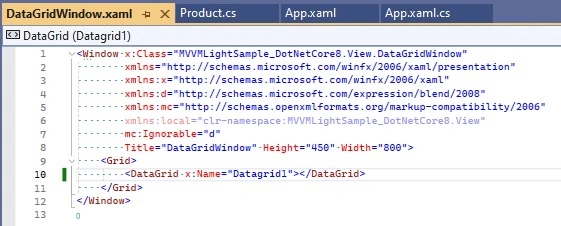
- Add the backend code for showing the data in DataGrid control
namespace MVVMLightSample_DotNetCore8.View { /// <summary> /// Interaction logic for DataGridWindow.xaml /// </summary> public partial class DataGridWindow : Window { public DataGridWindow() { InitializeComponent(); LoadData(); } private void LoadData() { List<Product> product = new List<Product>(); product.Add(new Product { ProductID = 1, ProductName = "Laptop", ProductDescription = "Dell Laptop", ProductPrice = 50000, ProductStock = 10 }); product.Add(new Product { ProductID = 2, ProductName = "Mobile", ProductDescription = "Samsung Mobile", ProductPrice = 20000, ProductStock = 20 }); product.Add(new Product { ProductID = 3, ProductName = "Tablet", ProductDescription = "Lenovo Tablet", ProductPrice = 15000, ProductStock = 30 }); product.Add(new Product { ProductID = 4, ProductName = "Desktop", ProductDescription = "HP Desktop", ProductPrice = 40000, ProductStock = 40 }); product.Add(new Product { ProductID = 5, ProductName = "Printer", ProductDescription = "Canon Printer", ProductPrice = 10000, ProductStock = 50 }); product.Add(new Product { ProductID = 6, ProductName = "Scanner", ProductDescription = "Epson Scanner", ProductPrice = 8000, ProductStock = 60 }); product.Add(new Product { ProductID = 7, ProductName = "Keyboard", ProductDescription = "Logitech Keyboard", ProductPrice = 500, ProductStock = 70 }); product.Add(new Product { ProductID = 8, ProductName = "Mouse", ProductDescription = "Dell Mouse", ProductPrice = 300, ProductStock = 80 }); Datagrid1.ItemsSource = product; } } } - Now Build the project and data will populate the DataGrid control, but still, the extra column is showing inside the DataGrid, yellow highlighted area.
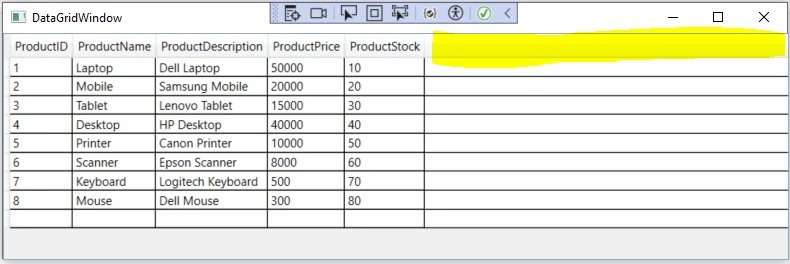
- Now the question is how to remove this extra column.
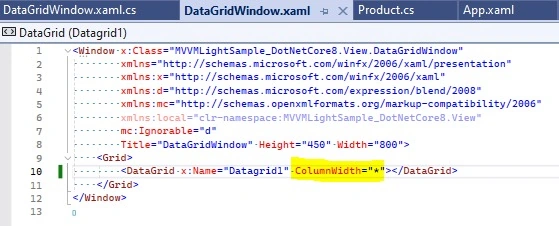
In Xaml code of the DataGridWindow.xaml, needs to add one small attribute which is "ColumnWidth="*" into DataGrid control.
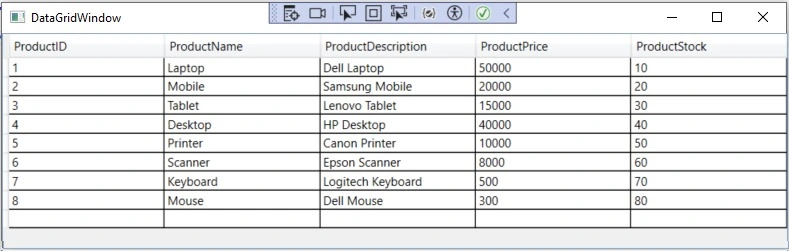
Now Rebuild the code and execute. The below window will show that the extra column has already been removed from DataGrid control and Data is fitted to the complete DataGrid.
Thank you
Join the conversation! Your thoughts help the community grow.