

Introduction
This article explains how to read an Excel file into a Data Set Using ASP.NET.
Step 1
First of all, open a new Excel Sheet and enter the information that you want to add.
Now start Visual Studio and create a Web Application.
Right-click on this application and add the Excel File to this application.
Step 2
Now you need to add a Drop Down List, a List Item, a Label, and a Grid View to your application.
- <asp:DropDownList ID="dropdown1" runat="server" OnSelectedIndexChanged="ddlSlno_SelectedIndexChanged"
- AutoPostBack="true" AppendDataBoundItems="True">
- <asp:ListItem Selected="True" Value="Choose">- Choose -</asp:ListItem>
- </asp:DropDownList>
- <asp:GridView ID="Grid1" runat="server">
- </asp:GridView>
- <asp:Label ID="lbl1" runat="server" />
Step 3
Now add this code in the selected index change of the drop-down list:
- GenerateExcelData(dropdown1.SelectedValue);
For the GenerateExcelData method you need to add this code:
- private void GenerateExcelData(string SlnoAbbreviation)
- {
- try
- {
- string read = System.IO.Path.GetFullPath(Server.MapPath("~/empdetail.xlsx"));
- if (Path.GetExtension(read) == ".xls")
- {
- x = new OleDbConnection("Provider=Microsoft.Jet.OLEDB.4.0;Data Source=" + read + ";Extended Properties=\"Excel 8.0;HDR=Yes;IMEX=2\"");
- }
- else if (Path.GetExtension(read) == ".xlsx")
- {
- x = new OleDbConnection(@"Provider=Microsoft.ACE.OLEDB.12.0;Data Source=" + read + ";Extended Properties='Excel 12.0;HDR=YES;IMEX=1;';");
- }
- x.Open();
- OleDbCommand y = new OleDbCommand();
- OleDbDataAdapter z = new OleDbDataAdapter();
- DataSet dset = new DataSet();
- y.Connection = x;
- y.CommandType = CommandType.Text;
- y.CommandText = "SELECT distinct([Slno]) FROM [Sheet1$]";
- z = new OleDbDataAdapter(y);
- z.Fill(dset, "Slno");
- dropdown1.DataSource = dset.Tables["Slno"].DefaultView;
- if (!IsPostBack)
- {
- dropdown1.DataTextField = "Slno";
- dropdown1.DataValueField = "Slno";
- dropdown1.DataBind();
- }
- if (!String.IsNullOrEmpty(SlnoAbbreviation) && SlnoAbbreviation != "Choose")
- {
- y.CommandText = "SELECT [Slno], [EmpName], [Salaray], [Location]" +
- " FROM [Sheet1$] where [Slno]= @Slno_Abbreviation";
- y.Parameters.AddWithValue("@Slno_Abbreviation", SlnoAbbreviation);
- }
- else
- {
- y.CommandText = "SELECT [Slno],[EmpName],[Salary],[Location] FROM [Sheet1$]";
- }
- z = new OleDbDataAdapter(y);
- z.Fill(dset);
- Grid1.DataSource = dset.Tables[1].DefaultView;
- Grid1.DataBind();
- }
- catch (Exception ex)
- {
- lbl1.Text = ex.ToString();
- }
- finally
- {
- x.Close();
- }
- }
This code will check both types of files to determine whether it's a .xls file or a .xlsx file.
After that I provided the connection for the Excel Sheet, in the starting it will show all the data but after that, it will fetch the data according to a Serial Number provided by you.
Step 4
Its complete code will be like this:
- using System;
- using System.Data.OleDb;
- using System.Data;
- using System.IO;
- namespace ReadExcelInToDataSet
- {
- public partial class Default : System.Web.UI.Page
- {
- OleDbConnection x;
- protected void Page_Load(object sender, EventArgs e)
- {
- if (!IsPostBack)
- {
- GenerateExcelData("Choose");
- }
- }
- protected void ddlSlno_SelectedIndexChanged(object sender, EventArgs e)
- {
- GenerateExcelData(dropdown1.SelectedValue);
- }
- private void GenerateExcelData(string SlnoAbbreviation)
- {
- try
- {
- string read = System.IO.Path.GetFullPath(Server.MapPath("~/empdetail.xlsx"));
- if (Path.GetExtension(read) == ".xls")
- {
- x = new OleDbConnection("Provider=Microsoft.Jet.OLEDB.4.0;Data Source=" + read + ";Extended Properties=\"Excel 8.0;HDR=Yes;IMEX=2\"");
- }
- else if (Path.GetExtension(read) == ".xlsx")
- {
- x = new OleDbConnection(@"Provider=Microsoft.ACE.OLEDB.12.0;Data Source=" + read + ";Extended Properties='Excel 12.0;HDR=YES;IMEX=1;';");
- }
- x.Open();
- OleDbCommand y = new OleDbCommand();
- OleDbDataAdapter z = new OleDbDataAdapter();
- DataSet dset = new DataSet();
- y.Connection = x;
- y.CommandType = CommandType.Text;
- y.CommandText = "SELECT distinct([Slno]) FROM [Sheet1$]";
- z = new OleDbDataAdapter(y);
- z.Fill(dset, "Slno");
- dropdown1.DataSource = dset.Tables["Slno"].DefaultView;
- if (!IsPostBack)
- {
- dropdown1.DataTextField = "Slno";
- dropdown1.DataValueField = "Slno";
- dropdown1.DataBind();
- }
- if (!String.IsNullOrEmpty(SlnoAbbreviation) && SlnoAbbreviation != "Choose")
- {
- y.CommandText = "SELECT [Slno], [EmpName], [Salaray], [Location]" +
- " FROM [Sheet1$] where [Slno]= @Slno_Abbreviation";
- y.Parameters.AddWithValue("@Slno_Abbreviation", SlnoAbbreviation);
- }
- else
- {
- y.CommandText = "SELECT [Slno],[EmpName],[Salary],[Location] FROM [Sheet1$]";
- }
- z = new OleDbDataAdapter(y);
- z.Fill(dset);
- Grid1.DataSource = dset.Tables[1].DefaultView;
- Grid1.DataBind();
- }
- catch (Exception ex)
- {
- lbl1.Text = ex.ToString();
- }
- finally
- {
- x.Close();
- }
- }
- }
- }
Output
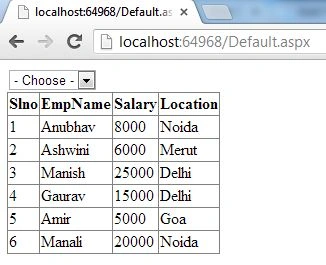
On page load, it will show all the data.
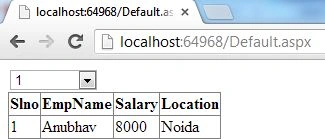
Now when we provide the specific Serial Number then it will show that data only.
Join the conversation! Your thoughts help the community grow.