

Introduction
When working with business or enterprise applications, printing PDF documents programmatically is a common requirement. Whether it’s invoices, reports, shipping labels, or company icons related to hiring, developers often need a reliable way to send PDFs directly to printers without user intervention. In .NET environments, handling PDF printing reliably usually requires third-party libraries. One such tool is IronPrint, a lightweight and developer-friendly library designed to make printing documents seamless in C#.
In this article, we’ll explore IronPrint, learn how it works, and see a complete example of how to print a PDF file in C#.
How to Print PDF in C# Using IronPrint?
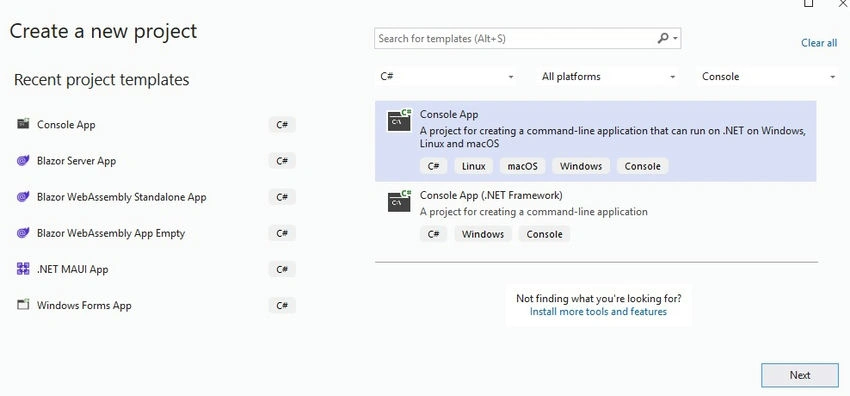
Create a new Console application Project using Visual Studio.
Install IronPrint Nugget using Nugget package manager
Print PDF files using the IronPrint library.
Printer Settings
Introduction to IronPrint
IronPrint .NET printing library developed by Iron Software. It provides a straightforward API for printing PDF files and images without needing Adobe Acrobat or any third-party print drivers installed. Some of its key features include.
Direct printing of PDF, images, and multi-page documents, and print multiple PDF files. Also, it allows printing PDF files programmatically.
Control over print settings like printer selection, duplex, paper size, and copies.
Ability to print silently (without showing dialogs) for automation scenarios.
Compatibility with .NET Framework, .NET Core, and .NET 7/8/9+ applications.
Why Microsoft Print Is Not Enough?
C# developers sometimes try to use Microsoft’s built-in printing APIs ( System.Drawing.Printing or PrintDocument ) to print PDFs. While these APIs work for text and graphics, they have significant limitations when it comes to direct PDF printing:
No native PDF support: The PrintDocument class cannot directly load and print PDFs. Developers often need extra workarounds, like rendering PDFs to images first.
External dependencies: You may need to install Adobe Reader or use Ghostscript to print PDFs, which introduces extra dependencies.
Limited control: Fine-grained features such as duplex printing, silent printing, or selecting custom paper sizes are difficult to implement.
Inconsistent results: Output may vary across different Windows environments, making it unreliable for enterprise use.
In short, while Microsoft’s print API works for simple scenarios, it doesn’t provide a professional, direct, and reliable solution for PDF printing. IronPrint is particularly useful for enterprise workflows where reports, invoices, or labels need to be printed automatically.
Step 1. Create a new Console application Project using Visual Studio.
Create a new Visual Studio project.
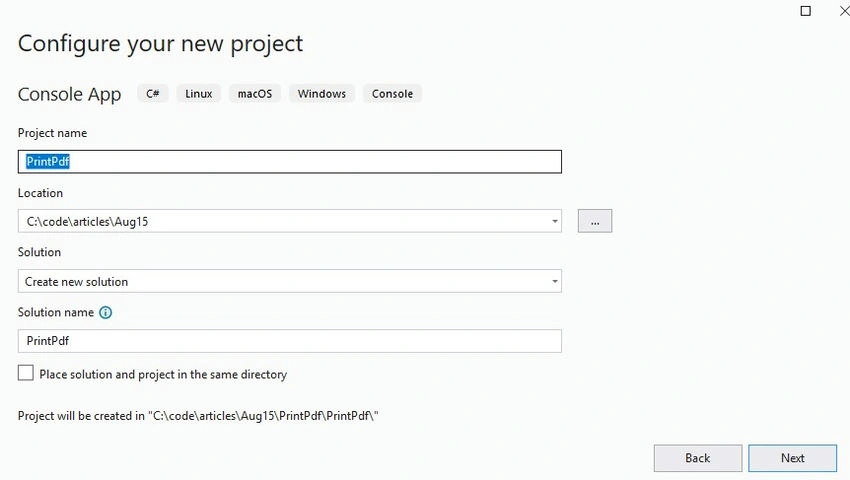
Provide project path and name.
Select the required .NET version and create a project.

Step 2. Install IronPrint Nugget using Nugget package manager
Install the IronPrint nugget from the NuGet package manager console. A sample PDF file can be created using the IronPDF library.
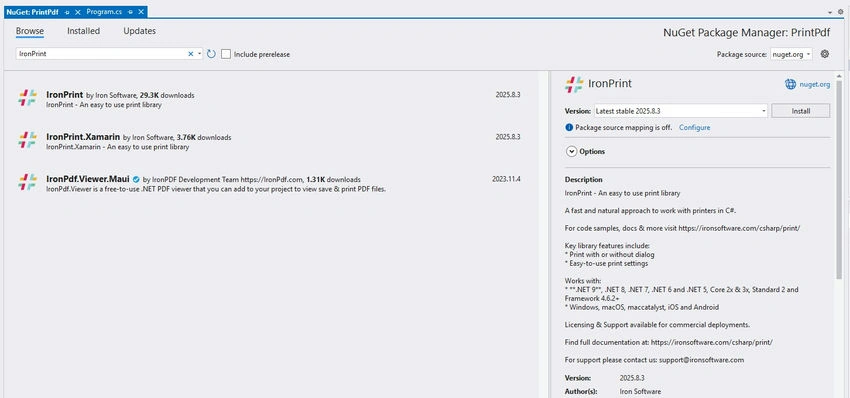
dotnet add package IronPrint --version 2025.8.3Step 3. Print PDF files using the IronPrint library.
To print the required document, we can use the below simple code example.
using IronPrint;

// Set license key
License.LicenseKey = "your key";

// Print PDF directly
Printer.Print("sample.pdf");

// OR

// Show print dialog using GUI
Printer.ShowPrintDialog("sample.pdf");
Code Explanation
using IronPrint: Imports the IronPrint namespace.
License.LicenseKey = "your key": Activates IronPrint with your license key.
Printer.Print("sample.pdf"): Prints the given PDF file using the default printer and default settings.
Or Printer.ShowPrintDialog("sample.pdf"): Prints the given PDF file using the default printer and default settings and opens a dialog before printing.
Output

Step 4. Printer Settings
Printer Settings in IronPrint play a crucial role in the printing process, as they provide control over various aspects, including print quality, paper handling, cost efficiency, printer selection, resolution, consistency, automation, and industry-specific requirements, ultimately ensuring precise, reliable, and professional printing in C# applications. Users can set page range, print specific pages, printing mode etc.
using IronPrint;

License.LicenseKey = "my Key";

// Configure print settings with advanced printing features
PrintSettings printSettings = new PrintSettings();
printSettings.Dpi = 150;                       // Set printer resolution
printSettings.NumberOfCopies = 2;
printSettings.PaperOrientation = PaperOrientation.Portrait;
printSettings.PrinterName = "My Printer Network Name"; // Specify printer name

// Print the PDF document directly
Printer.Print("sample.pdf", printSettings);
Code Explanation
using IronPrint: Imports the IronPrint namespace.
License.LicenseKey = "my Key": Activates IronPrint with your license key.
PrintSettings printSettings = new PrintSettings(): Creates a new object to define custom print options.
printSettings.Dpi = 150: Sets the print resolution to 150 DPI.
printSettings.NumberOfCopies = 2: Prints 2 copies of the document.
printSettings.PaperOrientation = PaperOrientation.Portrait: Prints pages in portrait orientation.
printSettings.PrinterName = "My Printer Network Name": Selects the specific printer by its network or system name.
Printer.Print("sample.pdf", printSettings): print method prints the sample.pdf file using the defined custom settings.
Output

IronPrint Licensing (Trial Available)
IronPrint requires a License to print documents and use all features. Developers can avail a trial license from here. Once you provide the email ID, the key will be delivered to you via email.
To use the key, just initialize it as shown below before the first use of the library.
License.LicenseKey = "my Key";Real-World Applications of IronPrint
IronPrint is used across industries to automate and streamline printing tasks in .NET applications. Its flexibility and silent printing capabilities make it ideal for both desktop and server-side environments.
1. Invoice and Receipt Printing
Businesses use IronPrint to print invoices, receipts, and order confirmations automatically.
E-commerce platforms generate and print receipts after transactions.
Accounting systems print monthly invoices in batch mode.
POS systems use IronPrint for real-time receipt generation.
2. Shipping Labels and Logistics
IronPrint is widely used in logistics and warehouse management.
Print shipping labels with barcodes and QR codes.
Generate packing slips and delivery notes.
Integrate with IronBarcode and IronPDF for end-to-end document creation and printing.
3. Healthcare and Medical Records
Hospitals and clinics use IronPrint for.
Printing patient records, prescriptions, and lab reports.
Silent printing of appointment summaries and billing documents.
Integration with EMR systems for secure document handling.
4. Education and Certification
Educational institutions rely on IronPrint to.
Print student transcripts, certificates, and ID cards.
Automate printing of exam results and attendance sheets.
Support cross-platform printing for desktop and mobile apps.
5. Government and Legal Systems
Government agencies and legal firms use IronPrint for.
Printing legal documents, affidavits, and case files.
Batch printing of forms and notices.
Secure and silent printing in restricted environments.
6. Image and QR Code Printing
Retail and marketing teams use IronPrint to.
Print promotional materials, posters, and product tags.
Generate and print QR codes for campaigns.
Combine IronQR and IronPDF for pixel-perfect output
Conclusion
IronPrint makes C# Print PDF functionality extremely straightforward. Unlike Microsoft’s built-in print APIs, which lack native PDF support and require external dependencies, IronPrint provides a direct, reliable, and professional-grade solution. IronPrint is a robust and developer-friendly solution for printing PDFs in C#. Whether you're building a desktop app or a backend service, IronPrint streamlines the process and gives you complete control over print jobs. With just a few lines of code, you can automate printing workflows and deliver polished output to users or hardware.
With just a few lines of code, you can implement advanced printing features such as silent printing, multiple copies, and duplex support. For any business-critical application that needs automated PDF printing, IronPrint is a tool worth considering.
Join the conversation! Your thoughts help the community grow.