

Introduction
Migrating SharePoint lists between sites can be time-consuming when you need to recreate columns, views, content types, and list items manually. A browser-based migration tool can simplify this process by allowing administrators and developers to export and import SharePoint list structures directly from the browser.
Microsoft SharePoint provides native options for moving and copying files between sites, while full cross-tenant SharePoint migrations have dedicated Microsoft 365 migration capabilities.
Why Migrate SharePoint Lists?
You may need to migrate lists when:
Moving a solution from Development to UAT or Production
Creating a duplicate SharePoint site
Moving applications between SharePoint sites
Migrating data between Microsoft 365 tenants
Creating a backup of list configuration
Reusing an existing list structure
Testing Power Apps and Power Automate solutions in another environment
Manually recreating a list can require rebuilding columns, views, formatting, lookup relationships, and data. A migration extension can reduce this effort.
What Can a Chrome Extension Do?
For example, SP X-Ray is available in the Chrome Web Store and provides SharePoint export/import functionality. It can export lists, site columns, content types, folders, and list items into a JSON file and then provide an import wizard for another SharePoint location.
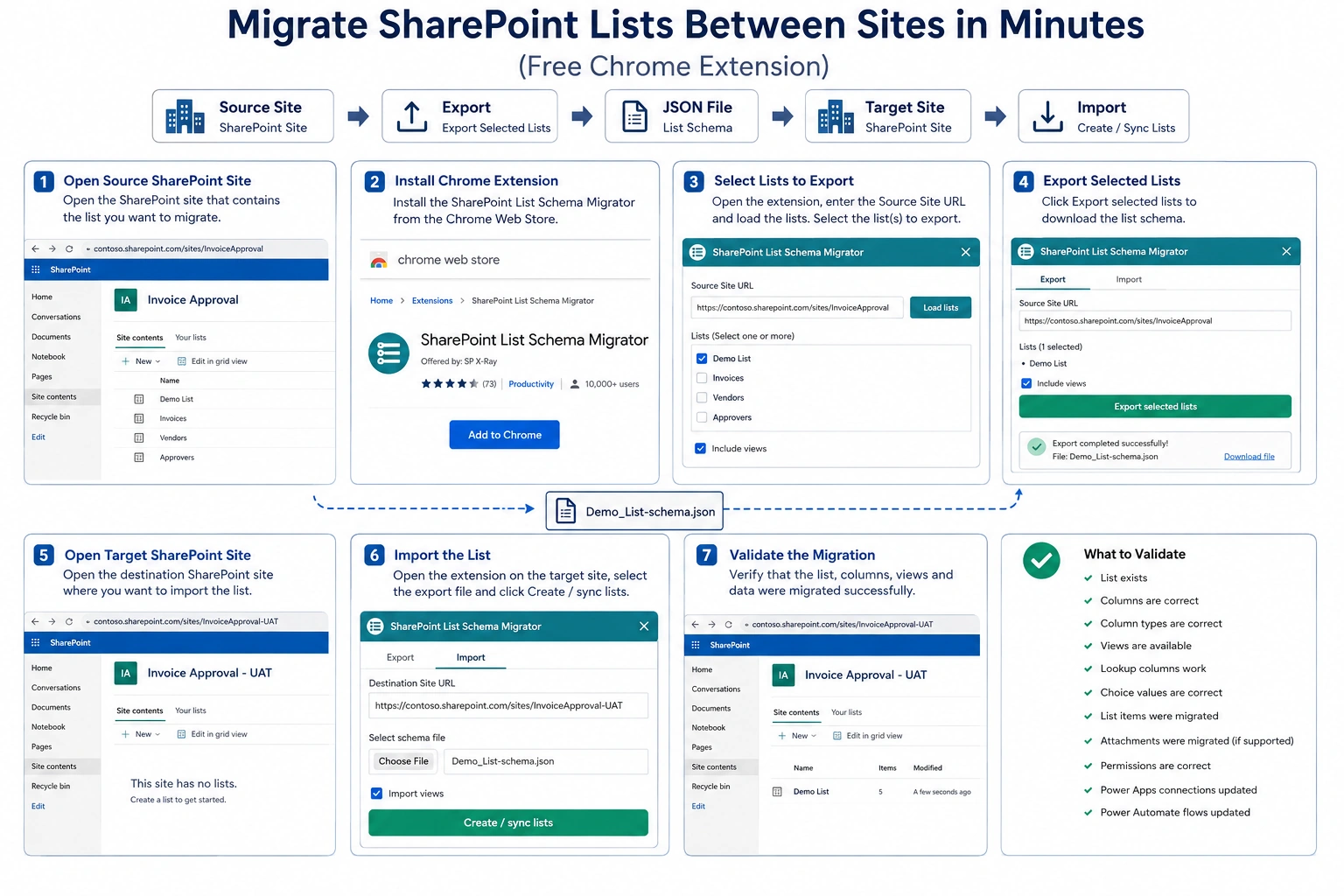
A typical migration process looks like this:
Source SharePoint Site → Export → JSON File → Target SharePoint Site → Import
Step-by-Step Migration
Way to Process : Export → Select Lists → Download Schema → Import → Create/Sync Lists.
Step 1: Open the Source SharePoint Site
Open the SharePoint site containing the list you want to migrate.
For example:
https://contoso.sharepoint.com/sites/InvoiceApprovalMake sure you are signed in with an account that has sufficient permissions.
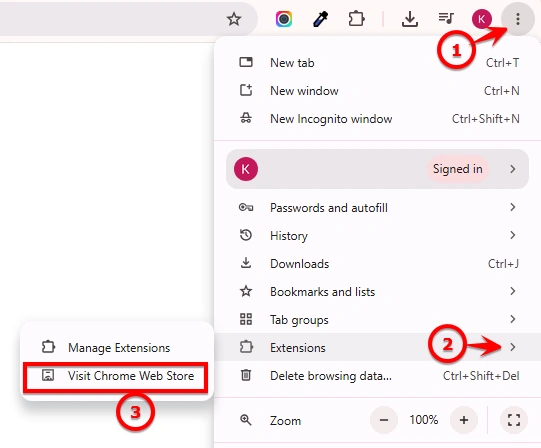
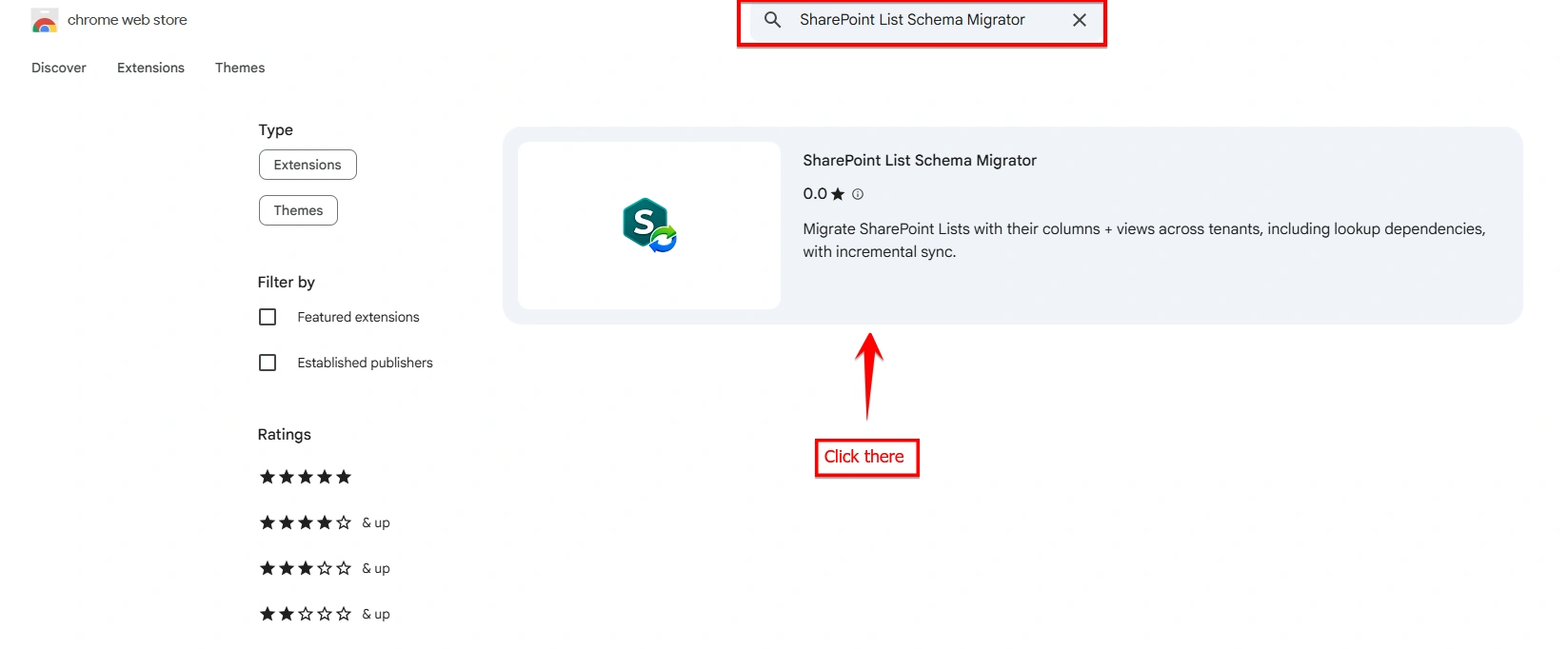
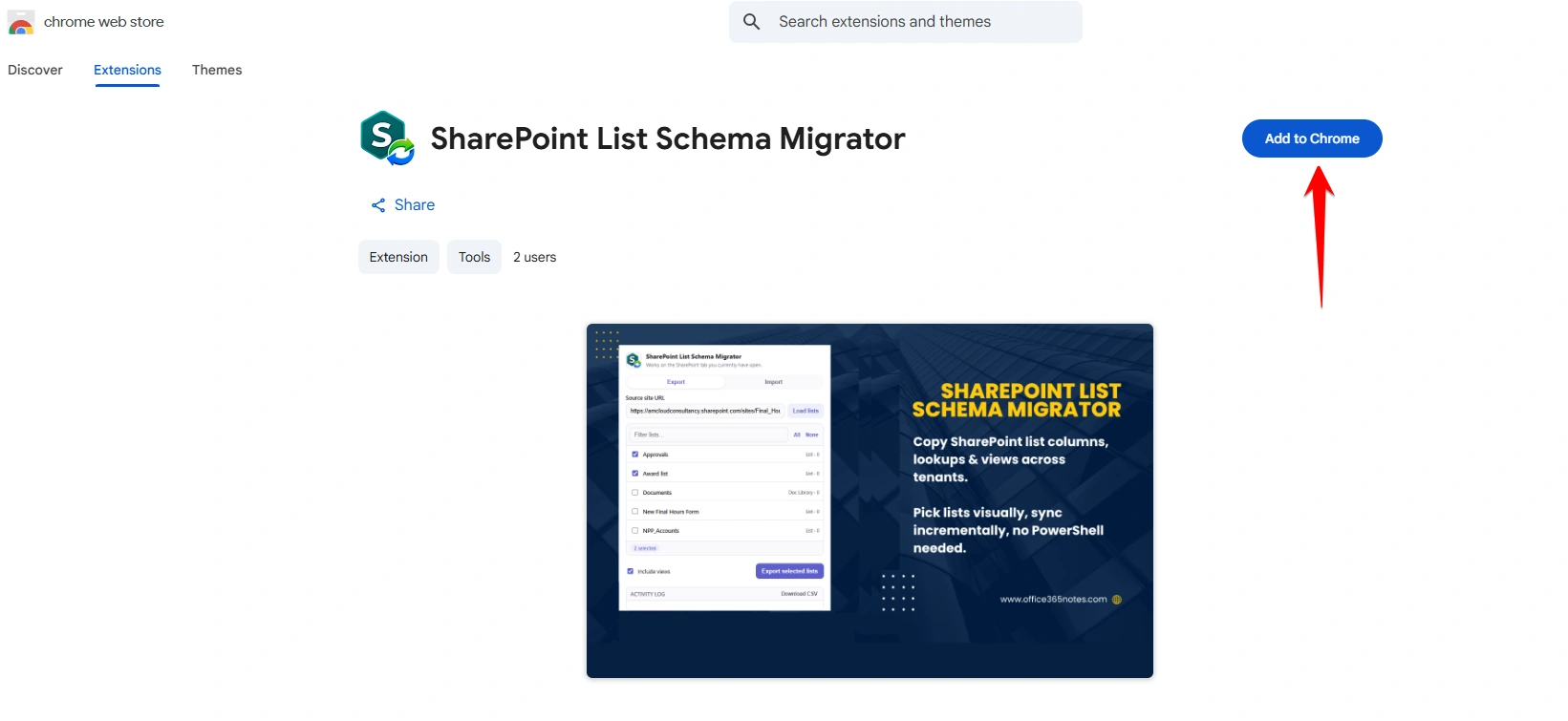
Step 2: Install the Chrome Extension
Install the SharePoint List Schema Migrator from the Chrome Web Store.
Step 3: Select the List
Steps to Migrate a SharePoint List
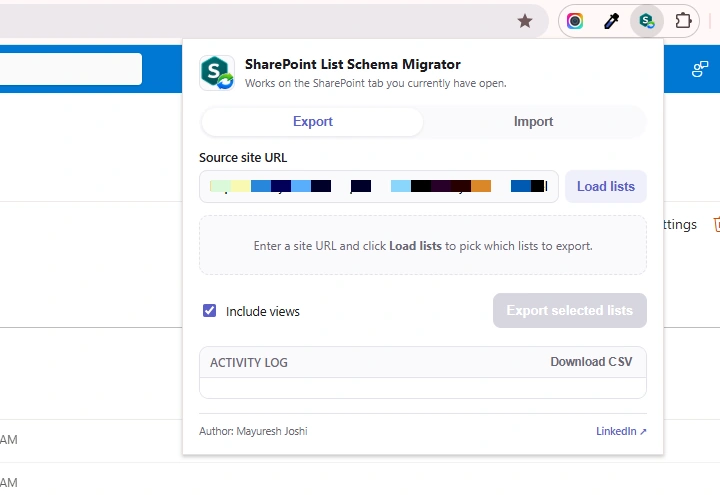
Step 1 – Open the SharePoint List Schema Migrator
Open the SharePoint List Schema Migrator Chrome extension while you are on the SharePoint site containing the lists you want to migrate.
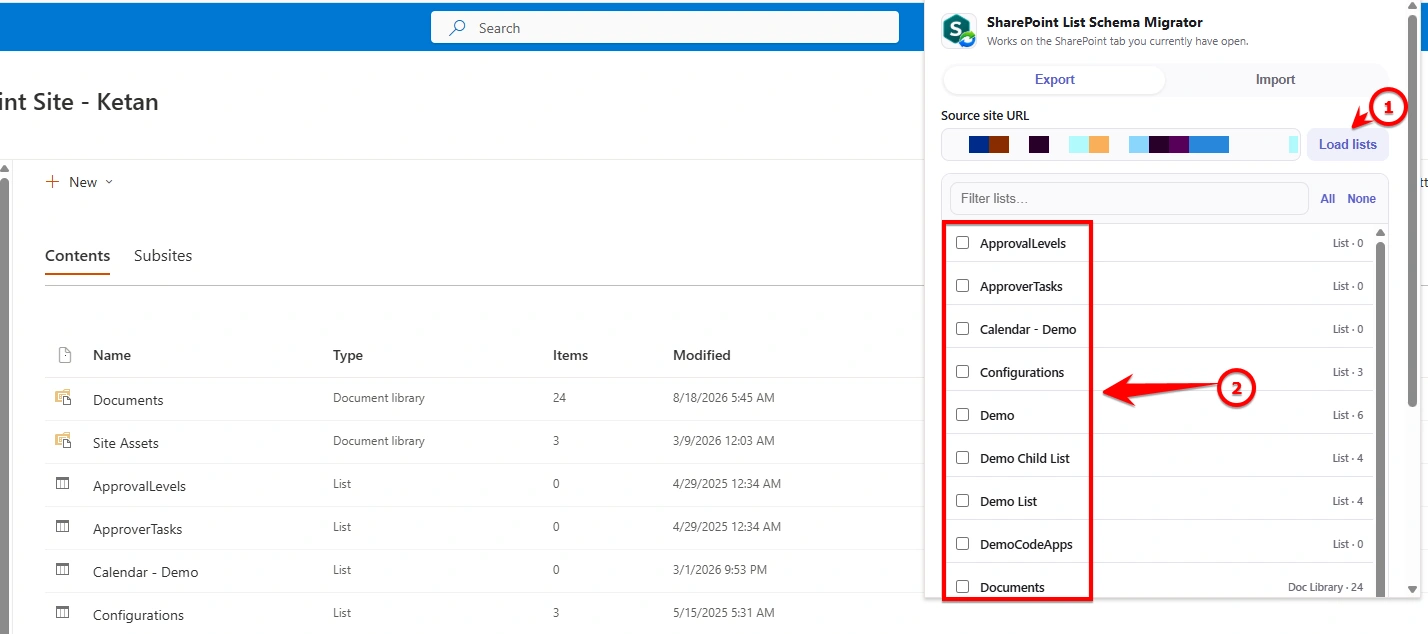
Step 2 – Enter the Source Site URL and Load Lists
Enter the Source Site URL and click Load lists.
The extension will retrieve and display the available SharePoint Lists and Document Libraries.
Step 3 – Select the Lists
Select the list(s) you want to migrate.
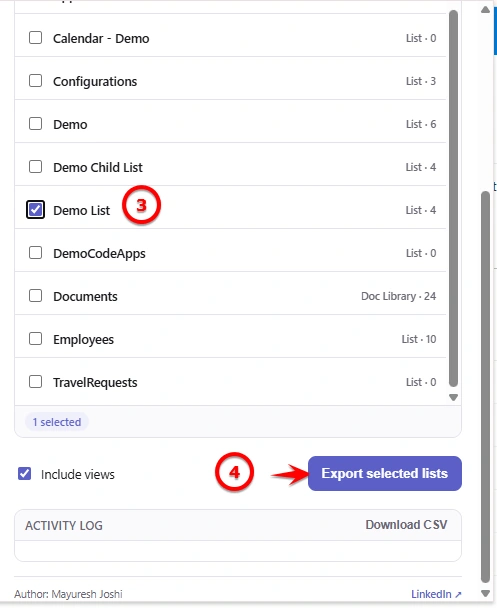
For example, select Demo List from the displayed SharePoint lists.
You can select multiple lists if you want to migrate them together.
Step 4 – Export the Selected Lists
Keep Include views enabled if you also want to migrate the list views.
Click Export selected lists to export the selected list schema.
The exported schema can then be used in the Import tab to create the lists in the destination SharePoint site.
Depending on the tool, you may be able to migrate:
List columns
Views
Content types
Folders
List items
Site columns
Lookup configuration
Export the List
Export the selected list.
The extension creates a migration package, commonly represented as a JSON file containing the list configuration and selected data.
For example:
Demo_List-schema
    ↓
Export
    ↓
Demo_List-schema.json
Keep this file secure because it may contain business data if list items were included.
Step 5: Open the Target SharePoint Site
Navigate to the destination SharePoint site.
For example:
https://contoso.sharepoint.com/sites/InvoiceApproval-UATThe destination site should be prepared before importing the list.
Step 6: Import the List
Open the extension on the target site and select the previously exported migration file.
Import the List into the Destination Site
Open the SharePoint List Schema Migrator extension on the destination SharePoint site.
Select the Import tab.
Enter the Destination Site URL.
Select the exported schema file, for example
Demo_List-schema.json.Keep Import views enabled if you want to migrate the views as well.
Click Create / sync lists.
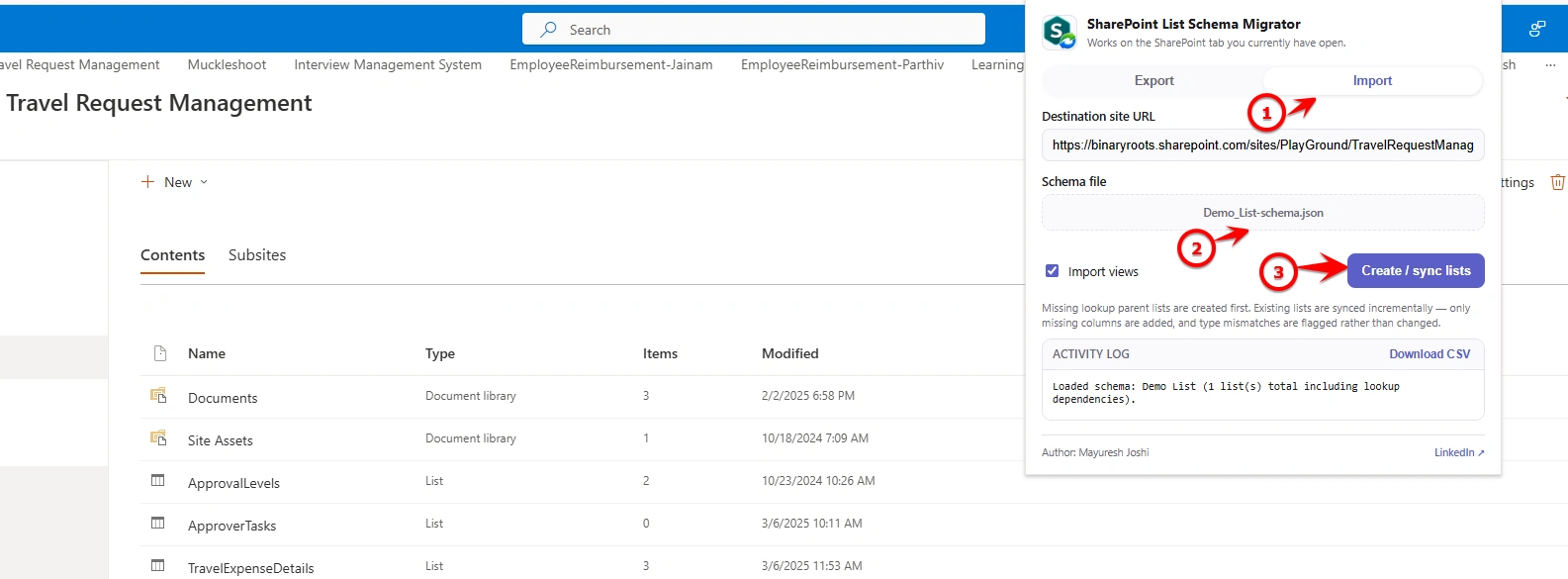
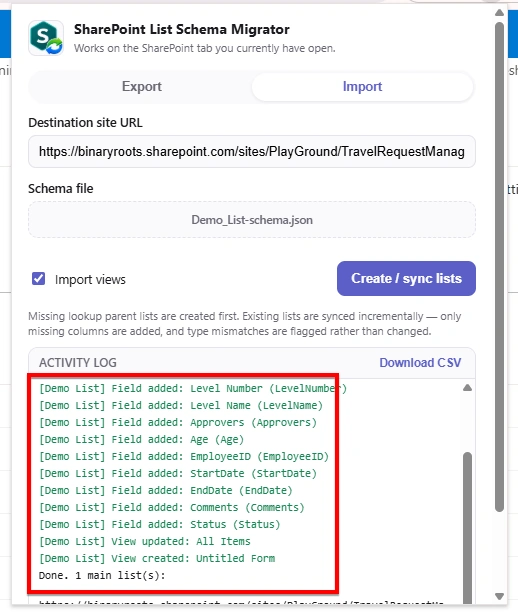
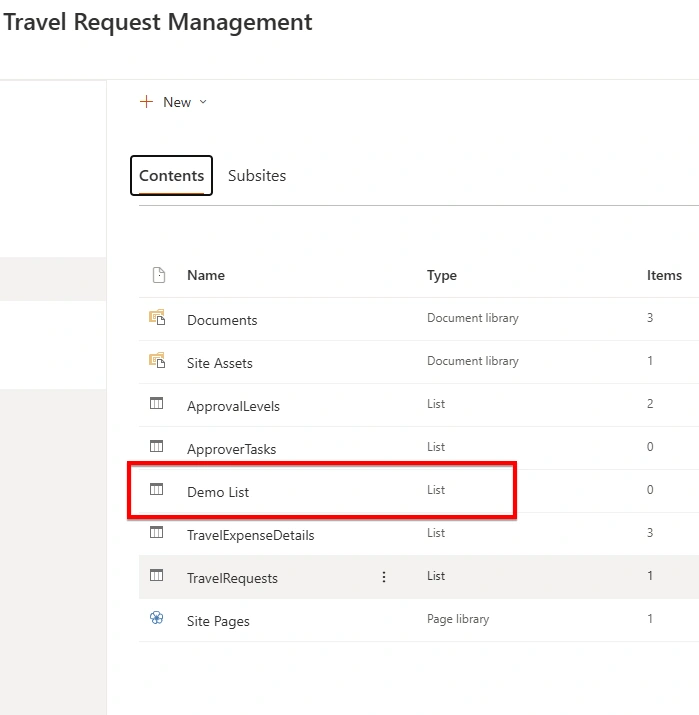
The extension will create or synchronize the list based on the exported schema.
This approach allows you to review the migration before making changes.
Step 7: Validate the Migration
After the migration completes, verify:
List exists
Columns are correct
Column types are correct
Views are available
Lookup columns work
Choice values are correct
List items were migrated
Attachments were migrated if supported
Permissions are correct
Power Apps connections still point to the correct list
Power Automate flows reference the correct SharePoint site/list
Same-Tenant vs Cross-Tenant Migration
There is an important difference between moving a list between sites in the same tenant and migrating SharePoint content between different Microsoft 365 tenants.
Same Tenant
Example:
Development
    ↓
UAT
or:
Site A
    ↓
Site B
This is generally simpler because both SharePoint sites belong to the same Microsoft 365 tenant.
Cross Tenant
Example:
Company A Tenant
        ↓
Company B Tenant
Microsoft also provides a dedicated Cross-tenant SharePoint migration capability for moving SharePoint sites between tenants. It has specific prerequisites and limitations, so a browser extension should not automatically be treated as a replacement for Microsoft's tenant-level migration functionality.
Important: List Migration Is Not the Same as Site Migration
This distinction is important.
A list migration typically moves the list structure and optionally its data.
A site migration can involve:
Site content
Libraries
Lists
Permissions
Users
Groups
Sharing links
Site configuration
Microsoft's cross-tenant SharePoint migration supports supported SharePoint site types and has requirements such as identity mapping and target-site preparation.
What About SharePoint Files?
SharePoint's native Move to and Copy to functionality is primarily designed for files and folders. Microsoft documents copying files between SharePoint sites, OneDrive, and other supported locations.
For programmatic file migration, Microsoft also provides SharePoint/OneDrive Copy and Move APIs.
Therefore, if your requirement is specifically:
"Move an entire SharePoint list including its structure and list items"
a list migration extension can be more appropriate than simply using Copy to.
Advantages
A browser-based migration approach can provide several benefits:
No separate migration server for some tools
Quick setup
Easy export/import workflow
Useful for development and testing
Reduces manual list recreation
Can preserve more list configuration than manually recreating a list
Convenient for small and medium migrations
Some tools also provide migration features such as field mapping, validation, dependency analysis, version history preservation, attachment migration, and throttling protection.
Limitations and Security
"Free" does not necessarily mean unlimited.
Check the extension's current limits, supported SharePoint features, permissions, data handling, and privacy policy before using it with production information.
For example, Microsoft's native cross-tenant migration has defined limits and prerequisites, including site-size/item limits and requirements around target sites and users.
For sensitive production data, always validate the tool with a non-production list first.
Conclusion
Migrating SharePoint lists does not always require manually recreating every column and view. Modern browser-based tools can simplify the process by exporting and importing SharePoint list configurations and data.
For small development, testing, and site-to-site migration scenarios, a Chrome extension can be a convenient option. For larger or formal cross-tenant migrations, evaluate Microsoft's native migration capabilities and the tool's supported features before proceeding.
The key is to treat list migration, data migration, and Power Platform dependency migration as separate validation steps rather than assuming that copying the list automatically moves the entire solution.
Join the conversation! Your thoughts help the community grow.