

Visual Studio is an Integrated Development Environment (IDE) developed by Microsoft and used to create console, Web applications, web apps, mobile apps, cloud, and web services, etc. You can use this VS IDE to write code in C#, C++, VB (Visual Basic), Python, JavaScript, and many more languages and it provides support for 36 different programming languages. Also, it is available for Windows as well as for MacOS.
Visual Studio 2022 is the first 64-bit version of Visual Studio.
Supported Operating Systems
Visual Studio 2022 is supported on the following 64-bit operating systems:
- Windows 11 version 21H2 or higher: Home, Pro, Pro Education, Pro for Workstations, Enterprise, and Education.
- Windows 10 version 1909 or higher: Home, Professional, Education, and Enterprise.
- Windows Server 2022: Standard and Datacenter.
- Windows Server 2019: Standard and Datacenter.
- Windows Server 2016: Standard and Datacenter.
Hardware
- 1.8 GHz or faster 64-bit processor; Quad-core or better recommended. ARM processors are not supported.
- Minimum of 4 GB of RAM. Many factors impact resources used; recommends 16 GB RAM for typical professional solutions.
- Windows 365: Minimum 2 vCPU and 8 GB RAM. 4 vCPU and 16 GB of RAM recommended.
- Hard disk space: Minimum of 850 MB up to 210 GB of available space, depending on features installed; typical installations require 20-50 GB of free space. We recommend installing Windows and Visual Studio on a solid-state drive (SSD) to increase performance.
- Video card that supports a minimum display resolution of WXGA (1366 by 768); Visual Studio will work best at a resolution of 1920 by 1080 or higher.
Supported Languages
Visual Studio is available in English, Chinese (Simplified), Chinese (Traditional), Czech, French, German, Italian, Japanese, Korean, Polish, Portuguese (Brazil), Russian, Spanish, and Turkish. You can select the language of Visual Studio during installation. The Visual Studio Installer is available in the same fourteen languages, and will match the language of Windows, if available.
In this article, I will explain about Visual Studio 2022 installation step by step. Follow the steps below for the same.
Step 1: Click here to navigate to Visual Studio 2022 page.
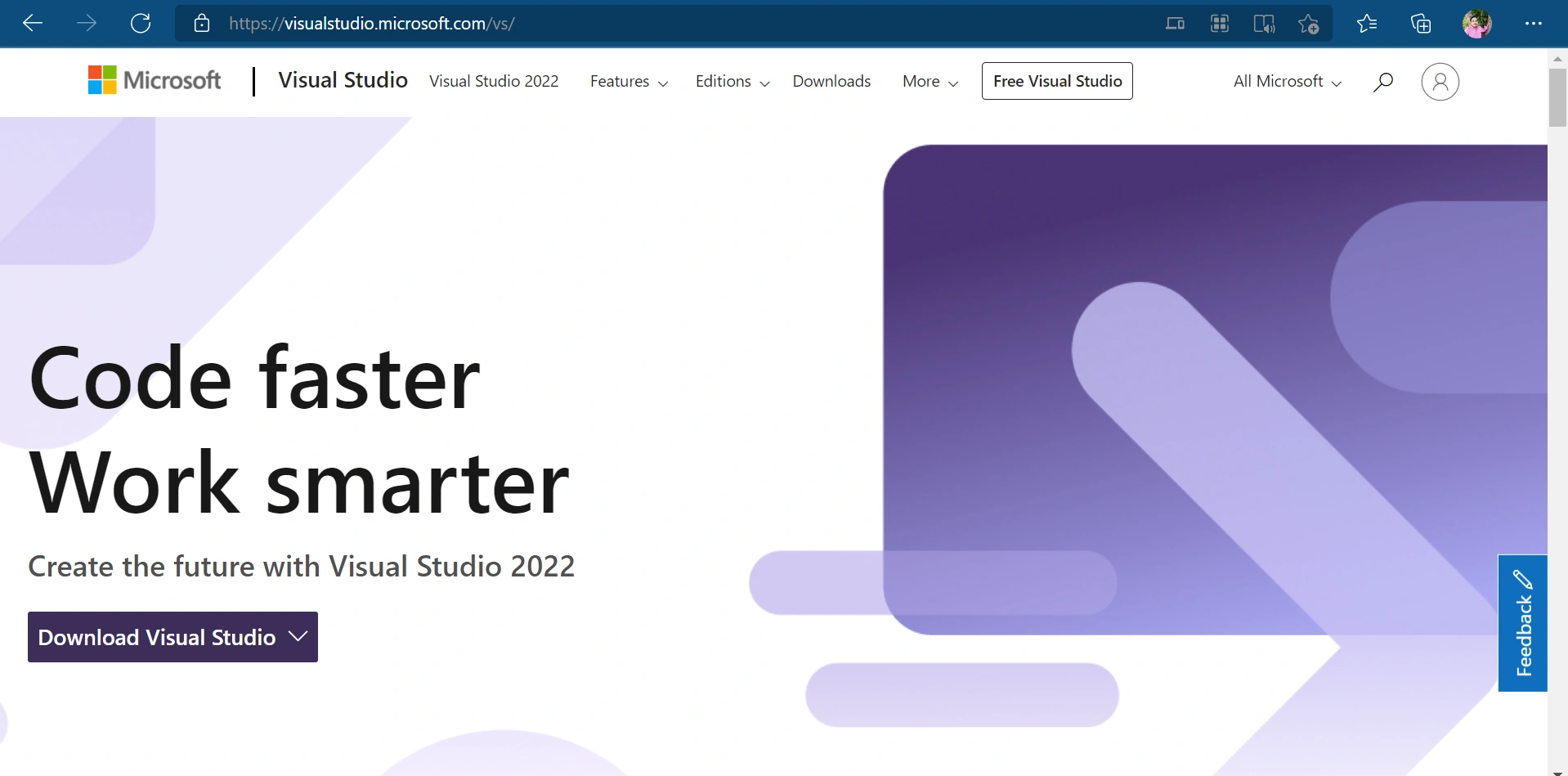
Step 2: Choose Visual Studio Version.
| SNo | Visual Studio Version | Description |
| 1 | Community 2022 | Free for individual developers, academic uses, and open source. |
| 2 | Professional 2022 | Free trial for individual use. |
| 3 | Enterprise 2022 | Free trial for organizations. |

I am choosing Enterprise 2022 and Visual Studio installer file will be downloaded automatically.

Step 3: Go to Downloads for VisualStudioSetup.exe file.
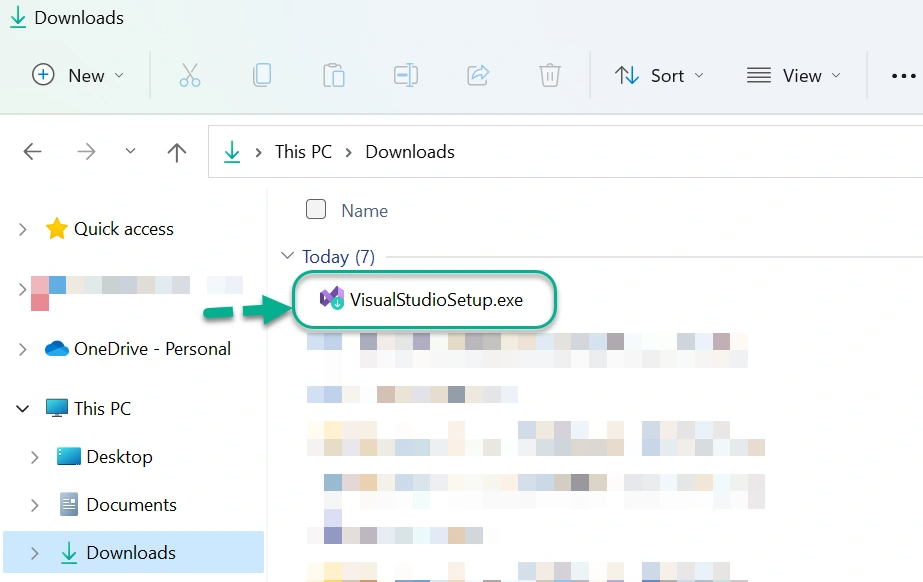
Step 4: Double click on the VisualStudioSetup.exe to start the Visual Studio 2022 installation.
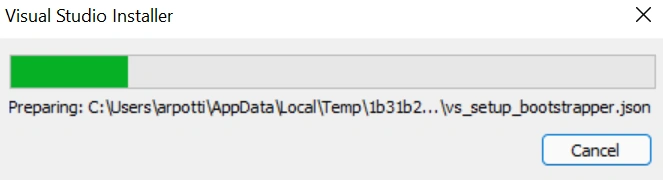
Step 5: Click on Continue.
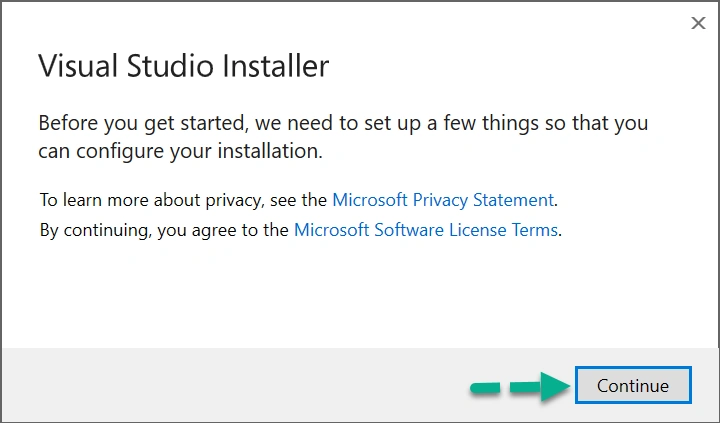
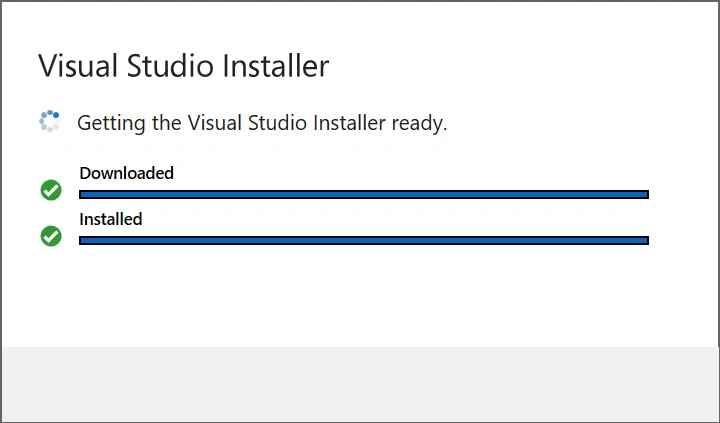
Installation is in progress.
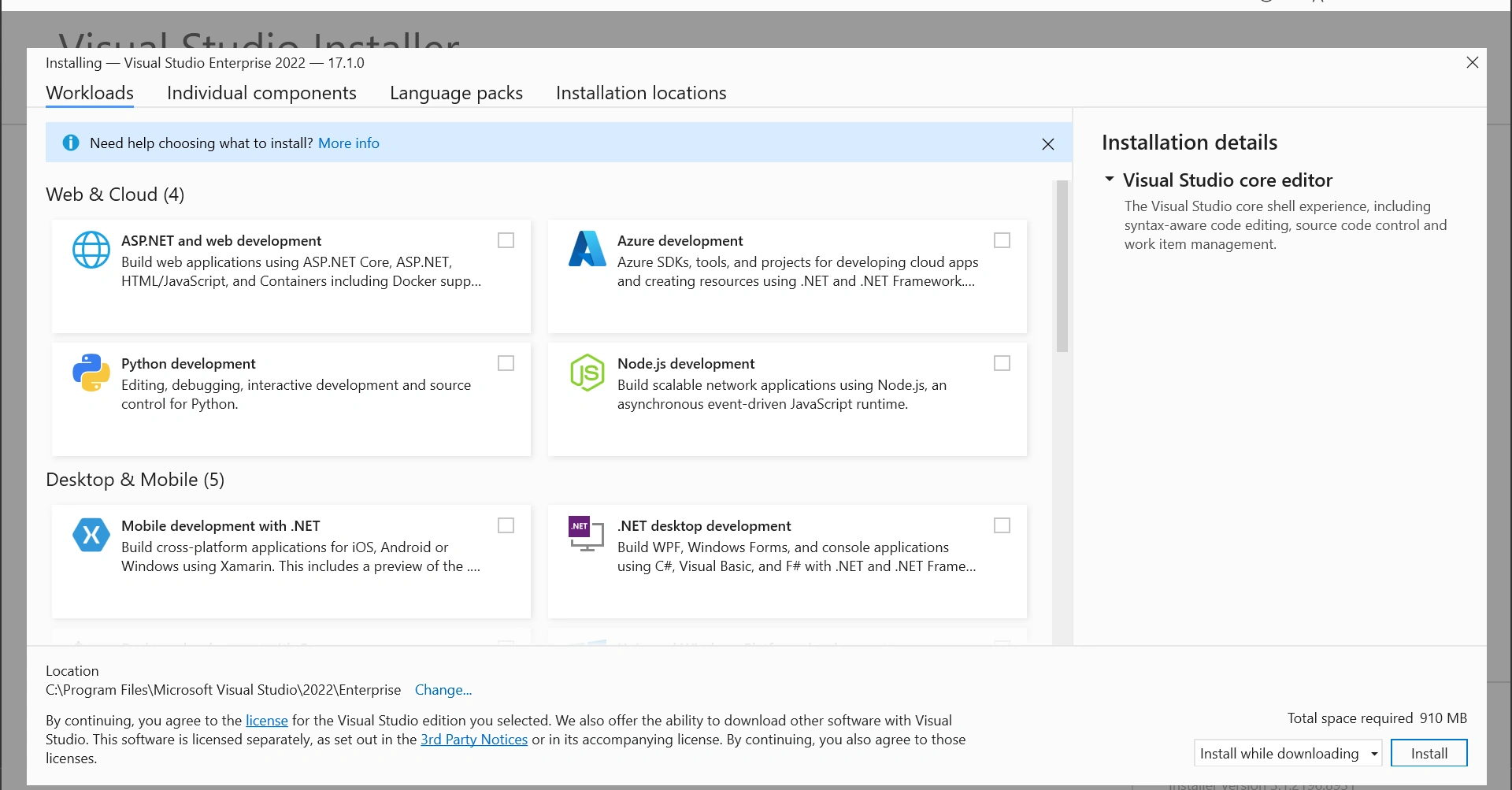
Step 6: Choose required Workloads.
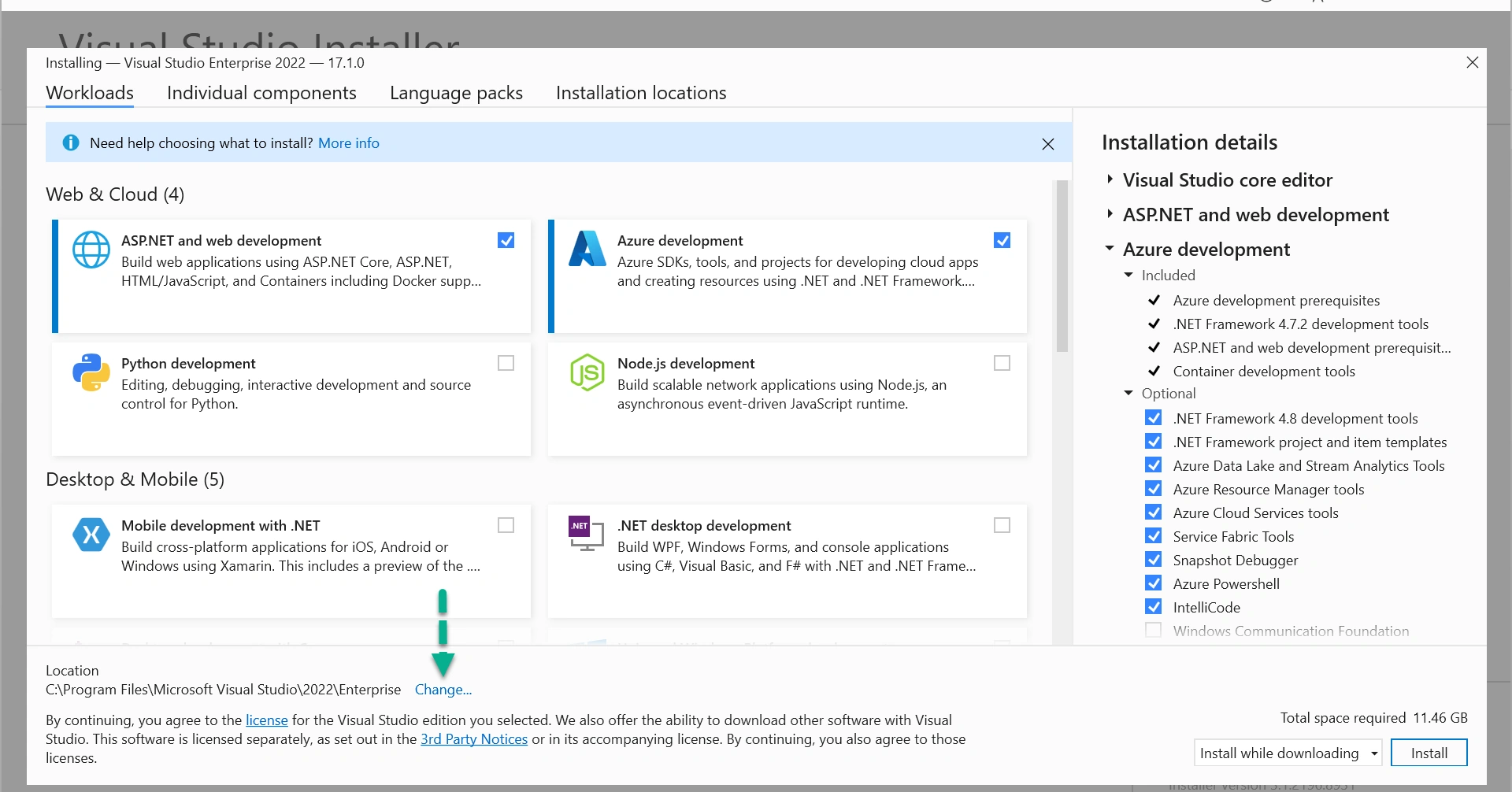
I am selecting ASP.NET and web development and Azure development.

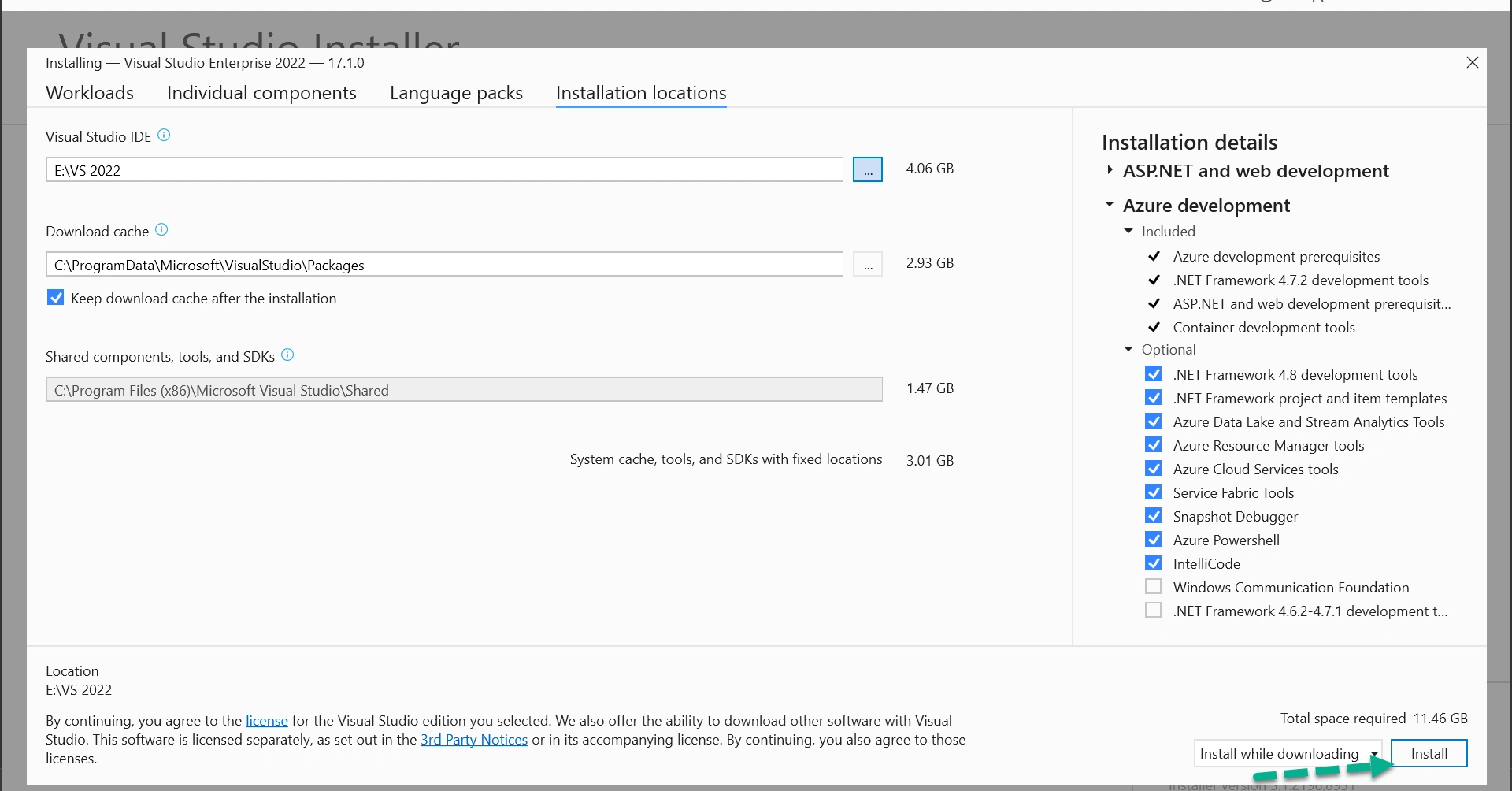
Step 7: Click on Change to change the location of the Visual Studio 2022 default installation path (C Drive).
Step 8: Click on …
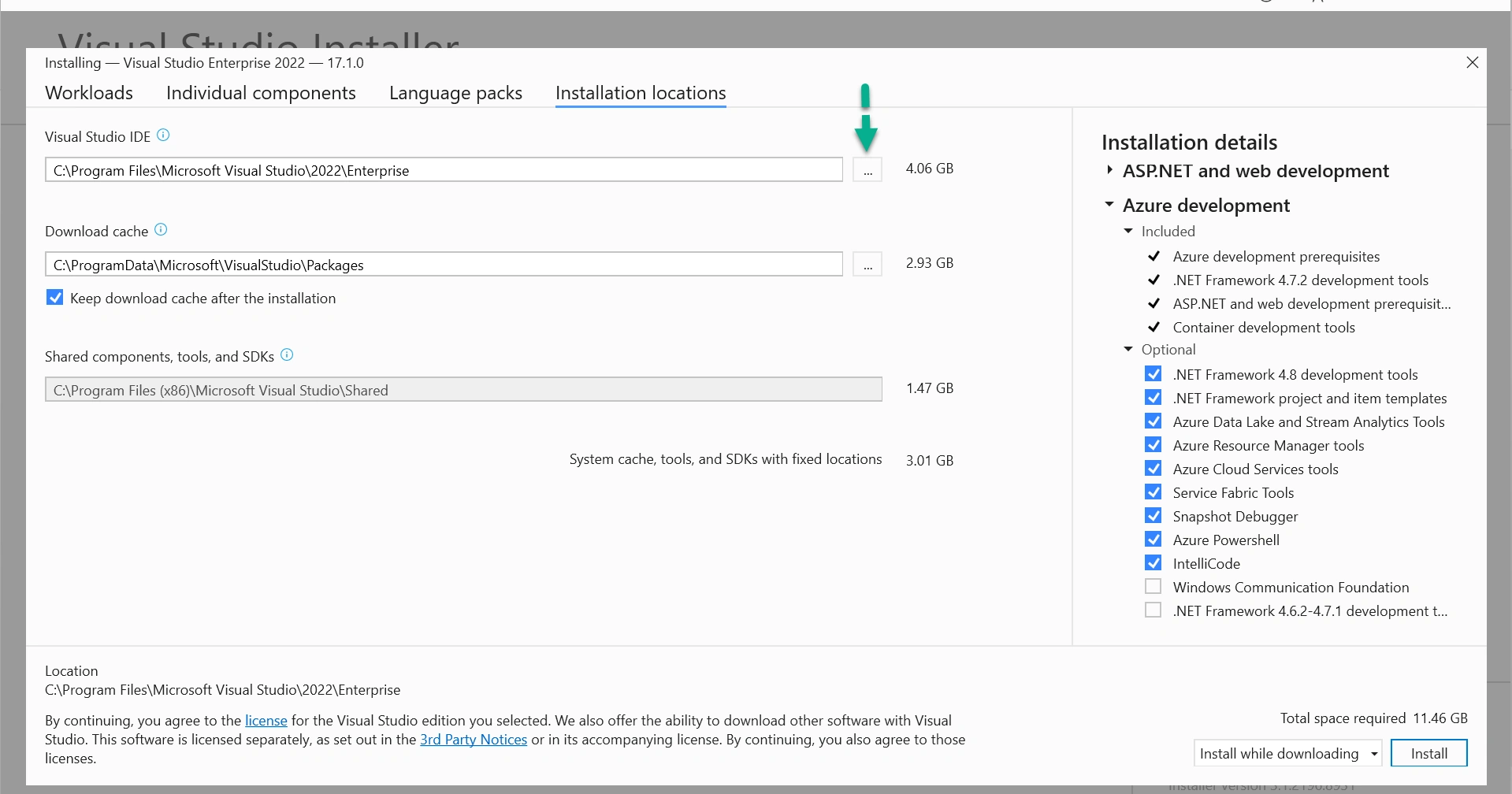
Step 9: Choose the required folder. I have selected a folder in E drive.
Click on Install to start the installation process.
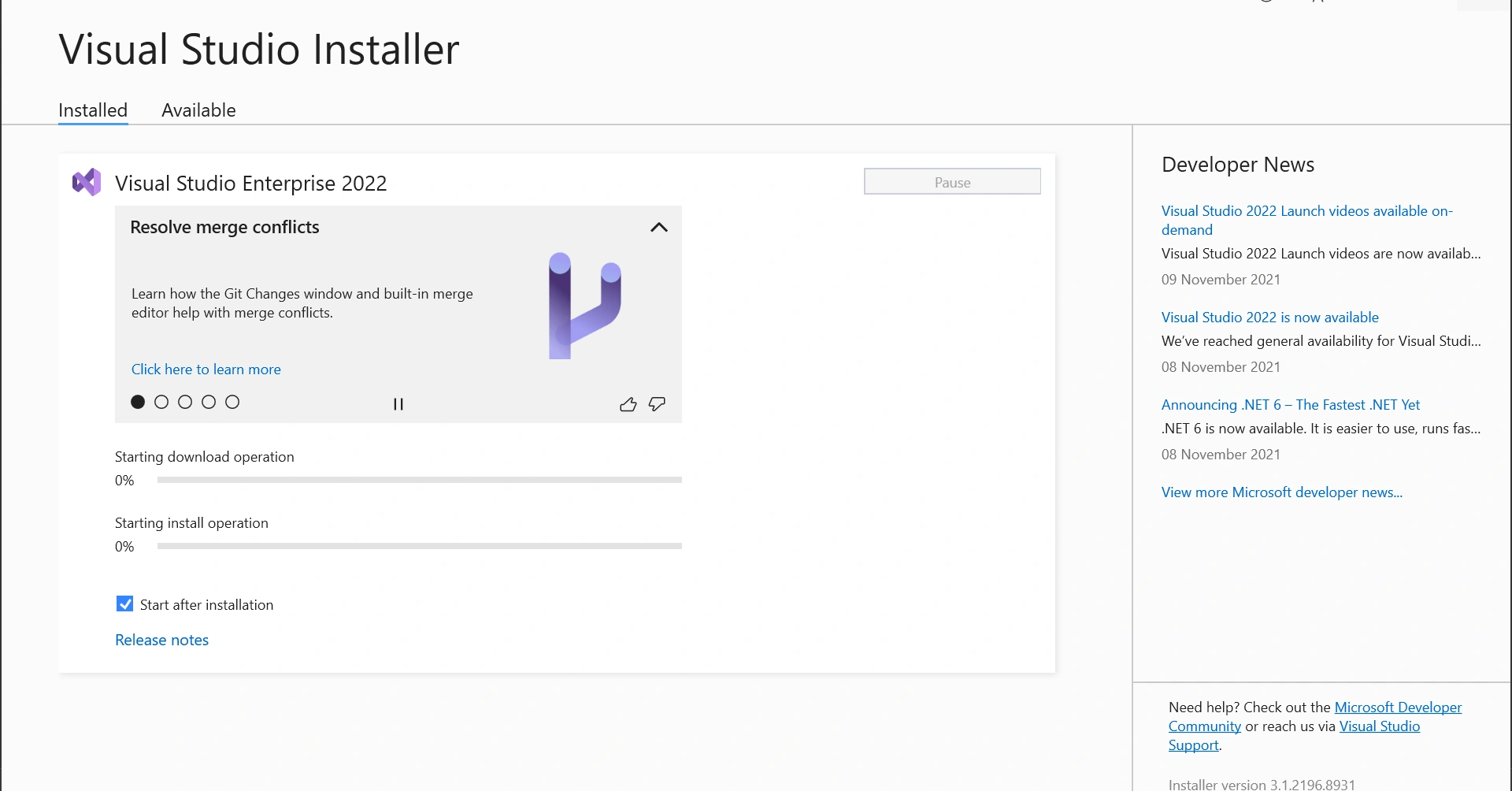
Installation started.
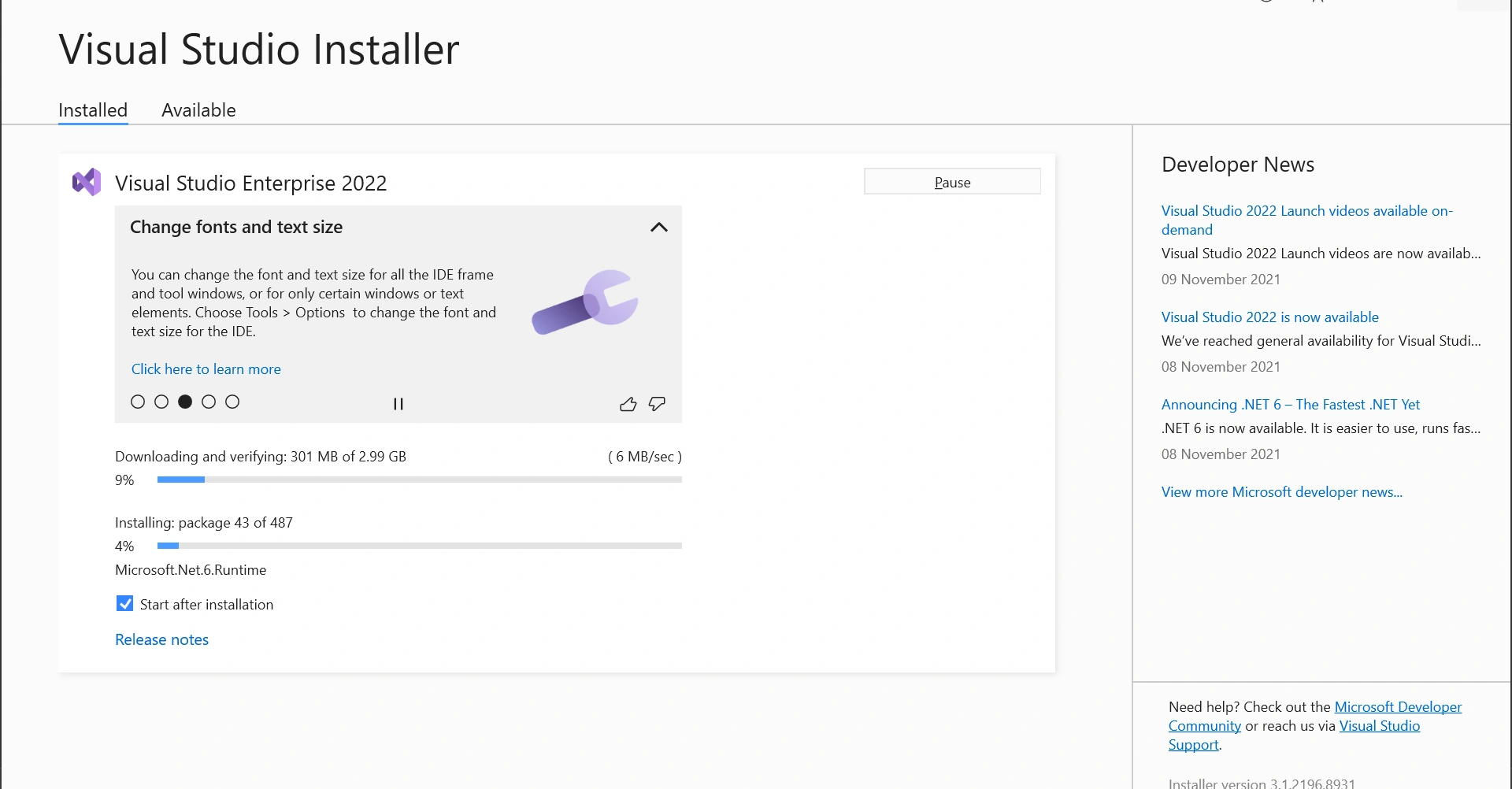
Installation is in progress.
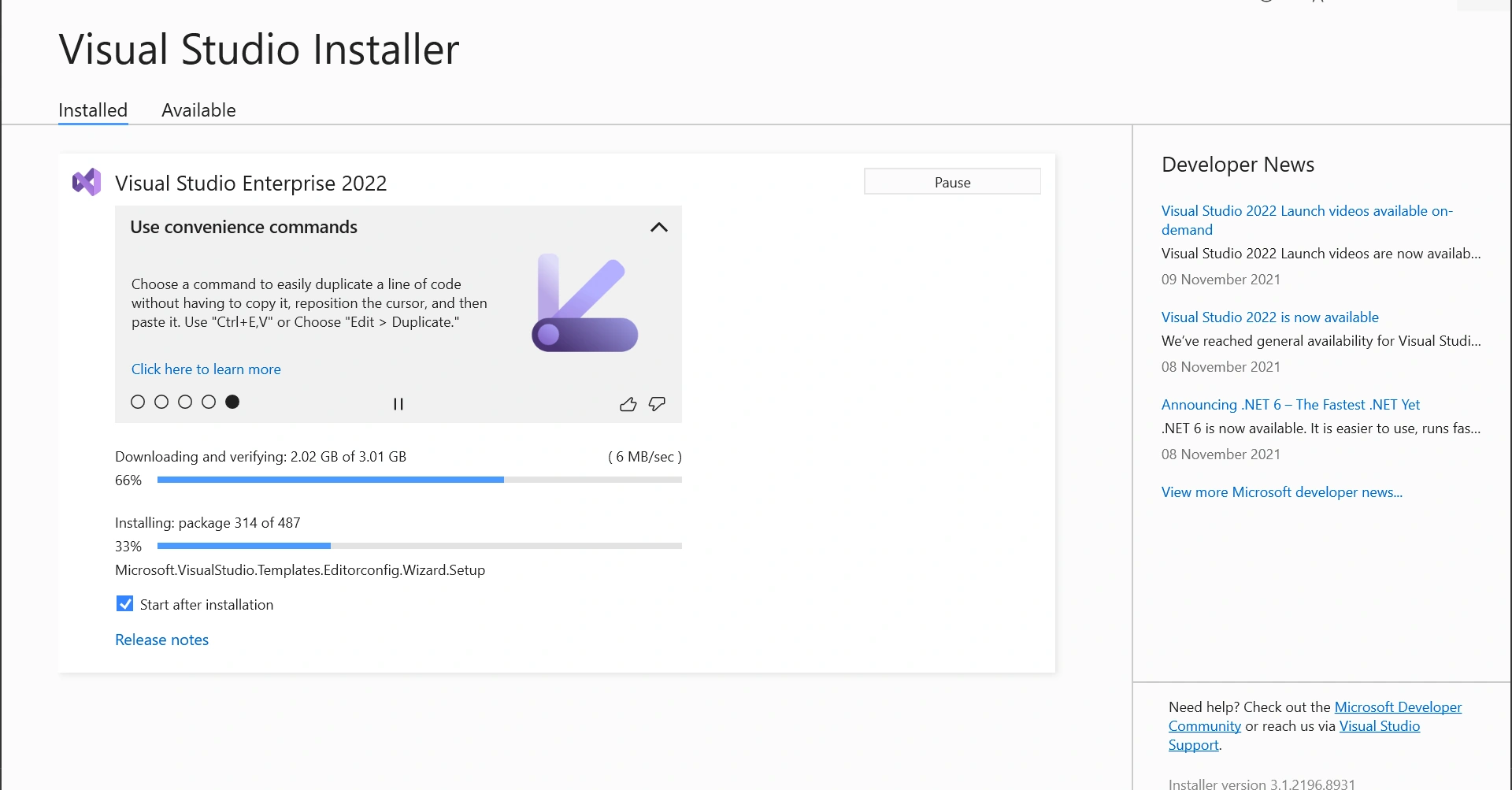
Installation completed successfully and Microsoft Visual Studio 2022 will open automatically.
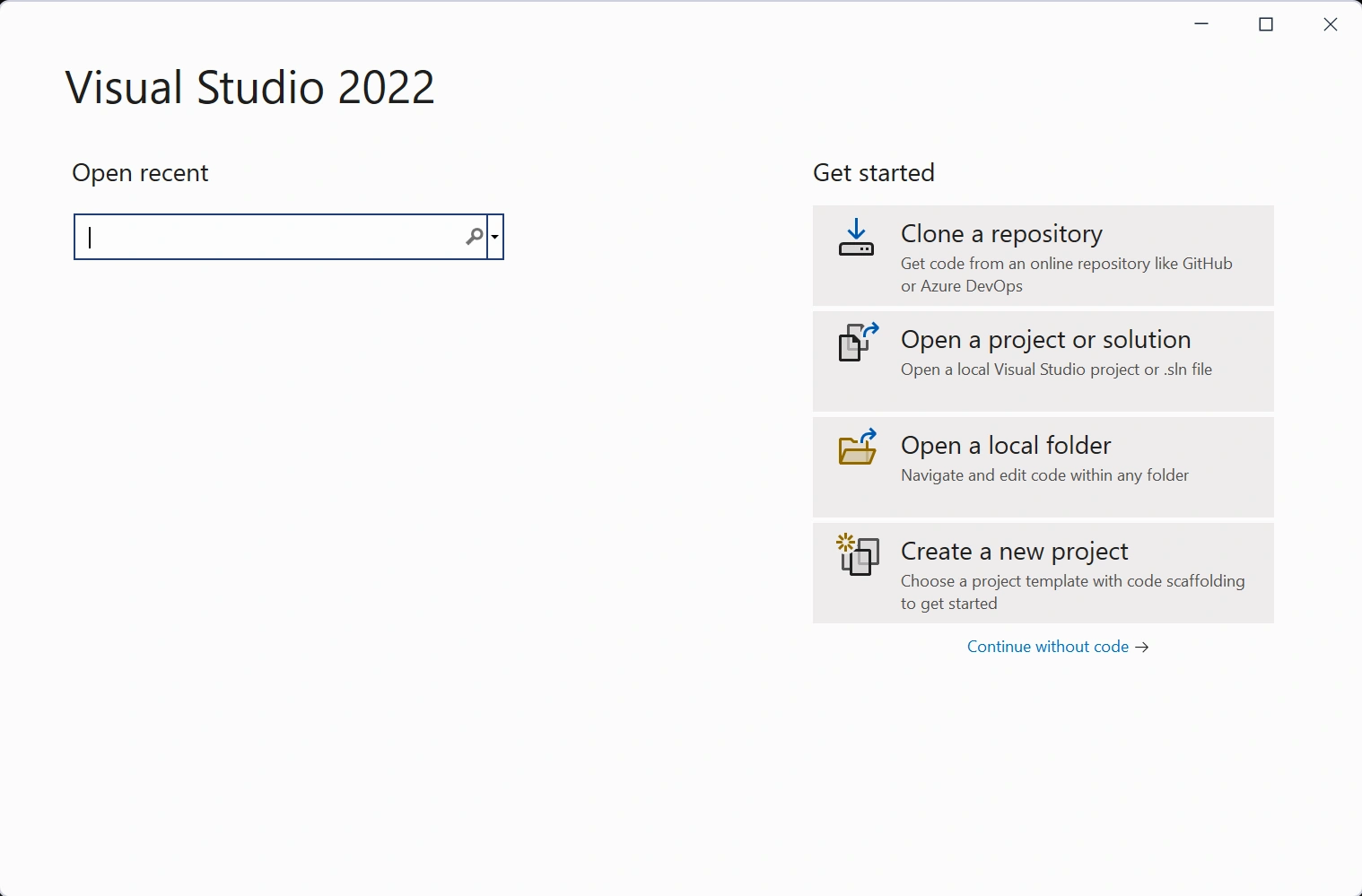
Restart the PC and start using Visual Studio 2022.
Hope you have followed all the steps and installed Visual Studio 2022 successfully.
Like and Share your valuable feedback on this article.
Join the conversation! Your thoughts help the community grow.