

Introduction
In this article, we will learn how to generate QR Code in Android. Quick Response Code (QR Code in short) is a 2-Dimensional matrix type barcode used to store data. It is more popular because of its storage capacity and fast readability.
Zxing & QR Generator Library
Zebra Crossing (Zxing) is an awesome library used to generate and read QR codes in mobile apps. But it is bigger in size. So, we have to go for another one, QR Generator which is a tiny, open-source library. In this article, we will learn how to create & save the QR Code in Android programmatically.
Steps
I have split this part into 4 steps as in the following.
- Step 1: Creating a New Project with Empty Activity.
- Step 2: Setting up the library and manifest.
- Step 3: Generating a QR Code.
- Step 4: Saving the QR Code
Step 1 - Creating a New Project with Android Studio
- Open Android Studio and select "Create New Project".
- Name the project as per your wish and select your activity template.
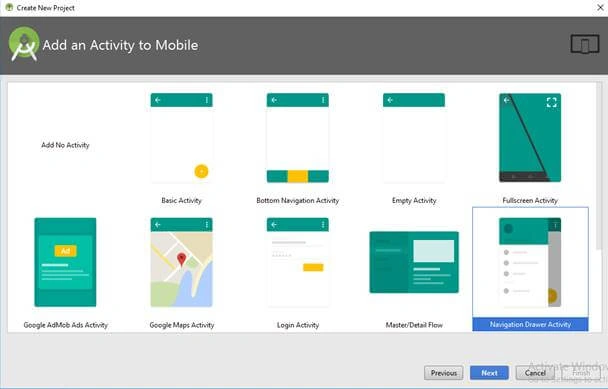
- Click the “Finish” button to create a new project in Android Studio.
Step 2 - Setting up the library and manifest
- Open the App-level Gradle file and import the library.
- implementation 'androidmads.library.qrgenearator:QRGenearator:1.0.3'
- Then, click “Sync Now”.
- Then, open your Manifest file and add the following permissions. It is used to save QR Code to file storage.
- <uses-permission android:name="android.permission.WRITE_EXTERNAL_STORAGE"/>
- We need to handle runtime permissions from Android Version 6.0.
Step 3 - Generating QR Code
In this step, we will learn how to generate QR Code in Android. Open your MainActivity.java file and add the following lines.
- QRGEncoder qrgEncoder = new QRGEncoder(inputValue, null, QRGContents.Type.TEXT, smallerDimension);
- Here, inputValue is an input to be converted to QR Code.
- Input Type also can be specified while initializing the library.
- We can specify the dimensions also.
Then, add the following lines to create a QR Code and encode that into Bitmap Format.
- try {
- // Getting QR-Code as Bitmap
- bitmap = qrgEncoder.encodeAsBitmap();
- // Setting Bitmap to ImageView
- qrImage.setImageBitmap(bitmap);
- } catch (WriterException e) {
- Log.v(TAG, e.toString());
- }
Step 4 - Saving the QR Code
QR Generator has an option to save the generated QR Code Bitmap to storage using the following lines.
- // Save with location, value, bitmap returned and type of Image(JPG/PNG).
- QRGSaver.save(savePath, edtValue.getText().toString().trim(), bitmap, QRGContents.ImageType.IMAGE_JPEG);
We can save QR Code in PNG & JPG format also. We have to handle runtime permissions from Android version 6.0.
Full Code
You can find the full code implementation here.
- public class MainActivity extends AppCompatActivity {
- String TAG = "GenerateQRCode";
- EditText edtValue;
- ImageView qrImage;
- Button start, save;
- String inputValue;
- String savePath = Environment.getExternalStorageDirectory().getPath() + "/QRCode/";
- Bitmap bitmap;
- QRGEncoder qrgEncoder;
- @Override
- protected void onCreate(Bundle savedInstanceState) {
- super.onCreate(savedInstanceState);
- setContentView(R.layout.activity_main);
- qrImage = (ImageView) findViewById(R.id.QR_Image);
- edtValue = (EditText) findViewById(R.id.edt_value);
- start = (Button) findViewById(R.id.start);
- save = (Button) findViewById(R.id.save);
- start.setOnClickListener(new View.OnClickListener() {
- @Override
- public void onClick(View view) {
- inputValue = edtValue.getText().toString().trim();
- if (inputValue.length() > 0) {
- WindowManager manager = (WindowManager) getSystemService(WINDOW_SERVICE);
- Display display = manager.getDefaultDisplay();
- Point point = new Point();
- display.getSize(point);
- int width = point.x;
- int height = point.y;
- int smallerDimension = width < height ? width : height;
- smallerDimension = smallerDimension * 3 / 4;
- qrgEncoder = new QRGEncoder(
- inputValue, null,
- QRGContents.Type.TEXT,
- smallerDimension);
- try {
- bitmap = qrgEncoder.encodeAsBitmap();
- qrImage.setImageBitmap(bitmap);
- } catch (WriterException e) {
- Log.v(TAG, e.toString());
- }
- } else {
- edtValue.setError("Required");
- }
- }
- });
- save.setOnClickListener(new View.OnClickListener() {
- @Override
- public void onClick(View v) {
- boolean save;
- String result;
- try {
- save = QRGSaver.save(savePath, edtValue.getText().toString().trim(), bitmap, QRGContents.ImageType.IMAGE_JPEG);
- result = save ? "Image Saved" : "Image Not Saved";
- Toast.makeText(getApplicationContext(), result, Toast.LENGTH_LONG).show();
- } catch (Exception e) {
- e.printStackTrace();
- }
- }
- });
- }
- }
Download Code
You can download the full source code of the article in GitHub. If you like this article, do star the repo in GitHub.
M LPosted Dec 13, 2019, 11:29 AM
How to saved qr code in gallery?
Mohammed FarazPosted Dec 6, 2019, 12:11 AM
How to print it you can mail me @ [email protected]
Michele StizzaPosted Oct 9, 2019, 7:08 AM
Saved QR Image does not show in Gallery?
Reignier SuyomPosted Sep 20, 2019, 7:36 AM
How to get the text in textView and generates into QRcode without typing text, example like in Ordering app
Usman HafeezPosted Jul 1, 2019, 2:45 AM
Saved QR Image does not show in Gallery???
Usman HafeezPosted Jul 1, 2019, 2:02 AM
If i want to generate QR code output in a Dialog box with Share, Save, and Cancel Button what will be the code.
Bhavik DesaiPosted Apr 19, 2019, 1:29 AM
How to insert multiple input in qr code
ismaili aminePosted Mar 19, 2019, 10:42 AM
When we save an image, is that mean that store it in a database or just a copy. I want to know if a can store these QR codes into a database integrated into App using SQlite or MySQL?
ismaili aminePosted Mar 19, 2019, 10:37 AM
I try to save the image after I generate it, but always show me "Image not saved"
Rajanikant HawaldarPosted Jul 25, 2018, 7:41 AM
Google vision API also other company dll how to create own api for QR Code logic
Rajanikant HawaldarPosted Jul 24, 2018, 3:33 AM
How to achieve the same without using third-party dll?
Viknaraj ManogararajahPosted Jul 23, 2018, 6:52 PM
superb article.....