

I also have attached step by step screenshots for understanding it easily.
Steps to create a Web API project
Step 1
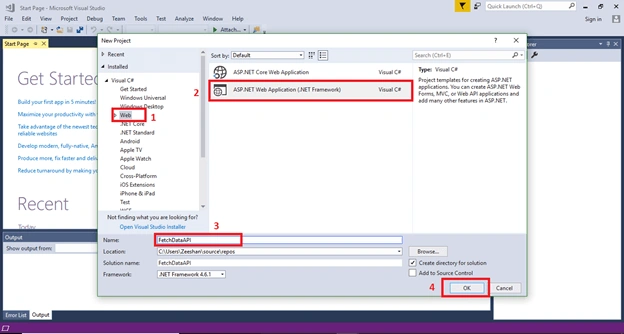
- First Select Web from left side menu.
- Select the ASP.NET Web Application (.NET framework)
- Give your project a unique name by your choice.
- Press OK.
Step 2
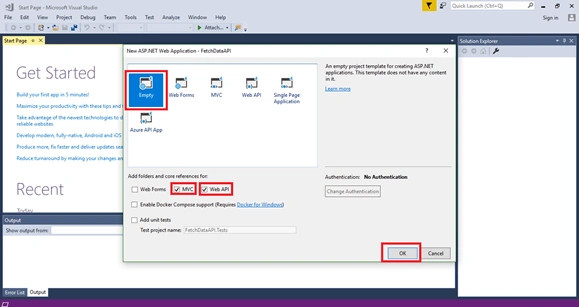
- Select the Empty template.
- Select MVC (Model View Control and Web API)
- Click OK.
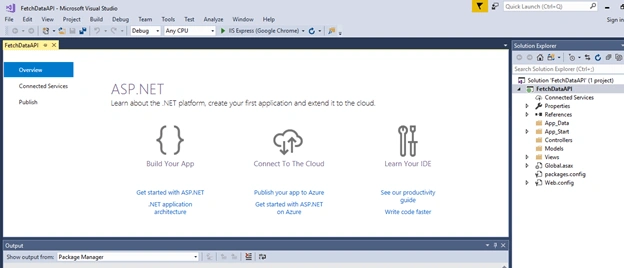
Step 3
Add a class into the model by following the screenshot below.
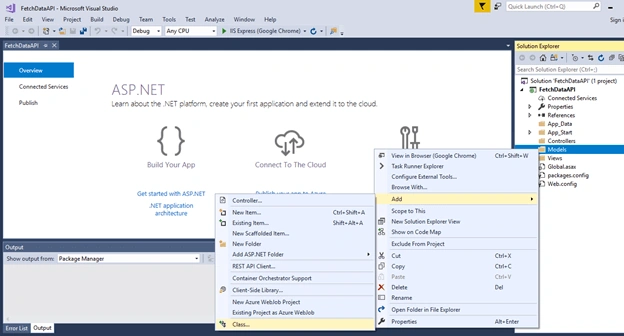
Right click on to the Model and go to add then select class.
Step 4
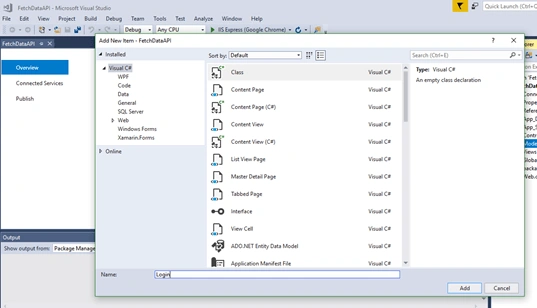
Give it a name and press OK.
Step 5
Now, I am going to make some properties members to the class. These properties represent data.
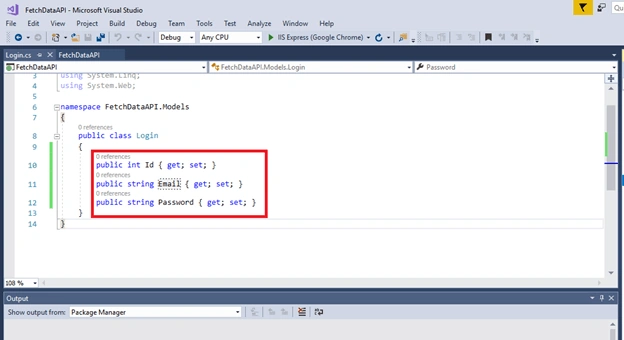
I have created a class named “Login” and give it some attributes that are required in a Login page - Id, Email, and Password of type int and strings.
Step 6
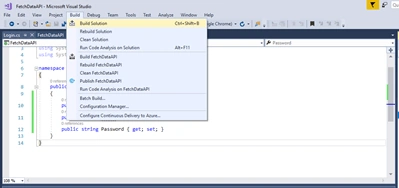
Now build the project. Without a successful build, we won't be able to add a controller.
Step 7
Now after successfully build, add a controller that will give controls to our class attributes.
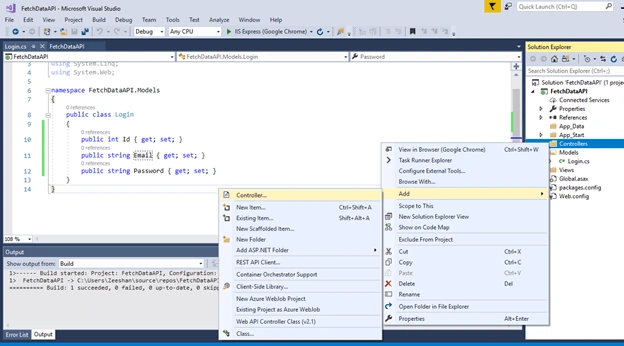
Right click on the Controller then go to Add and then select Controller.
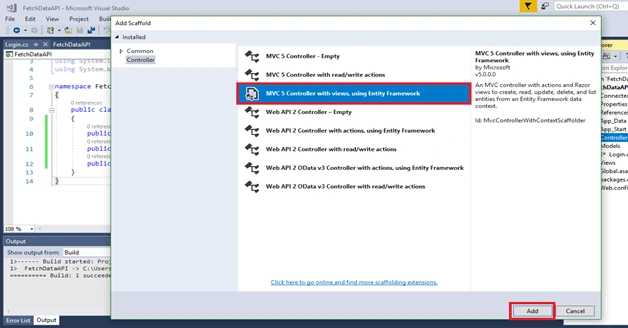
Add MVC 5 controller with views using entity framework. Then click Add.
Why MVC 5 controller with views using entity framework
This option will generate a controller and views for updating, deleting, creating, and displaying the data in your model.
Step 8
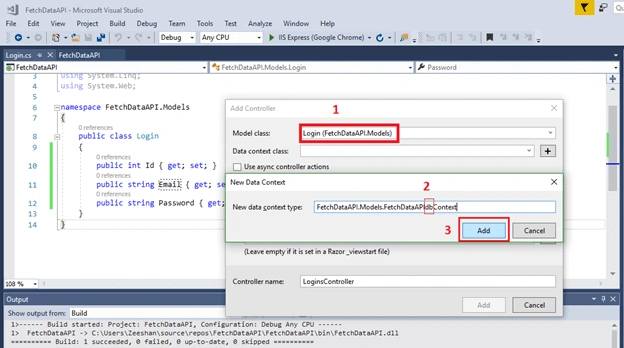
- When adding a Controller, give Model class a name that we've generated previously.
- Then click on the plus (+) button in the next field. The popup will appear. Just edit it by writing (db) before context and press Add. Then add this controller.
Step 9
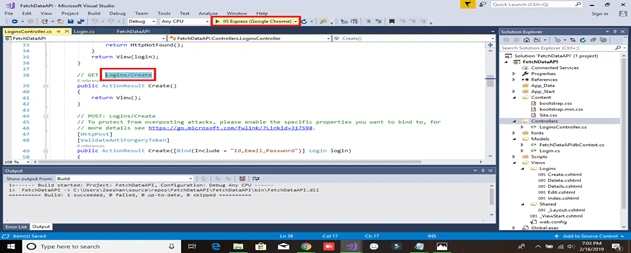
Copy the Selected area and then press the Upper selection for deploying the project. It will open in Google Chrome or your default browser.
Step 10
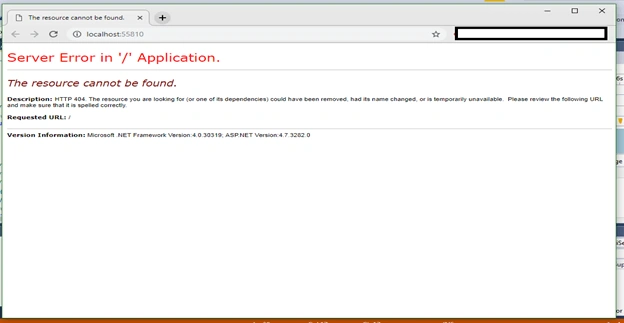
After deploying this type of error will appear. No need to worry. Because there is no data available at this point.
Step 11
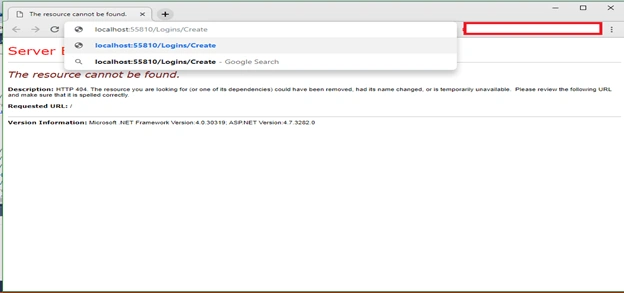
Now paste the Get Call text that we have selected in Step 9 above. Then click Enter, the error will vanish and a page for creating data will appear.
Step 12
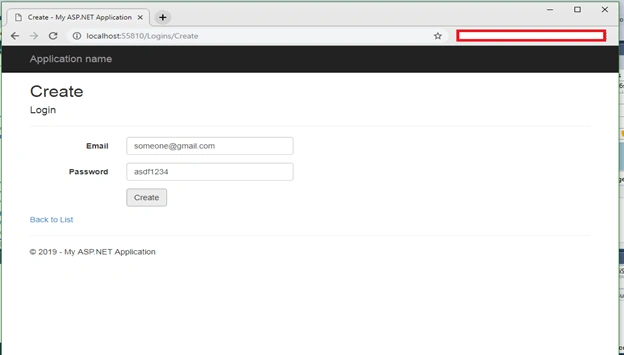
Now, on this screen, we can add data. Enter an email and a password and click Create button. This action will add a new record and it will look like the following.
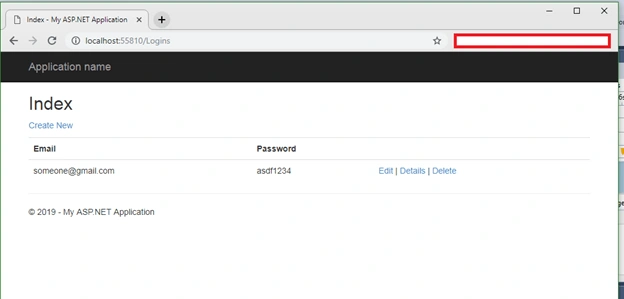
Our Web API controller is created now.
Step 13
Now, let's add another controller. Right click on Controllers and select Add > Controller.
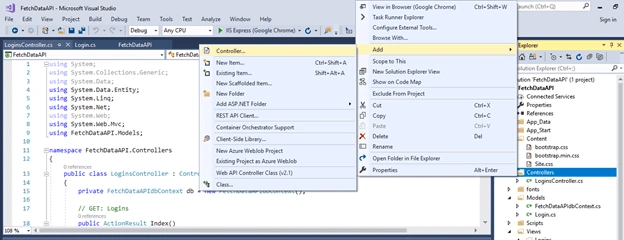
Select Web API 2 with actions using Entity Framework.
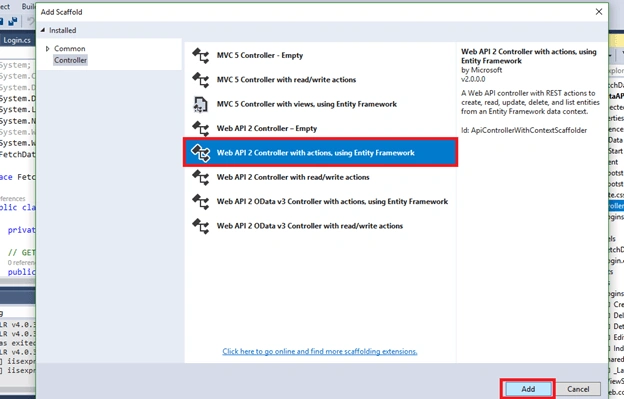
Select the Web API 2 Controller and press Add button.
Step 14
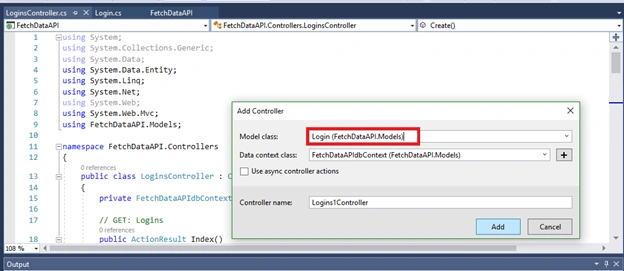
Give the same name to the new Web API controller as given to the Class before. (i.e. Login)
And then click on Add button. Web API controller will be added.
Step 15
Now copy the selected area below for getting the Web API in XAML form.
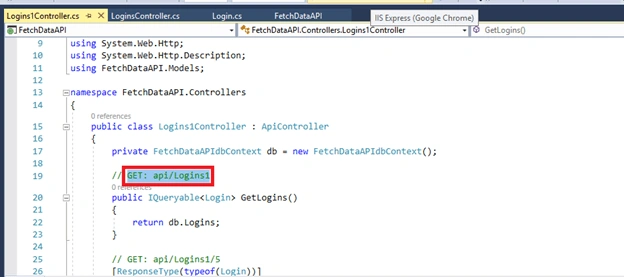
This selected copied text will put in the next step.
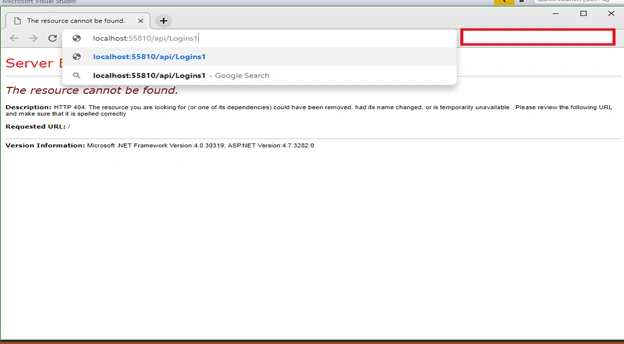
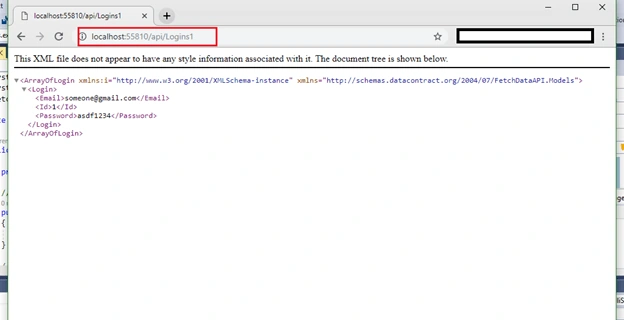
As you can see in the screenshot below, I have added the copied text in the link area then just press Enter and we will get our XAML file.
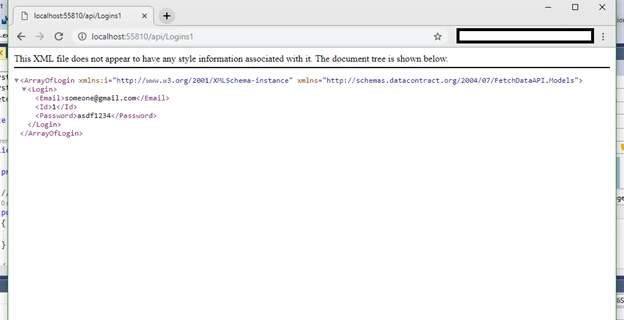
That's all. We've successfully got our XAML file in a browser.
Now we will create a cross-platform application that will use the Web API to fetch this data.
Please follow the few more steps to achieve this goal.
Steps to create a cross-platform application (Xamarin.forms)
Step 1
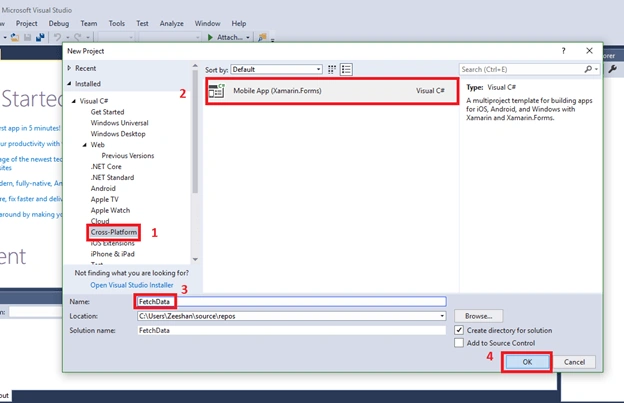
- First select Cross Platform from left side menu.
- Then Select Mobile App (Xamarin.Forms)
- Give your project a unique name of your choice.
- Then Press Ok.
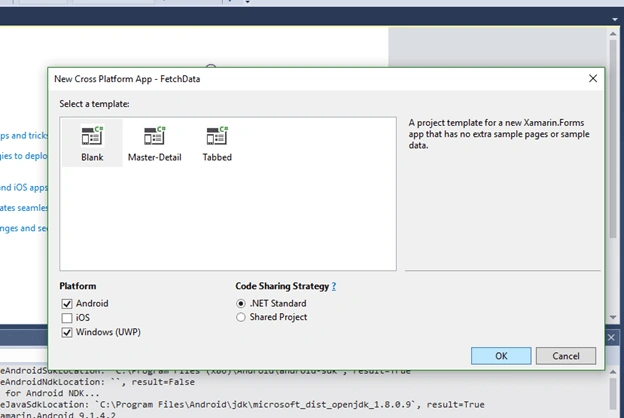
- On next screen, select Blank template.
- Select Platform (Android, iOS, and UWP). You can select one or more, depending on your target platform.
- Then Press Ok.
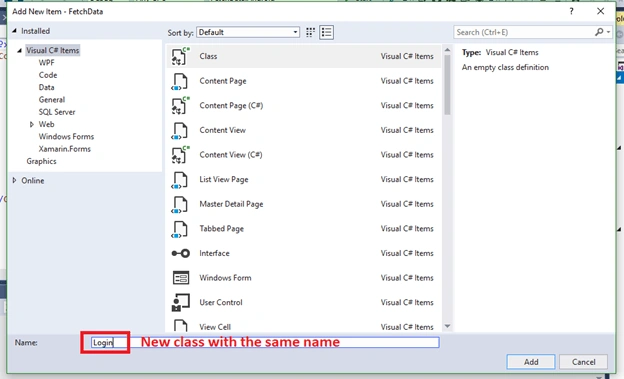
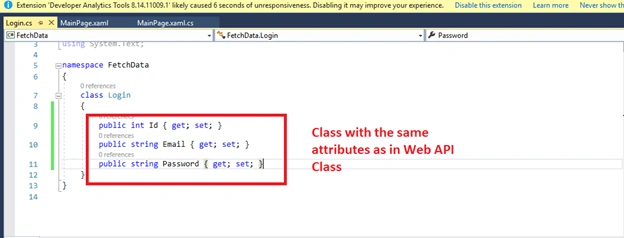
Right click on your C# file and add a class with the same name as we have created in our Web API project earlier. More over the attributes of this class should be same that we have given our previous class in Web API project, otherwise data will not be fetched.
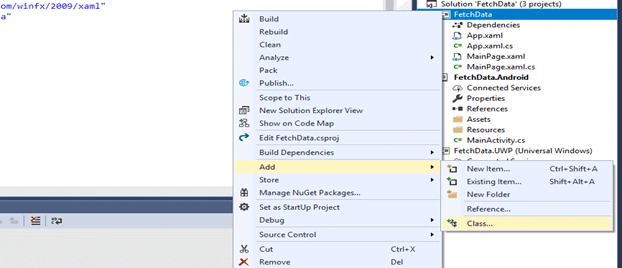
Add a class with the same name as in Web API project.
Same class attributes as in the Web API class.
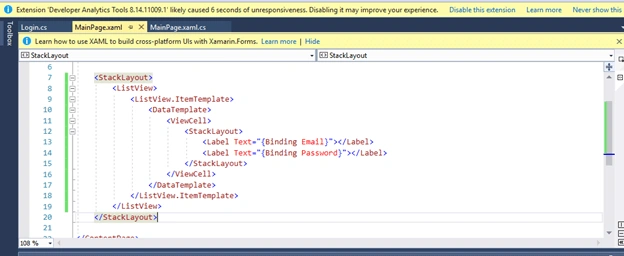
New, we will set our front end page that will display data in a ListView control.
Step 4
Open MainPage.xaml and add the following code. Here we have a ListView control with two Label controls that are bound with the Email and Password.
Step 5
Add a NuGet package for managing HTTP requests and fetching data.
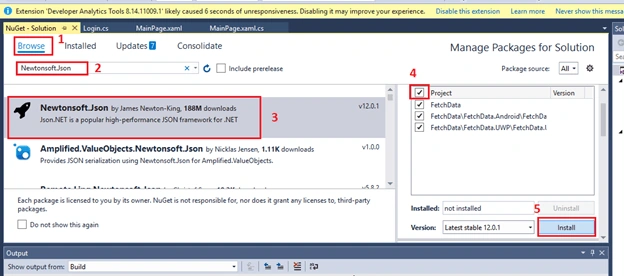
Right click on your Solution Explorer and select (Manage NuGet Packages for solutions).
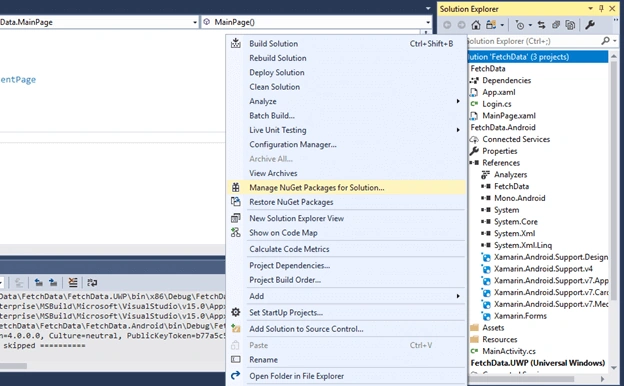
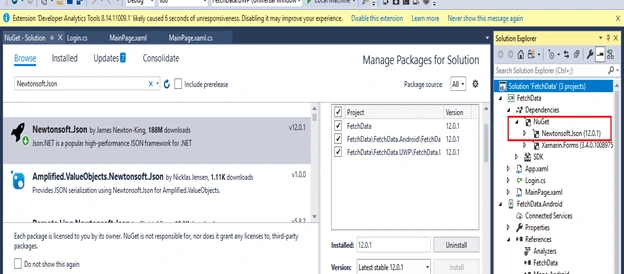
Adding NuGet Package
- First go to the Browser.
- Write in the search box (Newtonsoft.Json).
- Select NuGet Package.
- Select All in the project.
- Press Install button.
Step 6
New go to the MainPage.xaml.cs page.
Create a method, Login() and call it just after InitializeCcomponent in the constructor of MainPage.
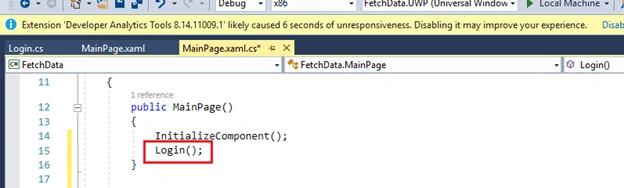
This method is declared in the next step. Before that, import two namespace of Newtonsoft.Json package.
- using System.Net.Http;
- using Newtonsoft.Json;
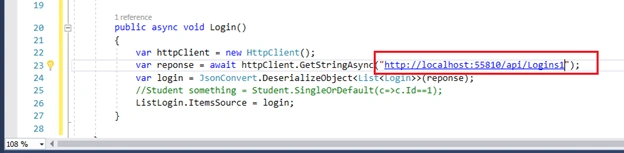
Http class provides a base class for sending and receiving requests from a URL. It is a supported async feature of .NET framework. HttpClient is able to process multiple concurrent requests. It is a layer over HttpWebRequest and HttpWebResponse.
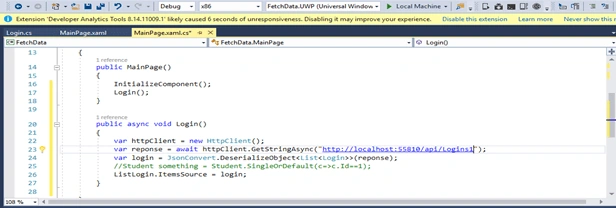
Copy the link from browser that is running our XAML Code.
Now paste this link in the response variable for getting all the responses.
You need to make sure the Web API project is up and running because the Xamarin app will call WebAPI to access data.
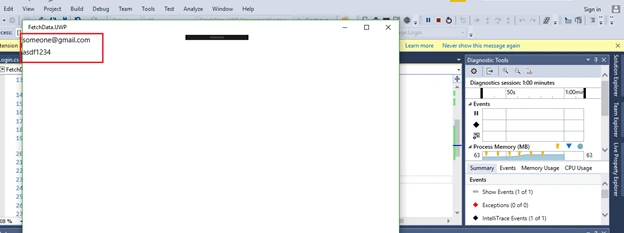
That is all. In this tutorial, we saw how to create a Web API, and connect with a data source. We saw how to create a Xamarin App and how to consume data via a Web API.
x.v.x71Posted Mar 9, 2022, 9:45 PM
I have a site and I am working on an Android application. I want to send a message through the application and reach the site control panel I have a site and I am working on an Android application. I want to send a message through the application and reach the site control panel through Xamarin jeson cshtml #c asp.net mvc 5 Can you help methrough Xamarin jeson cshtml #c asp.net mvc 5 Can you help me
Fysal UsmanPosted Jun 14, 2021, 12:16 PM
Sir, When I named the listview as suggested by Mr. Cross Magdy, the following error messages: Code DescriptionCS1519 Invalid token '<' in class, record, struct, or interface member declarationCS1003. Syntax error, ',' expectedCS1002 ; expected CS1519 Invalid token '=' in class, record, struct, or interface member declaration CS1519 Invalid token '=' in class, record, struct, or interface member declaration The following are the codes of my MainPage.xaml.cs: Quote: using System; using System.Collections.Generic; using System.ComponentModel; using System.Linq; using System.Text; using System.Threading.Tasks; using Xamarin.Forms; using System.Net.Http; using Newtonsoft.Json; namespace FetchLedData public partial class MainPage : ContentPage { public MainPage() { InitializeComponent(); LedLog(); } { < ListView x: Name = "ListLedLog" >; } public async void LedLog() { var httpClient = new HttpClient(); var reponse = await httpClient.GetStringAsync("http://localhost:44302/api/LedLogs1"); var login = JsonConvert.DeserializeObject<List<LedLog>>(reponse); ListLedLog.ItemsSource = login; } } (Please note that I named LedLog instead of Login as named in the tutorial)
Fysal UsmanPosted Jun 13, 2021, 6:34 PM
Dear Sir, When I added 'ListLogin.ItemsSource=login;' under public async void Login(), I get this error message The name CS0103 'ListLogin' does not exist in the current context. Kindly help - Fysal Usman
Sreeja MPosted Sep 8, 2020, 11:46 PM
I had an error.which shows "The name Listlogin does not exist on the current context""
Vitoto MkhontoPosted Jun 20, 2020, 8:08 PM
I had An Error from the mobile app - Java.Net.SocketException: 'Connection reset' Please help
s jPosted Jun 1, 2020, 2:04 AM
How to connect this to self created database?
Kumar SambhavPosted Dec 24, 2019, 5:14 AM
Please help me it's throwing these error Java.IO.IOException: 'Cleartext HTTP traffic to www.mydomain.com not permitted'
sudheer chowdaryPosted Nov 19, 2019, 8:52 AM
Hello, i have one issue when i am try to get the data throw this eeror is Unhandled Exception: System.Net.Http.HttpRequestException: An error occurred while sending the request in xamarin forms. can u please give me suggestion how to slove this issue.
Shweta DPosted Sep 30, 2019, 1:36 AM
Hello, i have published my api and its running nicely. But at GetStringAsync its coming out of function. Can you please suggest me why its doing this?
ravi kumarPosted Sep 27, 2019, 5:35 AM
Hi sir, When I am Try Xamarin mobile App this error coming System.Net.WebException: failed to connect to localhost/127.0.0.1 (port 52606) after 120000ms: isConnected failed: ECONNREFUSED (Connection refused)
User GPosted Sep 5, 2019, 3:45 AM
How to make sure that web api project is up and running in the last step? 1. created a web api and then 2. xamarin forms. but when we create xamarin forms web api needs to be closed. how to ensure that it is running then?
tyne ghiePosted Aug 31, 2019, 11:54 AM
Thank you for the tutorial
Najilath pPosted Jul 31, 2019, 5:25 AM
System.Net.Http.HttpRequestException: '403 (FORBIDDEN)' how to cancel
Karinna MonnserratPosted Jun 6, 2019, 5:33 AM
Thank you very much for the contribution, excellent explanation!
gaurav humbarfkarPosted May 6, 2019, 3:10 AM
From where Does ListLogin.Itemsource has come