

Introduction
In this article, I'm going to show you how to do a password policy on a server in a proper and easiest method; before that, we need to know what a password policy is and its benefits.
What is a Password Policy?
A password policy is a set of rules that encourage users to create and use strong passwords. Password policies can include requirements.
- Password length and complexity
- Password expiration period
- Password reuse
- Disallowing known breached passwords
- Allowing and disallowing certain types of characters
- Disallowing terms in a dictionary of unwanted terms
Password policies can be part of an organization's official regulations and may be taught as part of security awareness training.
Benefits Of Password Policy
- Eliminate password expiry: Eliminates the need for users to create, remember, and constantly renew passwords.
- Enforce password history: Prevents users from using old and easily guessed passwords.
- Keep all passwords unique: Repeating passwords between applications and websites leaves other accounts vulnerable if one application is compromised.
- Maintain centralized control of user access: Reduces the risk of password-related security breaches.
- Reduce support desk workload: End users can perform crucial actions like password reset and account unlock themselves.
- Boost overall productivity: A password management system can empower employees with a safe way to store and share account logins.
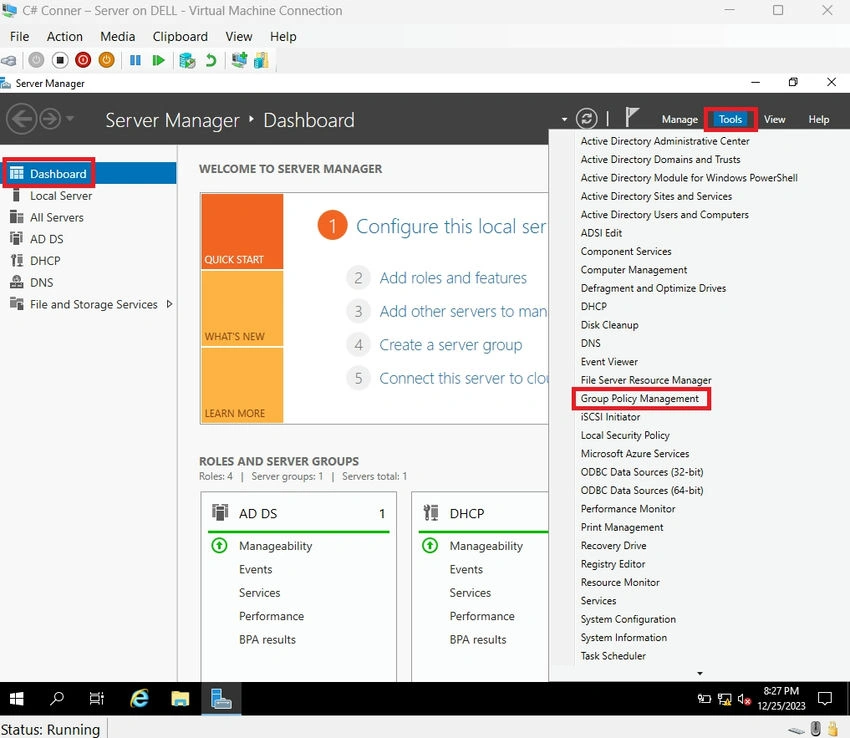
Step 1. On your server’s dashboard, click “tools” after clicking “group policy management”.
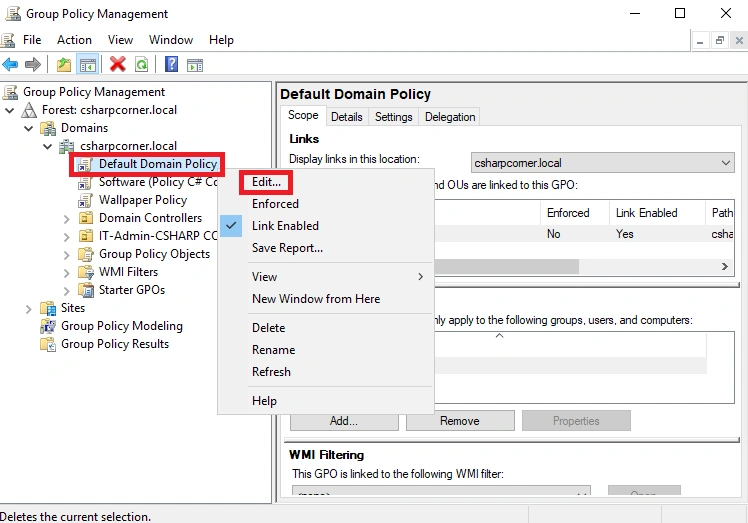
Step 2. After under your server’s domain right - click on “default domain policy” and then click “edit”.
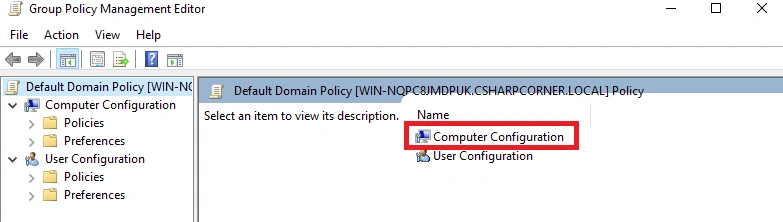
Step 3. Double-click “computer configuration”.
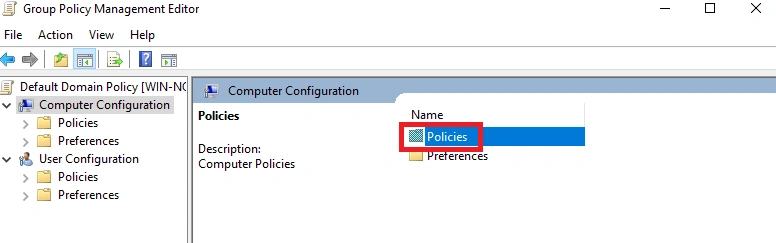
Step 4. Again, double-click “policy”.
Step 5. Double-click on “Windows settings”.
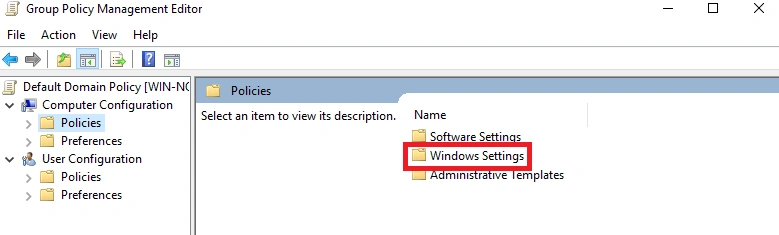
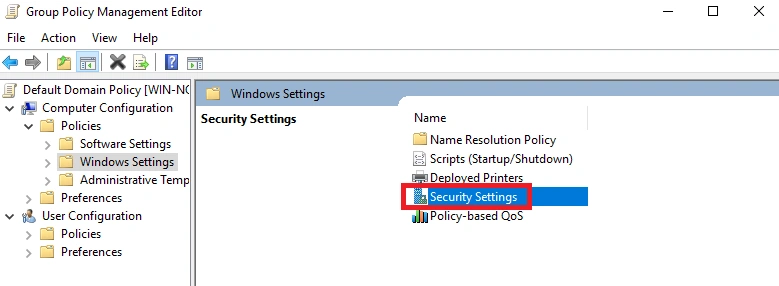
Step 6. Double-click on “security settings”.
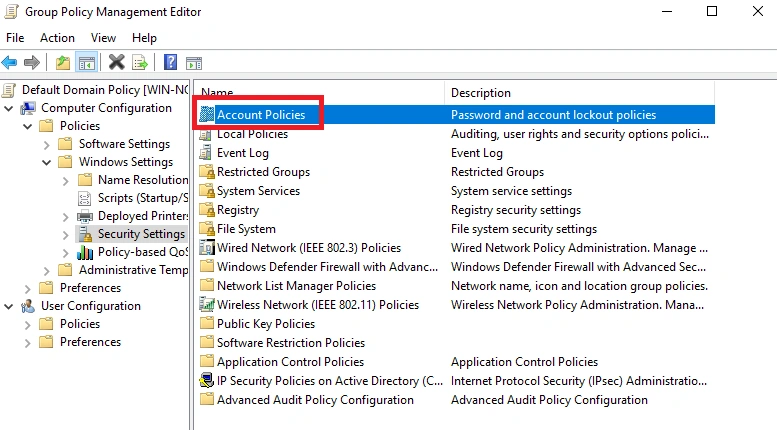
Step 7. Again, double-click on “account policy”.
Step 8. Double-click “password policy”.
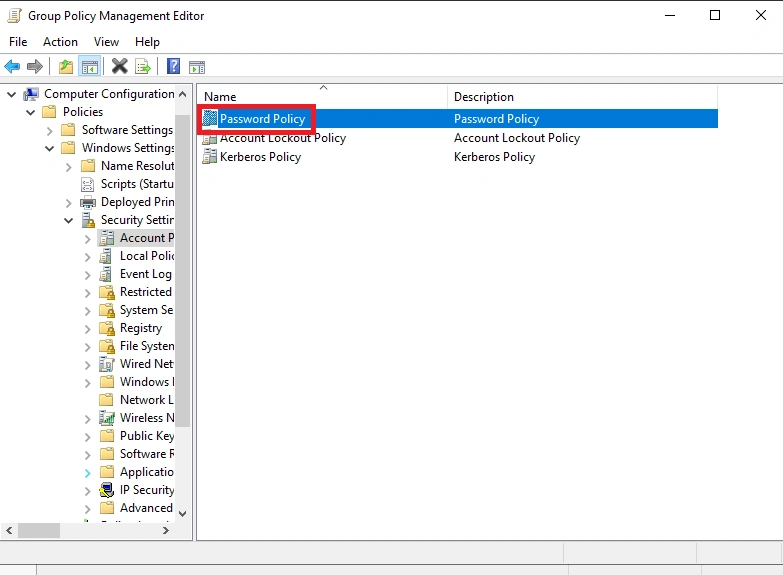
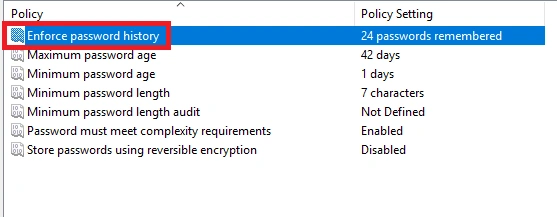
Step 9. Now you can change your password policy as you want, like password history, maximum password age, minimum password age, minimum password length, minimum password length audit, and complexity requirements. Here, I changed the password history for that double click in “password history”.
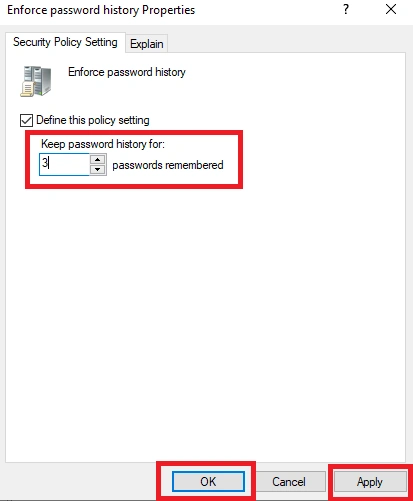
Step 10. Change to 3 and click “apply and ok”.
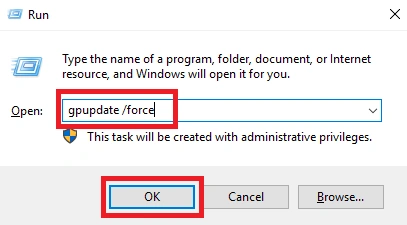
Step 11. After opening the run, type “gpupdate /force” and click “ok”.
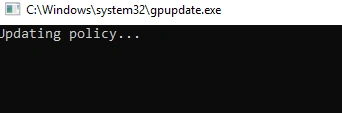
Step 12. Now you can see our changed password policy applying in a cmd prompt.
Conclusion
In this article, we all clearly understand how to do password policy on servers in a proper and easiest method. If there is clarification regarding this topic, feel free to drop comments below.
Guest UserPosted Jan 3, 2024, 4:30 AM
Wow, good explanation
Lambotharan SriragavanPosted Dec 28, 2023, 2:59 AM
Mr. Najath Risni provides a comprehensive guide on implementing a robust password policy on servers. His explanation covers key aspects such as complexity requirements, expiration intervals, and account lockout settings. The clarity of his instructions ensures effective security measures, making it an invaluable resource for server administrators.