

Overview
- Android Application - Day One
- Android Application – Day Two
- How To Display A Dialog Window In Android
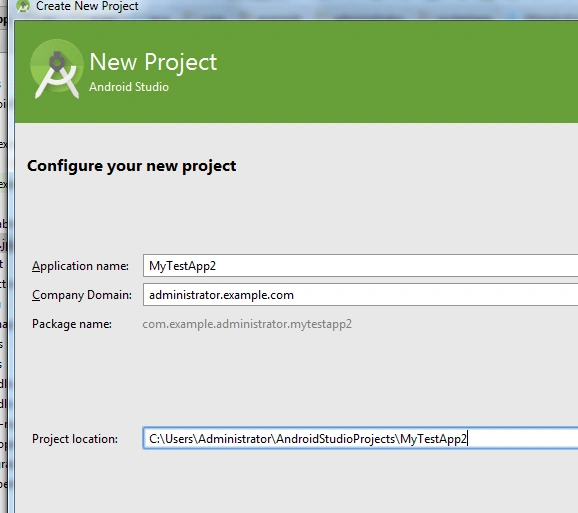
Click Next as per instruction given in the wizard and you will finally reach the last step.
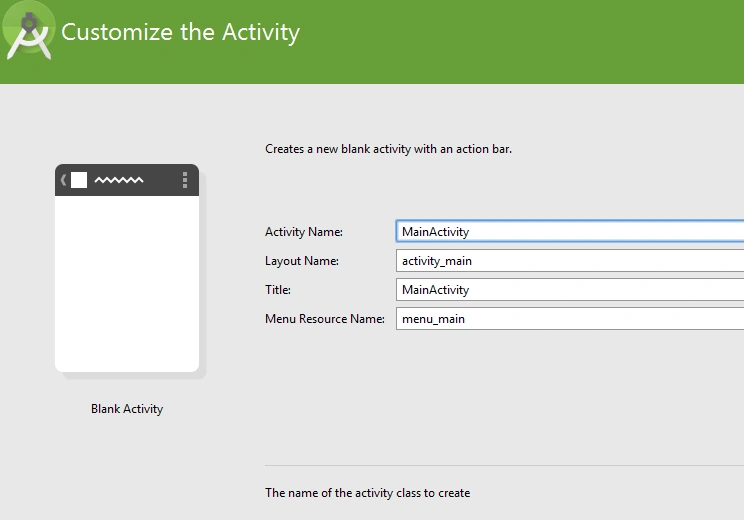
Add a button in activity_main.xml file, as shown below:
- <LinearLayout xmlns:android="http://schemas.android.com/apk/res/android"
- xmlns:tools="http://schemas.android.com/tools" android:layout_width="match_parent"
- android:layout_height="match_parent" android:paddingLeft="@dimen/activity_horizontal_margin"
- android:paddingRight="@dimen/activity_horizontal_margin"
- android:paddingTop="@dimen/activity_vertical_margin"
- android:paddingBottom="@dimen/activity_vertical_margin" tools:context=".MainActivity">
- <Button
- android:id="@+id/btnDialog"
- android:layout_width="fill_parent"
- android:layout_height="wrap_content"
- android:text="click to display a dialog"
- android:onClick="onClick"
- />
- </LinearLayout>
In MainActivity.java class, add the reference of ProgressDialog class
To create a progress dialog, you created an instance of the ProgressDialog class and called it’s show() method.
- public void onClick(View v)
- {
- //Show the dialog
- final ProgressDialog dialog= ProgressDialog.show(this,"Doing something", "Please wait....",true);
- new Thread(new Runnable() {
- @Override
- public void run() {
- try {
- Thread.sleep(5000);
- dialog.dismiss();
- }
- catch(InterruptedException ex){
- ex.printStackTrace();
- }
- }
- }).start();
- }
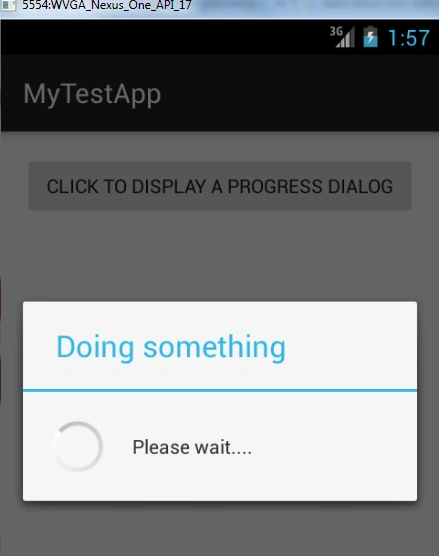
In the screenshot, given above, it is a model dialog and will block the UI until, it is dismissed. We have created a Thread, using a Runnable block to perform a long running task. The code, given above, will execute in a separate thread and it is simulated to perform the task for five seconds by inserting a delay, using the sleep() method.
We can also create a more user friendly Progress Dialog and display the progress of an operation.
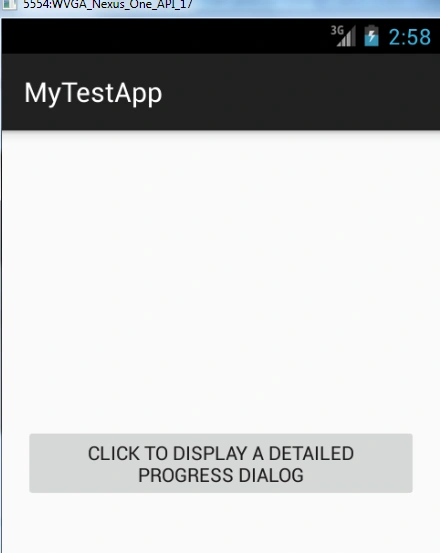
In the screenshot, given above, one more button is added in activity_main.xml
- <Button
- android:id="@+id/btnDialog2"
- android:layout_width="fill_parent"
- android:layout_height="wrap_content"
- android:text="Click to display a detailed progress dialog"
- android:onClick="onClick2"
- android:layout_below="@+id/btnDialog1"
- android:layout_alignParentLeft="true"
- android:layout_alignParentStart="true"
- android:layout_marginTop="200dp"
- />
In the method, onCreateDialog(), add option for the second button will display a sophisticated Progress dialog. OK and Cancel buttons are set inside the progress dialog along with the various properties, such as icon, title and style.
Case 1:
- progressDialog=new ProgressDialog(this);
- progressDialog.setIcon(R.drawable.i1);
- progressDialog.setTitle("Downloading files........");
- progressDialog.setProgressStyle(progressDialog.STYLE_HORIZONTAL);
- progressDialog.setButton(DialogInterface.BUTTON_POSITIVE, "OK",
- new DialogInterface.OnClickListener() {
- @Override
- public void onClick(DialogInterface dialogInterface, int i) {
- Toast.makeText(getBaseContext(), "OK clicked", Toast.LENGTH_SHORT).show();
- }
- }
- );
- progressDialog.setButton(DialogInterface.BUTTON_NEGATIVE, "Cancel",
- new DialogInterface.OnClickListener() {
- @Override
- public void onClick(DialogInterface dialogInterface, int i) {
- Toast.makeText(getBaseContext(),"Cancel clicked", Toast.LENGTH_SHORT).show();
- }
- });
- public void onClick2(View v) {
- showDialog(1);
- progressDialog.setProgress(0);
- new Thread(new Runnable(){
- public void run(){
- for(int i=1;i<=10;i++){
- try{
- Thread.sleep(2000);
- progressDialog.incrementProgressBy((int)(100/10));
- }
- catch (InterruptedException ex) {
- ex.printStackTrace();
- }
- }
- progressDialog.dismiss();
- }
- }).start();
- }
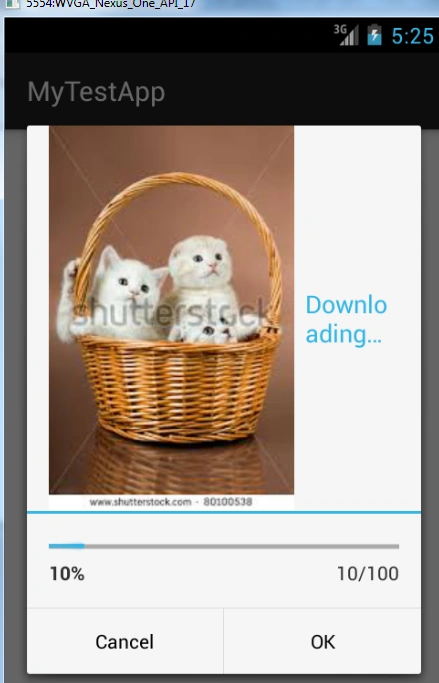
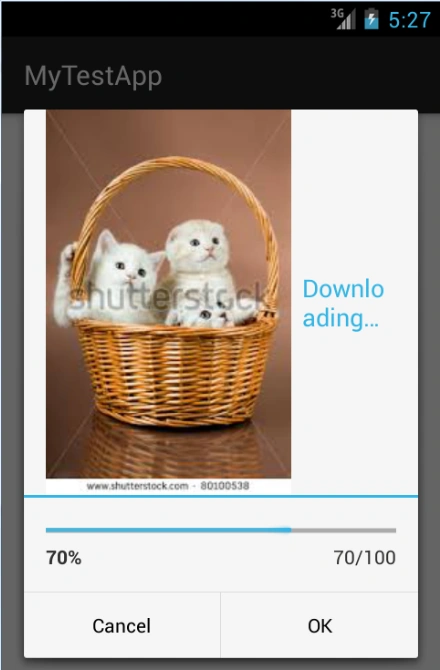
It is further incremented by the multiples of 10%.
Conclusion
The incrementProgressBy() method increments the counter in the progress dialog. When it reaches 100%, it is dismissed.Thus it is all about progress dialog and a detailed progress dialog control used in android app.
Delpin Susai RajPosted Aug 28, 2016, 9:07 AM
Nice one
Vignesh ManiPosted Jul 11, 2016, 12:35 PM
Nice
Raj KumarPosted Jul 11, 2016, 12:01 PM
Excellent pradeep.
Hussain KhawajaPosted Jul 11, 2016, 2:12 AM
Good one
Thiruppathi RPosted Jul 11, 2016, 2:01 AM
Nice
kalu singh raoPosted Jul 11, 2016, 1:26 AM
Nice...