

Content
Create a new website named "Website1".
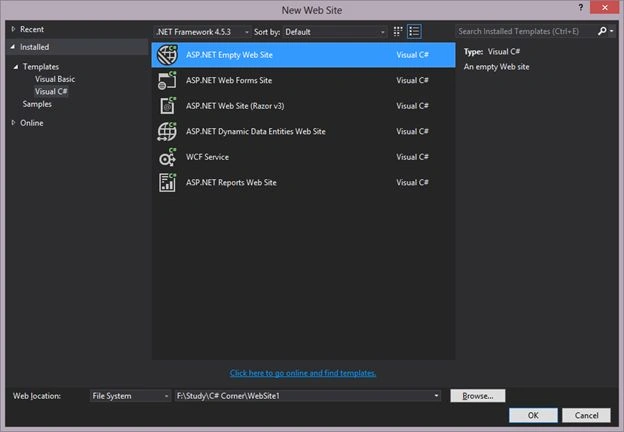 Step 2
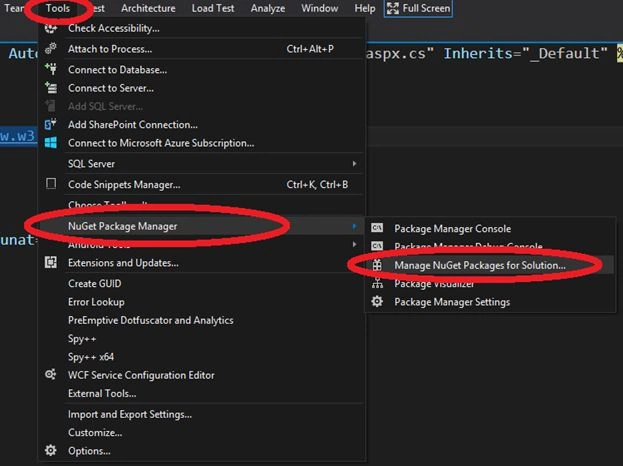
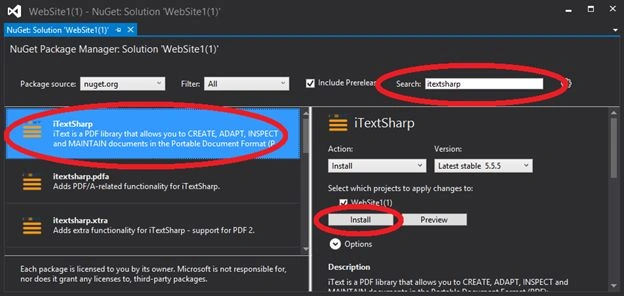
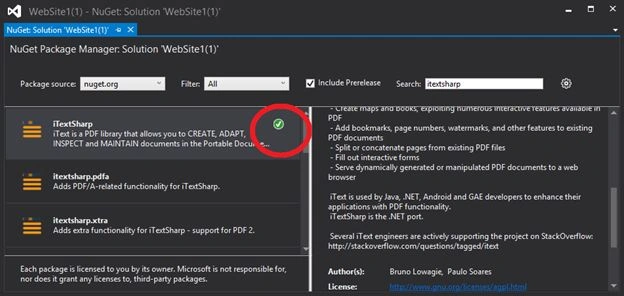
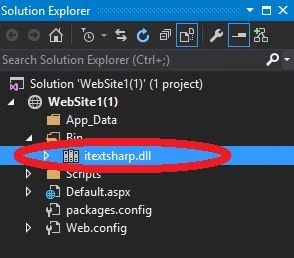
Add the ItextSharp library from the NuGet package using the following substeps:
- Click on Tools
- NuGet Package Manager
- Manage NuGet Packages for Solution

- Add an HTML page named "MyPage.html' and draw a table with some rows and columns or create a design that you want to add to the runtime generated PDF.
- <!DOCTYPE html>
- <html xmlns="http://www.w3.org/1999/xhtml">
- <head>
- <title></title>
- </head>
- <body>
- <div align="center"><h1><b> This is Header</b></h1></div>
- <table border="1" width="100%" height="100%">
- <tr>
- <td>First Name: </td>
- <td>Rahul </td>
- </tr>
- <tr>
- <td>Last Name: </td>
- <td>Bansal </td>
- </tr>
- </table>
- </body>
- </html>
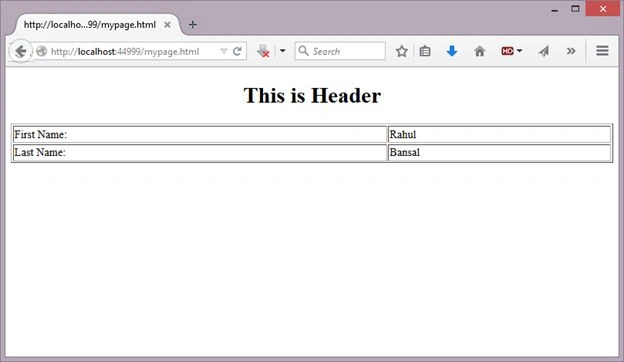
- The page will look like:
- Convert all the double quotes (") of the HTML page into apostrophes (single quotes, in other words ').
- <!DOCTYPE html>
- <html xmlns='http://www.w3.org/1999/xhtml'>
- <head>
- <title></title>
- </head>
- <body>
- <div align='center'><h1><b> This is Header</b></h1></div>
- <table border='1' width='100%' height='100%'>
- <tr>
- <td>First Name: </td>
- <td>Rahul </td>
- </tr>
- <tr>
- <td>Last Name: </td>
- <td>Bansal </td>
- </tr>
- </table>
- </body>
- </html>
Step 4
- Add a button to default page named "Default.aspx" and change the text to be "Generate PDF".
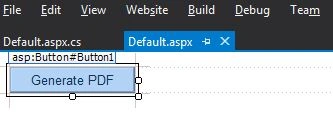
- Double-click on the button to generate an Onclick event (to generate the PDF) on the Form.
- Add the following 2 namespaces to the top of the ".cs" file:
- using iTextSharp.text;
- using iTextSharp.text.pdf;
- using System.IO;
- using iTextSharp.text.html.simpleparser;
- Write the code to generate the PDF file on the click event of the button and copy all the code of the HTML page into the "strHTML" variable.
- protected void Button1_Click(object sender, EventArgs e)
- {
- Document pdfDoc = new Document();
- PdfWriter pdfWriter = PdfWriter.GetInstance(pdfDoc, HttpContext.Current.Response.OutputStream);
- pdfDoc.Open();
- string strHTML = @"<!DOCTYPE html>
- <html xmlns='http://www.w3.org/1999/xhtml'>
- <head>
- <title></title>
- </head>
- <body>
- <div align = 'center'><h1><b>This is Header</b></h1></div>
- <table border = '1' width = '100%' height = '100%'>
- <tr>
- <td>First Name: </td>
- <td>Rahul </td>
- </tr>
- <tr>
- <td>Last Name: </td>
- <td>Bansal </td>
- </tr>
- </table>
- </body>
- </html>";
- HTMLWorker htmlWorker = new HTMLWorker(pdfDoc);
- htmlWorker.Parse(new StringReader(strHTML));
- pdfWriter.CloseStream = false;
- pdfDoc.Close();
- Response.Buffer = true;
- Response.ContentType = "application/pdf";
- Response.AddHeader("content-disposition", "attachment;filename=Test.pdf");
- Response.Cache.SetCacheability(HttpCacheability.NoCache);
- Response.Write(pdfDoc);
- Response.Flush();
- Response.End();
- }
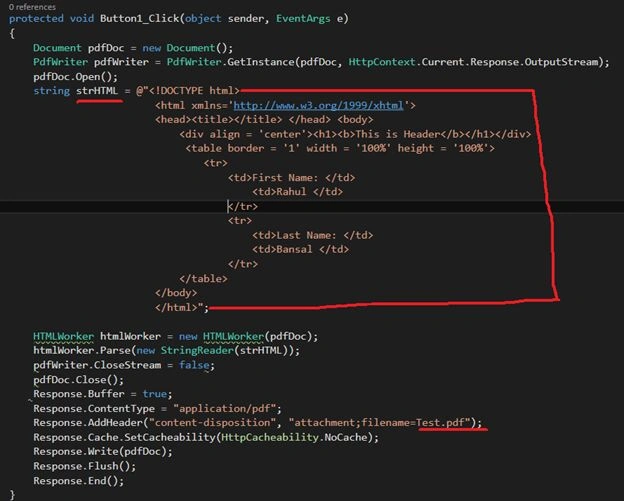
As in the following image:
 Note:
You can provide any name of the generated file. For example here I provided "test.pdf".
Step 5
Note:
You can provide any name of the generated file. For example here I provided "test.pdf".
Step 5
- Run the page that will be like:

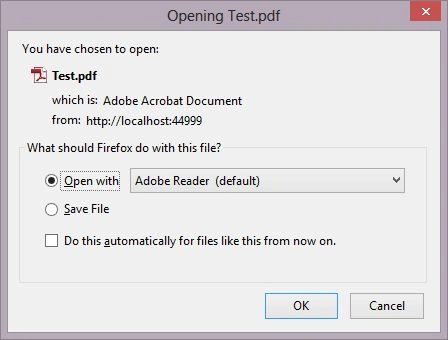
- Click on the "Generate PDF" button, it will pop-up a window like:
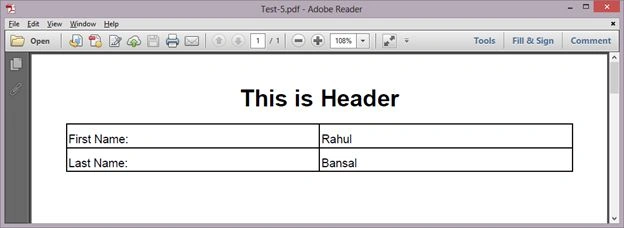
- Open this PDF and see the output.
Conclusion
In this article, we studied How to Design Runtime Generated PDF Via HTML.
Manish Kumar ChoudharyPosted Feb 26, 2015, 6:54 AM
Very Helpful articles.
Sibeesh VenuPosted Feb 25, 2015, 5:45 AM
Rahul Bansal You are welcome.
Sibeesh VenuPosted Feb 25, 2015, 5:15 AM
Good one.
Harpreet SinghPosted Feb 25, 2015, 12:25 AM
very helpful
Rahul Kumar SaxenaPosted Feb 24, 2015, 11:36 PM
Great one Rahul Bansal...