

Introduction

Customization of taskbar
- Change the color of Taskbar
- The default color is Black.
- It does not automatically change the taskbar color.
- Transparency of the taskbar is available.
- It can automatically pick an accent color from the background
Step 1
Right-click on desktop area.
Step 2
Click personalization.
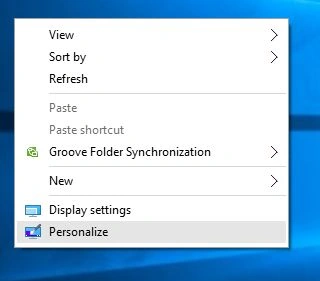
Step 3
Click colors.
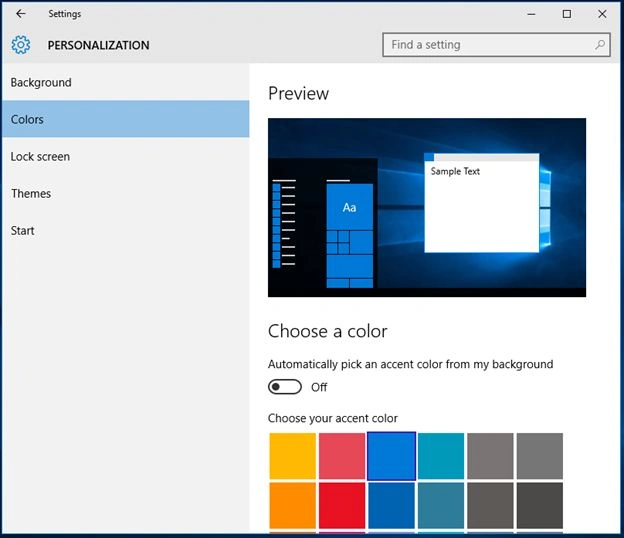
Step 4
Switch automatically. Pick a color; an accent color from my background.
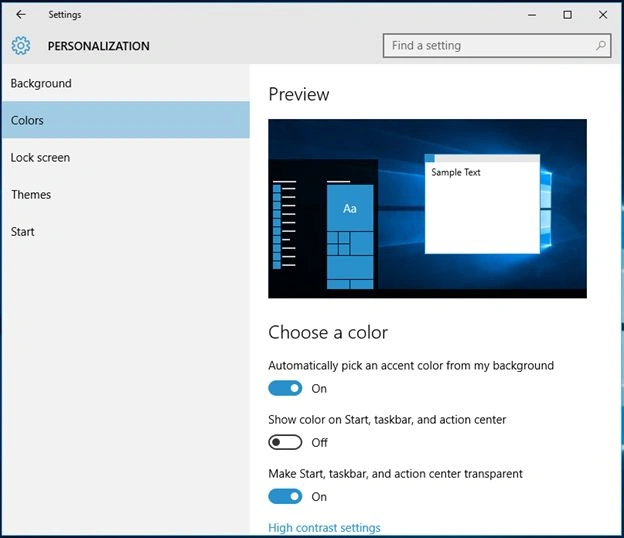
Enable or Disable Transparency
This option can be transparent in the taskbar.
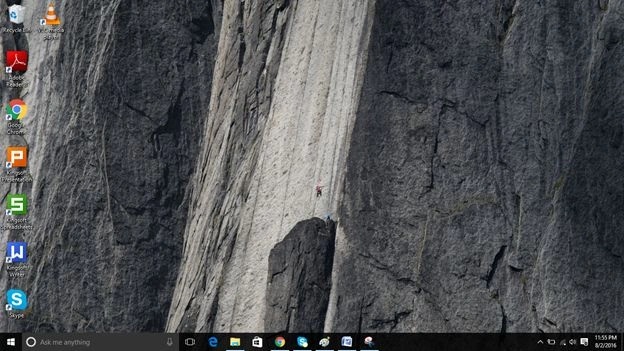
In the taskbar, you can see the transparency. Similarly, if you switch off the button, the transparency will go.
Add or remove the icon from the Taskbar
On the taskbar, there is a default icon like Internet Explorer preplaced. You can remove and add the new icons, using a pin and unpin.
You can remove the default icon like Action center manually in the setting (Control Panel).
Some steps are as follows:
- Click the setting or use Windows + I.
- Click system.
- Click Notification and actions.
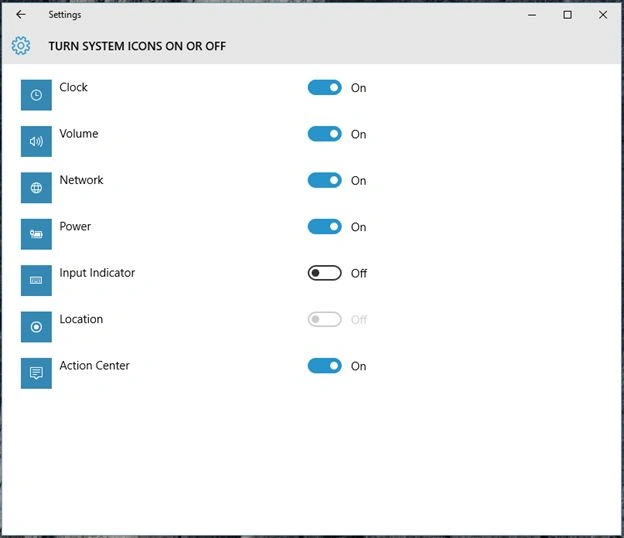
- Click the icon, which appears on the taskbar and turn on or off the icons, which you want to see or don’t see on the taskbar.
- Go back to the notification and action, click Turn system icons on or off and then remove the system icons like a clock, battery power, Wi-Fi icon, notification, and other things.
Resize the Taskbar
Right-click on the taskbar and unlock the “Lock the taskbar”.
Step 2
Move the pointer to the upper edge of the taskbar.
Step 3
Hold the left-click and move the pointer to the upside.
 Similarly, hold the left-click on the taskbar's upper edge and move the pointer to the downside.
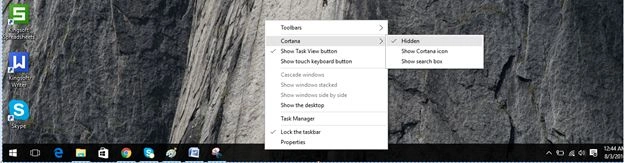
 Right-click on the taskbar, click Cortana and choose hidden.
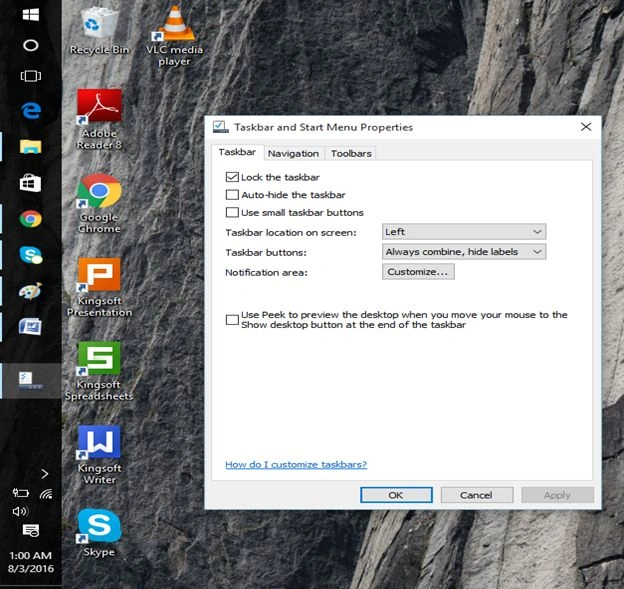
 The taskbar can be set on any side of the screen.
Add or Remove Search Box
Move Taskbar to the top, left and right
Step 1
Right-click on the taskbar and click the properties.
Step 2
Click the taskbar tab. Click the taskbar location on the screen and then select top, left or right, click apply and OK.
Remove the task view button
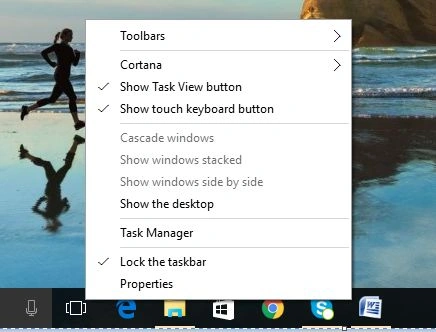

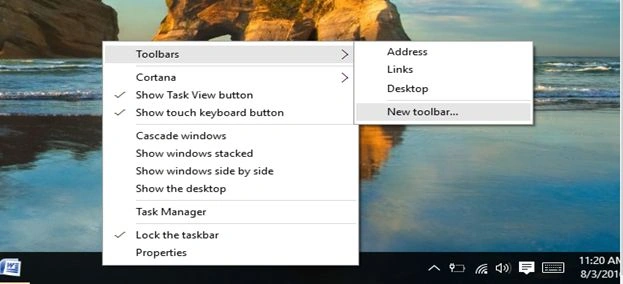
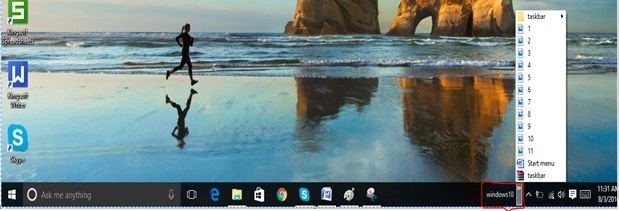
Add a Toolbar to the Taskbar
Summary
In this article, we learned about How To Customize Taskbar In Windows 10.
Onkar SharmaPosted May 24, 2020, 7:32 AM
Nice One...
Ravi KandelPosted Aug 14, 2016, 2:52 AM
Nice