

Introduction
It's a control in the Ajax tool kit by which you can add sections with some content separately and expand or collapse each section as needed.
I will explain how to bind the Accordion with database values and add it on the page dynamically. To do it you need to create a table in your database and add some data into it for each section's header and content.
To better understand, use the following procedure to create a sample.
Step 1
Create a table named "BTechStudents" with 2 fields named "BranchName" and "StudentName".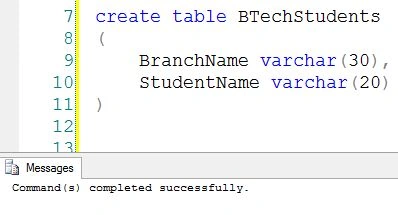
Step 2
Insert some data into the table.
- Student names of "Computer Science".
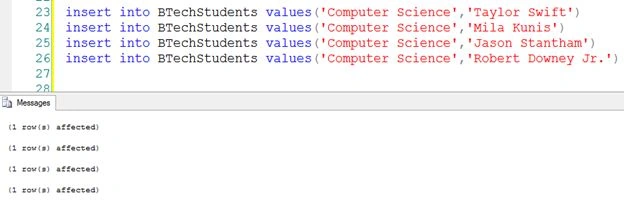
- Student names of "Information Technology".
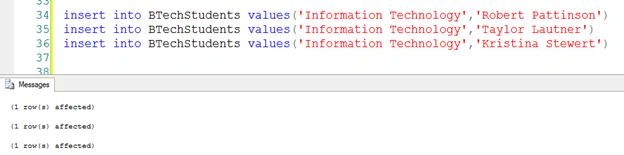
- Student names of "Electronics".
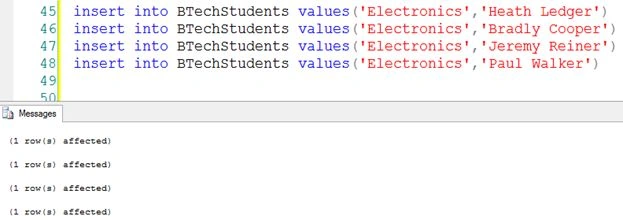
After insertion of data select the table that will look a-like-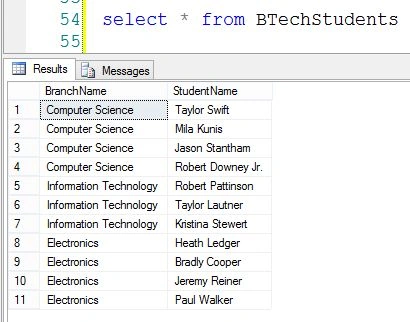
Step 3
Download the AjaxCOntrolToolKit from the following link to use the Accordion control.
And create a website named "Test_Website".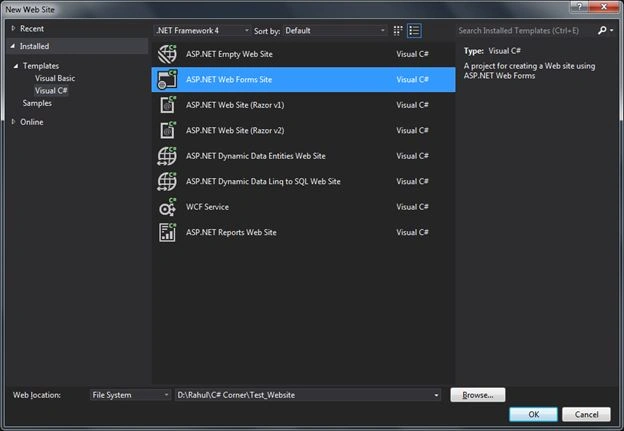
Right-click on the website and choose "Add reference" to add the reference of AjaxControlToolkit.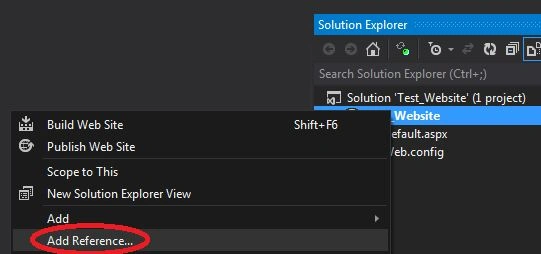
A window will be shown to add the reference. Use the following sub-steps to add the AjaxControlToolKit.
- Click on the Browse pan.
- Click on the Browse button that will open another window.
- Select the path of AjaxControlToolKit from your system.
- Click on the Add button.
- Finally click on the Ok button.
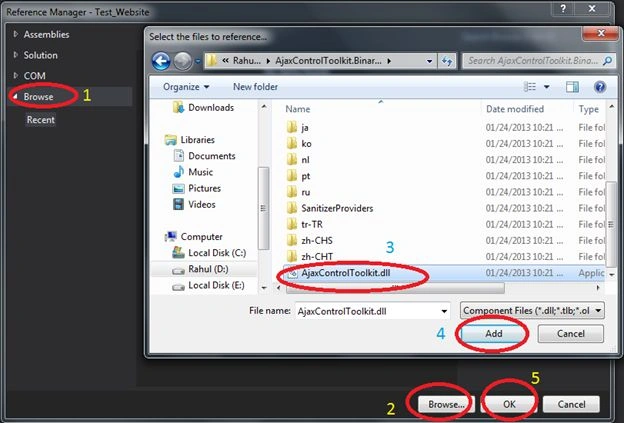
It will look as in the following bin folder: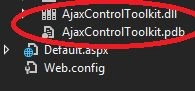
Step 4
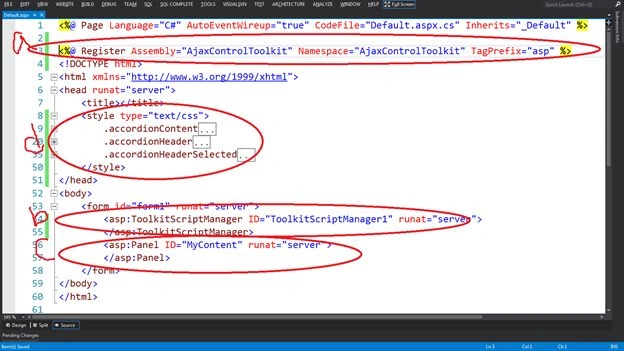
- On the top of the default created page named "Default.aspx", add the Register Tag to add the "AjaxControlToolKit" ScriptManager.
- <%@ Register Assembly="AjaxControlToolkit" Namespace="AjaxControlToolkit"
- TagPrefix="asp" %>
- Add the "AjaxControlToolKit" ScriptManager into the body of the page.
- <asp:ToolkitScriptManager ID="ToolkitScriptManager1" runat="server">
- </asp:ToolkitScriptManager>
- Add the Panel into the body tag of page.
- <asp:Panel ID="MyContent" runat="server">
- </asp:Panel>
- Add the style on the page for Accordion Header, Accordion Content and selected Accordion Header.
- <style type="text/css">
- .accordionContent
- {
- border-color: -moz-use-text-color #5078B3;
- border-right: 1px dashed #2F4F4F;
- border-style: none solid solid;
- border-width: medium 1px 1px;
- padding: 10px 5px 5px;
- width: 65%;
- text-align: center;
- background-color: #c1e2f5;
- }
- .accordionHeader
- {
- cursor: pointer;
- font-family: Arial,Sans-Serif;
- font-weight: bold;
- margin-top: 10px;
- padding: 5px;
- font-size: 14px;
- border: 1px solid #2F4F4F;
- width: 65%;
- background: url(Images/img-collapse.png) no-repeat 750px 7px;
- background-color: #425e89;
- color: white;
- text-align: left;
- }
- .accordionHeaderSelected
- {
- color: white;
- cursor: pointer;
- font-family: Arial,Sans-Serif;
- font-weight: bold;
- margin-top: 10px;
- padding: 5px;
- font-size: 14px;
- border: 1px solid #2F4F4F;
- width: 65%;
- background: url(Images/img-expand.png) no-repeat 750px 7px;
- background-color: #2fa4e7;
- text-align: center;
- }
- </style>
Note: You need to add the 2 images to expand and collapse that are being called in style sheet. Both images are in the attached source file.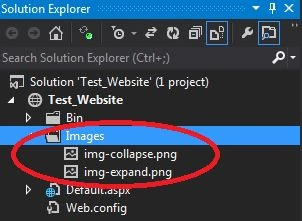
Step 5
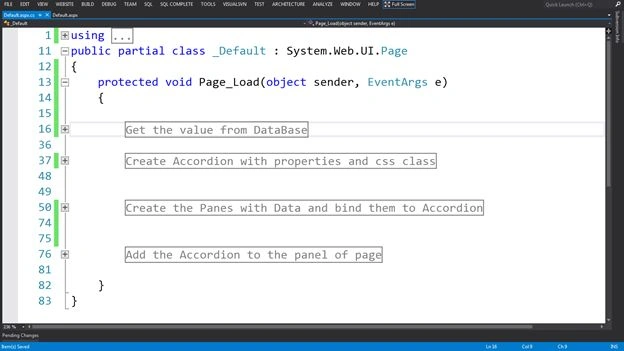
Now I will provide some sub-steps for creating the Accordion.
- Get the data from the database.
- Create the Accordion.
- Create the panes and add them into the Accordion.
- Add the Accordion into the panel of the page.
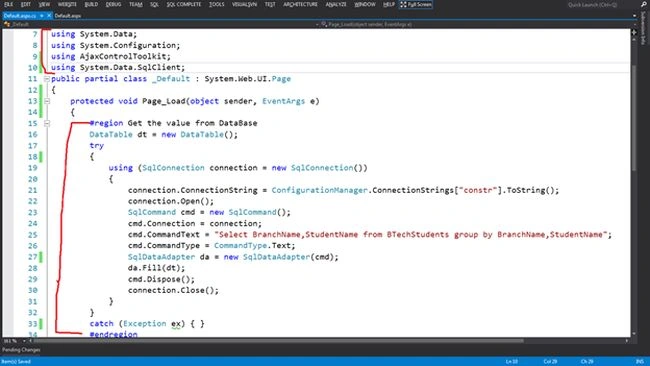
Write the following code on the Page Load event of the page and add the following namespaces to the page.
- using System.Data;
- using System.Configuration;
- using AjaxControlToolkit;
- using System.Data.SqlClient;
- Get the data from the database table named "BTechStudents".
- DataTable dt = new DataTable();
- try
- {
- using (SqlConnection connection = new SqlConnection())
- {
- connection.ConnectionString = ConfigurationManager.ConnectionStrings["constr"].ToString();
- connection.Open();
- SqlCommand cmd = new SqlCommand();
- cmd.Connection = connection;
- cmd.CommandText = "Select BranchName,StudentName from BTechStudents group by BranchName,StudentName";
- cmd.CommandType = CommandType.Text;
- SqlDataAdapter da = new SqlDataAdapter(cmd);
- da.Fill(dt);
- cmd.Dispose();
- connection.Close();
- }
- }
- catch (Exception ex) { }
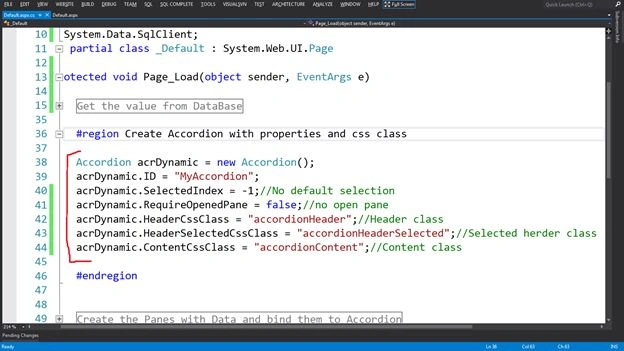
- Create the Accordion dynamically and set the properties of it with some CSS classes.
- Accordion acrDynamic = new Accordion();
- acrDynamic.ID = "MyAccordion";
- acrDynamic.SelectedIndex = -1;//No default selection
- acrDynamic.RequireOpenedPane = false;//no open pane
- acrDynamic.HeaderCssClass = "accordionHeader";//Header class
- acrDynamic.HeaderSelectedCssClass = "accordionHeaderSelected";//Selected herder class
- acrDynamic.ContentCssClass = "accordionContent";//Content class
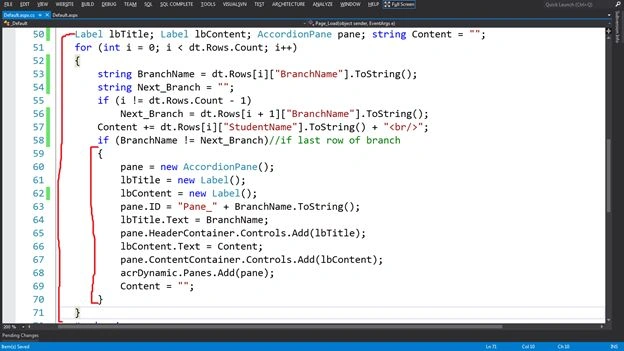
- Create the panes on the basis of the database table field (BrachName) and add the content into them (Studentsname), Then bind the panes into the Accordion.
- Label lbTitle;
- Label lbContent;
- AccordionPane pane;
- string Content = "";
- for (int i = 0; i < dt.Rows.Count; i++)
- {
- string BranchName = dt.Rows[i]["BranchName"].ToString();
- string Next_Branch = "";
- if (i != dt.Rows.Count - 1)
- Next_Branch = dt.Rows[i + 1]["BranchName"].ToString();
- Content += dt.Rows[i]["StudentName"].ToString() + "<br/>";
- if (BranchName != Next_Branch) //if last row of branch
- {
- pane = new AccordionPane();
- lbTitle = new Label();
- lbContent = new Label();
- pane.ID = "Pane_" + BranchName.ToString();
- lbTitle.Text = BranchName;
- pane.HeaderContainer.Controls.Add(lbTitle);
- lbContent.Text = Content;
- pane.ContentContainer.Controls.Add(lbContent);
- acrDynamic.Panes.Add(pane);
- Content = "";
- }
- }
- Add the Accordion to the panel of the page.
this.MyContent.Controls.Add(acrDynamic);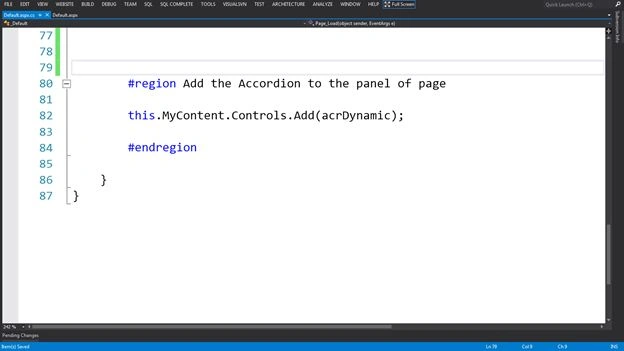
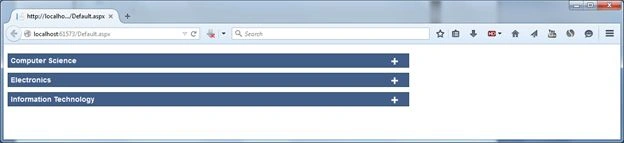
Step 6: Now to run the page.
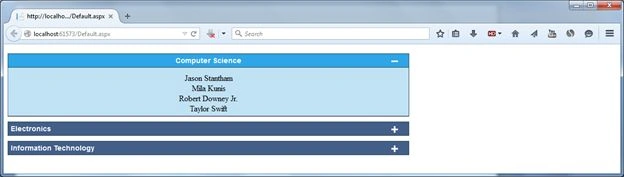
After "Computer Science" Selection.
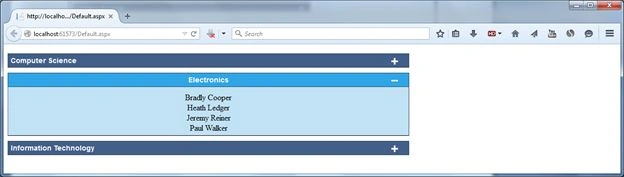
After "Electronics" Selection.
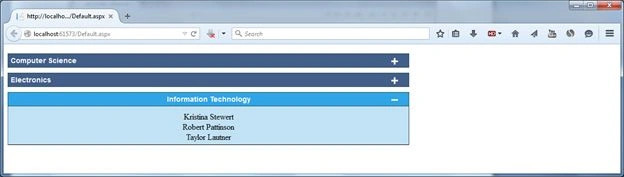
After "Information Technology" Selection.
Conclusion
I hope now you are able to add an Accordion dynamically to your pages.
Kamaljeet SainiPosted Mar 25, 2019, 4:50 AM
Very very helpful article
Santhakumar MunuswamyPosted Jun 6, 2015, 2:45 AM
Thanks for nice article
Sibeesh VenuPosted Jun 5, 2015, 1:43 AM
Good one.
Kiranteja JallepalliPosted Jun 4, 2015, 11:43 PM
very nice