

Introduction
The guide will show building a listview in Flutter dynamic. We will try to create a simple application using Flutter that is integrated with the SQLite database. You can try this tutorial with the following example step by step. Before that, you can read other articles with a database connection to Flutter.
First, we must create a project using Visual Studio Code software with the name "recyclerview". Here's how to create a new project using Visual Studio Code:
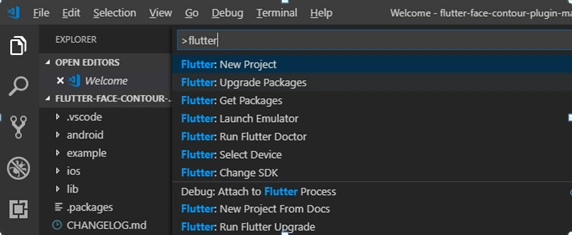
- Select View > Command Palette.
- Type "flutter", and select the Flutter: New Project.
- Enter a project name, such as "recyclerview", and press Enter.
- Create or select the parent directory for the new project folder with the name "recyclerview".
- Wait for project creation to complete and the main.dart file to appear, the project will be created with the name "recyclerview".
After that, create the database file in the directory application that was created. (e.g [projectname]/data/[databasename].db.
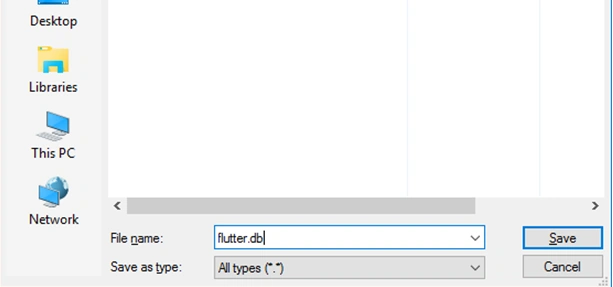
We must prepare the file database using SQLite. All we have to do is create a file with the .db extension first.
Edit the file pubspec.yaml in your directory, which should look something like:
- name: recyclerview
- description: A new Flutter project.
- # The following defines the version and build number for your application.
- # A version number is three numbers separated by dots, like 1.2.43
- # followed by an optional build number separated by a +.
- # Both the version and the builder number may be overridden in flutter
- # build by specifying --build-name and --build-number, respectively.
- # In Android, build-name is used as versionName while build-number used as versionCode.
- # Read more about Android versioning at https://developer.android.com/studio/publish/versioning
- # In iOS, build-name is used as CFBundleShortVersionString while build-number used as CFBundleVersion.
- # Read more about iOS versioning at
- # https://developer.apple.com/library/archive/documentation/General/Reference/InfoPlistKeyReference/Articles/CoreFoundationKeys.html
- version: 1.0.0+1
- environment:
- sdk: ">=2.1.0 <3.0.0"
- dependencies:
- flutter:
- sdk: flutter
- # The following adds the Cupertino Icons font to your application.
- # Use with the CupertinoIcons class for iOS style icons.
- cupertino_icons: ^0.1.2
- english_words: ^3.1.0
- sqflite: any
- path_provider: ^0.4.0
- dev_dependencies:
- flutter_test:
- sdk: flutter
- # For information on the generic Dart part of this file, see the
- # following page: https://www.dartlang.org/tools/pub/pubspec
- # The following section is specific to Flutter.
- flutter:
- # The following line ensures that the Material Icons font is
- # included with your application, so that you can use the icons in
- # the material Icons class.
- uses-material-design: true
- assets:
- - data/flutter.db
- # To add assets to your application, add an assets section, like this:
- # assets:
- # - images/a_dot_burr.jpeg
- # - images/a_dot_ham.jpeg
- # An image asset can refer to one or more resolution-specific "variants", see
- # https://flutter.dev/assets-and-images/#resolution-aware.
- # For details regarding adding assets from package dependencies, see
- # https://flutter.dev/assets-and-images/#from-packages
- # To add custom fonts to your application, add a fonts section here,
- # in this "flutter" section. Each entry in this list should have a
- # "family" key with the font family name, and a "fonts" key with a
- # list giving the asset and other descriptors for the font. For
- # example:
- # fonts:
- # - family: Schyler
- # fonts:
- # - asset: fonts/Schyler-Regular.ttf
- # - asset: fonts/Schyler-Italic.ttf
- # style: italic
- # - family: Trajan Pro
- # fonts:
- # - asset: fonts/TrajanPro.ttf
- # - asset: fonts/TrajanPro_Bold.ttf
- # weight: 700
- #
- # For details regarding fonts from package dependencies,
- # see https://flutter.dev/custom-fonts/#from-packages
Next, we're going to need to create an entity class with the name fruit.dart in directory [projectname]/lib/, which helps us manage a fruit's data.
- class Fruits {
- int _id;
- String _name;
- Fruits(this._name);
- Fruits.fromMap(dynamic obj) {
- this._name = obj['name'];
- }
- String get name => _name;
- Map<String, dynamic> toMap() {
- var map = new Map<String, dynamic>();
- map["name"] = _name;
- return map;
- }
- }
And also create a database helper class, database_helper.dart
- import 'dart:io';
- import 'dart:typed_data';
- import 'package:flutter/services.dart';
- import 'package:recyclerview/fruit.dart';
- import 'package:path/path.dart';
- import 'dart:async';
- import 'package:path_provider/path_provider.dart';
- import 'package:sqflite/sqflite.dart';
- class DatabaseHelper {
- static final DatabaseHelper _instance = new DatabaseHelper.internal();
- factory DatabaseHelper() => _instance;
- static Database _db;
- Future<Database> get db async {
- if (_db != null) {
- return _db;
- }
- _db = await initDb();
- return _db;
- }
- DatabaseHelper.internal();
- initDb() async {
- Directory documentDirectory = await getApplicationDocumentsDirectory();
- String path = join(documentDirectory.path, "data_flutter.db");
- // Only copy if the database doesn't exist
- //if (FileSystemEntity.typeSync(path) == FileSystemEntityType.notFound){
- // Load database from asset and copy
- ByteData data = await rootBundle.load(join('data', 'flutter.db'));
- List<int> bytes = data.buffer.asUint8List(data.offsetInBytes, data.lengthInBytes);
- // Save copied asset to documents
- await new File(path).writeAsBytes(bytes);
- //}
- var ourDb = await openDatabase(path);
- return ourDb;
- }
- }
After we create database_helper.dart, create a file for the query to get data fruits. The file is called query.dart
- import 'package:recyclerview/fruit.dart';
- import 'dart:async';
- import 'package:recyclerview/database_helper.dart';
- class QueryCtr {
- DatabaseHelper con = new DatabaseHelper();
- Future<List<Fruits>> getAllFruits() async {
- var dbClient = await con.db;
- var res = await dbClient.query("fruits");
- List<Fruits> list =
- res.isNotEmpty ? res.map((c) => Fruits.fromMap(c)).toList() : null;
- return list;
- }
- }
Later, we create main.dart
- import 'package:flutter/material.dart';
- import 'package:recyclerview/fruit.dart';
- import 'package:recyclerview/query.dart';
- void main() => runApp(new MyApp());
- class MyApp extends StatelessWidget {
- @override
- Widget build(BuildContext context) {
- return new MaterialApp(
- title: "List in Flutter",
- home: new Scaffold(
- appBar: new AppBar(
- title: Text("List"),
- ),
- body: RandomFruits(),
- ),
- );
- }
- }
- class RandomFruits extends StatefulWidget {
- @override
- State<StatefulWidget> createState() {
- return new RandomFruitsState();
- }
- }
- class RandomFruitsState extends State<RandomFruits> {
- final _biggerFont = const TextStyle(fontSize: 18.0);
- QueryCtr _query = new QueryCtr();
- @override
- Widget build(BuildContext context) {
- return Scaffold (
- appBar: AppBar(
- title: Text('Load data from DB'),
- ),
- body: FutureBuilder<List>(
- future: _query.getAllFruits(),
- initialData: List(),
- builder: (context, snapshot) {
- return snapshot.hasData ?
- new ListView.builder(
- padding: const EdgeInsets.all(10.0),
- itemCount: snapshot.data.length,
- itemBuilder: (context, i) {
- return _buildRow(snapshot.data[i]);
- },
- )
- : Center(
- child: CircularProgressIndicator(),
- );
- },
- )
- );
- }
- Widget _buildRow(Fruits fruit) {
- return new ListTile(
- title: new Text(fruit.name, style: _biggerFont),
- );
- }
- }
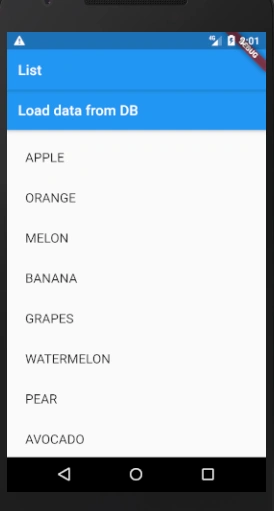
The application can be run to show the following output:
For the complete source code, click here.
Thank you for reading this article about how to create a listview in Flutter Dynamic. I hope this article is useful to you. Visit My Github about Flutter Here.
chhengheng roeunPosted Jun 10, 2020, 3:11 PM
Thank you so much
chhengheng roeunPosted Jun 1, 2020, 12:18 AM
How to create textfield for search please!