

Introduction
In this article, we will learn how to create a progress bar with countdown in angular application
Prerequisites
- Basic Knowledge of Angular 2 or higher
- Visual Studio Code
- Node and NPM installed
Let's create an Angular project by using the following command.
- ng new rangesliderdemo
- ng add @angular/material
- npm install bootstrap --save
- @import '~bootstrap/dist/css/bootstrap.min.css';
- ng g c progressbardemo
- import { Component, OnInit } from '@angular/core';
- @Component({
- selector: 'app-progressbardemo',
- templateUrl: './progressbardemo.component.html',
- styleUrls: ['./progressbardemo.component.css']
- })
- export class ProgressbardemoComponent implements OnInit {
- constructor() { }
- ngOnInit(): void {
- }
- Showprogressbar()
- {
- this.Showprogress(); this.timer();
- }
- progress = 0;
- Showprogress()
- {
- this.progress = 0;
- setInterval(() => this.ProgressBar(), 2000)
- }
- ProgressBar() {
- if (this.progress == 0) {
- this.progress = this.progress + 1
- } else {
- this.progress = this.progress + 1;
- if (this.progress = this.progress + 30) {
- this.progress == this.progress + 1;
- if (this.progress >= 100) {
- this.progress = 100;
- }
- }
- }
- }
- timer()
- {
- var timeleft = 6;
- var downloadTimer = setInterval(function () {
- if (timeleft <= 0) {
- clearInterval(downloadTimer); this.progress = 0;
- } else {
- document.getElementById("countdown").innerHTML = timeleft + "";
- }
- timeleft -= 1;
- }, 1000);
- setInterval(() => clearInterval(downloadTimer), 6000)
- }
- }
Now open progressbardemocomponent.html file and add the following code
- <div class="row" style="margin-top:10px;margin-bottom: 24px;">
- <div class="col-sm-12 btn btn-success">
- How To create Dynamic Progress Bar with timer In Angular Application
- </div>
- </div>
- <div class="container">
- <div style="position: relative">
- <mat-progress-bar mode="determinate" [value]="progress"></mat-progress-bar>
- <span style="position: absolute; top: 0.5em;" [ngStyle]="{'left': progress + '%'}"></span>
- </div>
- <div class="d-flex justify-content-end">
- <span class="completed_progress_bar">{{progress}}% completed (<span id="countdown"></span> Seconds to complete)</span>
- </div>
- <button class="btn btn-success" (click)="Showprogressbar()">Show Progress Bar</button>
- </div>
Now open progressbardemo.component.css file and add the following css classes.
- .mat-progress-bar {
- display: block;
- height: 15px !important;
- overflow: hidden;
- position: relative;
- transition: opacity 250ms linear;
- width: 100%;
- }
- .mat-progress-bar-buffer {
- background-color: #e9ecef !important;
- }
- .mat-progress-bar-background {
- fill:#e9ecef !important;
- }
Now open app.module.ts file and add the following code,
- import { NgModule } from '@angular/core';
- import { BrowserModule } from '@angular/platform-browser';
- import { HttpClientModule } from '@angular/common/http'
- import { AppComponent } from './app.component';
- import { FormsModule } from '@angular/forms';
- import {ProgressBarModule} from "angular-progress-bar"
- import { ProgressbardemoComponent } from './progressbardemo/progressbardemo.component';
- @NgModule({
- declarations: [
- AppComponent,
- ProgressbardemoComponent
- ],
- imports: [
- BrowserModule,,HttpClientModule,ProgressBarModule,FormsModule
- ],
- providers: [],
- bootstrap: [AppComponent]
- })
- export class AppModule { }
- <app-progressbardemo></app-progressbardemo>
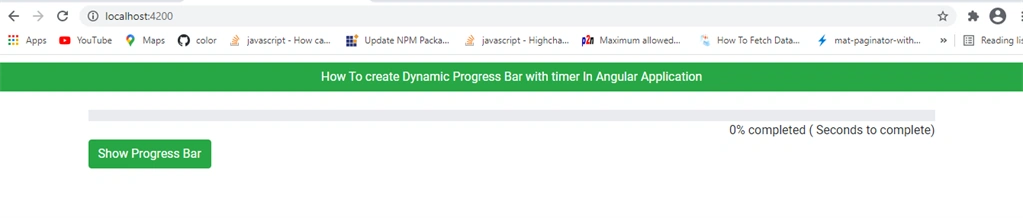
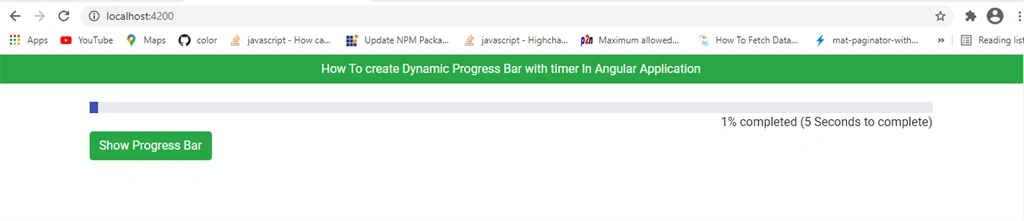
Now click on Show progress bar button and check,
Summary
In this article, we learned how to create a progress bar with countdown in angular application.
Join the conversation! Your thoughts help the community grow.