

Introduction
Azure Functions is a solution for easily running small pieces of code, or "functions", in the cloud. You can write just the code you need for the problem at hand, without worrying about a whole application or the infrastructure to run it. Details of the features of the Functions app are available at this link.
Features
- Choice of language: You can choose your preferred programming language like C#, F#, or JavaScript, and see a link for more information for supported languages (With batch files, it can run anything).
- Pay-per-use pricing model: You only pay for the time your code runs.
- Bring your own dependencies: It supports NuGet and NPM, so you can use your favorite libraries.
- Integrated security: Protect HTTP-triggered functions with OAuth providers such as Azure Active Directory, Facebook, Google, Twitter, and Microsoft Account.
- Simplified integration: Azure Functions integrates with various Azure and third-party services. These services can trigger your function and start execution, or they can serve as input and output for your code. The following service integrations are supported by Azure Functions.
- Flexible development: Code your functions right in the portal or set up continuous integration and deploy your code through GitHub, Azure DevOps Services, and other supported development tools.
- Open-source: The function runtime is open-source
- Monitoring: Through application insights, we can monitor the function of apps.
- Serverless Architecture: Microsoft Azure Functions acts as a modern serverless architecture delivering event-driven cloud computing configured to comply with application development.
Now let’s create an Http-triggered Azure Function App in Visual Studio.
About Http Triggered Function Apps
For HTTP-triggered functions, you can specify the authorization types needed to have in order to execute it. There are five types you can choose from the below list. Keep in mind, when running the Azure Functions locally, the authorization attribute is ignored, and you can call any function no matter which level is specified. These authorizations will work only after publishing the code in Azure. It can receive request data via query string parameters, request body data, or URL route templates. Like other functions, they can also integrate with other Azure services such as Blob Storage, Event Hubs, queues, and so on.
Authorization Types
- Function
- Anonymous
- Admin
- System
- User
Function
Function, Admin & System authorization levels are key-based.
Anonymous
If you want a function to be accessed by anyone, the following piece of code will work, because the authorization is set to Anonymous.
Admin
Admin authorization level requires a host key for authorization. Passing a function key will fail authorization and return an HTTP 401 – Unauthorized error code.
Create an Azure function app in Visual Studio
In Visual Studio.
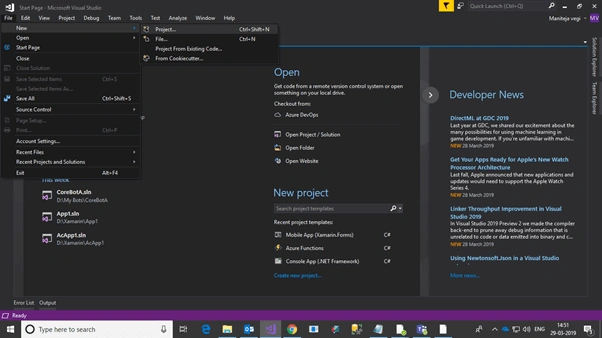
Create a project by selecting File > New > Project.
Select Visual C# > Cloud > Azure Functions.
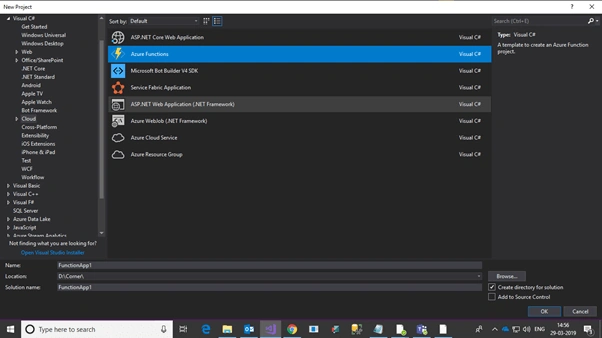
Click Ok.
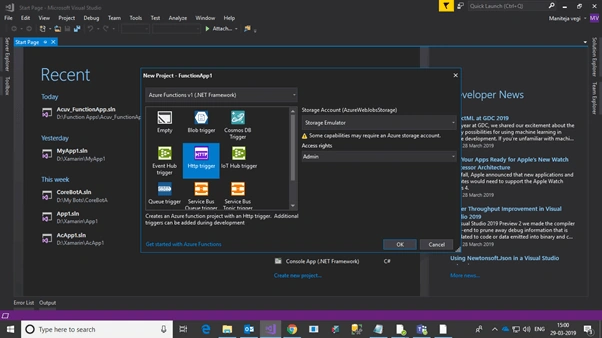
Select HttpTrigger and Access rights > Admin.
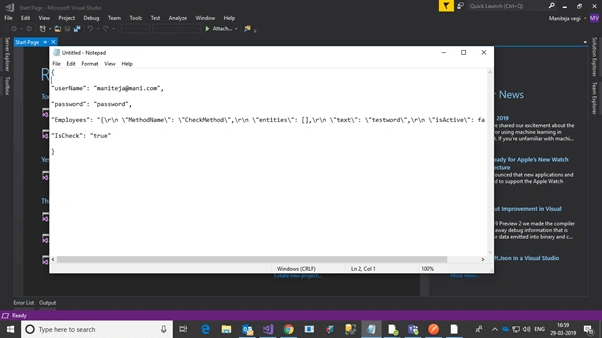
Input Data
{
   "userName": "[email protected]",
   "password": "password",
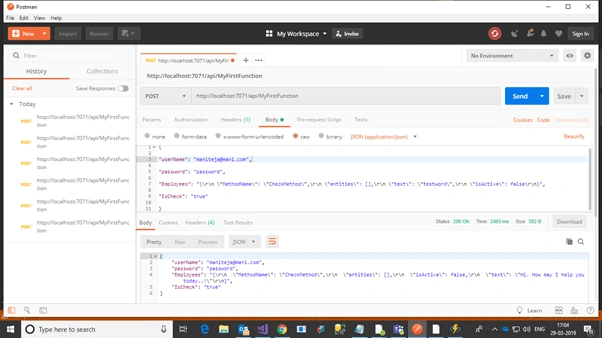
   "Employees": "{\r\n \"MethodName\": \"CheckMethod\",\r\n \"entities\": [],\r\n \"text\": \"testword\",\r\n \"isActive\": false\r\n}",
   "IsCheck": "true"
}
Now, I’ll create a class file with the name of CommonReturnType to read the input data.
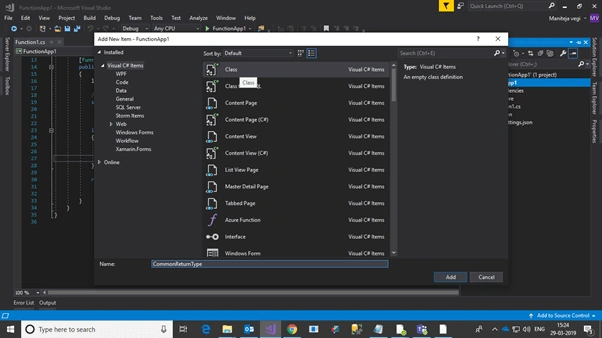
Now, open the common return type class file.
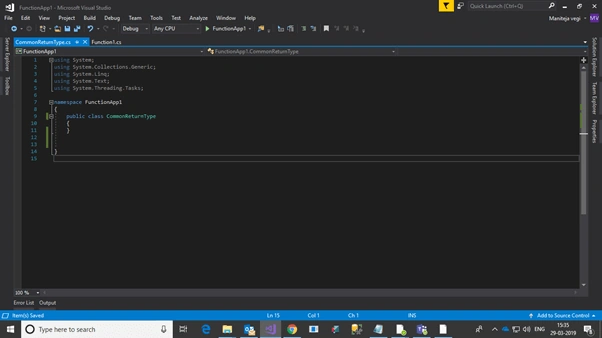
and keep the JSON data content on the clipboard (copy input JSON data).
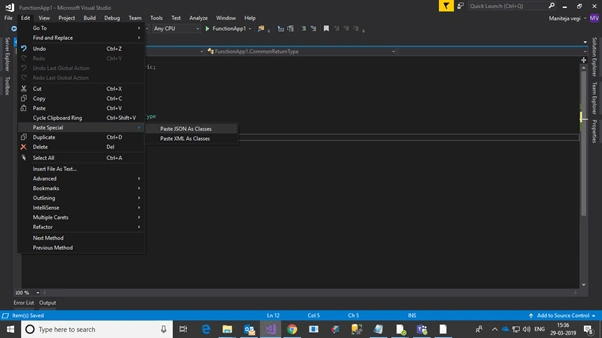
Go to Edit > Paste Special > Select Paste JSON as Classes.
Then, an auto-generated class will be retrieved as per the JSON data.
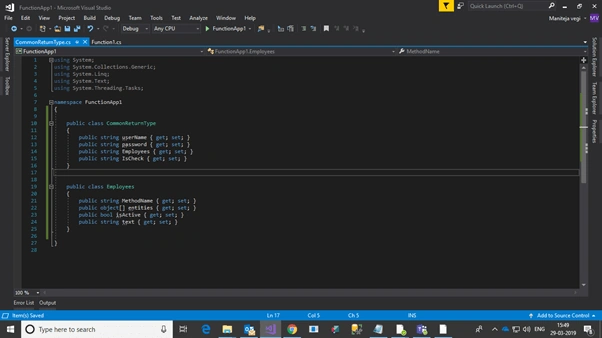
Next
Develop the code as per our requirements.
using System.Linq;
using System.Net;
using System.Net.Http;
using System.Threading.Tasks;
using Microsoft.Azure.WebJobs;
using Microsoft.Azure.WebJobs.Extensions.Http;
using Microsoft.Azure.WebJobs.Host;
using Newtonsoft.Json;

namespace FunctionApp1
{
    public static class Function1
    {
        [FunctionName("MyFirstFunction")]
        public static async Task<HttpResponseMessage> Run(
            [HttpTrigger(AuthorizationLevel.Admin, "get", "post", Route = null)] HttpRequestMessage req,
            TraceWriter log)
        {
            log.Info("C# HTTP trigger function processed a request.");
            string jsonContent = await req.Content.ReadAsStringAsync();

            if (jsonContent != "")
            {
                // De-serializing JSON data
                CommonReturnType fdata = JsonConvert.DeserializeObject<CommonReturnType>(jsonContent);
                string inputMessageJSON = fdata.Employees;
                Employees msg = JsonConvert.DeserializeObject<Employees>(inputMessageJSON);

                // Process data
                if (msg.MethodName == "CheckMethod" && fdata.IsCheck == "true")
                {
                    string swin = msg.text;
                    switch (swin.ToLower())
                    {
                        case "something":
                            msg.text = "How are you today";
                            fdata.IsCheck = "true";
                            break;

                        case "something1":
                            msg.text = "Good Bye";
                            fdata.IsCheck = "false";
                            break;

                        default:
                            msg.text = "Hi. How may I help you today..!";
                            fdata.IsCheck = "true";
                            break;
                    }

                    fdata.Employees = JsonConvert.SerializeObject(msg, Formatting.Indented);
                    return req.CreateResponse(HttpStatusCode.OK, fdata);
                }
            }

            return req.CreateResponse(HttpStatusCode.BadRequest, "Please pass a name on the query string or in the request body");
        }
    }
}
Execute the code.
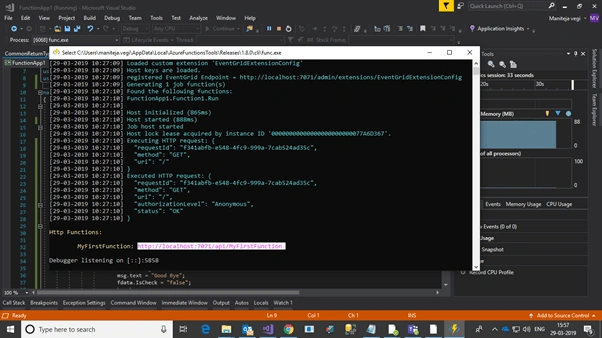
Test the below URL in the Postman App: http://localhost:7071/api/MyFirstFunction.
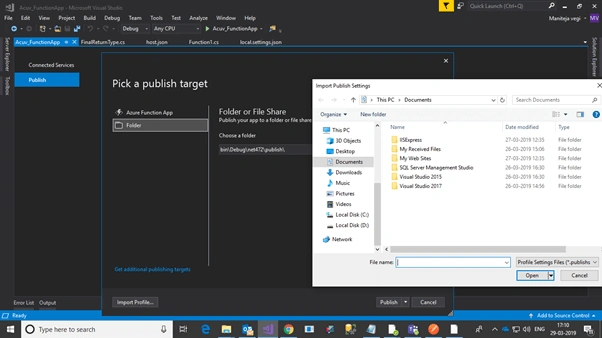
If you want to publish this Azure Function in the cloud, publish this code in the Azure cloud by using credentials and publishing files.
Azure URL Example
To execute this function app in Azure, you have to mention the secret key in the URL.
Example URL
http://mysite.azurewebsites.net/api/MyFirstFunction?code=MySecretCodehere
Happy coding.
Hamid KhanPosted Mar 31, 2023, 10:55 AM
Very good and simple way explanation.