

Installation
- .NET Core 2.1 Preview 1 SDK
Includes the Runtime
- Visual Studio 2017 Latest Preview Version
Don’t worry. Visual Studio and Visual Studio “Preview” can be installed side-by-side on the same device. It will have no impact on your current stable VS installation.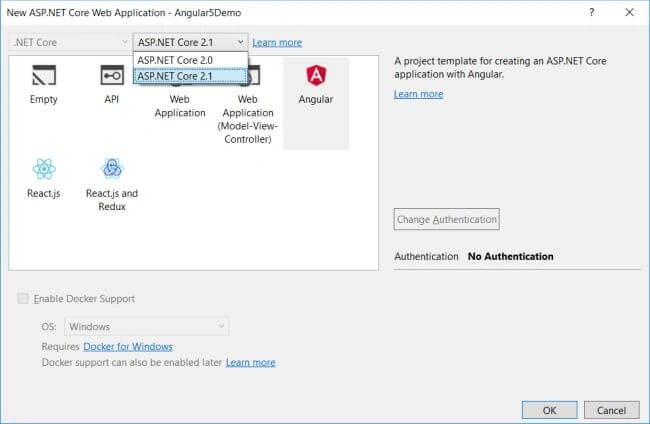
Make sure to select “ASP.NET Core 2.1” from the version dropdown and choose Angular. Visual Studio will create an ASP.NET Core 2.1 based project with Angular 5 configured.
You should see the following project structure.
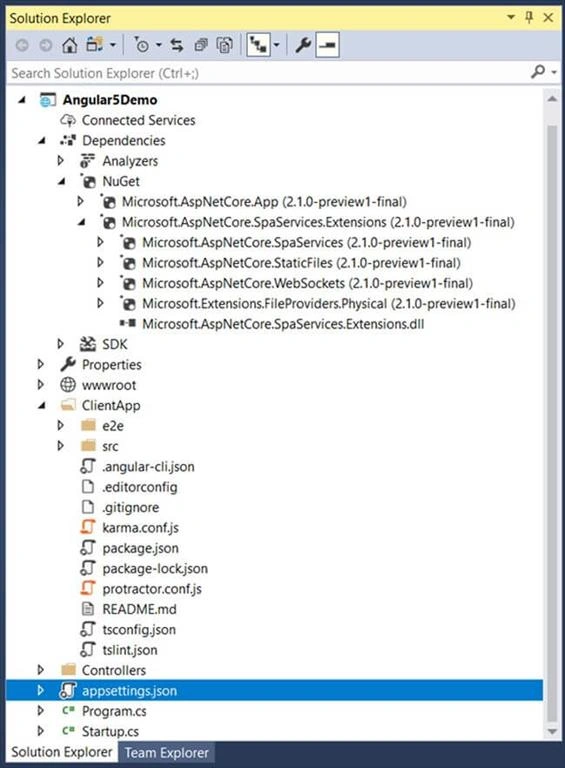
- The ClientApp folder contains the Angular app and this Angular app is a standard Angular CLI application. This allows you to execute any ngcommand (e.g., ng test), or use npm to install extra packages into it.
- There is no webpack.config.js file present in the solution. That doesn’t mean that Webpack is not used as a module bundler. Angular CLI uses Webpack and effectively puts together a Webpack config file on the fly based on the project configuration options you pass in. Angular CLI loads its configuration from .angular-cli.json file stored in ClientApp directory.
- By default, Angular CLI manages the underlying Webpack configuration for you so you don’t have to deal with its complexity. If you wish to manually configure Webpack in your Angular application, you can run the following command at the ClientApp directory location.
Now, right-click on the ClientApp and go to OpenContaining Folder and write cmd like this.
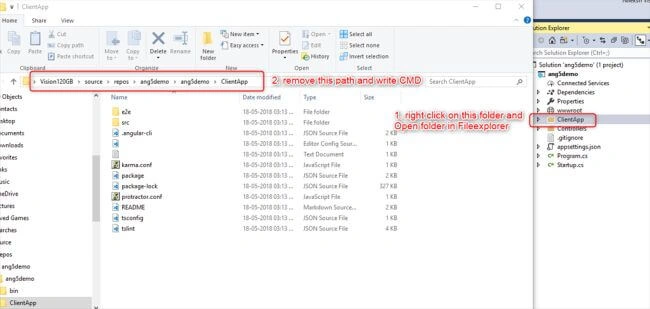
Run the command ng build
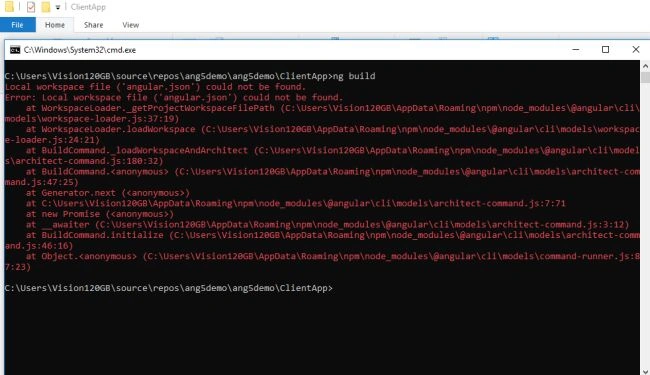
Here, the system is showing an error - angular.json could not be found, now fix this issue.
Write the command cd.. for going back to the previous directory
Write command dotnet run
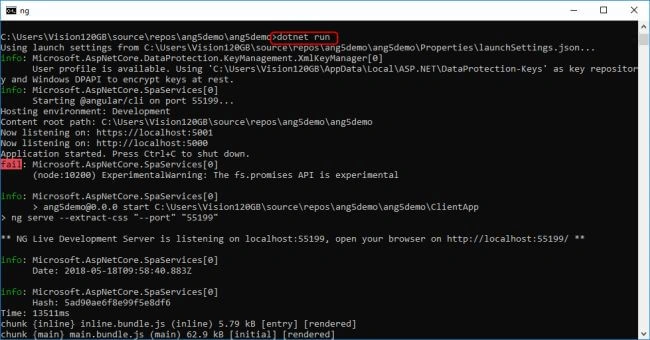
Now, close this cmd and open the cmd from ClientApp and run the command ng build
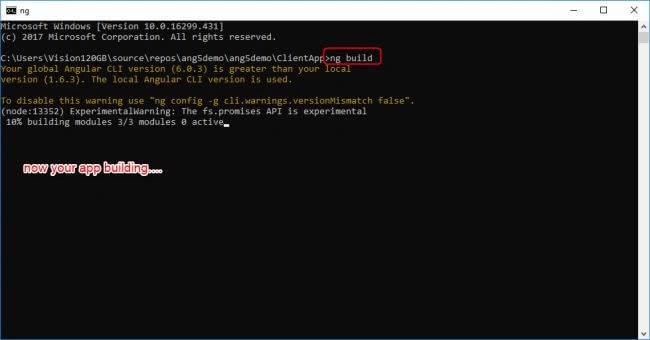
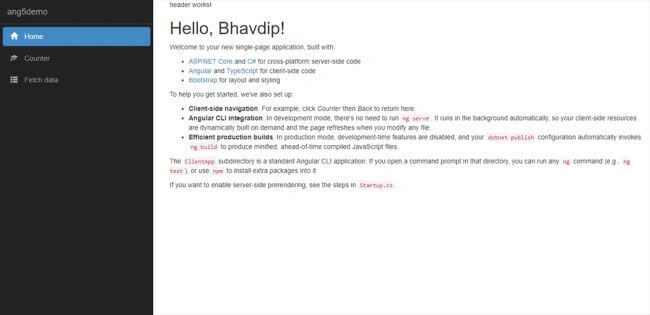
Complete your build then run your app and it will look like this.
Guest UserPosted Jul 31, 2018, 8:34 PM
Nice article
Kaushik DudhatPosted Jul 19, 2018, 10:54 PM
Nice article
Hadshana KamalanathanPosted Jul 19, 2018, 5:43 AM
Thanks for sharing