

In this article, we are going to see the steps required to create a Web App with deployment from GitHub using Azure PowerShell. You can create, deploy and test web apps using Azure PowerShell. Azure PowerShell contains sets of modules that provide multiple cmdlets to manage Azure with Windows PowerShell.
Prerequisite
Before you begin to utilize PowerShell to oversee the Azure PowerShell, ensure that the Azure PowerShell has been installed. If not installed, here is an article on How to install the Azure PowerShell module. You need to do this only once for each computer from which you are running Azure PowerShell commands.
Connecting to Azure Portal
Connect to Azure Portal using Connect-AzureRmAccount cmdlet.
Prerequisite
Before you begin to utilize PowerShell to oversee the Azure PowerShell, ensure that the Azure PowerShell has been installed. If not installed, here is an article on How to install the Azure PowerShell module. You need to do this only once for each computer from which you are running Azure PowerShell commands.
Connecting to Azure Portal
Connect to Azure Portal using Connect-AzureRmAccount cmdlet.
Connect-AzureRmAccount
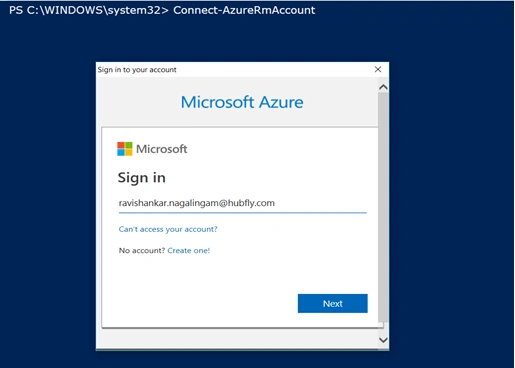
Creating Azure Resource Group
Create an Azure Resource Group so that we can deploy, update, and test web apps in a group. Azure Resource Group is a new approach to group a collection of resources that share a unified life cycle. The benefit of using resource groups in Azure is that we can group all resources that belong to one application.
You can create Resource Groups in Azure using New-AzureRmResourceGroup cmdlets. The required parameters are,
You can create Resource Groups in Azure using New-AzureRmResourceGroup cmdlets. The required parameters are,
-
Name - Specify the name of the resource group.
-
Location - Specify the Azure data center location of the resource group, such as southindia and westus.
- $ResourceGroupName="HubflyGroup003"
- $location="southindia"
- New-AzureRmResourceGroup -Name $ResourceGroupName -Location $location
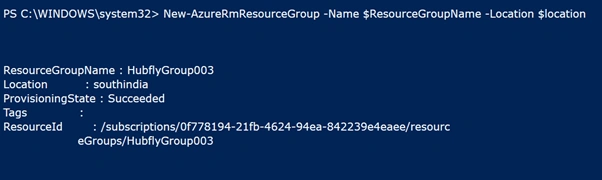
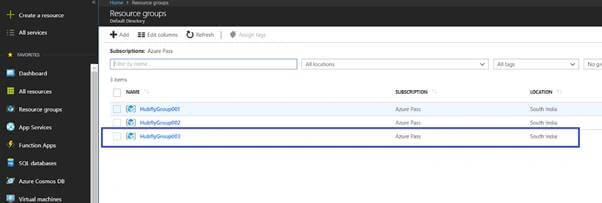
Now check your Azure portal the resource group will be created
Creating App Service Plan
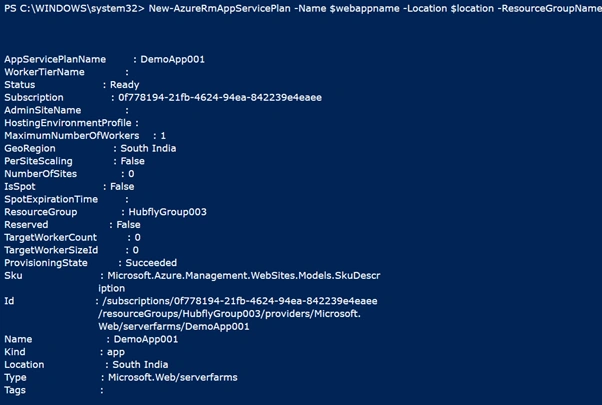
Create an App Service plan using New-AzureRmAppServicePlan cmdlets for the resource group. The required parameters are,
-
Name - Specify the name of the webApp.
-
ResourceGroupName - Specify the name of the resource group
-
Location - Specify the Azure data center location of the resource group, such as South India and the West US.
- $webappname="Hubflysoft"
- New-AzureRmAppServicePlan -Name $webappname -Location $location ResourceGroupName $ResourceGroupName -Tier Free
Creating Azure Web App
Create a web app using New-AzureRmWebApp cmdlets. The required parameters are,
-
Name - Specify the name of the webApp.
-
ResourceGroupName - Specify the name of the resource group
-
Location - Specify the Azure data centre location of the resource group, such as southindia and westus.
- New-AzureRmWebApp -Name $webappname -Location $location -AppServicePlan $webappname -ResourceGroupName $ResourceGroupName
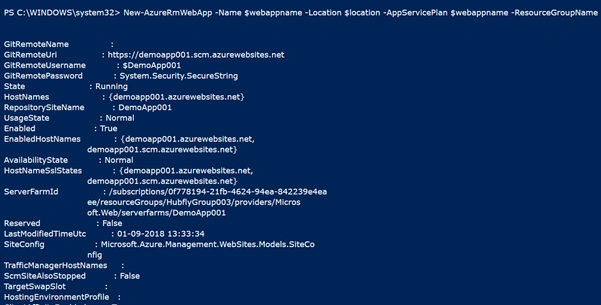
Configuring the GitHub with Azure Web App
Create a GitHub configuration using PowerShell splatting to pass as a parameter to the Azure cmdlets.
- $gitrepo="https://github.com/ravishankar1730/Azure-PHP.git"
- $PropertiesObject = @{
- repoUrl = "$gitrepo";
- branch = "master";
- isManualIntegration = "true";
- }

Now, modify the existing Azure resource using Set-AzureRmResource cmdlets. The required parameters are -
-
PropertyObject - Specify the GitHub config we have already created using PowerShell splatting
-
ResourceGroupName - Specify the name of the resource group.
-
ResourceType - Specify the type of the resource.
-
ResourceName - Specify the name of the web app.
-
ApiVersion - Specify the name of the Web API version.
- Set-AzureRmResource -PropertyObject $PropertiesObject -ResourceGroupName $ResourceGroupName -ResourceType Microsoft.Web/sites/sourcecontrols -ResourceName $webappname/web -ApiVersion 2015-08-01 -Force
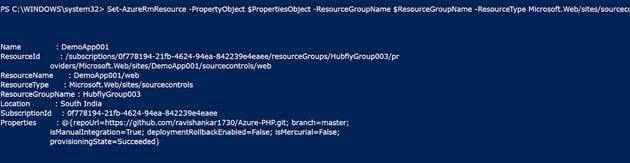
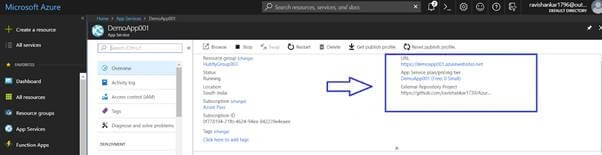
Now, you can check the web app configured with GitHub like below snapshot.
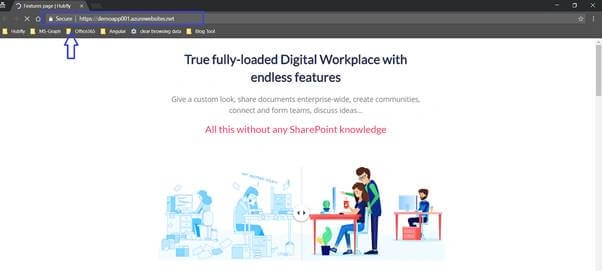
Open the web app URL in your browser and check whether the GitHub source has been deployed to the web app that we have created.
Full source code
- Connect-AzureRmAccount
- # Replace the following URL with a public GitHub repo URL
- $gitrepo="https://github.com/ravishankar1730/Azure-PHP.git"
- $webappname="Hubflysoft"
- $location="southindia"
- $ResourceGroupName="HubflyGroup002"
- # Create a resource group.
- New-AzureRmResourceGroup -Name $ResourceGroupName -Location $location
- # Create an App Service plan in Free tier.
- New-AzureRmAppServicePlan -Name $webappname -Location $location -ResourceGroupName $ResourceGroupName -Tier Free
- # Create a web app.
- New-AzureRmWebApp -Name $webappname -Location $location -AppServicePlan $webappname -ResourceGroupName $ResourceGroupName
- # Configure GitHub deployment from your GitHub repo and deploy once.
- $PropertiesObject = @{
- repoUrl = "$gitrepo";
- branch = "master";
- isManualIntegration = "true";
- }
- Set-AzureRmResource -PropertyObject $PropertiesObject -ResourceGroupName $ResourceGroupName -ResourceType Microsoft.Web/sites/sourcecontrols -ResourceName $webappname/web -ApiVersion 2015-08-01 -Force
Sushant KesariPosted Nov 23, 2018, 10:28 PM
Nice article..
JosephsPosted Sep 10, 2018, 12:55 AM
How to use same concept in dotnet?
Viknaraj ManogararajahPosted Sep 9, 2018, 3:35 AM
superb....
Muthu KumarPosted Sep 7, 2018, 12:08 PM
Nice article. Thanks for sharing..
Hadshana KamalanathanPosted Sep 7, 2018, 10:41 AM
Thanks for sharing.....