

Introduction (Progress Bar)
Xamarin is a platform to develop cross-platform and multi-platform apps (Ex. Windows phone, Android, and iOS). In the Xamarin platform, a code sharing concept is used. Xamarin Studio is available in Visual Studio also.
ProgressBar control is used to load the page or any process in the app.
Prerequisites
- Visual Studio 2015 update 3
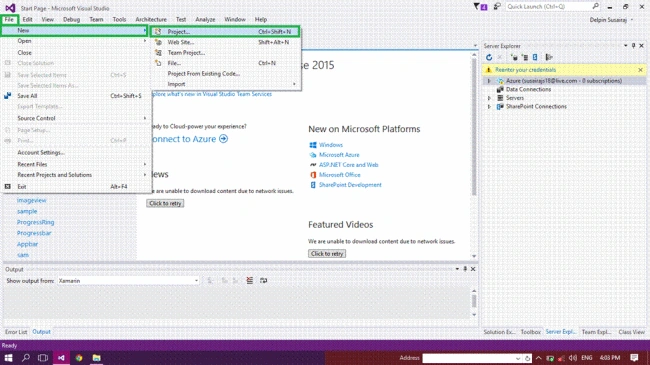
Step 1 - Click File >> New >>Project or press Ctrl+Shift+N.
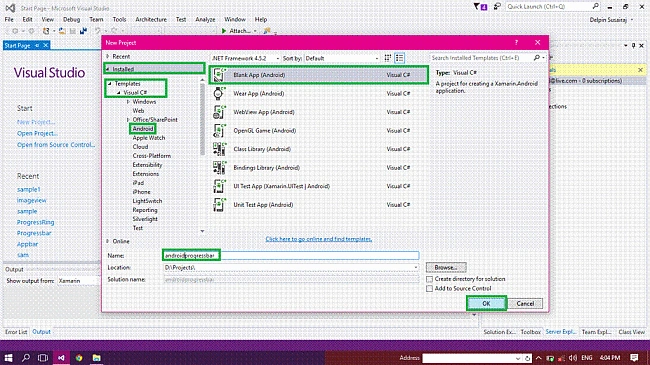
Step 2 - After opening the New Project, select Installed -->Templates -->Visual C# -->Android -->choose the Blank App (Android). Next, give your Android app a name and give path of your project. Finally, click OK..
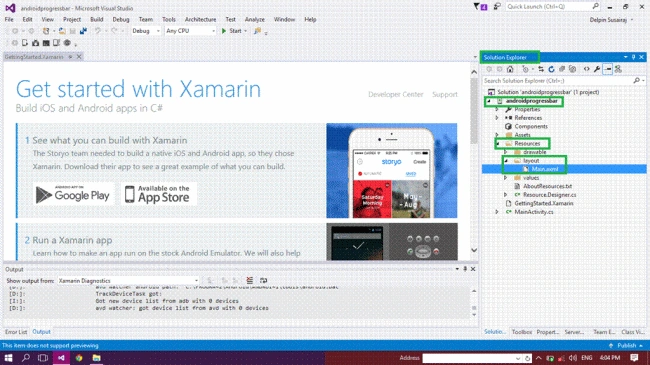
Step 3 - Next, go to the Solution Explorer. Select Resource --> Layout -->double click to open main.axml page. You can either write the code in code view or design it using GUI in design view.
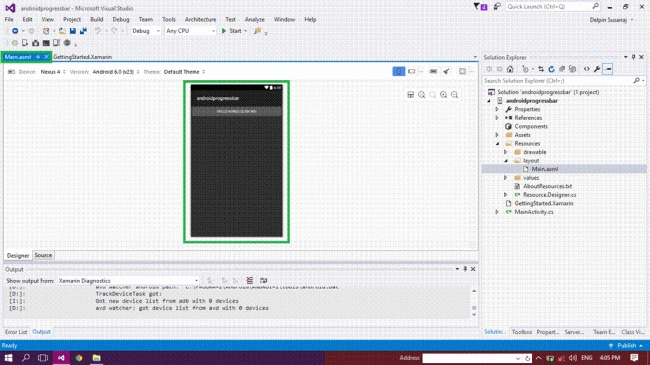
Step 4 - Now, in design view, you can design this page.
Step 5 - Next, delete the default "Hello World" button. Go to the source panel; you can see the button coding. Delete it.
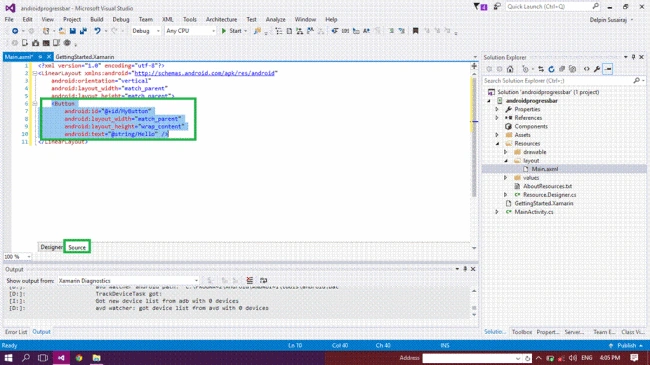
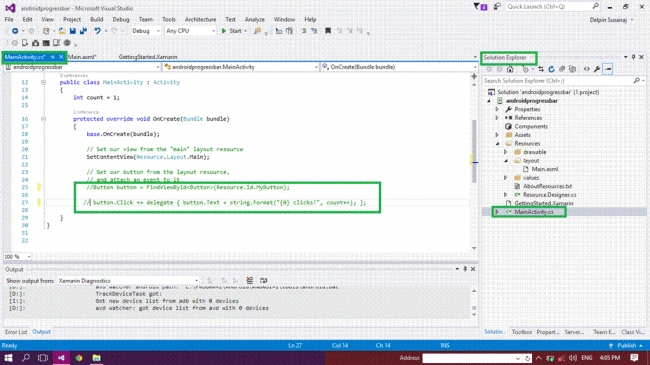
Step 6 - After deleting the xaml code, next delete the C# button action code. Go to the MainActivity.cs page and delete the button code.
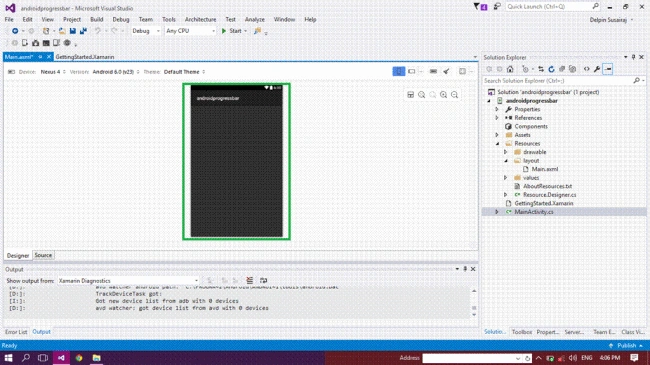
Step 7 - Your app will look like the following image.
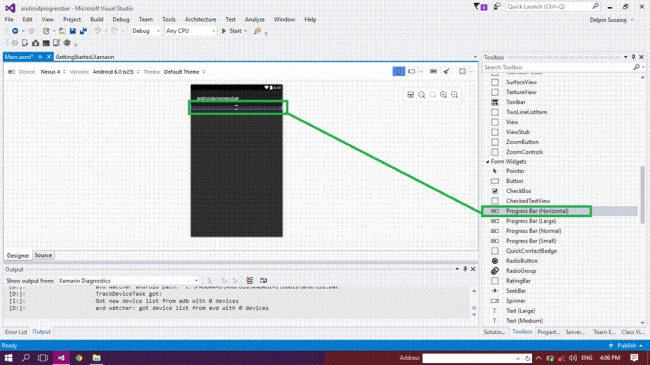
Step 8 - Next, go to the toolbox window. There, you have all types of the tools and control. Go to the toolbox window and scroll down. You will see the Progress Bar (horizontal) tool.
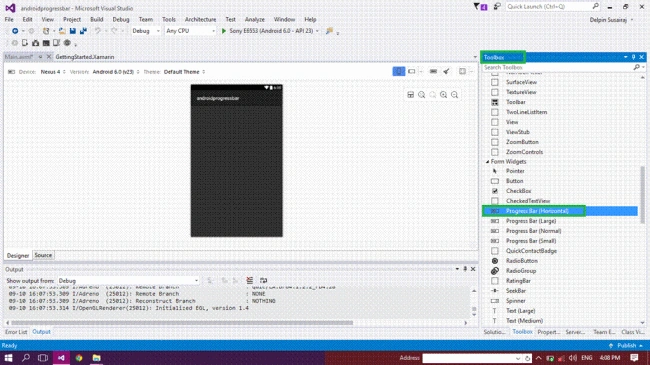
Step 9 - Now, drag and drop the ProgressBar (horizontal) tool control in your main.axml page.
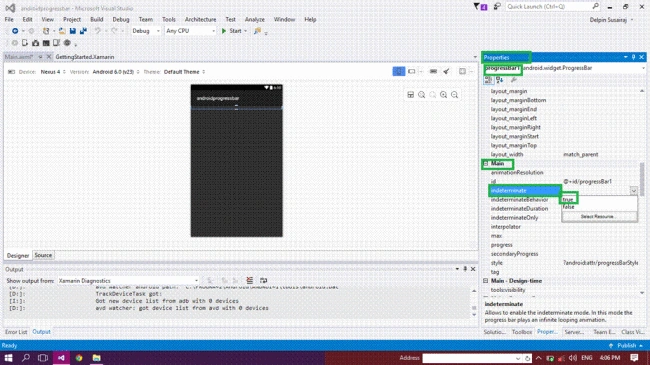
Step 10 - Go to the properties window. Select the ProgressBar1-->Main. Set indeterminate to True. The ProgressBar Control in enabled.
code
- <?xml version="1.0" encoding="utf-8"?>
- <LinearLayout xmlns:android="http://schemas.android.com/apk/res/android" <ProgressBar style="? android:attr/progressBarStyleHorizontal" android:layout_width=" match_parent" android:layout_height="wrap_content" android:id="@+id/progressBar1" android:indeterminate="true" />
- </Linear>
Next, go to Visual Studio.
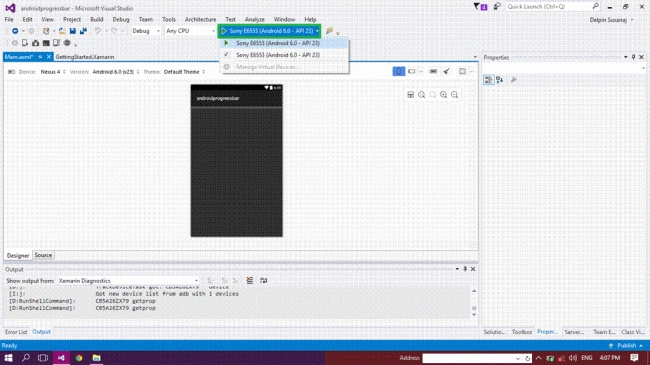
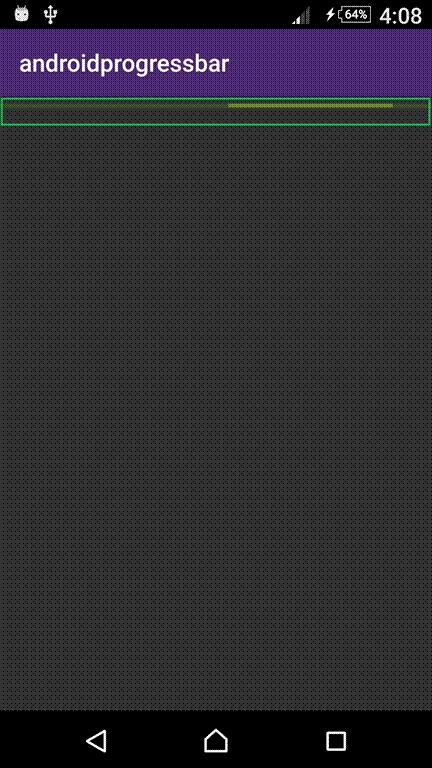
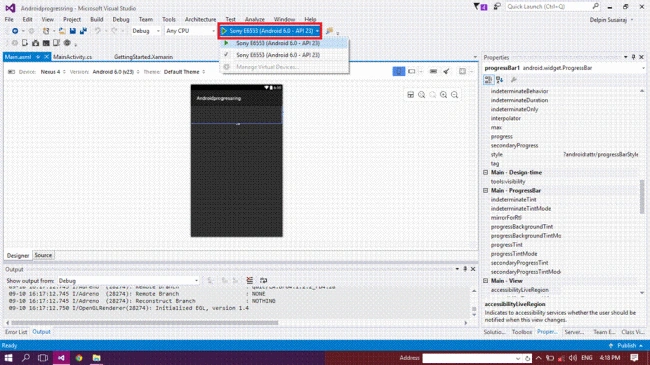
If connected, your Android phone shows up in the run menu (Ex:Sony E6553(Android 6.0-API 23)). Click on that. It will run the app in your Android phone.
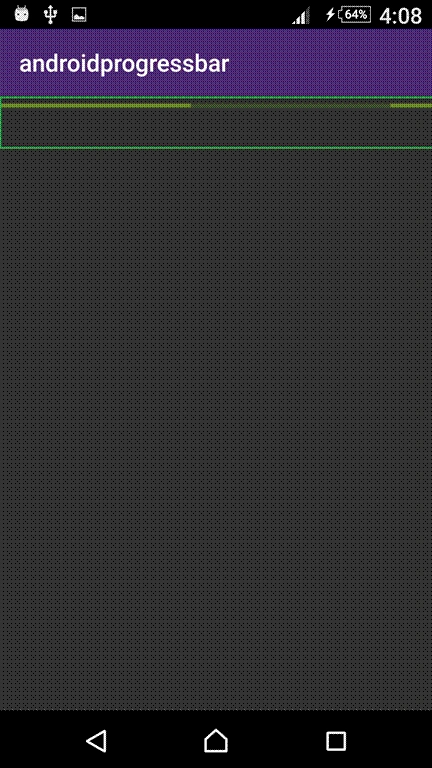
Output
It will take some time because the app will be built in your phone.
 ">
">
ProgressRing is similar to ProgressBar, but it is used to load the page or any process in the app.
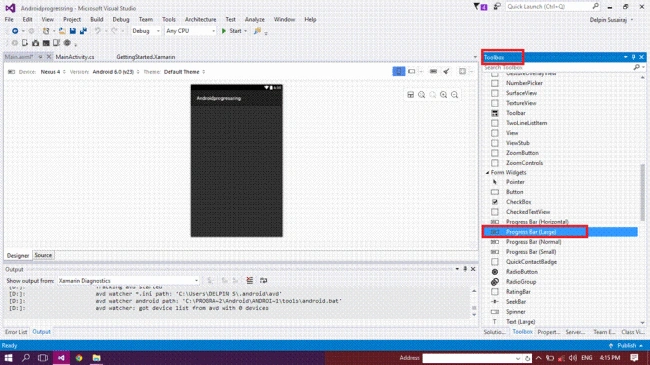
Step 1 - Go to the toolbox window and scroll down. You will see the Progress Bar(Large) tool.
 ">
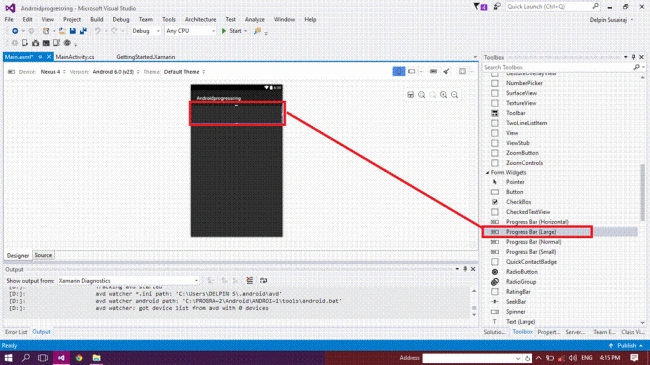
">Step 2 - Drag and drop the ProgressBar(Large) Tool Control in your main.axml page.
 ">
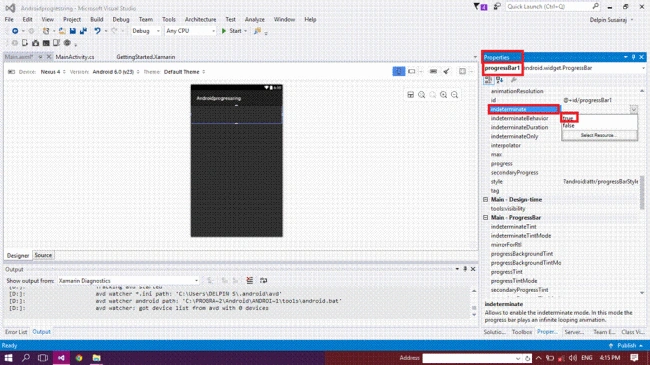
">Step 3 - After dragging and dropping the ProgressBar (Large).
Go to the properties window, select the progressBar1-->Main. Set indeterminate to true.
Code
- <?xml version="1.0" encoding="utf-8"?>
- <LinearLayout xmlns:android="http://schemas.android.com/apk/res/android" <ProgressBar style="? android:attr/progressBarStyleLarge" android:layout_width="match_parent" android:layout_height="wrap_content" android:id="@+id/progressBar1" android:indetermin ate="true" />
- </LinearLayout>
Step 4 - This step is similar to the above steps.
 ">
">
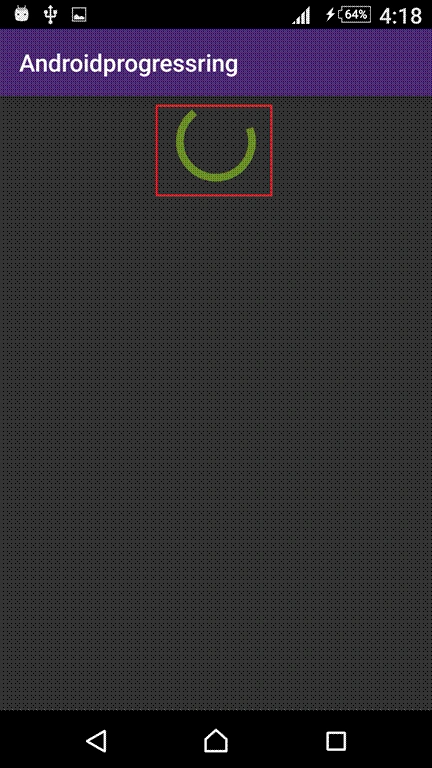
Output
After running your app, it will show the progress ring in your app.
Summary - So, this was the process of create ProgressBar Control and ProgressRing in Xamarin Android app, using Visual Studio 2015 update 3.
Humayun Kabir MamunPosted Oct 2, 2016, 1:38 AM
Nice...