

Introduction
In this article, I will explain how to add labels in Tkinter in Python.
Definition
The label is used to display fields where you can place textual content or images. The textual content displayed by means of this widget can be updated at any time you want.
Syntax
- w =Label ( a, option)
Parameters
a − This represents the parent window of the computer.
option − The list of most used options for this widget.
Option & Description
-
bd - The bd is used to change the Border width in pixels. Default is 2.
-
bg - The bg is used to change normal background color.
-
command - The command is used to call a function or method when the button is clicked
-
fg - The fg is used to change the normal foreground (text) color.
-
font - The font is used to change the text font to be used for the button's label.
Program
- from tkinter
- import * a = Tk()
- a.geometry("400x400")
- a.title("test")
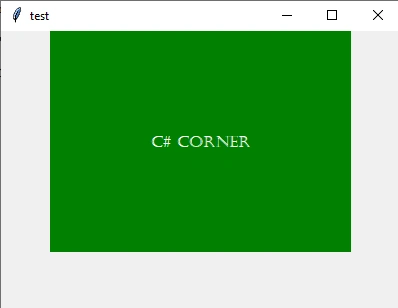
- label = Label(a, text = "c# corner", bg = "green"\, bd = 100, fg = "white", font = "Castellar")
- label.pack()
- a.mainloop()
Output
-
height - The height is used to change the height of the button in text lines (ftext buttons) or pixels (images).
-
width- The width is used to change the width of the button in letters.
-
image - Image keyword is used to display a static image in the label .
-
Cursor - The cursor is used to set this option to a cursor name, the mouse cursor will change to that pattern when it is over the entry.
Program
- from tkinter
- import * a = Tk()
- a.geometry("400x400")
- a.title("test")
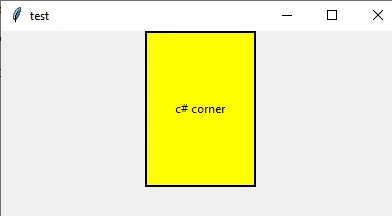
- label = Label(a, text = "c# corner", \bg = "yellow", height = 10, width = 15, relief = "solid", cursor = "target")
- label.pack()
- a.mainloop()
Output
-
Justify - The justify is used to change the arrangement order LEFT,CENTER,RIGHT.
-
Padx - The padx is used to change the additional padding left and right of the text.
-
Pady - The pady is used to changing the additional padding above and below the text.
-
Relief - Relief is used to specify the type of the border. The values are SUNKEN, RAISED, GROOVE, and RIDGE.
-
Textvariable - The Textvariable is used to slave the text displayed in a label widget to a control variable of class StringVar.
Program
- from tkinter
- import * a = Tk()
- a.geometry("400x400")
- a.title("test")
- var = StringVar()
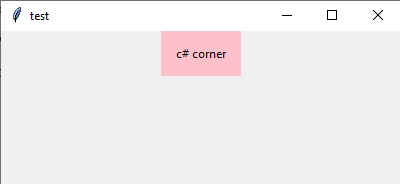
- label = Label(a, textvariable =
- var, bg = "pink"\, bd = 5, justify = RIGHT, padx = 10, pady = 10)
- var.set("c# corner")
- label.pack()
- a.mainloop()
Output
Conclusion
In this article, we have seen how to add labels in Tkinter in Python. I hope this article was useful to you. Thanks for reading!
Join the conversation! Your thoughts help the community grow.