

In this article, we will not only learn about hosting Angular applications on Azure but we will also see how we can implement CI/CD using Azure DevOps.
To do all these, we would require an Angular application. So, for that, I have just created a new Angular application using Angular-CLI for demo purposes.
Before starting, let us briefly look at what CI and CD mean.
Continuous Integration (CI)
This is a software development practice in which all developers merge their code changes in a central repository multiple times a day. With CI, each change in code triggers an automated build-and-test sequence for the given project, providing feedback to the developer(s) who made the change.
Continuous Delivery (CD)
Here, every change that passes all stages of production pipeline is released to the customers. There's no human intervention here. Developers can focus on building software, and their work goes live minutes after they've finished working on it.
On top of Continuous Integration, Continuous Delivery will add the practice of automating the entire software release process. Continuous Delivery includes deployment, which may be manual and may consist of multiple stages. What’s important is that all these processes are fully automated.
A CI/CD pipeline helps you automate steps in your software delivery process, such as initiating code builds, running automated tests, and deploying to a staging or production environment. Automated pipelines remove manual errors, provide standardized development feedback loops and enable fast product iterations.
(source: https://semaphoreci.com/blog/cicd-pipeline)
Okay, so let’s start working on it.
Hosting on Azure
At first, we will host our Angular application on the Azure platform. To do so, we need to sign in to the Azure account here.
After signing in, we are going to create the Resource. For this, navigate to the App Services tab on the left pane.
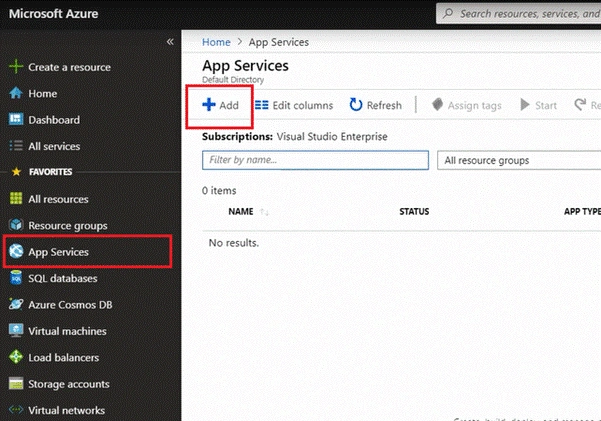
Now, inside this, we will create our first App Service. For this, press the Add button and it will redirect us to create a Web App.
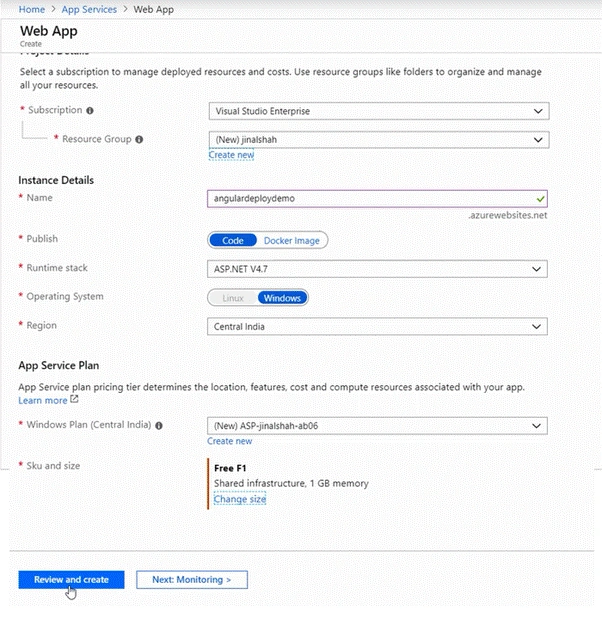
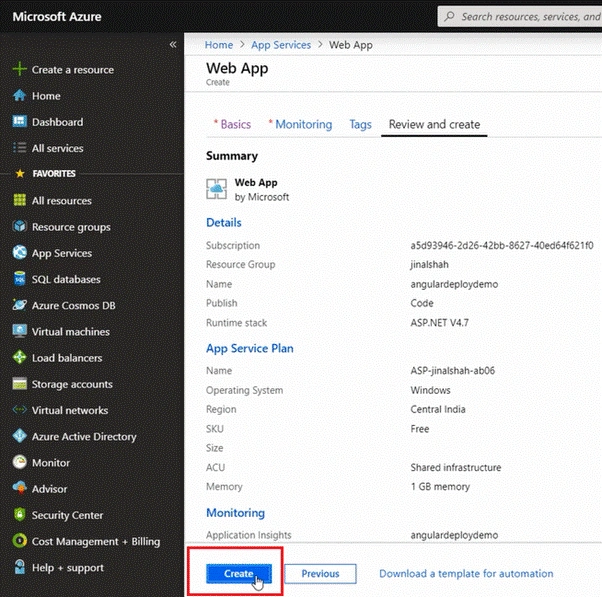
- Here, there is an option for Subscription. I have selected my subscription to Visual Studio by default.
- There is also an option for Resource Group. This Resource Group is used if you are managing N number of clients and you require grouping the resources according to your clients. To do so, create a new resource group with some name. In our case, I am having a group named ‘jinalshah’.
- Next is Instance Details. Inside this, Name is where you can enter your application name. This is your web app Name. This name would act as a Sub-Domain. Here, I am giving a name as ‘angulardeploydemo’. Now, your whole URL will be ‘angulardeploydemo.azurewebsites.net’.
- Now select a Runtime Stack. Here I am selecting ASP.NET v4.7.
- Next, select your Operating System to Windows OS.
- Next, select the Region which is nearest to your location. Here I am selecting Central India as a Region.
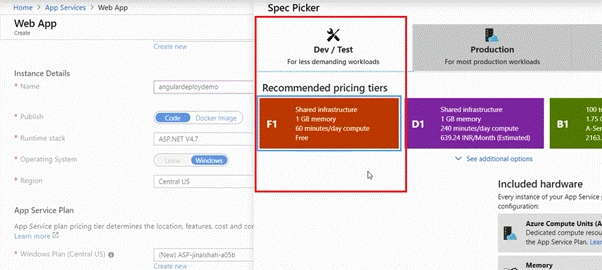
- Moving forward to the App Service Plan Section. Here select your Linux/Windows Plan and then select the Sku and Size. By clicking on this Sku and size, you are able to see different plans with their facilities available on the Azure Platform. You can select the plan based on your requirements. I am selecting the Free plan (F1) having Shared Infrastructure from the Dev / Test tab.
- Finally, you can press the Review and create a button and it will create your first App Resource.
So, the entire screen will look like this.
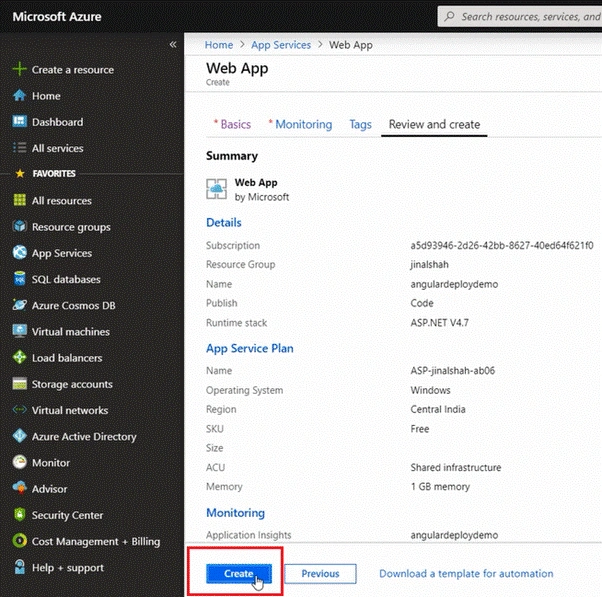
And now, you can see the Summary as per this next screen and then click on the "Create" button. This will deploy your server and create it on the Azure platform.
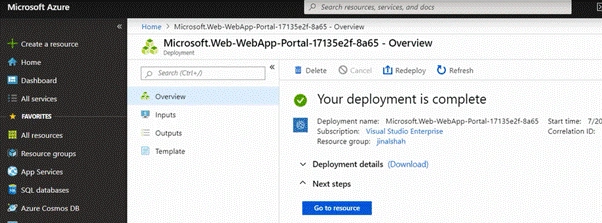
So when deployment gets completed, you are able to see the below screen.
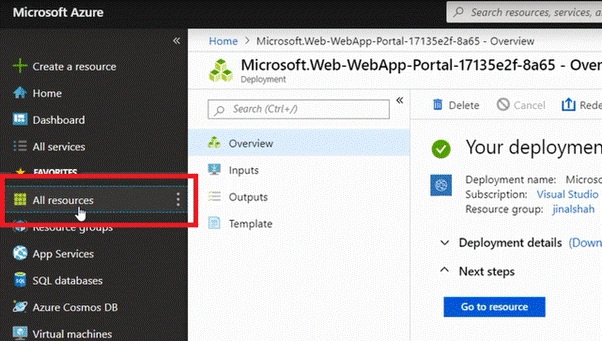
And now, click on the All Resources tab from the left pane and you can see the resource that we created.
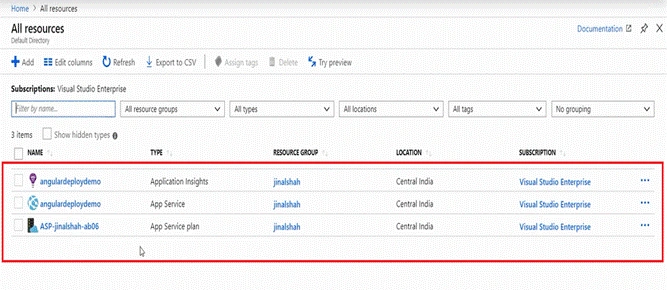
Now, if we click on the ‘angulardeploydemo’ of the type App Service (2nd from the above list), we can see all the resources allocated to our app service. On this screen, check the URL (top-right corner).
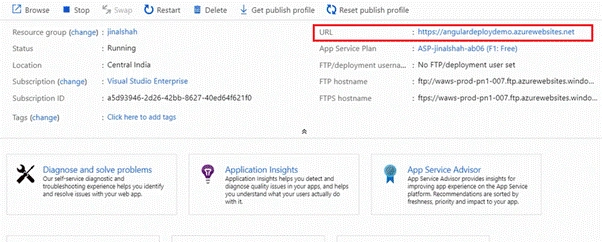
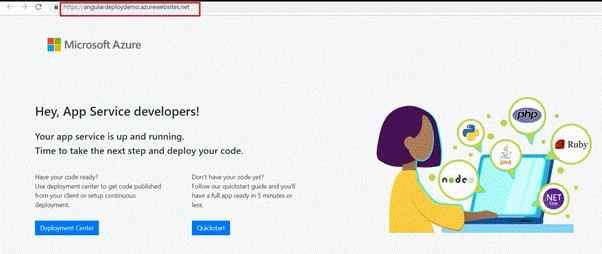
By clicking on this URL, you can see it will show us Home Page (by default) of Azure. So, this way, you can host your application on the Azure Platform.
Implement CI/CD
It’s time to publish our actual Angular application on this Azure Platform and also to implement CI/CD with GitHub (or any source control) for our Angular application.
For this, we need to set Azure DevOps and Pipelines to perform CI/CD.
- To implement this CI, Sign In to your Azure DevOps
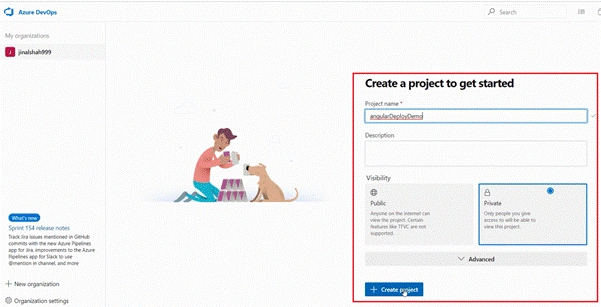
- Create a project. I am giving ‘angularDeployDemo’ as a project name. Then select the Visibility feature for this project. I am selecting Private as a visibility option and then clicking on the "Create Project" button.
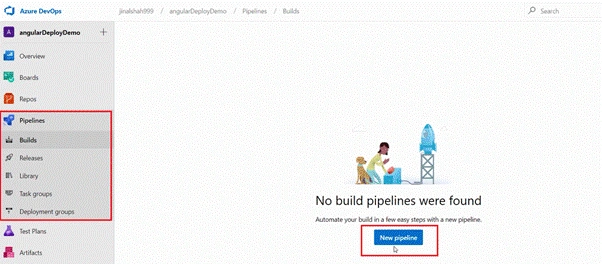
- So now, our DevOps Project is ready. As you can see this project offers many facilities like Boards, Repos, Pipelines, Test Plans, and Artifacts. Here we will focus on Pipelines Because with the help of this we are going to set up CI. So click on the "New Pipeline" button.
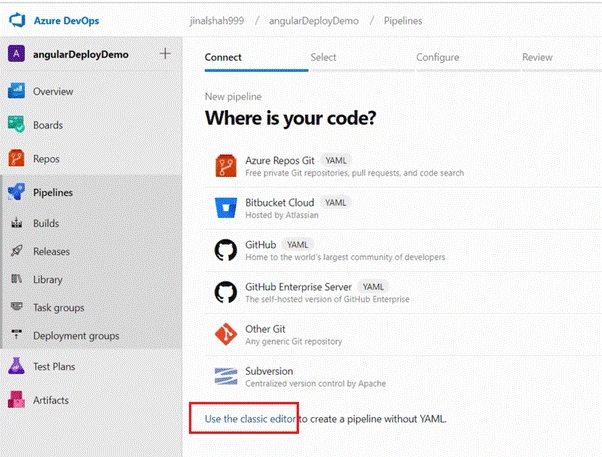
- And our Pipeline is created and you are able to see the below screen. Here, at the bottom of the screen, you are having a link for use the classic editor. Click on this link to switch your view to the classic editor.
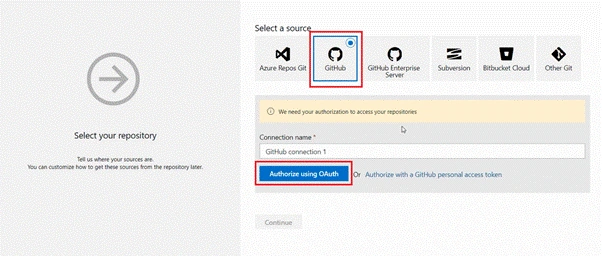
- Now here first you need to select a Source Control which you want to use. In this example, we are working with Github, so I am selecting GitHub as a Source.
(Note that I have already pushed the source code of my Angular application to the Github).
At this stage, we have to fetch that Angular application to this Pipeline. To do this we need to follow this Authentication procedure. So click on this to authorize using the OAuth button.
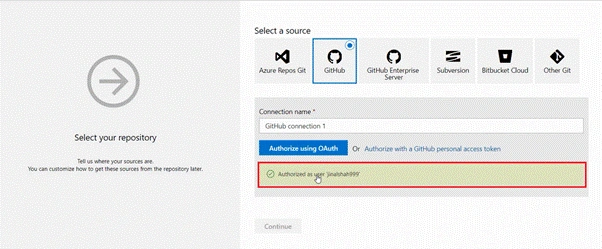
Then click on the Authorized as user... as shown below,
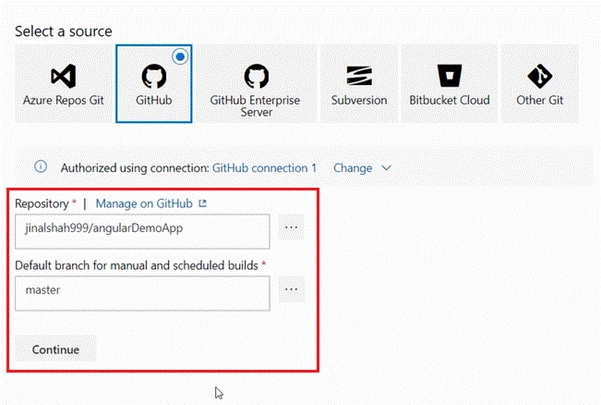
And then select the Git Repository of your Angular Application and the branch. Then, click on the "Continue" button.
- Next thing is to choose the template for our application. So let us create a Job or Agent. By default, DevOps is offering some inbuilt templates to do certain jobs. You can select it from the list or you can create your own custom agent too. So here we will create our customized Agent so click on start with an empty job.
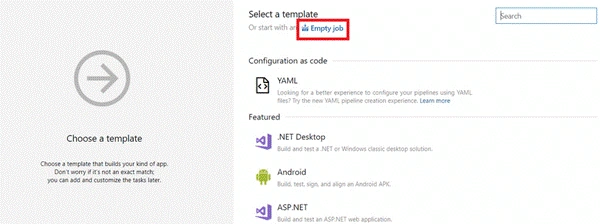
Now we need to follow some steps to create the Agent:
- Before starting to check the Agent Name on the right side of your screen, it is showing angularDeployDemo-CI. Leave it as it is.
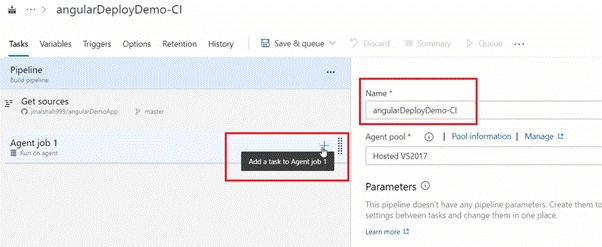
Now, press the + (add task) button to add the New Task to your agent.
- First, we will add the Node.js tool installer.
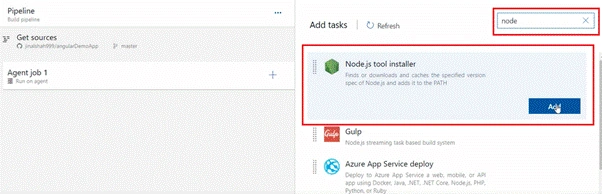
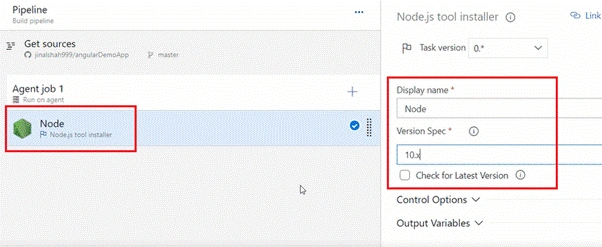
- Then set the Display Name to Node and then you can specify the version of the Node.js and you can also select on the checkbox to use the latest version. Here I am using this 10.x version for Node.js. So our first task is ready. Now, we will add some other Tasks like this way.
- Again, click on + (add task button) to add one more Task to the Agent.
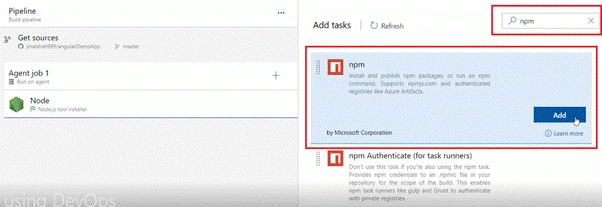
- Add npm (Node Package Manager).
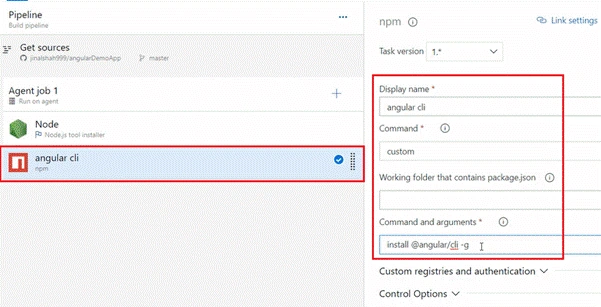
- Change the Display Name of it to the angular cli because this will install Angular-CLI. Next, select the Command as Custom. Next, write the actual command in the Commands and arguments field and i.e. install @angular/cli –g.
- Now again, click on + (add task button) to add one more Task to the Agent.
- Add one more npm (Node Package Manager). This will be used to install all dependencies of mypackage.json.
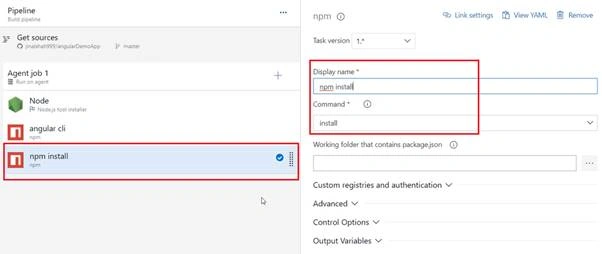
- Here, keep its Display Name to npm install and then select its Command as install.
- Now add one more Task for Production Build.
- Again add npm (Node Package Manager).
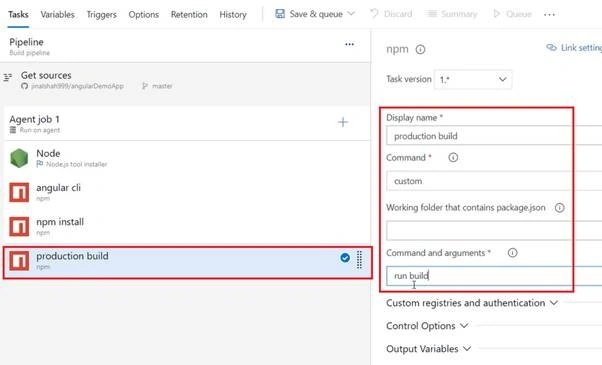
- Here change its Display Name to Production Build. Next, select the Command as Custom. Next, write the actual command in the Commands and arguments field and i.e. run build
Next, select Azure Subscription to Visual Studio Enterprise... and then do not forget to Authorize your subscription.
And now we need to link this Azure Deploy to the App Service that we have created on Azure Platform. So write App Service Name as angulardeploydemo. This is the name that we have set on our azure platform.
Now you already know that Angular makes a dist folder. So we need to host only that folder on our server. So write dist/angularDemoApp/ in the Package or Folder option. Here angularDemoApp is the name of my Angular application.
So we are all done with our first agent.
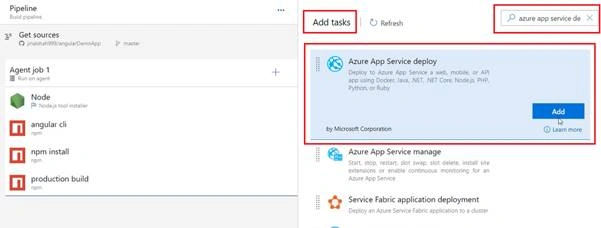
- Now we need to connect the DevOps (build) to our Azure Service having Angular application which we have already created on here. So as a last step we will add a final Task for Azure App Service Deploy. This will host our Distribution folder because whenever we create a production build, Angular-CLI will create a dist folder for hosting.
- Add Azure App Service Deploy.
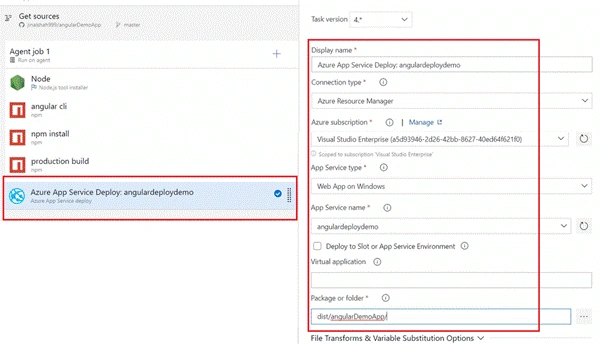
- Here change its Display Name to Azure App Service Deploy:angularDeployDemo.
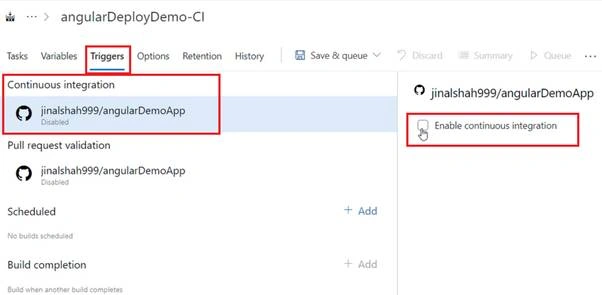
- Now we have to set Trigger and we have to Enable CI. So navigate to Triggers tab and select this Enable Continues Integration checkbox to true.
- Select your Git Repository’s Branch in Branch Specification.
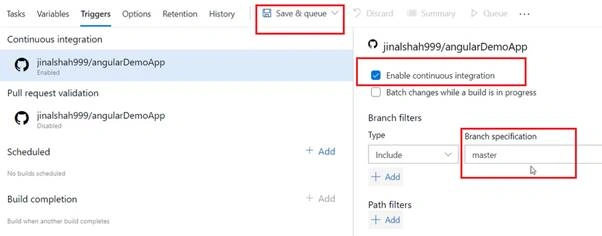
- Now press on the Save & Queue button. And this will ask you for some information. In this window insert some Comment and then press Save and Run.
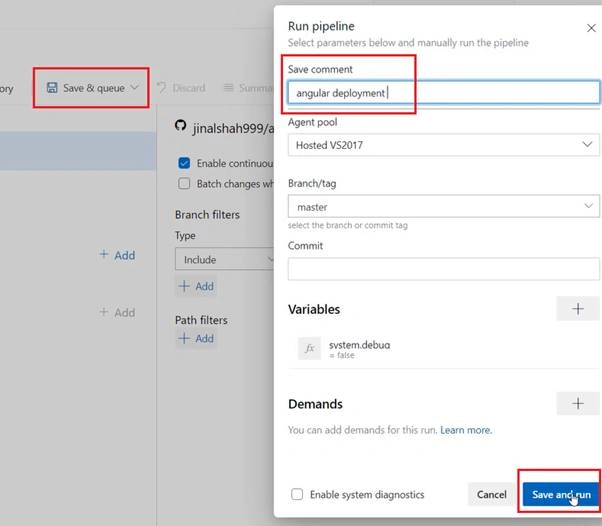
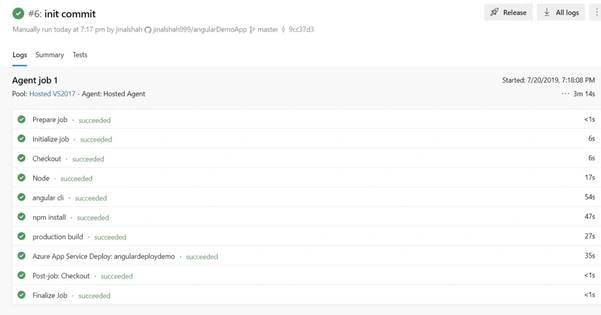
Now it will perform (run) all those tasks which we have created in Agent. So it will first install Node.js then it will install the Angular-CLI. Then it will add all the dependencies and will create the Production Build. Then it will finally host the App on Azure App Service.
When all the Tasks of Agent get completed successfully then you are able to see the below screen.
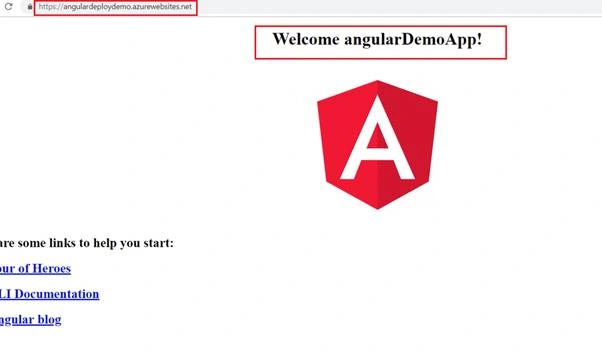
- Time to open your Browser and search the url https://angulardeploydemo.azurewebsites.net and you can see the Home Page of your Angular Application.
Hooray...!!! Your Angular Application is Live on Azure Server..!!
Note that we have not just Hosted the App to Azure but we have also implemented CI.
So let’s examine the working of CI/CD,
- For this I am opening my Angular Application and make some changes in the component.html.
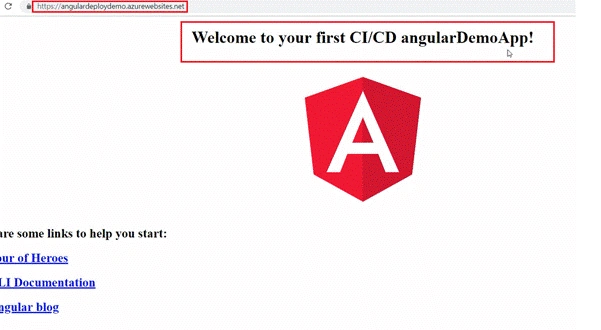
- In this HTML, I am changing the Welcome Message as below,
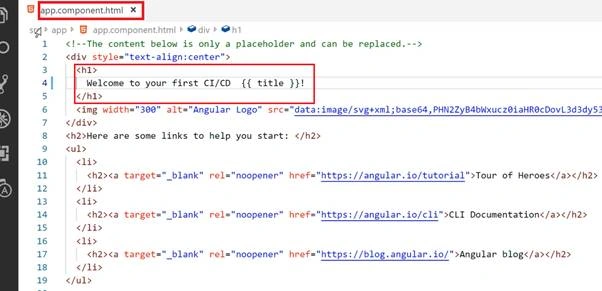
- Commit and Push these changes to Github.
This will take some time to finally reflect the changes on the server.
So by implementing this CI/CD, all our changes of the Angular Application can directly go live whenever we push the code on Github.
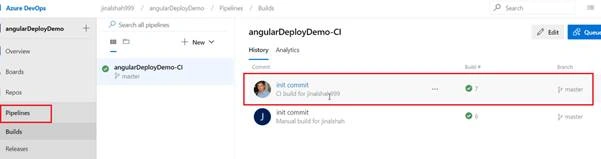
You can always check on Azure Platform if you are having anything new in your Pipeline or not. You can check in Pipelines tab on Azure Platform as below,
Finally, you can Refresh your browser and you can see the new changes done using CI/CD.
Thank you for reading this article.!
Join the conversation! Your thoughts help the community grow.