

Introduction
Google cloud provides a hosting service. Using that service, we can host static web application easily, free and securely.
Why you should go with Firebase Hosting?
Firebase hosting is not only free service, its an easy way to host as well, as its default provides the SSL certificate so that your website will be hosted securely with HTTPS.
Many of the hosting servers are in paid with slow speed. But Firebase hosting service will provide you impressive good speed across many locations without the need of separate CDN.
For Configuration or Hosting, we required the following:
Many of the hosting servers are in paid with slow speed. But Firebase hosting service will provide you impressive good speed across many locations without the need of separate CDN.
For Configuration or Hosting, we required the following:
- Google Account: For Firebase setup account in the console.
- Domain Details: Map you hosting service with the domain, There are many providers available, you can purchase a domain from any provider.
- Firebase-CLI: you can install Firebase-CLI using the below npm command
npm install -g firebase-tools or yarn global add firebase-tools
Get started hosting a static website
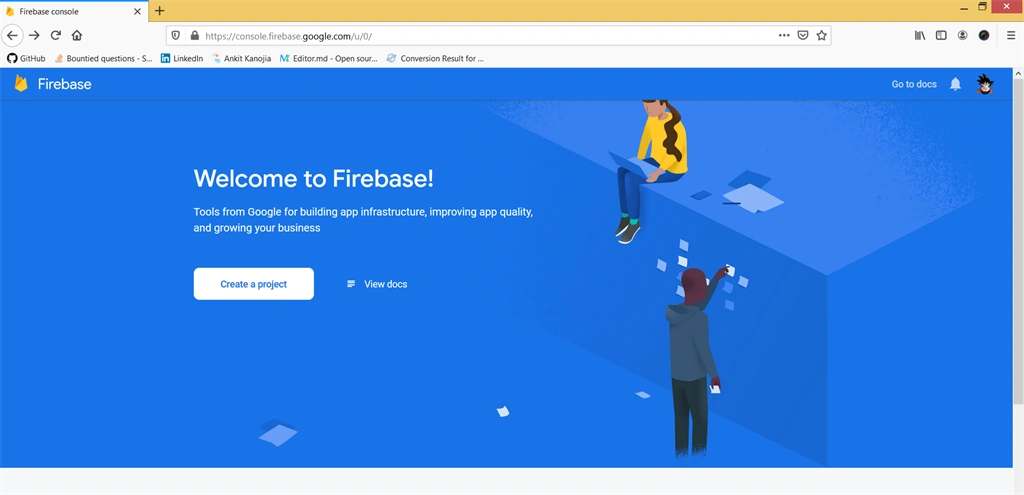
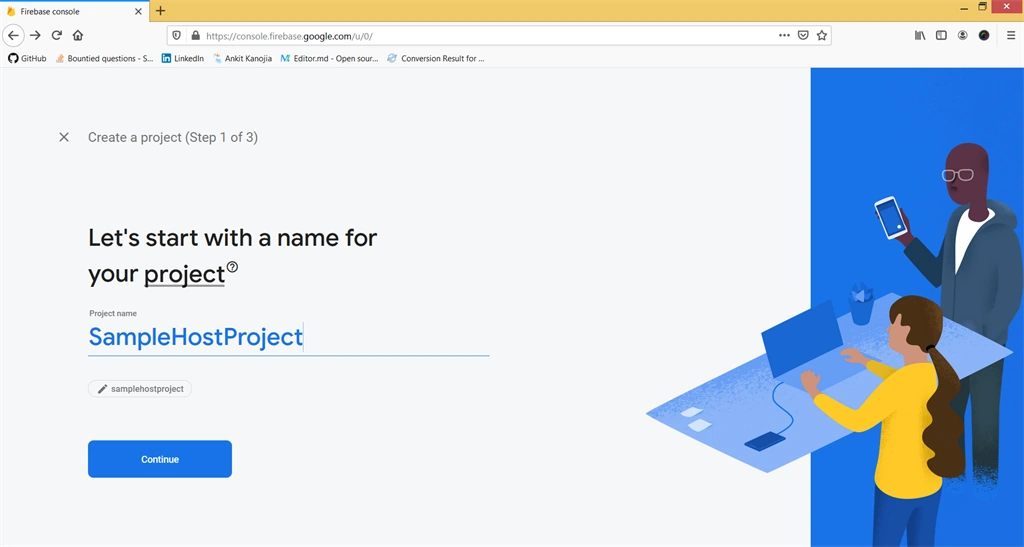
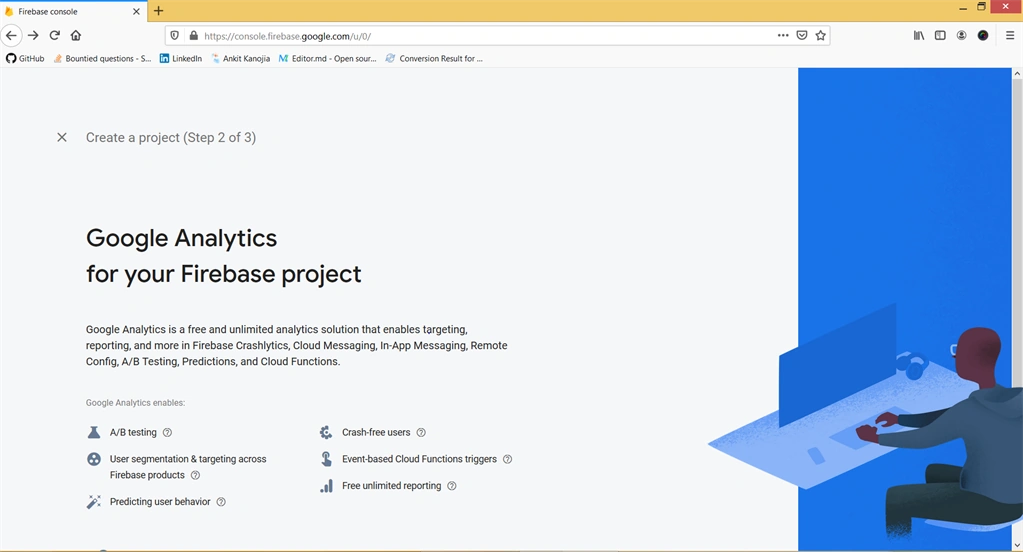
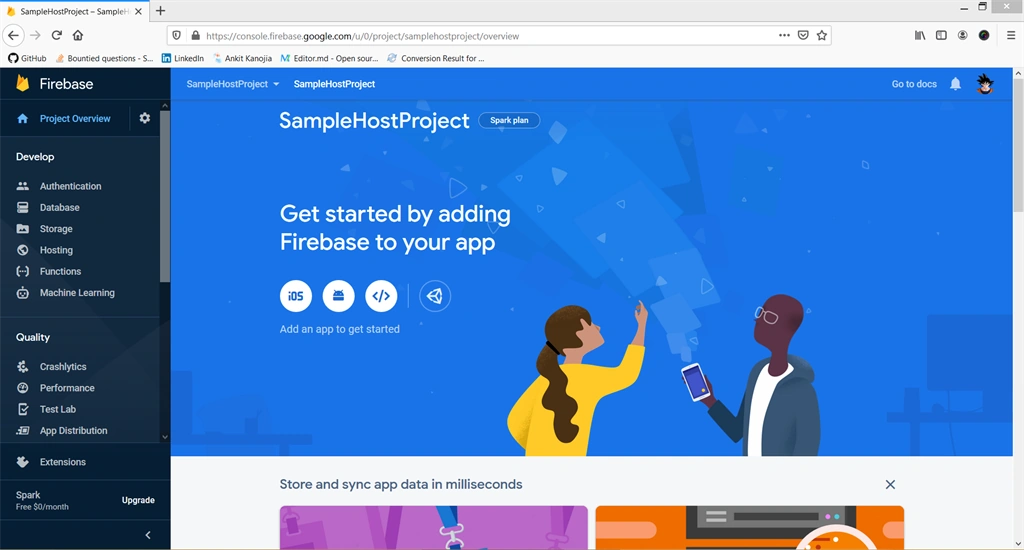
Step 1 - Configured Firebase project on Firebase console
Open Firebase console - Sign-In using Google account - Create New Project - Dashboard

Step 2 - Install Firebase-CLI on the local machine
npm install -g firebase-tools or yarn global add firebase-tools
Step 3 - Configuration of Firebase-CLI on the local machine
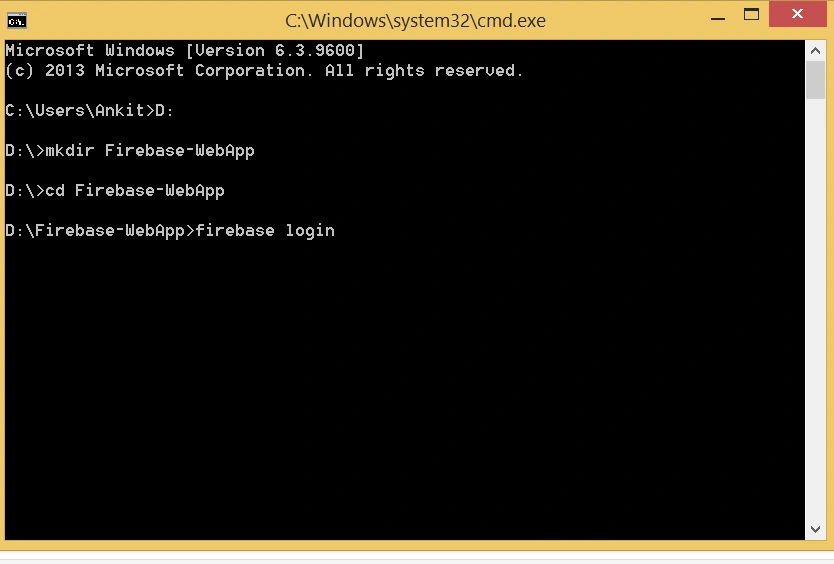
- Create a new folder in your computer, for example, I've created one folder with name Firebase-WebApp in Drive D
- Open CMD(command prompt) window and reach to path D:\Firebase-WebApp
- Now write-down the command firebase login
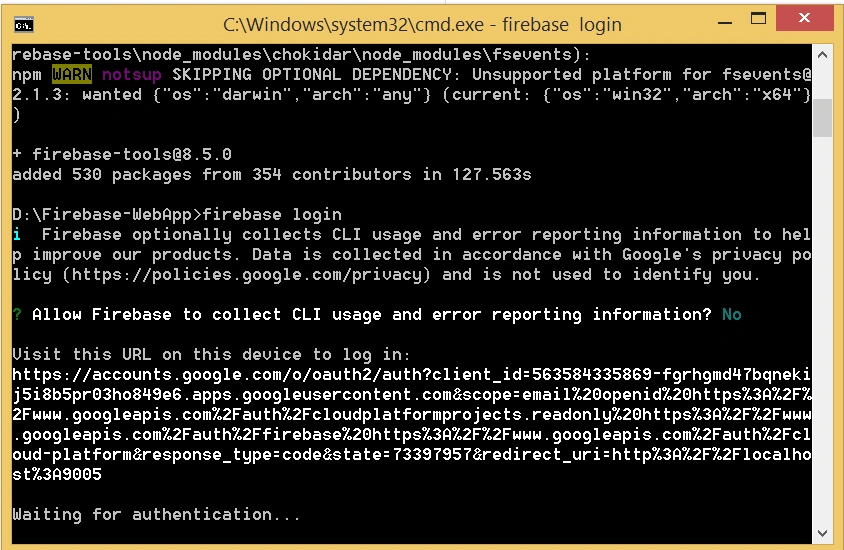
- This will redirect you to sign-in page in the browser, where you just need to simply sign-in.
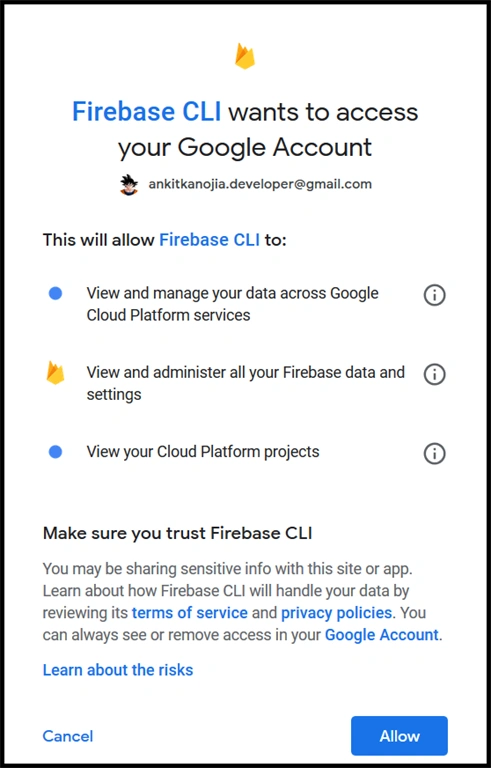
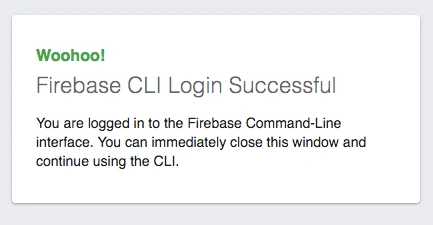
- After successfully allowing the permission, you will get below message on the browser
-
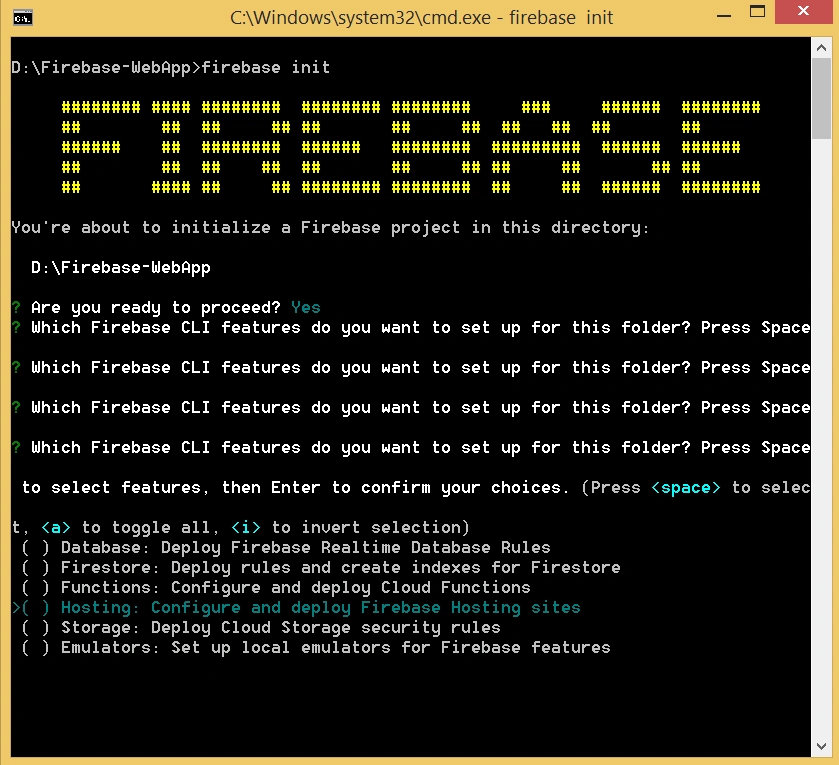
Initialize the project using firebase init command from cmd prompt window, After entering init command in command prompt firebase provides you few options to go with, in those options you need to choose to host option and then click Enter to choose.
-
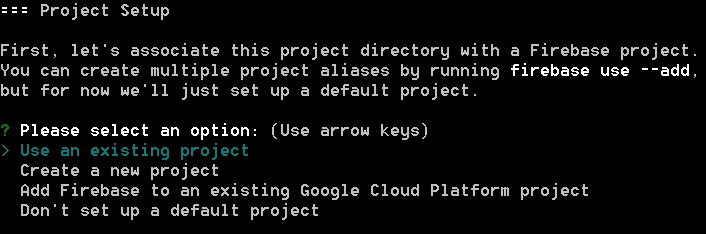
Once the Hosting option is selected, they'll provide the option to choose an existing project or create a new one. As we have already created a sample static project, you need to just choose the existing option and click on enter.
-
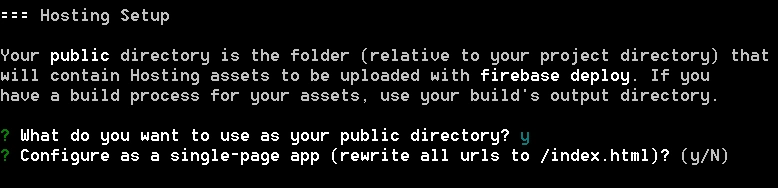
Then few configuration settings are required to perform you just need to select yes or no based on your requirements. On the final step, they will ask to create a new inde.html file or be with index.html file, once you've selected your option your application is ready to go live on your localhost server.
STEP 5 - Publish website on localhost
-
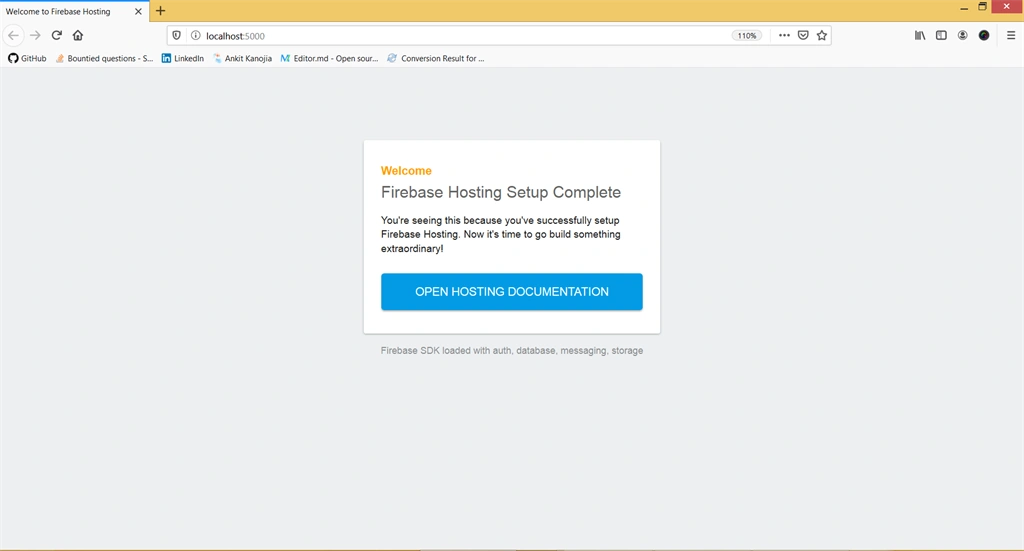
After configuration settings for a web application, we need to enter firebase serve command in command prompt, this command will host a web application in localhost with 5000 port number.

-
Once your application hosted on http://localhost:5000, you can review it in the browser by opening this.
Deploy on the live firebase server:
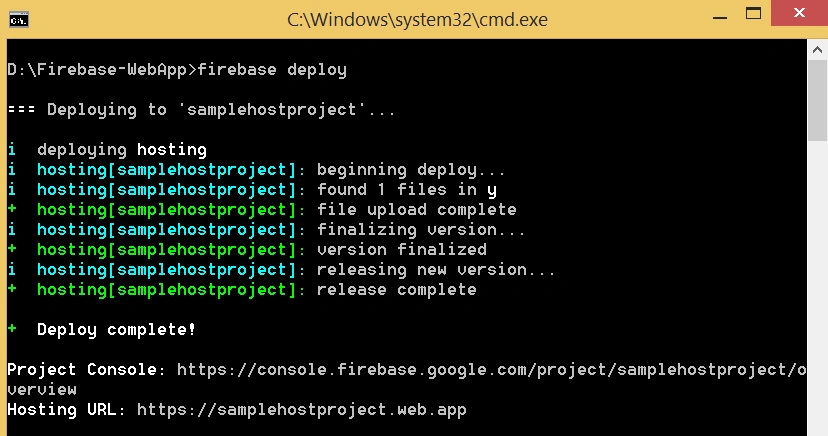
Step 7
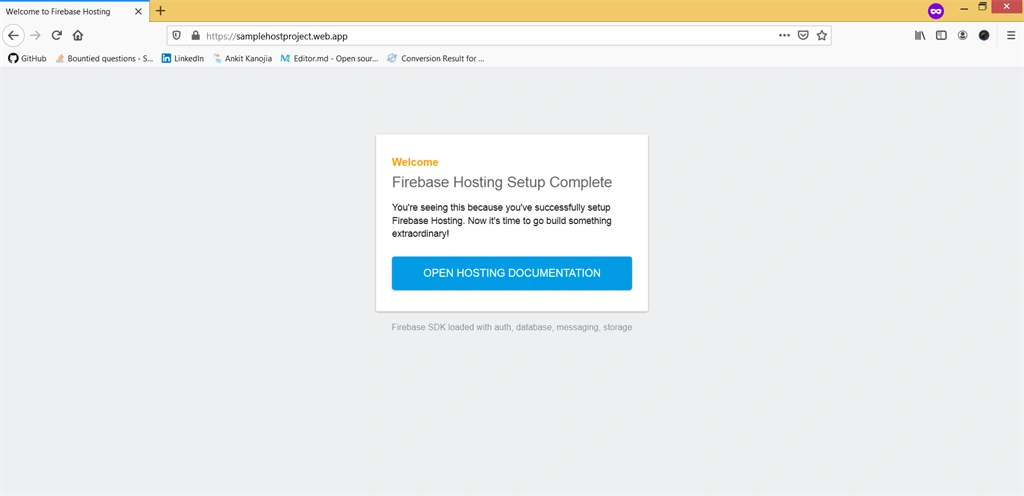
After entering the firebase deploy command, our application hosted on live server. you can review by given link address in the console.
Summary
Here is the step by step explanation of hosting a static website using the firebase hosting service. In the next article, we will learn how to map custom domain web application which we deployed earlier.
Join the conversation! Your thoughts help the community grow.