

Customizing a Model-Driven App in Dynamics 365 or Power Apps can be a complex task, especially when it comes to hiding the Share button. In this article, we'll explore four methods to achieve this, providing a step-by-step guide for each approach.
Why Hide the Share Button?
- Restrict record-sharing capabilities.
- Enhance data security and compliance.
- Simplify the user interface.
Method 1. Ribbon Workbench Alternative
- Traditionally used for customizing the ribbon (command bar).
- May not provide a direct option to hide the Share button.
- Explore alternative solutions if the button is not customizable.
Method 2. Security Roles Configuration
- Configure security roles to restrict sharing capabilities.
- May not always work as expected.
- The share button may still be visible even if users don't have sharing privileges.

Method 3. Manipulating Solution XML
- Advanced methods require a deeper understanding of solution structure and customization concepts.
- Provides high flexibility and control.
Steps to follow
- Export Solution: Export the solution containing the Model-Driven App.
- Extract Solution ZIP: Extract the exported solution ZIP file.
- Locate RibbonDiffXML: Find the RibbonDiffXML section in the customization.xml file.
- Find Share Button: Search for the Share button definition within the RibbonDiffXML section.
- Remove the Share Button: Remove or comment out the corresponding XML elements.
- Save Changes: Save the modified customization.xml file.
- Import Solution: Import the modified solution back into Dynamics 365.
- Publish Changes: Publish the customizations to apply the changes to the Model-Driven App.
Method 4. JavaScript Approach
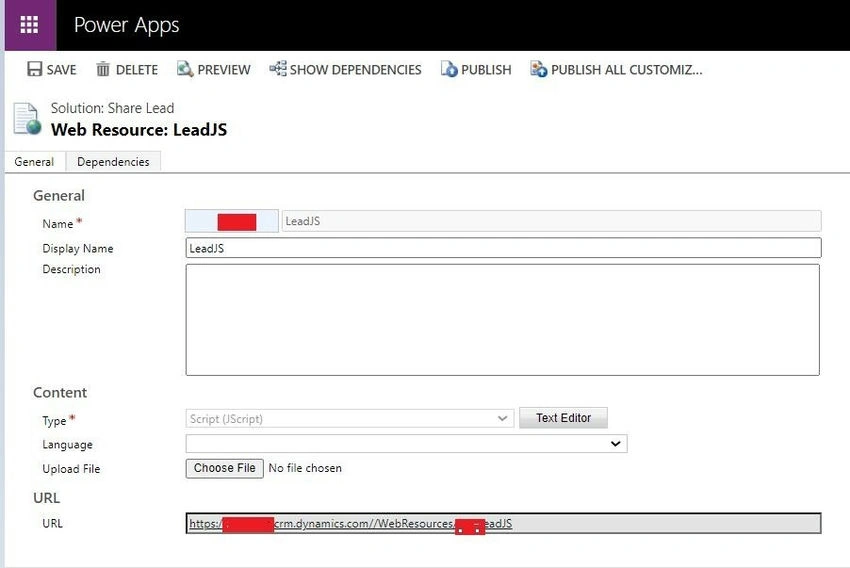
- Customize the user interface using JavaScript.
- Retrieve the ID of the Share button (typically "collaborationShareButton").
- Develop a dynamic function to hide the button.
function hideShareButtononForm() {
    for (var i = 0; i < 100; i++) {
        var shareButton = window.top.document.getElementById("collaborationShareButton_" + i);
        if (shareButton) {
            shareButton.style.display = 'none';
            return;
        }
    }
}
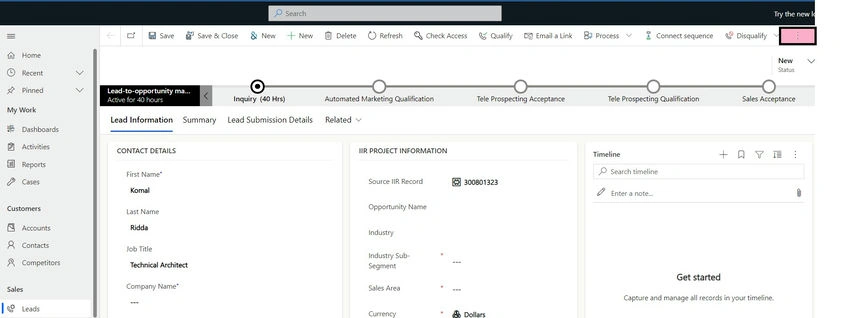
Additional Tips and Considerations
- Test and validate: Thoroughly test and validate your customizations to ensure they work as expected
- Backup and version control: Maintain backups and version control of your customizations to track changes and roll back if needed
- Compatibility and updates: Ensure your customizations are compatible with future updates and releases of Dynamics 365 and Power Apps
Conclusion
Hiding the Share button in a Model-Driven App requires careful planning and execution. By following the step-by-step guides outlined in this article, you can successfully customize your app to meet your organization's specific requirements. Remember to test, validate, and maintain your customizations to ensure a seamless user experience.
Thank you for reading! We hope this article helped you successfully hide the Share button in your Model-Driven App. If you have any questions, feedback, or suggestions, please leave a comment below. We'd love to hear from you!
Join the conversation! Your thoughts help the community grow.