
Introduction
android:configChanges="orientation|screenSize|keyboardHidden". In java class file we will override the onConfigurationChanged().
onConfiguration change() - This method is called by the system when the device configuration changes while your activity is running
Now when configuration changes the activity will not be restart. So when the device changes its orientation the onConfigurationChanged() method will be called.
Step 1
Create a project like this
Step 2
Create an Xml file and write this
- <?xml version="1.0" encoding="utf-8"?>
- <RelativeLayout xmlns:android="http://schemas.android.com/apk/res/android"
- android:layout_width="fill_parent"
- android:layout_height="fill_parent"
- android:background="#ff998765"
- android:orientation="vertical" >
- <TextView
- android:id="@+id/textView"
- android:layout_width="wrap_content"
- android:layout_height="wrap_content"
- android:layout_centerHorizontal="true"
- android:layout_centerVertical="true"
- android:paddingRight="10dip"
- android:textSize="50dp" />
- <Button
- android:id="@+id/button"
- android:layout_width="fill_parent"
- android:layout_height="wrap_content"
- android:layout_alignParentBottom="true"
- android:layout_alignParentLeft="true"
- android:text="Start" />
- </RelativeLayout>
Step 3
In this, I have created a timer inside activity that is started on button click. So when you start the timer in portrait mode the timer start counting. When you change the device orientation the timer will start from that count.
Create a java class file and write this
- package com.example.screenorientation;
- import android.os.Bundle;
- import android.os.CountDownTimer;
- import android.app.Activity;
- import android.content.res.Configuration;
- import android.util.Log;
- import android.view.Menu;
- import android.view.View;
- import android.view.View.OnClickListener;
- import android.widget.Button;
- import android.widget.LinearLayout;
- import android.widget.RadioButton;
- import android.widget.TextView;
- import android.widget.Toast;
- public class MainActivity extends Activity
- {
- private CountDownTimer countDownTimer;
- private boolean timerStarted = false;
- private Button buttonStart;
- public TextView textView;
- private final long startTime = 100 * 100;
- private final long interval = 1 * 100;
- @Override
- protected void onCreate(Bundle savedInstanceState)
- {
- super.onCreate(savedInstanceState);
- setContentView(R.layout.activity_main);
- Log.d("cycle", "onCreate wiil be invoke");
- buttonStart = (Button) this.findViewById(R.id.button);
- textView = (TextView) this.findViewById(R.id.textView);
- countDownTimer = new CountDownTimerActivity(startTime, interval);
- textView.setText(textView.getText() + String.valueOf(startTime / 1000));
- buttonStart.setOnClickListener(new OnClickListener()
- {
- @Override
- public void onClick(View arg0)
- {
- if (!timerStarted)
- {
- countDownTimer.start();
- timerStarted = true;
- buttonStart.setText("STOP");
- }
- else
- {
- countDownTimer.cancel();
- timerStarted = false;
- buttonStart.setText("RESTART");
- }
- }
- });
- }
- public class CountDownTimerActivity extends CountDownTimer
- {
- public CountDownTimerActivity(long startTime, long interval)
- {
- super(startTime, interval);
- }
- @Override
- public void onFinish()
- {
- textView.setText("Time's up!");
- }
- @Override
- public void onTick(long millisUntilFinished)
- {
- textView.setText("" + millisUntilFinished / 1000);
- }
- }
- @Override
- protected void onStart()
- {
- super.onStart();
- Log.d("cycle", "onStart wiil be invoked");
- }
- @Override
- protected void onResume()
- {
- super.onResume();
- Log.d("cycle", "onResume wiil be invoked");
- }
- @Override
- protected void onPause()
- {
- super.onPause();
- Log.d("cycle", "onPause wiil be invoked");
- }
- @Override
- protected void onStop()
- {
- super.onStop();
- Log.d("cycle", "onStop wiil be invoked");
- }
- @Override
- protected void onRestart()
- {
- super.onRestart();
- Log.d("cycle", "onRestart wiil be invoked");
- }
- @Override
- protected void onDestroy()
- {
- super.onDestroy();
- Log.d("cycle", "onDestroy wiil be invoked");
- }
- @Override
- public void onConfigurationChanged(Configuration newConfig)
- {
- super.onConfigurationChanged(newConfig);
- if (newConfig.orientation == Configuration.ORIENTATION_LANDSCAPE) {} else if (newConfig.orientation == Configuration.ORIENTATION_PORTRAIT) {}
- }
- @Override
- public boolean onCreateOptionsMenu(Menu menu)
- {
- getMenuInflater().inflate(R.menu.main, menu);
- return true;
- }
- }
Step 4
Android Manifest.xml file
- <?xml version="1.0" encoding="utf-8"?>
- <manifest xmlns:android="http://schemas.android.com/apk/res/android"
- package="com.example.screenorientation"
- android:versionCode="1"
- android:versionName="1.0">
- <uses-sdk
- android:minSdkVersion="8"
- android:targetSdkVersion="18"/>
- <application
- android:allowBackup="true"
- android:icon="@drawable/ic_launcher"
- android:label="@string/app_name"
- android:theme="@style/AppTheme">
- <activity
- android:name="com.example.screenorientation.MainActivity"
- android:configChanges="orientation|screenSize|keyboardHidden"
- android:label="@string/app_name">
- <intent-filter>
- <action android:name="android.intent.action.MAIN" />
- <category android:name="android.intent.category.LAUNCHER" />
- </intent-filter>
- </activity>
- </application>
- </manifest>
Step 5
After running of activity onCreate(), onStart, onResume() called simultaneuosly
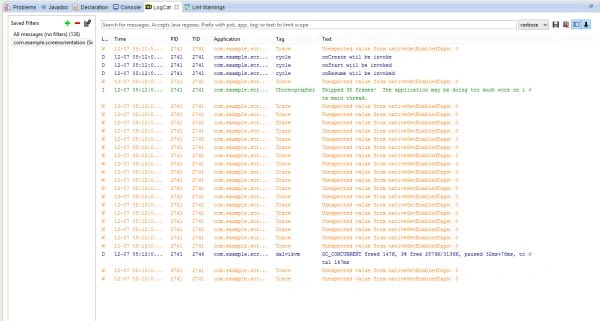 When the Device orientation changes no methods called which means the activity not restarted

Neeraj KumarPosted Jul 30, 2015, 6:20 PM
GOod