

Introduction
This article was written for those who really want to understand about VSTS functionalities and features. And this article explains VSTS by comparing it with TFS (Team Foundation Server) to understand the concepts and differences better. After the theory part, this article shows how to use VSTS with screenshots.
Let’s begin…
Brief Info About VSTS
Visual Studio Team Services (Vsts) is a powerful tool to ease the end to end work involved in the software development process.
It mainly provides tools for:
- Source Code Management => Git repositories for source control of your code
- Work Item Management => Agile tools to support planning and tracking your work, code defects, and issues using Kanban and Scrum methods. Highly customizable dashboards for sharing progress and trends
- Build And Release Management => supports tools for continuous integration and delivery of our apps such as automated builds and automated deployment.
Note
All the above features can be accessed through either our web browser or IDE Client such as a Visual Studio.
Additional Information
We can also say VSTS is an Application Lifecycle Management tool.
VSTS is the cloud offering that provides a scalable, reliable, and globally available hosted service. It is backed by a 99.9% SLA, monitored by our 24-7 operations team, and available in local data centers around the world.
VSTS was previously called as “Visual Studio Online”.
Two Modes OF VSTS - Centralized and Decentralized
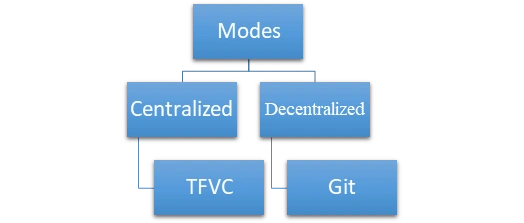
A traditional model is a centralized model, where code created by many developers is stored at the server. This mode is also called Team Foundation Version Control.
Another mode is the decentralized model, where each developer keeps their own repository of code in local repository first and merges those to the remote repository when required. This mode is also called Git.
We can set one mode as the default mode for our team project. In this article below, we will see how the decentralized mode such as Git works.
Before that, now let see the concept called “TFS” and what it actually is and how it is different from our VSTS.
Brief of TFS
- Team Foundation Server (commonly abbreviated to TFS) is a Microsoft On-Premises product similar to the cloud service VSTS.
- In simple words, TFS will work offline whereas Vsts will work online
- It also provides source code management in two modes (either with Team Foundation Version Control or Git) like vsts.
Difference between VSTS and TFS
| VSTS | TFS |
| It supports online | It supports offline |
| Just like a Rental Service | Buy an Entire Product |
| No Initial Setup and Maintenance is required by the buyer/user | All the Initial setup and maintenance needs to done by the buyer/user. |
Similarities
VSTS is an online version of TFS.
Both support the two modes TFVC and Git
Main Advantage of TFS over VSTS
- You can choose TFS when you need your data to stay within your network or you want access to SQL Server reporting services that integrate with TFS data and tools.
Main Advantages of VSTS over TFS
- Visual Studio Team Services requires no setup. A user can simply sign in using a Microsoft account to set up an environment, create projects and add team members with less effort.
- VSTS provides optimal hardware so that our infrastructure cost is avoided.
- Since the VSTS services are available on the internet, they can be easily used by teams that are distributed across multiple locations, without having any additional cost of VPN and overheads of security.
Pricing For VSTS
We are lucky if our team size is 5 because great service like VSTS is absolutely free up to 5 users.
Official Reference
https://www.visualstudio.com/team-services/pricing/
Enough of theory? Now let see the actual implementation.
Steps Involved To Use VSTS
Step 1
Create a Microsoft Account
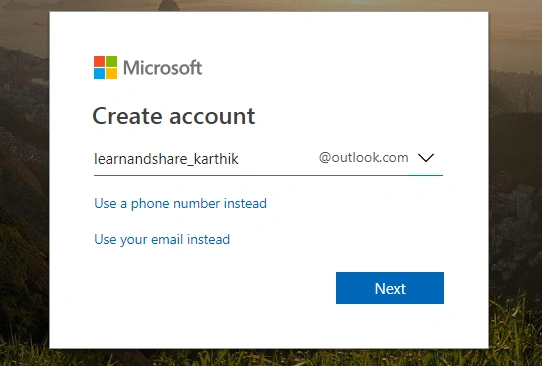
Note
Leave the above step if you already having the Microsoft account
Step 2
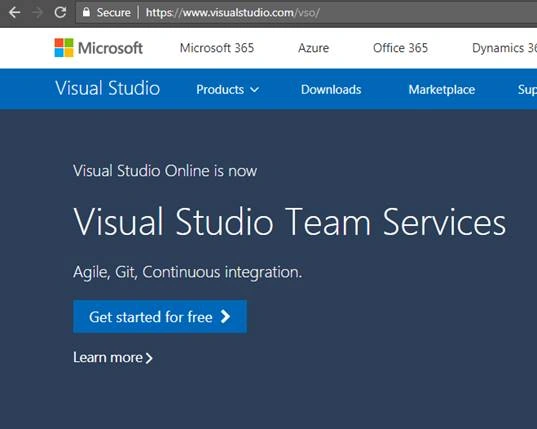
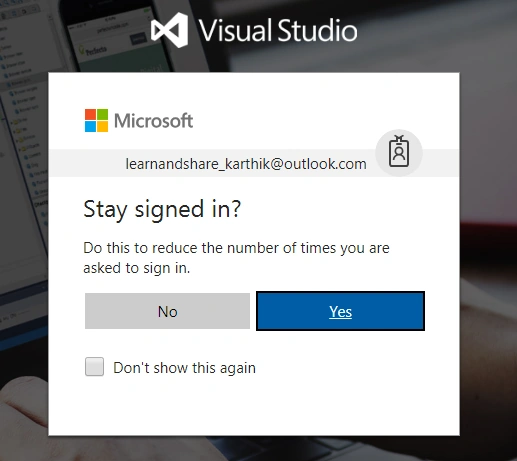
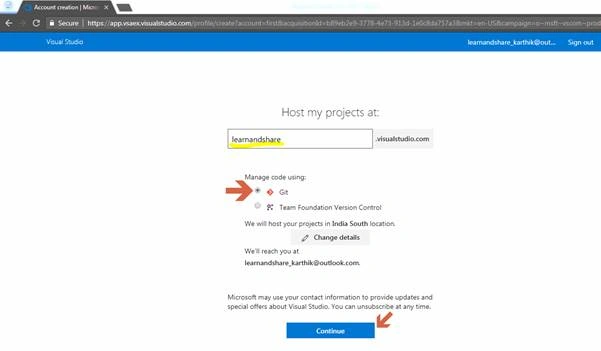
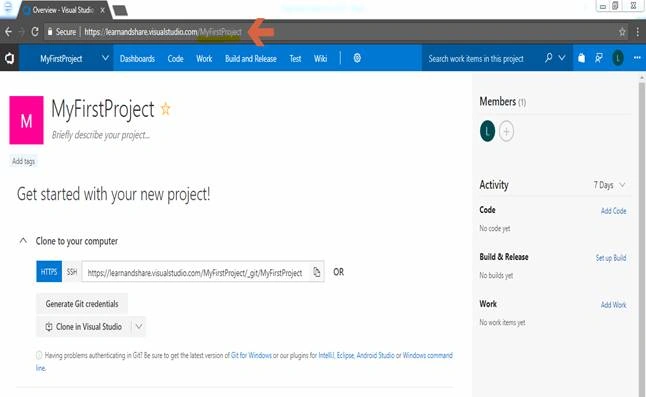
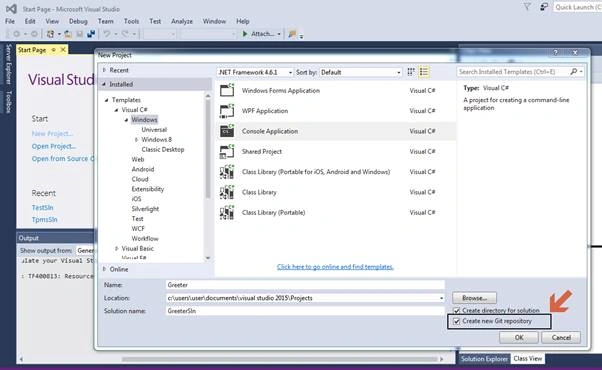
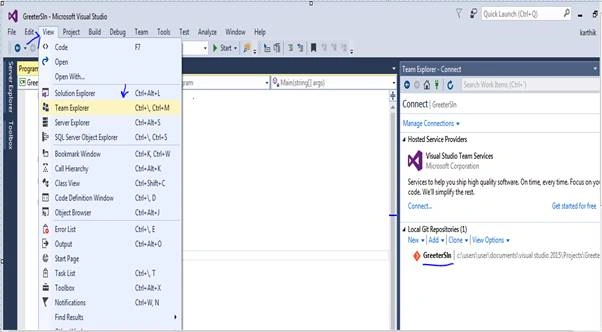
Create a VSTS account by using the Microsoft account.
Go to this link and click get started for a free button,
Rishi KumarPosted Sep 27, 2018, 6:35 AM
Can we use TFS Version control instead Git?