

Introduction
This article demonstrates an interesting and very useful concept in GridView.
Question: What is a GridView with Radio Button Binding?
In simple terms, it enables binding to the GridView, by selecting an appropriate radio button item in a grid.
Step 1: Create a new web application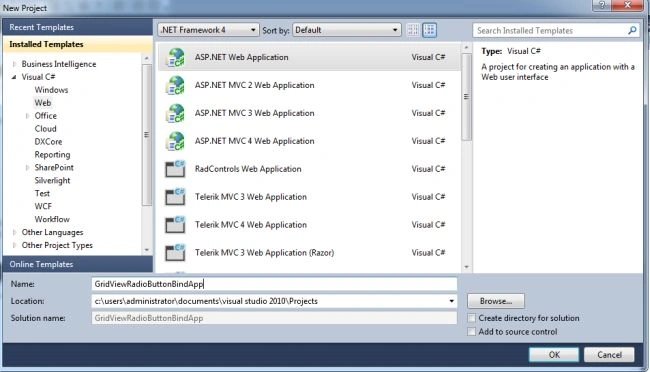
Step 2: The complete code of WebForm1.aspx is as in the following:
- <%@ Page Language="C#" AutoEventWireup="true" CodeBehind="WebForm1.aspx.cs" Inherits="GridViewRadioButtonBindApp.WebForm1" %>
- <!DOCTYPE html PUBLIC "-//W3C//DTD XHTML 1.0 Transitional//EN" "http://www.w3.org/TR/xhtml1/DTD/xhtml1-transitional.dtd">
- <html xmlns="http://www.w3.org/1999/xhtml">
- <head id="Head1" runat="server">
- <title></title>
- </head>
- <body>
- <form id="form1" runat="server">
- <center>
- <div>
- <table>
- <tr>
- <td colspan="2" align="center">
- <asp:Label ID="Label1" runat="server" Text="GridView Radio Button Bind App" Font-Bold="true"
- Font-Size="Large" Font-Names="Verdana" ForeColor="Maroon"></asp:Label>
- </td>
- </tr>
- <tr>
- <td colspan="2" align="center">
- <asp:GridView ID="GridView1" runat="server" CssClass="grid" BackColor="LightGoldenrodYellow"
- BorderColor="Tan" BorderWidth="1px" CellPadding="2" AutoGenerateColumns="false"
- ForeColor="Black" GridLines="None" OnRowDataBound="GridView1_RowDataBound">
- <AlternatingRowStyle BackColor="PaleGoldenrod" />
- <FooterStyle BackColor="Tan" />
- <HeaderStyle BackColor="Tan" Font-Bold="True" />
- <PagerStyle BackColor="PaleGoldenrod" ForeColor="DarkSlateBlue" HorizontalAlign="Center" />
- <SelectedRowStyle BackColor="DarkSlateBlue" ForeColor="GhostWhite" />
- <SortedAscendingCellStyle BackColor="#FAFAE7" />
- <SortedAscendingHeaderStyle BackColor="#DAC09E" />
- <SortedDescendingCellStyle BackColor="#E1DB9C" />
- <SortedDescendingHeaderStyle BackColor="#C2A47B" />
- <Columns>
- <asp:TemplateField HeaderText="FirstName">
- <ItemTemplate>
- <asp:Label runat="server" ID="lblFName" Text='<%# Bind("FirstName") %>'></asp:Label></ItemTemplate>
- </asp:TemplateField>
- <asp:TemplateField HeaderText="LastName">
- <ItemTemplate>
- <asp:Label runat="server" ID="lblLName" Text='<%# Bind("LastName") %>'></asp:Label></ItemTemplate>
- </asp:TemplateField>
- <asp:TemplateField HeaderText="Gender">
- <ItemTemplate>
- <asp:RadioButtonList ID="RadioButtonList1" runat="server">
- <asp:ListItem Text="Male" Value="1"></asp:ListItem>
- <asp:ListItem Text="Female" Value="2"></asp:ListItem>
- </asp:RadioButtonList>
- </ItemTemplate>
- </asp:TemplateField>
- </Columns>
- </asp:GridView>
- </td>
- </tr>
- </table>
- </div>
- </center>
- </form>
- </body>
- </html>
Step 3: The complete code of WebForm1.aspx.cs is as in the following:
- using System;
- using System.Collections.Generic;
- using System.Linq;
- using System.Web;
- using System.Web.UI;
- using System.Web.UI.WebControls;
- using System.Data.SqlClient;
- using System.Data;
- namespace GridViewRadioButtonBindApp
- {
- public partial class WebForm1 : System.Web.UI.Page
- {
- SqlConnection con = new SqlConnection("Data Source=WIN-KV3BO1RQQF7;Initial Catalog=Company;Integrated Security=True");
- protected void Page_Load(object sender, EventArgs e)
- {
- if (!IsPostBack) { con.Open();
- SqlCommand cmd = new SqlCommand("select FirstName, LastName, Gender from Employee", con);
- SqlDataAdapter da = new SqlDataAdapter(cmd);
- DataSet ds = new DataSet();
- da.Fill(ds);
- con.Close();
- GridView1.DataSource = ds;
- GridView1.DataBind();
- }
- }
- protected void GridView1_RowDataBound(object sender, GridViewRowEventArgs e)
- {
- if (e.Row.RowType == DataControlRowType.DataRow)
- {
- int genderValue = (int)DataBinder.Eval(e.Row.DataItem, "Gender");
- RadioButtonList rb = (RadioButtonList)e.Row.FindControl("RadioButtonList1");
- rb.Items.FindByValue(genderValue.ToString()).Selected = true;
- }
- }
- }
- }
Step 4: The output for the application is shown below: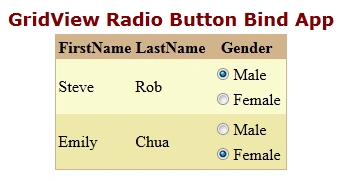
I hope this article was useful for you.
Yapa AppuhamyPosted Oct 28, 2019, 12:14 AM
Superb Code.. Working fine.. Thanks lot.
Anil (BABU)Posted Nov 3, 2018, 1:33 AM
Can u explain how to insert this values in database
صاله البرقPosted Sep 6, 2015, 4:16 PM
thanks for this code .. but i need help . what if i want use button to insert that name and gender in table in sql .. can you write that code please .. really i need it , hope you can help me
Gowtham RajamanickamPosted Mar 11, 2015, 8:33 AM
good....