


Introduction
In this tutorial, we will learn how to use FlowListView in Xamarin. Forms to create GridView. FlowListView is an awesome plugin that helps developers achieve features like infinite loading, item-tapped Commands, item-appearing events, item-disappearing events, and more.
Coding Part
Split this part into steps
I have split this part into 3 steps as in the following.
- Step 1: Creating a new Xamarin.Forms Projects.
- Step 2: Setting up the plugin for Xamarin.Forms Application.
- Step 3: Implementing GridView with FlowListView.
Step 1. Creating a new Xamarin.Forms Projects.
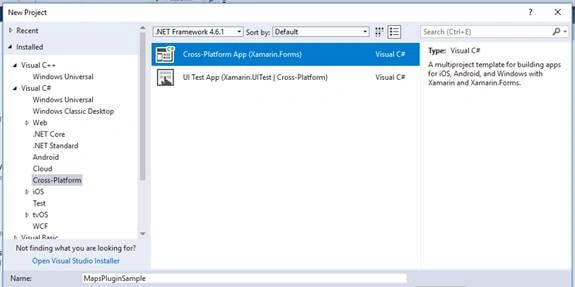
- Create a New Project by selecting New >> Project >> Select Xamarin Cross-Platform App and click OK.
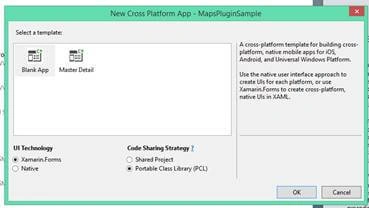
- Then, select Android and iOS platforms as shown below with Code Sharing Strategy as PCL or .NET Standard and click OK.
Step 2.Setting up the plugin for Xamarin.Forms Application.
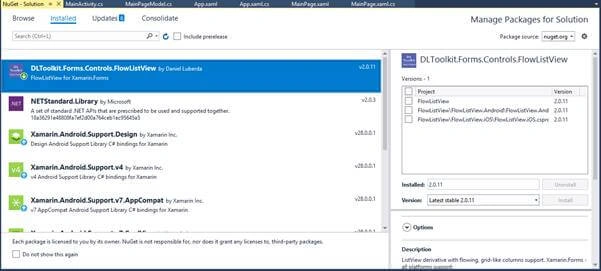
- Open NuGet Package Manager against the solution and search for FlowListView Plugin or paste the following NuGet package.
Install-Package DLToolkit.Forms.Controls.FlowListView -Version 2.0.11 - Click "Install" to install this plugin against your PCL Project or .NET standard Project.
- We need to install this application in all client projects.
Step 3. Implementing GridView with FlowListView
- Open “App.xaml.cs” or “App.cs” and add the following lines after the InitializeComponent function.
public App() { InitializeComponent(); FlowListView.Init(); MainPage = new MainPage(); } - Open your page, for example, “MainPage”, and add the flow listview reference in Designer as below.
xmlns:flv="clr-namespace:DLToolkit.Forms.Controls;assembly=DLToolkit.Forms.Controls.FlowListView" - Implement the flow listview like below.
<flv:FlowListView FlowColumnCount="3" SeparatorVisibility="Default" HasUnevenRows="True" FlowItemTappedCommand="{Binding ItemTappedCommand}" FlowItemsSource="{Binding Items}"> <flv:FlowListView.FlowColumnTemplate> <DataTemplate> <Frame BackgroundColor="Purple" Margin="5"> <Label HorizontalOptions="Fill" VerticalOptions="Fill" TextColor="White" XAlign="Center" YAlign="Center" Text="{Binding}"/> </Frame> </DataTemplate> </flv:FlowListView.FlowColumnTemplate> </flv:FlowListView> - Then, create a ViewModel for your Page, in my case, I have created a class named “MainPageModel.cs” and inherit the class with BindableObject.
public class MainPageModel : BindableObject { // Your code here } - Then, add the View Model to your page like below.
public partial class MainPage : ContentPage
{
    MainPageModel pageModel;
    public MainPage()
    {
        InitializeComponent();
        pageModel = new MainPageModel(this);
        BindingContext = pageModel;
    }
}
Full Code
MainPage.xaml
<?xml version="1.0" encoding="utf-8" ?>
<ContentPage xmlns="http://xamarin.com/schemas/2014/forms"
             xmlns:x="http://schemas.microsoft.com/winfx/2009/xaml"
             xmlns:flv="clr-namespace:DLToolkit.Forms.Controls;assembly=DLToolkit.Forms.Controls.FlowListView"
             x:Class="FlowListViewSample.MainPage">
    <StackLayout Padding="10">
        <flv:FlowListView FlowColumnCount="3"
                SeparatorVisibility="Default"
                HasUnevenRows="True"
                FlowItemTappedCommand="{Binding ItemTappedCommand}"
                FlowItemsSource="{Binding Items}">
            <flv:FlowListView.FlowColumnTemplate>
                <DataTemplate>
                    <Frame BackgroundColor="Purple"
                Margin="5">
                        <Label HorizontalOptions="Fill"
                VerticalOptions="Fill"
                TextColor="White"
                XAlign="Center"
                YAlign="Center"
                Text="{Binding }"/>
                    </Frame>
                </DataTemplate>
            </flv:FlowListView.FlowColumnTemplate>
        </flv:FlowListView>
    </StackLayout>
</ContentPage>
MainPage.xaml.cs
using Xamarin.Forms;
namespace FlowListViewSample
{
    public partial class MainPage : ContentPage
    {
        MainPageModel pageModel;
        public MainPage()
        {
            InitializeComponent();
            pageModel = new MainPageModel(this);
            BindingContext = pageModel;
        }
    }
}
MainPageModel.cs
using System.Collections.ObjectModel;
using Xamarin.Forms;
namespace FlowListViewSample
{
    public class MainPageModel : BindableObject
    {
        private MainPage mainPage;

        public MainPageModel(MainPage mainPage)
        {
            this.mainPage = mainPage;
            AddItems();
        }
        private void AddItems()
        {
            for (int i = 0; i < 20; i++)
                Items.Add(string.Format("List Item at {0}", i));
        }
        private ObservableCollection<string> _items = new ObservableCollection<string>();
        public ObservableCollection<string> Items
        {
            get
            {
                return _items;
            }
            set
            {
                if (_items != value)
                {
                    _items = value;
                    OnPropertyChanged(nameof(Items));
                }
            }
        }
        public Command ItemTappedCommand
        {
            get
            {
                return new Command((data) =>
                {
                    mainPage.DisplayAlert("FlowListView", data + "", "Ok");
                });
            }
        }
    }
}
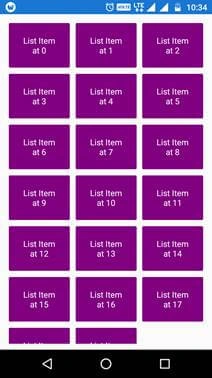
Demo
Reference
FlowListView for Xamarin.Forms
Download Code
You can download the code from GitHub. If you have doubts, feel free to post a comment. If you like this article, do like and share the article and star the repository on GitHub.
ashish sharmaPosted Jul 23, 2019, 4:28 AM
I was create functionality for lazy loading and when try to run flowitemappearing use it not work then i search for this reason found flowitemappearingcommand. r u using this so give sample for this thanks
ashish sharmaPosted Jul 23, 2019, 4:26 AM
Hello this is nice but could u please tel about FlowItemAppearingCommand and FlowItemAppearing property Uses.
Barnabas OlutayoPosted May 31, 2019, 10:23 AM
This is nice