

Introduction
In this article, we discuss graphics programming
using Swing in Java.
Graphics in Swing
The java.awt.Graphics class provides many methods
for graphics programming, including the following:
- void setColor(Color color) used for set the graphics of current color to specified color.
- void setFont(Font font) used to set the font graphics.
- void drawString(String text, int x, int y) is used to draw a string.
- void drawLine(int x1, int y1, int x2, int y2) is used to draw a line between given points.
- void drawRect(int x, int y, int width, int height) is used to draw rectangle.
- void drawRoundRect(int x, int y, int width, int height, int arcWidth, int arcHeight)
- void drawOval(int x, int y, int width, int height) is used to draw oval
- void drawArc(int x, int y, int width, int height, int startAngle, int arcAngle) is used to draw a circular or elliptical arc.
- void fillRect(int x, int y, int width, int height) is used to fill rectangle with default color.
- void fillRoundRect(int x, int y, int width, int height, int arcWidth, int arcHeight)
- void fillOval(int x, int y, int width, int height) is used to fill oval with default color.
- void fillArc(int x, int y, int width, int height, int startAngle, int angularExtent) is used to fill circular or elliptical arc.
Graphics are used to design rectangles, lines,
ovals, arcs, circles, etc.
Draw a simple oval in Java
In this example we draw an oval using Swing
methods:
- import javax.swing.JFrame;
- import java.awt.*;
- public class DisplayOval extends Canvas {
- public void paint(Graphics grap) {
- grap.drawOval(25, 140, 40, 70);
- }
- public static void main(String[] args) {
- DisplayOval o = new DisplayOval();
- JFrame f = new JFrame();
- f.add(o);
- f.setSize(500, 280);
- //f.setLayout(null);
- f.setVisible(true);
- }
- }
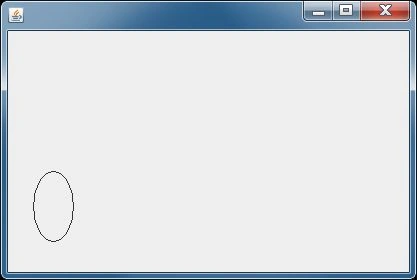
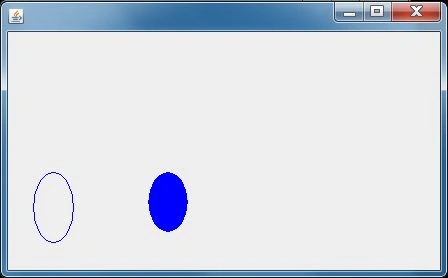
Now, fill in the color for the oval using the
fillOval() method; see:
- import javax.swing.JFrame;
- import java.awt.*;
- public class FillOval extends Canvas {
- public void paint(Graphics grap) {
- grap.drawOval(25, 140, 40, 70);
- setForeground(Color.RED);
- grap.fillOval(140, 140, 40, 60);
- }
- public static void main(String[] args) {
- FillOval o = new FillOval();
- JFrame jf = new JFrame();
- jf.add(o);
- jf.setSize(500, 280);
- //f.setLayout(null);
- jf.setVisible(true);
- }
- }
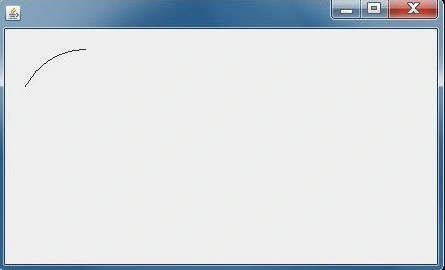
Draw an Arc in Java
The following will draw an Arc using Swing:
- import javax.swing.JFrame;
- import java.awt.*;
- public class DrawArc extends Canvas {
- public void paint(Graphics grap) {
- grap.drawArc(10, 20, 140, 150, 90, 60);
- }
- public static void main(String[] args) {
- DrawArc o = new DrawArc();
- JFrame jf = new JFrame();
- jf.add(o);
- jf.setSize(500, 280);
- //f.setLayout(null);
- jf.setVisible(true);
- }
- }
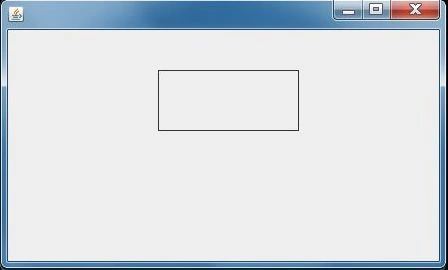
Draw a rectangle in Java
The following will draw a rectangle using Swing:
- import javax.swing.JFrame;
- import java.awt.*;
- public class DrawRectangle extends Canvas {
- public void paint(Graphics grap) {
- grap.drawRect(150, 40, 140, 60);
- }
- public static void main(String[] args) {
- DrawRectangle o = new DrawRectangle();
- JFrame jf = new JFrame();
- jf.add(o);
- jf.setSize(500, 280);
- //jf.setLayout(null);
- jf.setVisible(true);
- }
- }
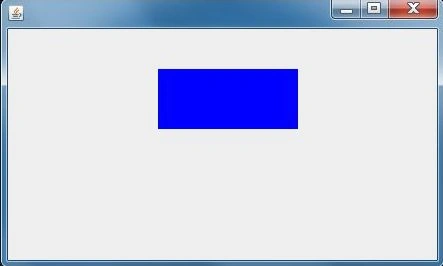
Fill in color in rectangle in Java
The following will
fill in the rectangle's color:
- import javax.swing.JFrame;
- import java.awt.*;
- public class FillRectangle extends Canvas {
- public void paint(Graphics grap) {
- grap.fillRect(150, 40, 140, 60);
- setForeground(Color.BLUE);
- }
- public static void main(String[] args) {
- FillRectangle o = new FillRectangle();
- JFrame jf = new JFrame();
- jf.add(o);
- jf.setSize(500, 280);
- //jf.setLayout(null);
- jf.setVisible(true);
- }
- }
Note: Similarly,
we can draw other graphics using graphics methods.
For a string we use:
- void drawString(String text, int x, int y)
For a line we use:
- void drawLine(int x1, int y1, int x2, int y2)
To change the color we use:
- void setColor(Color color)
Conclusion
In this article, we learned about Graphics Programming using Swing in Java, list of all the methods present in java.awt.Graphics and how to draw various graphical elements in Java
Join the conversation! Your thoughts help the community grow.