

Introduction
Firebase authentication provides,
- Email and password-based authentication.
- FirebaseUI (beta version).
Here, we will implement “Email and password-based authentication”, using Firebase in the Android Application. Firebase authentication uses bcrypt as a password hashing function.
For login authentication using Firebase, first of all, we will have to create an account in Firebase console.
- After creating an account, add Firebase to your Android project and download Google-services.json file.
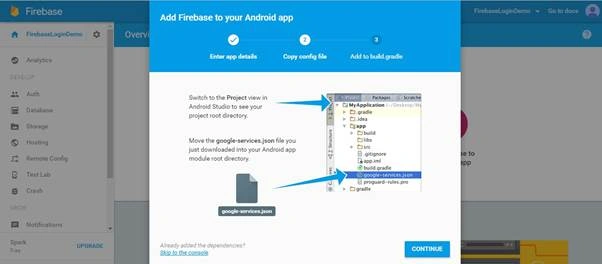
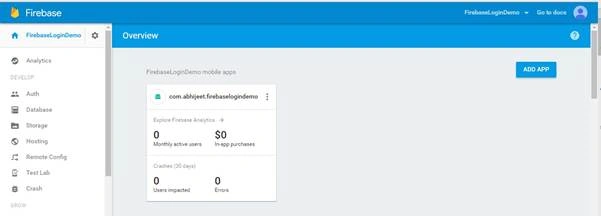
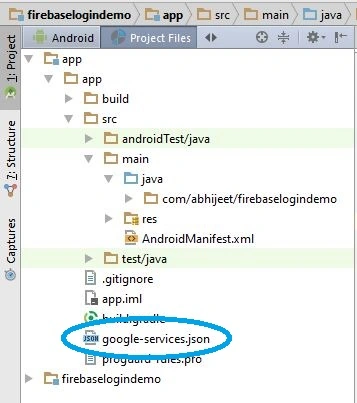
- After adding the project place, download Google-Services.json into your Android app module root directory. Path : app/, otherwise Application will not connect with Firebase.
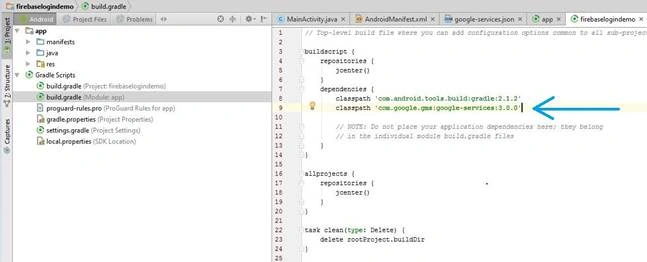
- In build.gradle file of the project, add dependency: classpath 'com.google.gms:google-services:3.0.0'.
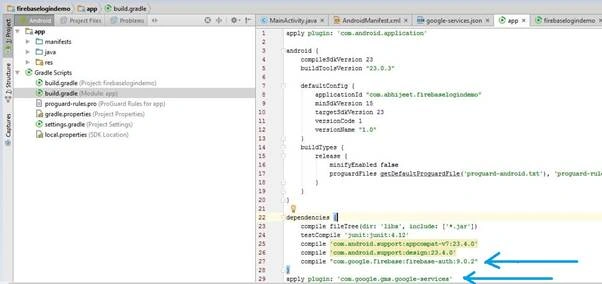
- In build.gradle file of the app, add dependency and add the plugin.
compile "com.google.firebase:firebase-auth:9.0.2"apply plugin: 'com.google.gms.google-services'
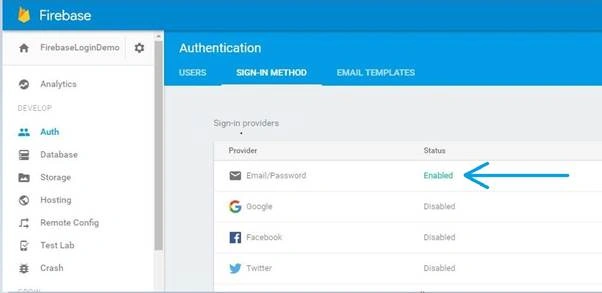
- Now, go to the Firebase console, select the Auth option from the left panel. Enable the Email/Password, a sign-in provider in Sign-In method.
- Get Firebase auth instance:private FirebaseAuth auth = FirebaseAuth.getInstance();
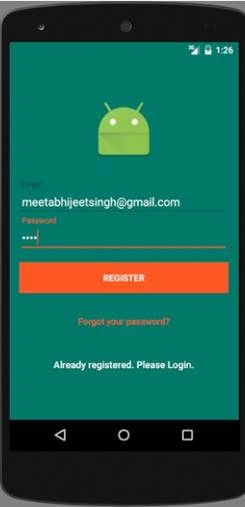
- For creating a new account as a new user, there is a method called:
- createUserWithEmailAndPassword(email, password)
- auth.createUserWithEmailAndPassword(email, password)
- .addOnCompleteListener(SignupActivity.this, new OnCompleteListener<AuthResult>() {
- @Override
- public void onComplete(@NonNull Task<AuthResult> task) {
- Log.d(TAG, "createUserWithEmail:onComplete:" + task.isSuccessful());
- progressBar.setVisibility(View.GONE);
- // If sign in fails, display a message to the user. If sign in succeeds
- // the auth state listener will be notified and logic to handle the
- // signed in user can be handled in the listener.
- if (!task.isSuccessful()) {
- Toast.makeText(SignupActivity.this, "Authentication failed." + task.getException(),
- Toast.LENGTH_SHORT).show();
- } else {
- startActivity(new Intent(SignupActivity.this, MainActivity.class));
- finish();
- }
- }
- });
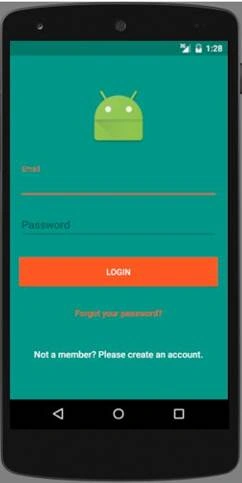
- For authenticating the user, there is a method called: signInWithEmailAndPassword(email, password).
- auth.signInWithEmailAndPassword(email, password)
- .addOnCompleteListener(LoginActivity.this, new OnCompleteListener<AuthResult>() {
- @Override
- public void onComplete(@NonNull Task<AuthResult> task) {
- progressBar.setVisibility(View.GONE);
- if (!task.isSuccessful()) {
- if (password.length() < 6)
- {
- inputPassword.setError("Enter minimum 6 characters for password.");
- }
- else
- {
- Toast.makeText(LoginActivity.this, "Check your email and password. Authentication failed.", Toast.LENGTH_LONG).show();
- }
- }
- else
- {
- Intent intent = new Intent(LoginActivity.this, MainActivity.class);
- startActivity(intent);
- finish();
- }
- }
- });
- Set up an AuthStateListener, that responds to the changes in the user's sign-in state:
Note- AuthStateListener is added at the start of the activity and removed at the top of the activity.
- private FirebaseAuth.AuthStateListener authListener
- = new FirebaseAuth.AuthStateListener() {
- @Override
- public void onAuthStateChanged(@NonNull FirebaseAuth firebaseAuth) {
- FirebaseUser user = firebaseAuth.getCurrentUser();
- //If user is not signed in getCurrentUser method returns null
- if (user != null) {
- // User is signed in
- }
- else {
- // User is signed out
- startActivity(new Intent(MainActivity.this, LoginActivity.class));
- finish();
- }
- }
- };
If the user is signed in, we can find the details of the current user:- @Override
- public void onStart() {
- super.onStart();
- auth.addAuthStateListener(authListener);
- }
- @Override
- public void onStop() {
- super.onStop();
- if (authListener != null) {
- auth.removeAuthStateListener(authListener);
- }
- }
final FirebaseUser user = FirebaseAuth.getInstance().getCurrentUser();for examples:- user.getEmail()
- user.getToken()
- user.getDisplayName()
- user.getProviderId()
After a successful login with Email id: [email protected],You can check the list of the users in Firebase console: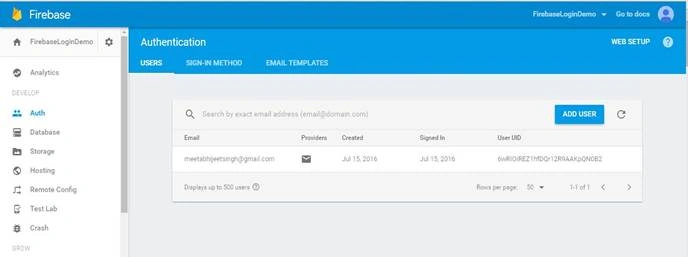
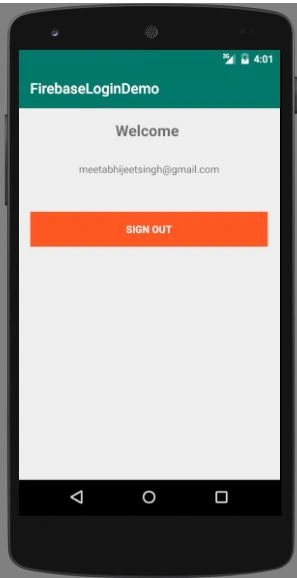
- In Firebase login authentication, there is also a functionality to send the password recovery instructions to the registered Email id.
For this, there is a method called:
- sendPasswordResetEmail(emailId)
- auth.sendPasswordResetEmail(emailId)
- .addOnCompleteListener(new OnCompleteListener<Void>() {
- @Override
- public void onComplete(@NonNull Task<Void> task) {
- if (task.isSuccessful()) {
- Toast.makeText(PasswordResetActivity.this, "Instructions have been sent to your registered email id", Toast.LENGTH_SHORT).show();
- } else {
- Toast.makeText(PasswordResetActivity.this, "Sorry! Try Again.", Toast.LENGTH_SHORT).show();
- }
- progressBar.setVisibility(View.GONE);
- }
- });
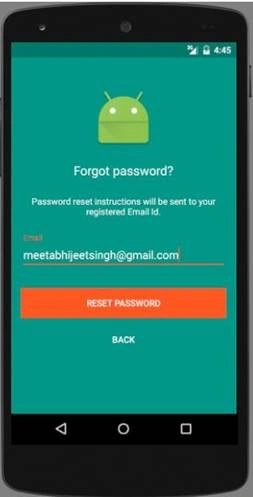 Password reset instructions to the registered Email id:
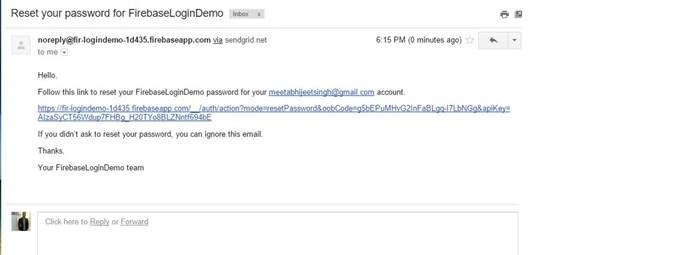 On clicking, reset the password link: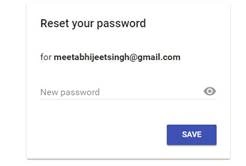
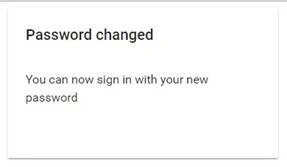
- For sign-out, there is a method called,
signOut()
auth.signOut();
Gaurav KataraPosted Jul 21, 2016, 1:54 PM
Very interesting article.. Thank you for sharing...
kalu singh raoPosted Jul 19, 2016, 1:21 PM
Nice...
Shobana JPosted Jul 19, 2016, 2:34 AM
Nice one
Naveen SinghPosted Jul 19, 2016, 2:25 AM
Wonderful, firebase is going to help a lot of indie developers
kalu singh raoPosted Jul 18, 2016, 11:12 PM
Nice...