

Overview
If a group of developers are working under the Git environment then each developer has a copy of the entire source repository on their machine. It means that if multiple people are working on the same project then they can work individually without being connected to a central network and then they can just push to the project when they are ready. Developers can commit each set of changes on their device and do version controls operations such as:
- Taking snapshot of our files: We are able to return to these snapshots whenever we want
- It keeps history of changes to a file: when you did, what you did and in which file you did
- Tracking and Managing Files: It has an ability to to manage and track changes that occur to a file of a given project
Note: We can use a Version Control System with any type of project, it may be either small or large. So, before going into a deeper explanation of Git Version Control, let's see a demo, how to use it with our project.
Procedure
- Open Visual Studio (2013)
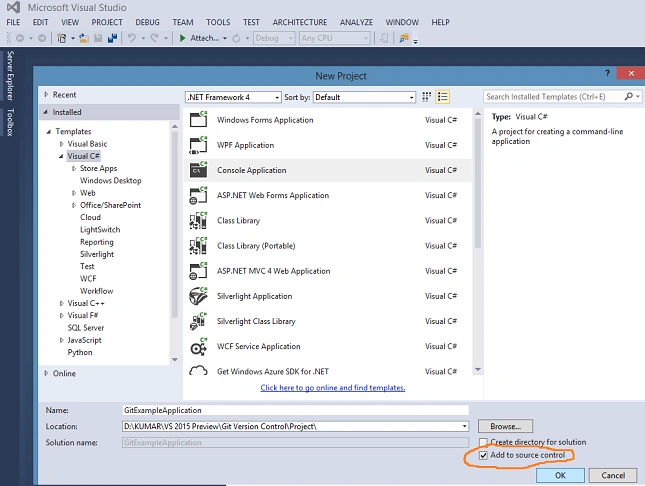
- Create a new application (File ---> New ---> Project and select an application type like: Console Application)
- In New Project, we will check the "Add Source Control" checkbox that appears just above the OK button.
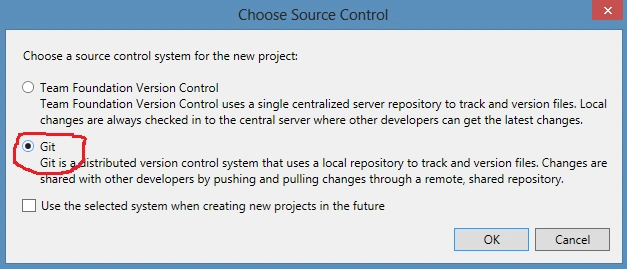
- After clicking on the OK button, a popup box will be shown on the screen having two VCSs, one is TFVC (Team Foundation Version Control) and another is Git. Now select the second option, Git, and click on the OK button.
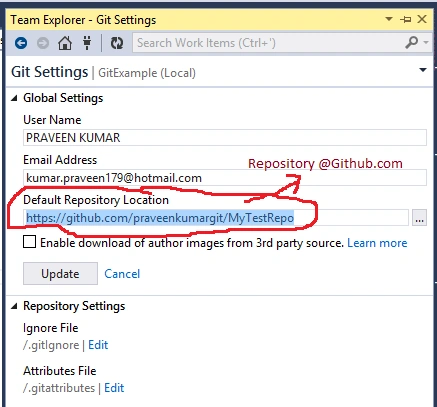
- And publish this application on Github.com.
For a better understanding, let's see this procedure with example screens.
Now select Git from the popup window.
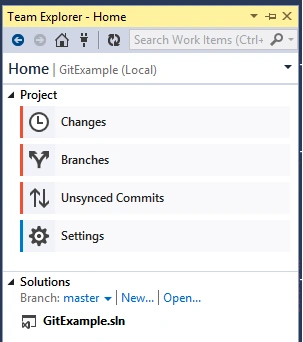
Example Program
- using System;
- using System.Collections.Generic;
- using System.Linq;
- using System.Text;
- namespace GitExample
- {
- class Program
- {
- static void Main(string[] args)
- {
- Console.WriteLine("Git Example App Demo !"); //Firstly written
- Console.ReadLine();
- }
- }
- }
We can publish the project either on Github.com or local IIS.
Basically we can do the following operations:
- Branching: Branching in a Git is a lightweight movable pointer that points to the commits. Git has a default branch name that is master, changes. Suppose we want to do some changes in the given project then we would need to make a branches. If we do commit initially, it points to a master branch to the last commit.
- Changes: After implementing the new feature on a branch, we need to merge these changes with a master branch, so that everyone can use it.
- Push: Push command asks Git to fetch the new changes that have been applied to files/project. It means, before merging the changes the admin fetches the change from Git using Push.
- Pull: It merges the master branch from the remote repository.
- Merge: Basically the merge command identifies the changes to the other branch and makes changes to the master.
- Commit: Commit records the changes to the files in history. When we commit in Git, it stores a commit object that contains a pointer to the snapshot of the content we stayed, the author and message metadata.
Improvements with Visual Studio 2015 Preview
Let's see the new improvements that are in Visual Studio 2015. Now it's even easier to work with branches and see how the changes in our history diverged.
Branches: Now we can organize our branches hierarchically by specifying a prefix. Now with Visual Studio 2015, local branches as well as remote branches are shown separately in a tree view. Let's see this new feature with an example screen.
History Details: Now we can see the commit diverge in the history that was not available with previous version of Visual Studio.
In a future article we will see more of an explanation with the final release of Visual Studio 2015.
Pushkar DudhalPosted May 14, 2017, 1:22 AM
Nice one!!! Please can you let me know how we can shelve and unshelve changes using Git.I read couple of articles where they are mentioning to use "stash" cmd but I want to know do we have stash link/button present in VS2015 similar to shelve/unshelve......
Kashif SohailPosted Mar 26, 2016, 11:27 PM
Nice share
Vipul MalhotraPosted Jul 6, 2015, 4:42 AM
Nice
Guest UserPosted Nov 25, 2014, 1:48 AM
nice!