

Abstract
In this article we will give an overview of free Git Gui clients. Running Git from the command line can be demanding, and Gui tools make this easier to do, as well as improving productivity. We will focus only on the tools that you can run for free in both non-commercial and commercial environments.
1. Introduction
I always believed in GUI tools and was a fan of them. I felt they improved my productivity, and a nice graphical presentation can give even better insight into the problem or matter of interest. With the ever-increasing number of tools and languages that the average Software Engineer is faced with every day, it is becoming increasingly difficult to memorize all the command line commands with their numerous options.
But, also there is another school of thought that is popular among programmers, of people who like to do everything from the command line. These “gurus” enjoy running the Git from the command line. This article is not for them.
In this article, we are giving an overview of a selection of the FREE Git Gui applications available today. We focus only on completely free full-versions tools that can be run for free in both non-commercial and commercial environments. If a software engineer invests time and effort into learning and building skills with some tools at home that are free only for a non-commercial environment, and then in his workplace founds that company is not planning to buy that particular tool, it may be considered wasted time and effort. Also, we will not be looking into the tools that give a limited-features version for free, but ask for money for a full-featured version. Fortunately, for Git, there are a number of quality tools available for free.
1.1 Tools tested
Here is a list of free Git Gui tools that caught our attention:
- SourceTree (https://www.sourcetreeapp.com/)
- GitHub Desktop (https://desktop.github.com/ )
- Git Extensions (https://gitextensions.github.io/ )
- MeGit/EGit (https://github.com/eclipsesource/megit )
- Guitar (https://github.com/soramimi/Guitar )
- TortoiseGit (https://tortoisegit.org/ )
1.2 Testing methodology
We assume that the reader has some intermediate-level skills in Git, and thus will not explain Git terms and concepts. We will just show GUI tools’ features. We will test all tools in the following environment:
- BitBucket Cloud (https://bitbucket.org/product/) as a Git remote repository
- Small local Windows project as a local repository
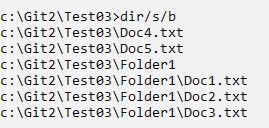
2. SourceTree
2.1 Details
- Product: SourceTree
- Company: Atlassian [3]
- Website: https://www.sourcetreeapp.com/
- Platforms: Windows, Mac
- License: According to [4], the Full version completely free for non-commercial and commercial usage
2.2 Overview
Below, I've provided screenshots.
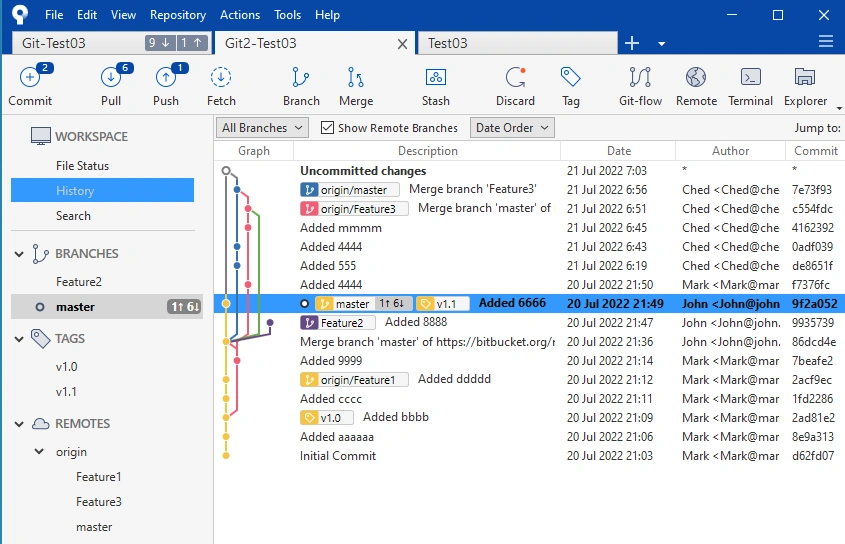
The main panel is the Branches/History panel:
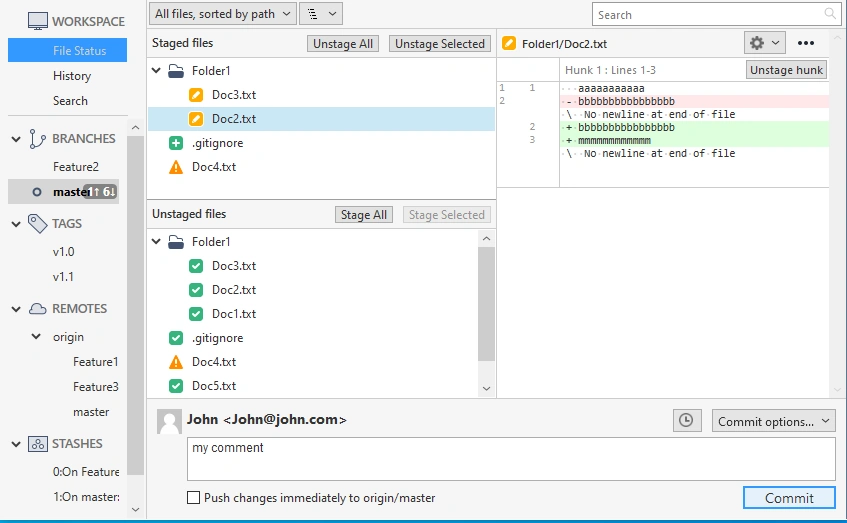
You can see clearly the Staged files/Unstaged files/Commit button:
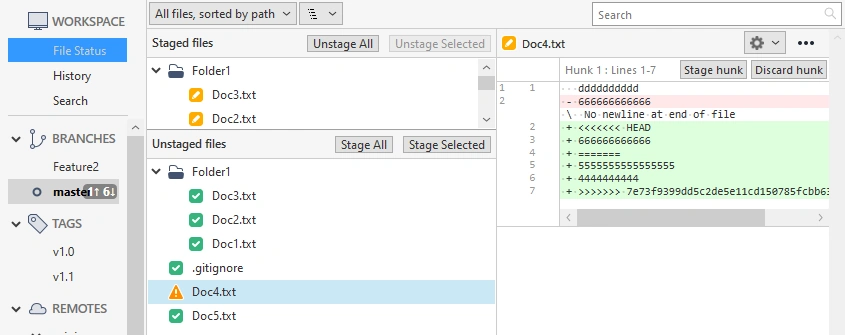
A simple integrated viewer is used to show the Conflict files/Merge panel:
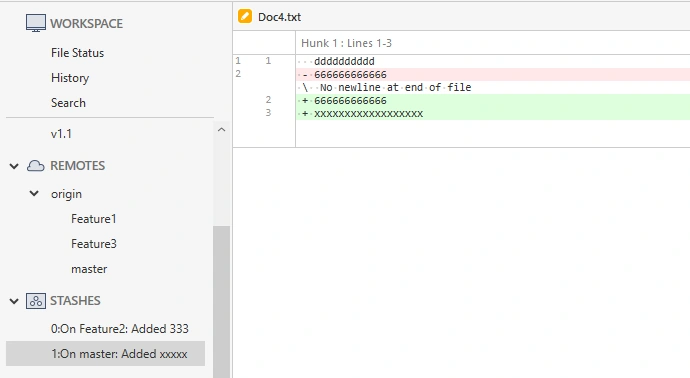
Stashes are listed and can be selected and viewed. The stashes panel looks like the below:
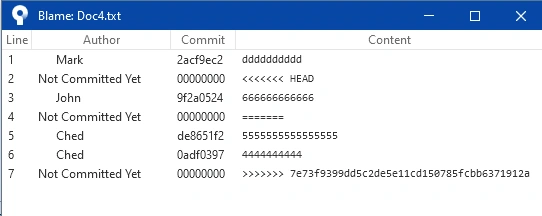
Blame shows simple information on changes to the file, line by line. The blame panel looks like the below:
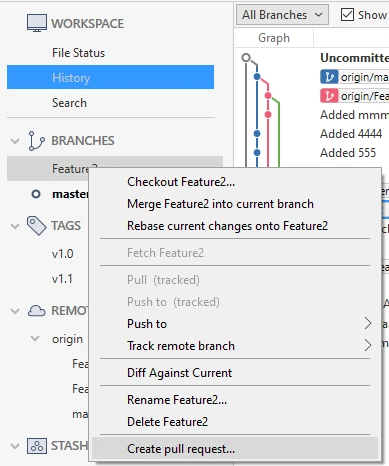
The tool supports an integrated Create Pull Request menu option, that opens BitBucket page in the web browser:
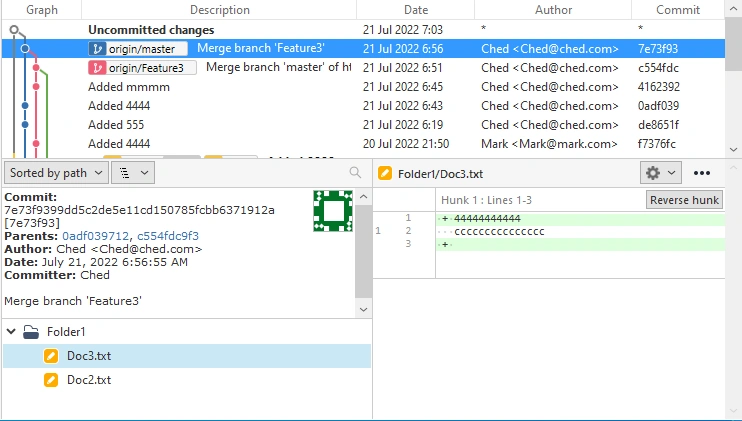
Commit Details, parent nodes, author and date can be clearly seen:
2.3 Impressions
- Very nice graphical interface. Smooth running. Stable. Good balance between the quantity of information in the user interface and ease of use.
- Big company Atlassian stands behind it, so it is a well-maintained application.
- Many great features. Integrates well with BitBucket Cloud, though that is also an Atlassian product.
3. GitHub Desktop
3.1 Details
- Product: GitHub Desktop
- Company: GitHub/Microsoft
- Website: https://desktop.github.com/
- Platforms: Windows, Mac
- License: According to [5], the Full version completely free for non-commercial and commercial usage
- Note: Despite being called “GitHub Desktop”, it can be used with other Git services. We tested it with BitBucket Cloud.
3.2 Overview
Below I've provided screenshots.
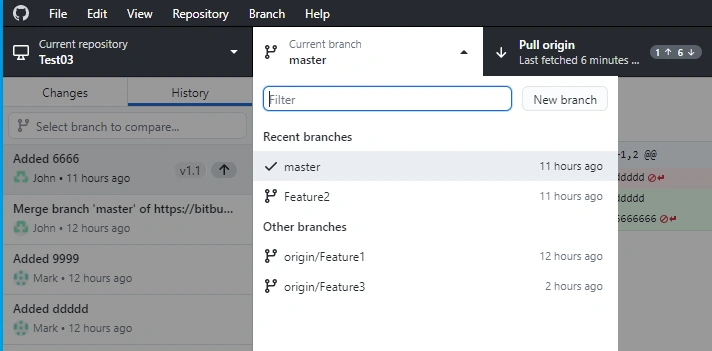
The main panel is where you can see a list of Branches. Select a current branch. Only one branch can be seen at a time:
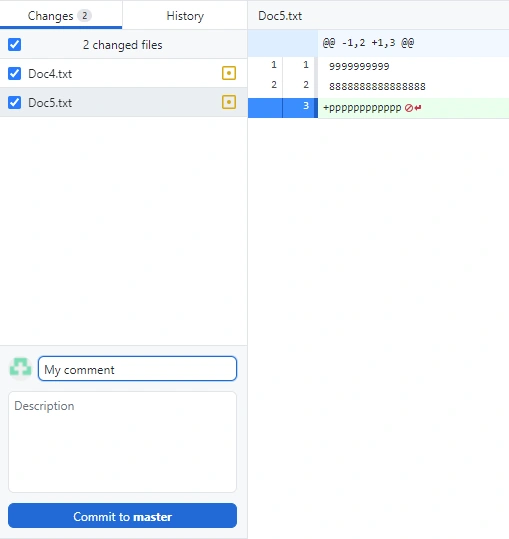
The modified files/Commit button form is simple. It does not list working files vs staged files:
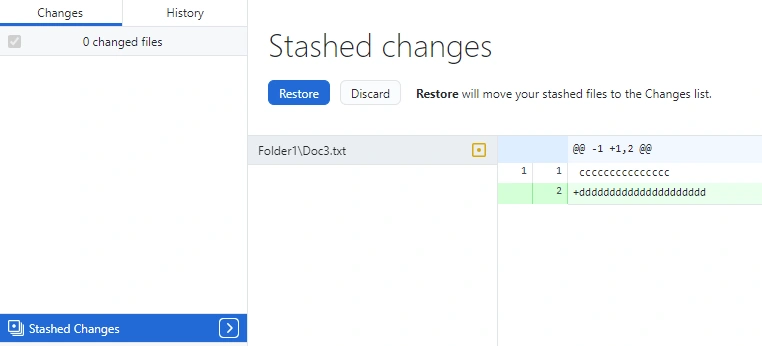
The stashes panel shows stashed files. Again, a very simple form is pictured below:
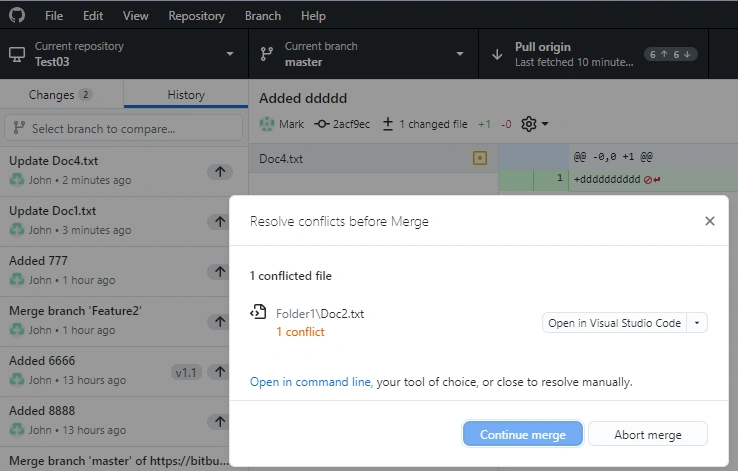
The Conflict file/Merge panel requires the usage of an external tool to resolve conflicts:
3.3 Impressions
- We didn’t see that staged vs unstaged files can be presented
- It seems that only stash is possible, as it asked to overwrite existing stash when adding the second stash
- Didn’t see how to do Blame
- Didn’t see how to get more info on commit details
- “Pull request” was grayed out, maybe because we were using it with BitBucket Cloud. Didn’t see how to enter credentials for other accounts than GitHub, though Pull/Push worked fine when I entered BitBucket credentials.
- Detects conflicts and offers to open the application of your choice to do a file merge. Does not have a conflict viewer of its own.
- Didn’t see a way to graphically present more than one branch at the time.
- Generally, a much humbler version of GUI options than the tool before.
- Considering that Microsoft bought GitHub [7] for $7.5 billion, I am surprised by how humble in features/options this tool is. It is inferior in features/graphical presentations to several of the applications we tested here.
4. Git Extensions
4.1 Details
- Product: Git Extensions
- Company: Open Source
- Website: https://gitextensions.github.io/
- Platforms: Windows, Linux
- License: According to [6], it is Open Source, and the Full version completely free for non-commercial and commercial usage
4.2 Overview
Below, I've provided screenshots.
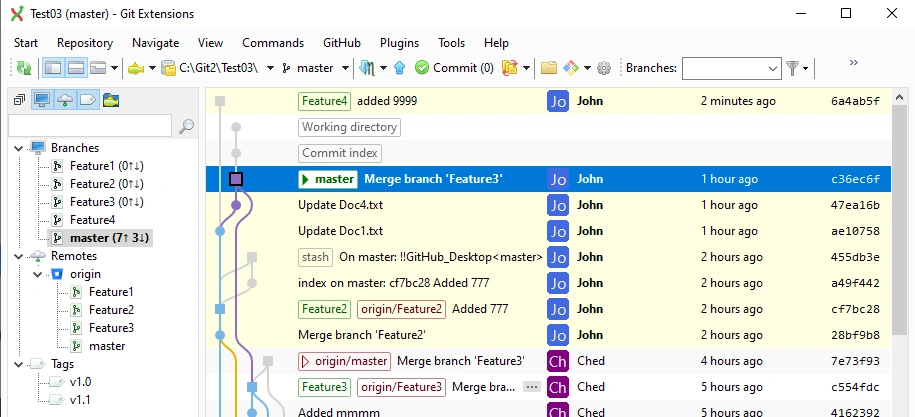
Here is a lovely main panel showing the Branches/History panel:
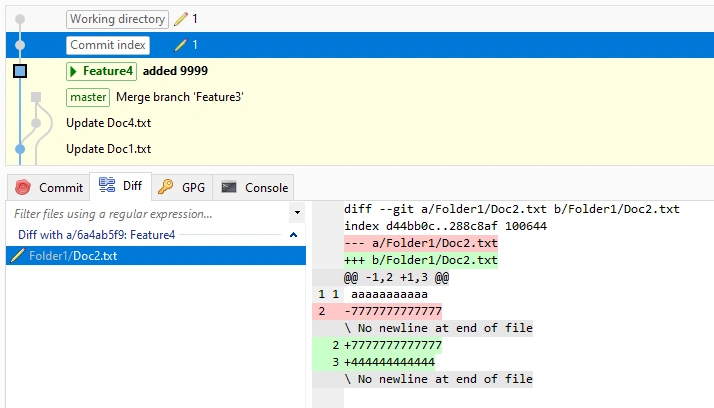
Staged files/Unstaged files (working directory) are shown as nodes at top of the current commit:
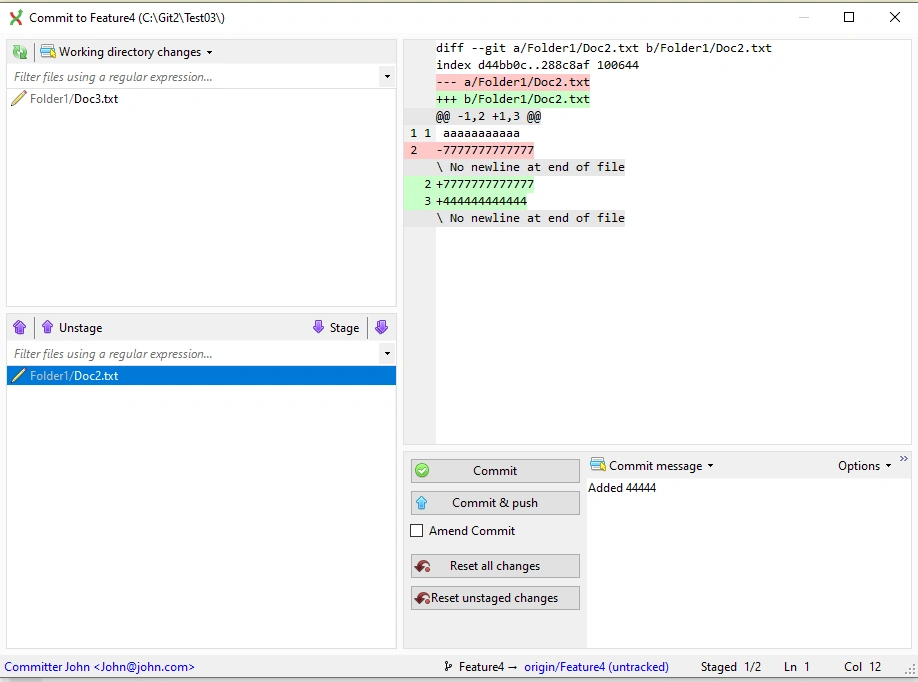
The Staged files/Unstaged files/Commit dialog offers a clear view of files that are about to be committed:
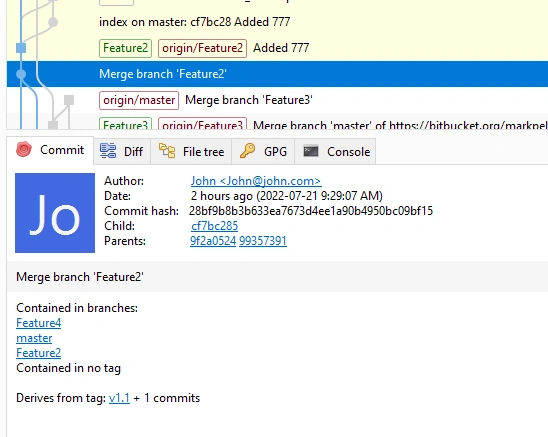
The Commit Details panel show a lot of details on the selected commit:
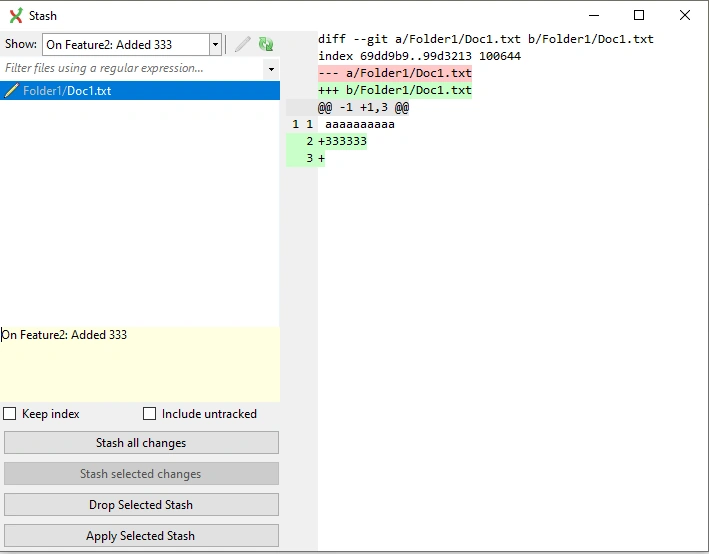
The Stashes panel shows stashes and the Branch where they are located:
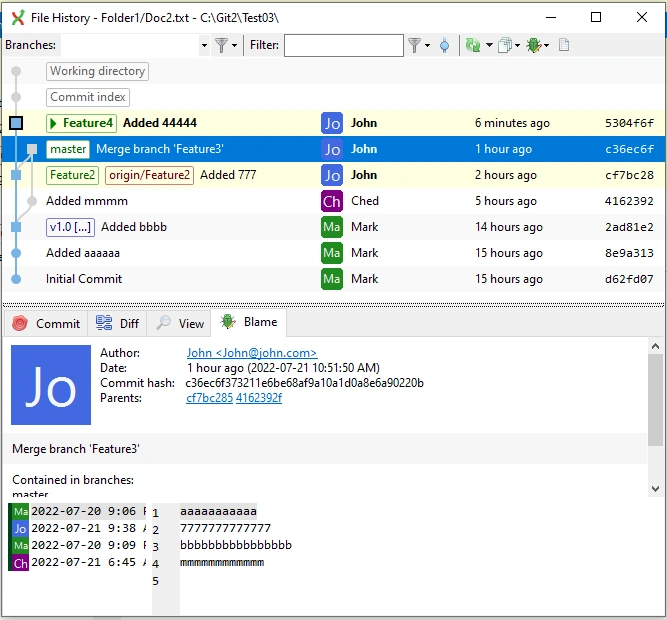
The Blame panel is a bit complex. The lower part shows classical Blame functionality, while the upper panel shows the commit location in the Branch that corresponds to the selected line in the file/lower panel:
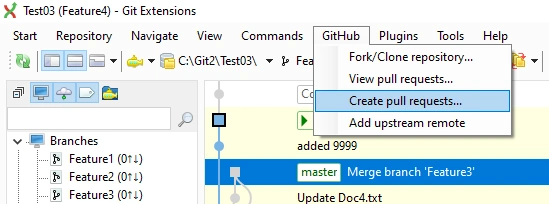
Create Pull Request menu option (which does not work for BitBacket) is provided just for GitHub:
4.3 Impressions
- It was surprising how many options and features this application has. Rich graphical interface with many options.
- It was asking too many questions on startup. Instead, they needed to provide defaults, even simple ones. It bothered me with questions about configuring diff-tool and marge-tool. They should have put default as notepad.exe, so later users can put something else.
- I was trying for 30 minutes to configure the right merge tool, but it still was not working. It just would not work. The simplest of tools should have been installed by default, because the way it is, you are stuck with configuring.
- Many options worked well and were fancy. It was envisioned as a “tool for experts” who know what they are doing. It is a bit complex UI for a beginner user.
- For some reason, it created some “backup” files in my project directory, such as “Doc4.txt.orig," and added them to the Git project. I was disappointed, because it corrupted my repository, which is its basic purpose. Perhaps it led me to click something wrong to accept that commit, but I just do not know how that file finished in the repository.
- It has a bit of a problem with rendering dialogs. You would need to resize them to see the content well.
- If you like a tool with many advanced features, know Git well, and like to research different options, you will like this program. But, my general impression is that it is not mature enough, a bit unstable, and can be annoying for everyday work.
5. MeGit/EGit
5.1 Details
- Product: MeGit/EGit
- Company: Open Source/Eclipse License
- Website: https://github.com/eclipsesource/megit
- Platforms: Windows, Linux. Mac
- License: According to [8], it is Open Source, and the Full version completely free for non-commercial and commercial usage
5.2 Overview
Below, I've provided screenshots.
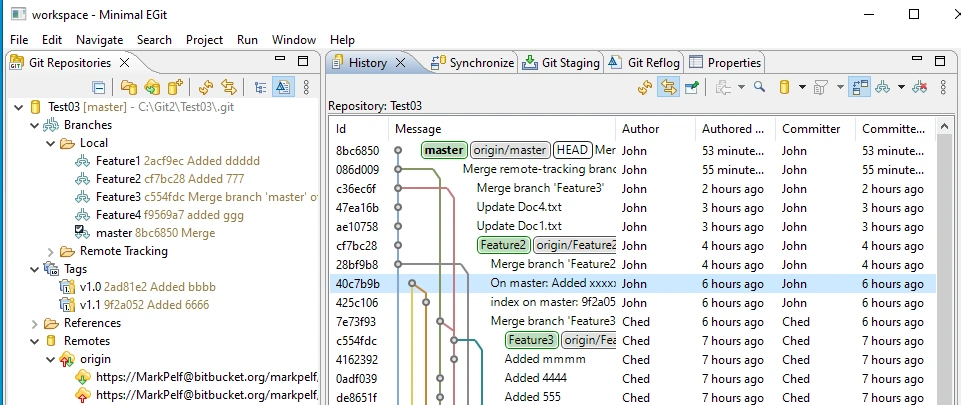
Here is a great Branches/History panel:
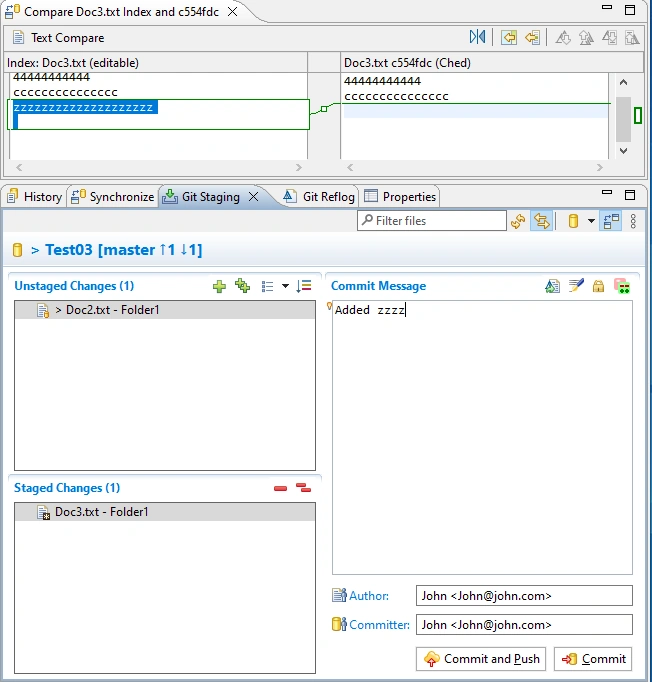
Here we see a nice and clean form showing Staged files/Unstaged files/Commit button:
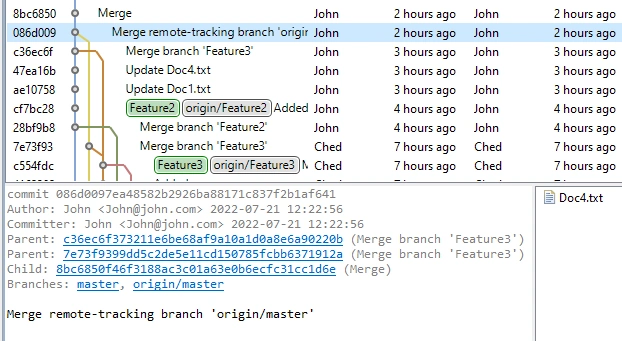
Here is the Commit Details panel with all the needed info:
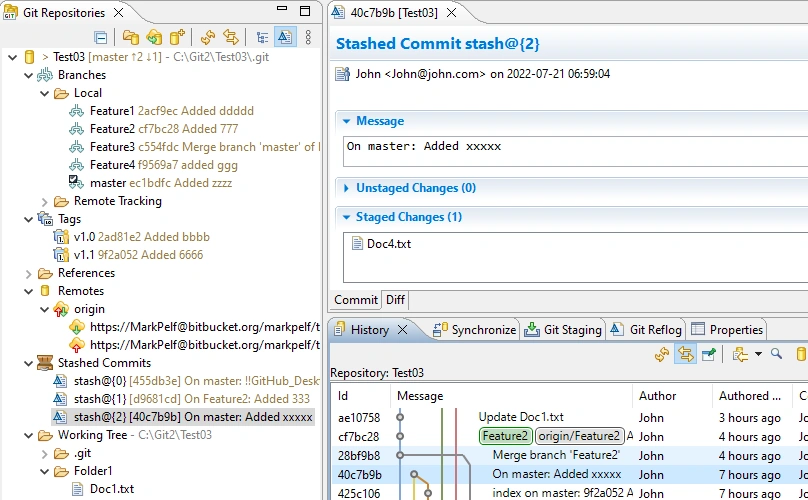
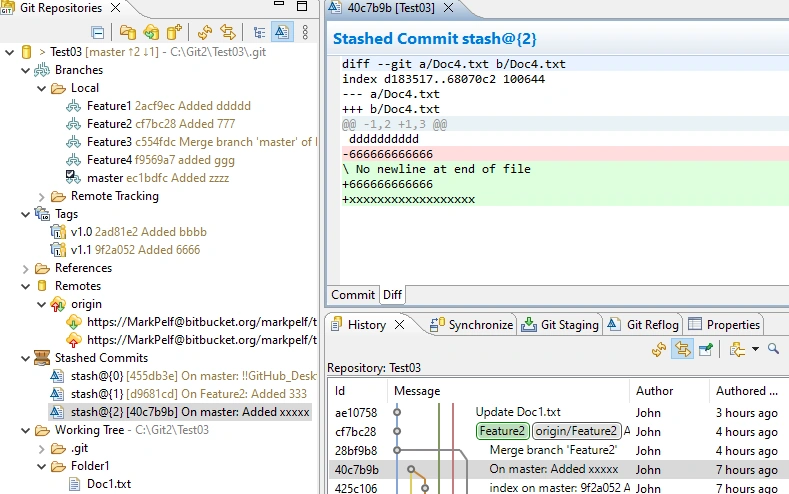
The Stashes panel enables a clear view of all stashes, including the location of the commit on which the stash was made. File diff is immediately presented showing changes of the stash.
The Blame panel shows advanced info. It points to the location of the commit that made changes and the branch where it was made. It also immediately shows file diff for that commit:
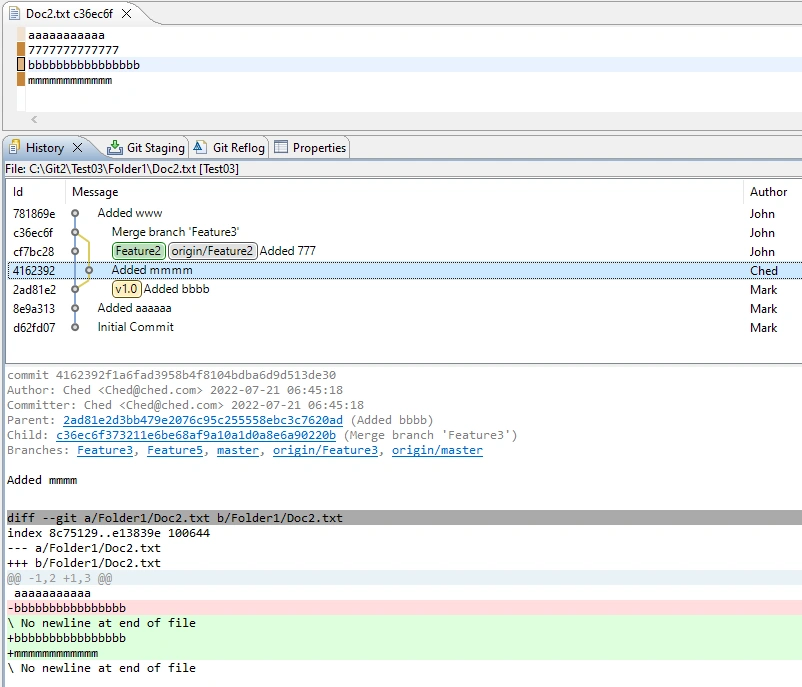
The Conflict file/Merge panel offers an integrated file-diff tool to show/enable changes. A clear view of unstaged vs staged files too:
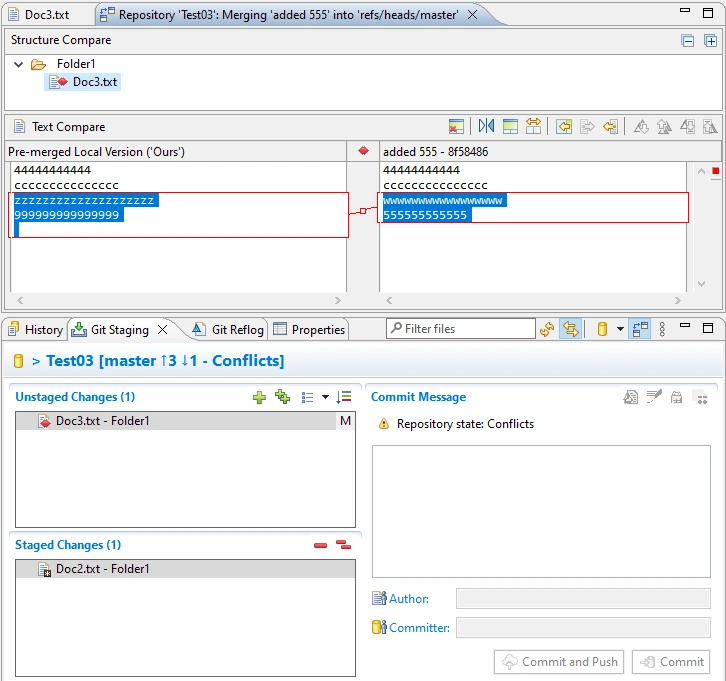
5.3 Impressions
- MeGit [8] is really a wrapper application that wraps the Eclipse plugin EGit [9] into a standalone application. What we care about is the final result: does it work well? Is it usable as a standalone application for all different kinds of projects?
- From licensing point of view, [8] claims that all is free and open source. But since it is really using EGit [9], it requires the license for EGit. From what I see in [10}, it uses the Eclipse Public License, so all of it should be free.
- Actually, it worked pretty well. One needs to get used to the user interface, but it worked pretty smoothly.
- I liked the fact that UI provided well-organized and detailed information. It gives you a good feeling that you have it all under the control.
- Didn’t see a way to issue a “Pull request” from the application.
- Since this tool looked pretty impressive, I checked a bit on it. It seems that it is not updated and maintained regularly. From what I see, plugin EGit had more releases later than the release of MeGit. That means that the latest version of EGit is not included in the MeGit executable that can be downloaded from that site.
6. Guitar
6.1 Details
- Product: Guitar
- Company: Open Source
- Website: https://github.com/soramimi/Guitar
- Platforms: Windows, Linux, Mac
- License: According to [11], it is Open Source, and the Full version completely free for non-commercial and commercial usage
6.2 Overview
Below, I've provided screenshots.
Pictured is the main panel showing the Branches/History panel:
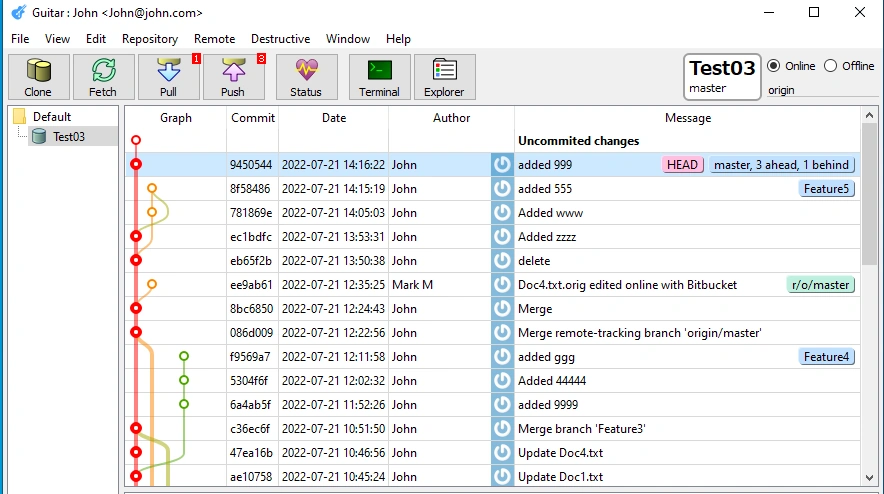
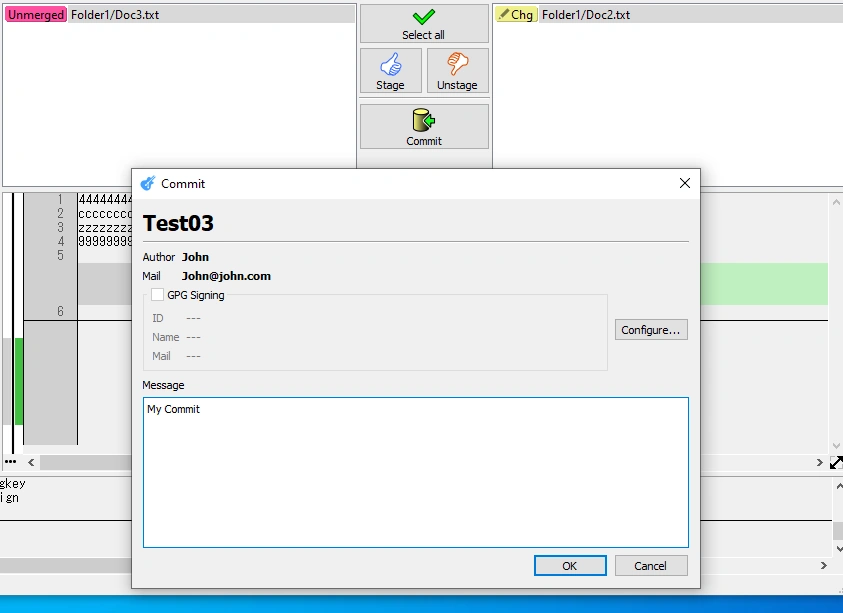
The Staged files/Unstaged files/Commit button is a bit unrefined and unfriendly:
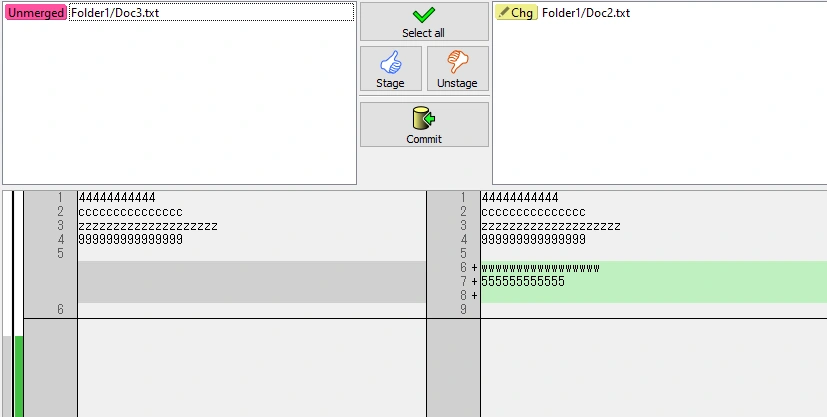
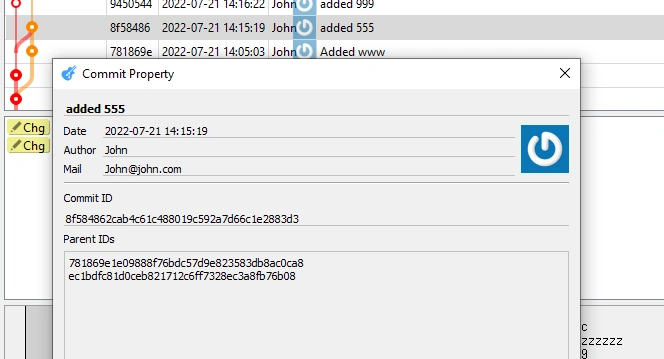
The Commit Details dialog is crude too, but gives all the necessary information:
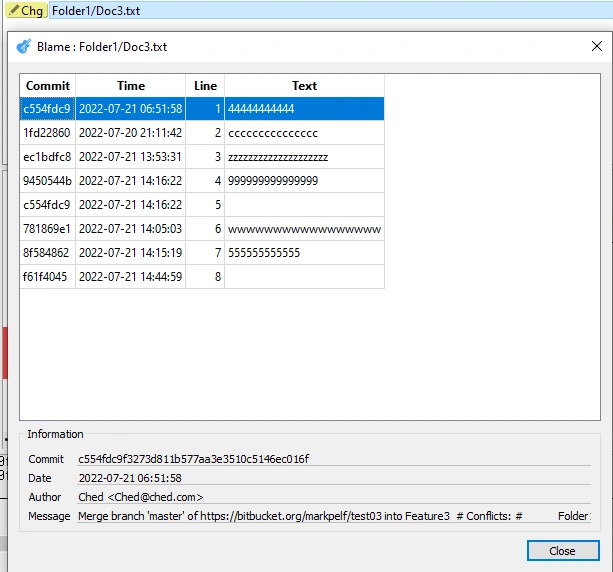
The Blame panel is simple and functional:
6.3 Impressions
- From the start, it made negative impressions, as it looks like an unfinished application.
- Very slow Gui sometimes, although it says it is C++ code.
- Didn’t let me Commit with an unstaged file in the working directory. That is a BIG functional bug.
- Couldn’t see stash content.
- I decided that I did not want to waste time with this. It looks like an unfinished/ unrefined application, without many features, was sometimes annoyingly slow, and definitely was not something you would want to use on a daily basis.
- The funny thing is that app is listed on some Git sites as a recommended GUI client, but it is not practically usable for everyday work. Greatly inferior to other applications we tested here.
7. TortoiseGit
7.1 Details
- Product: TortoiseGit
- Company: Open Source
- Website: https://tortoisegit.org/
- Platforms: Windows
- License: According to [12], it is Open Source, and the Full version completely free for non-commercial and commercial usage
7.2 Overview
I've provided screenshots below.
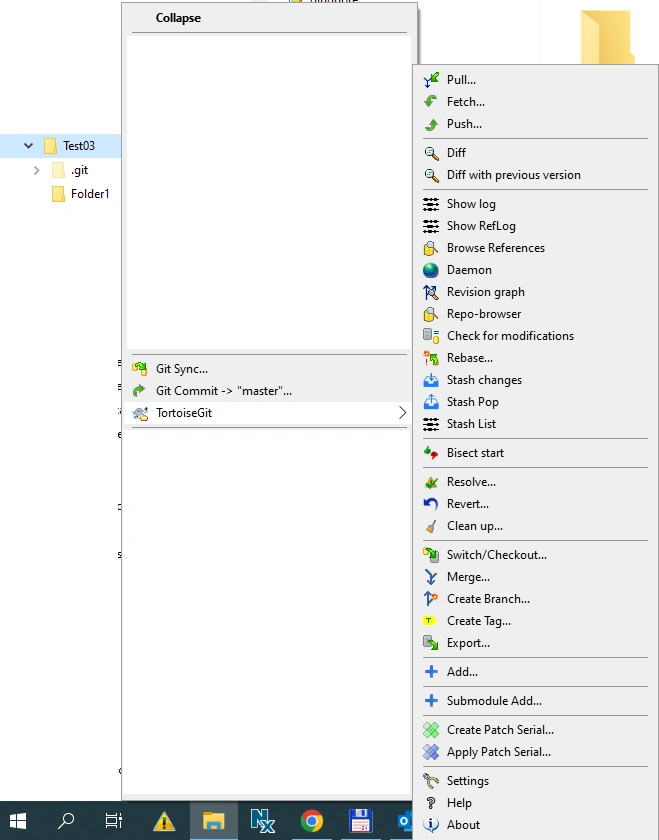
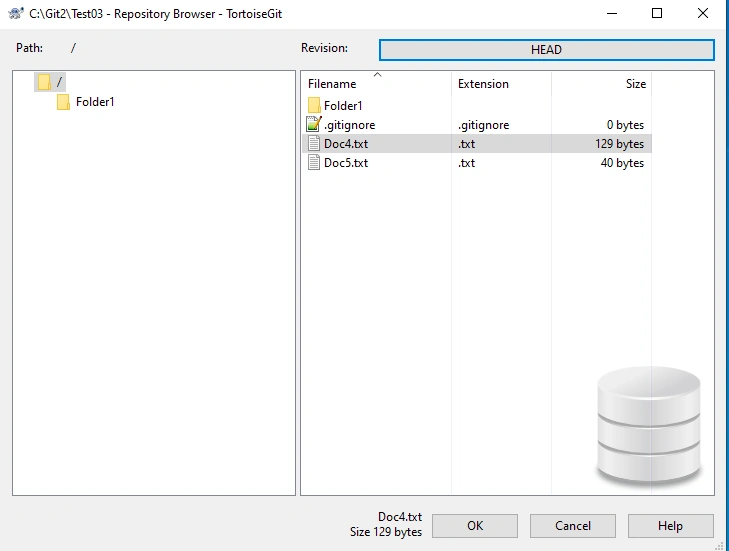
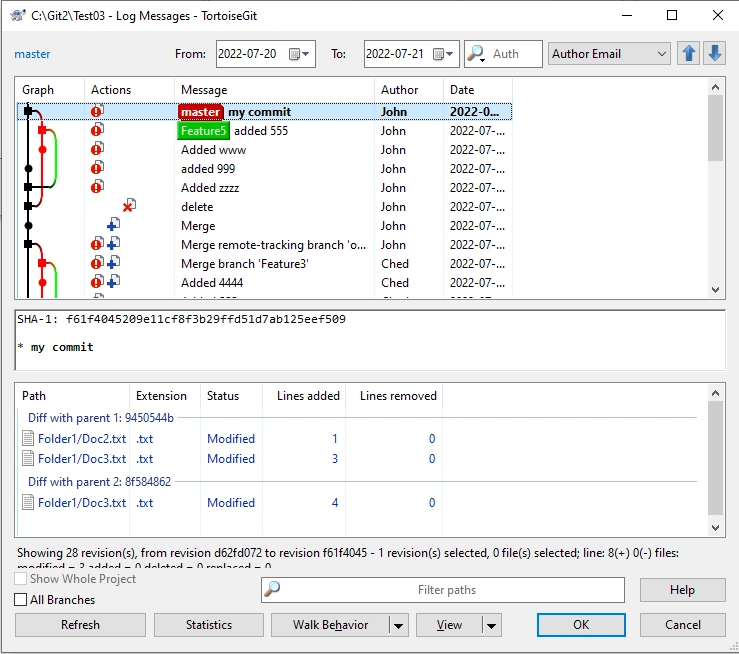
It has a strange application design. The design began as shell extension to file explorer via context menu (right click) at the folder containing your project/repository. It shows the start from the Context menu with all application options listed. That is practically the application menu. I selected Repo-browser (Repository browser). Then I selected to see all the branches:
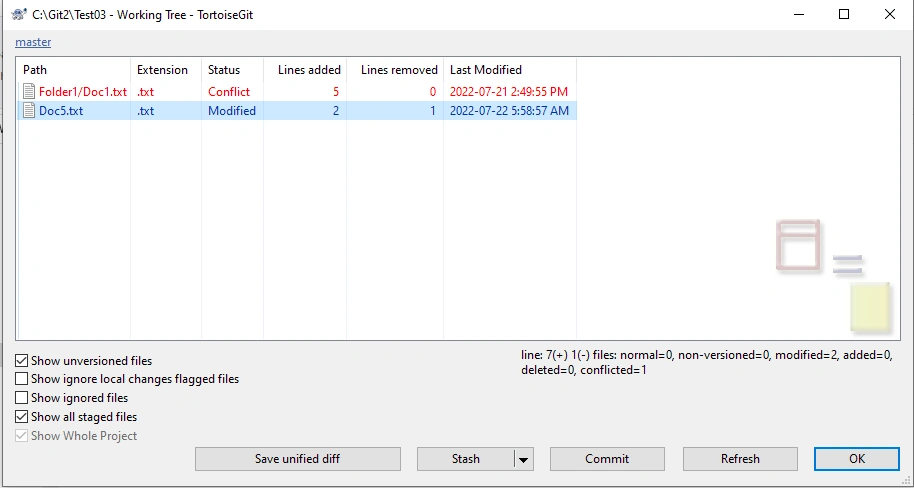
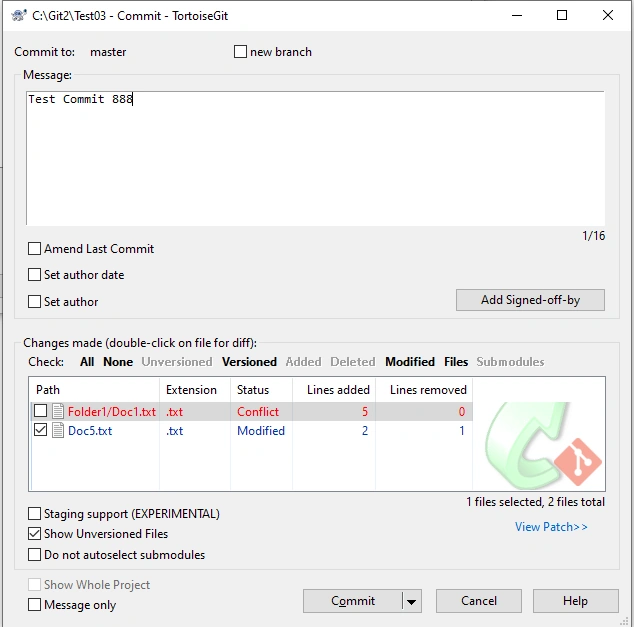
Again right-clicking, we navigated to Staged files/Unstaged files. There, we see the Commit button that opened the commit dialog:
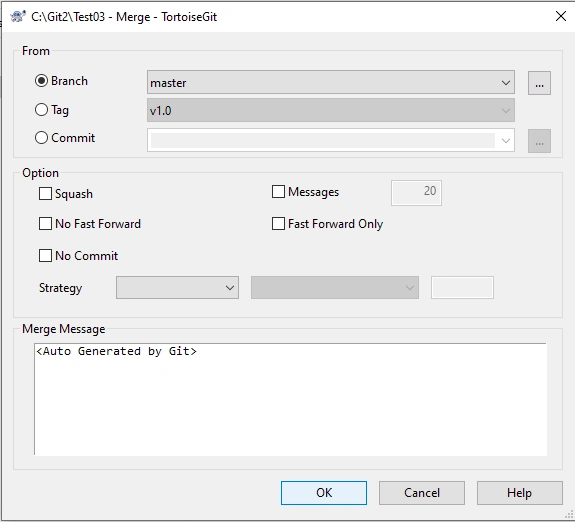
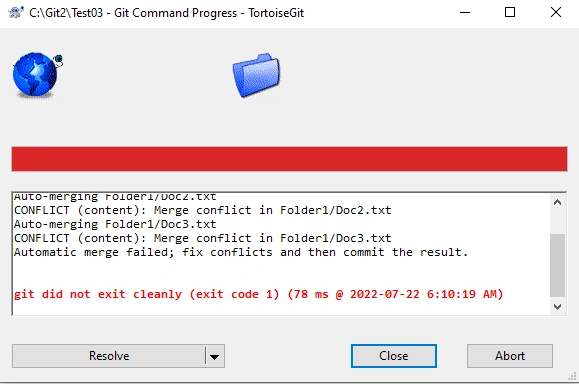
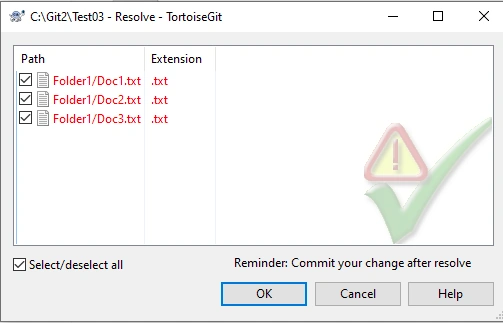
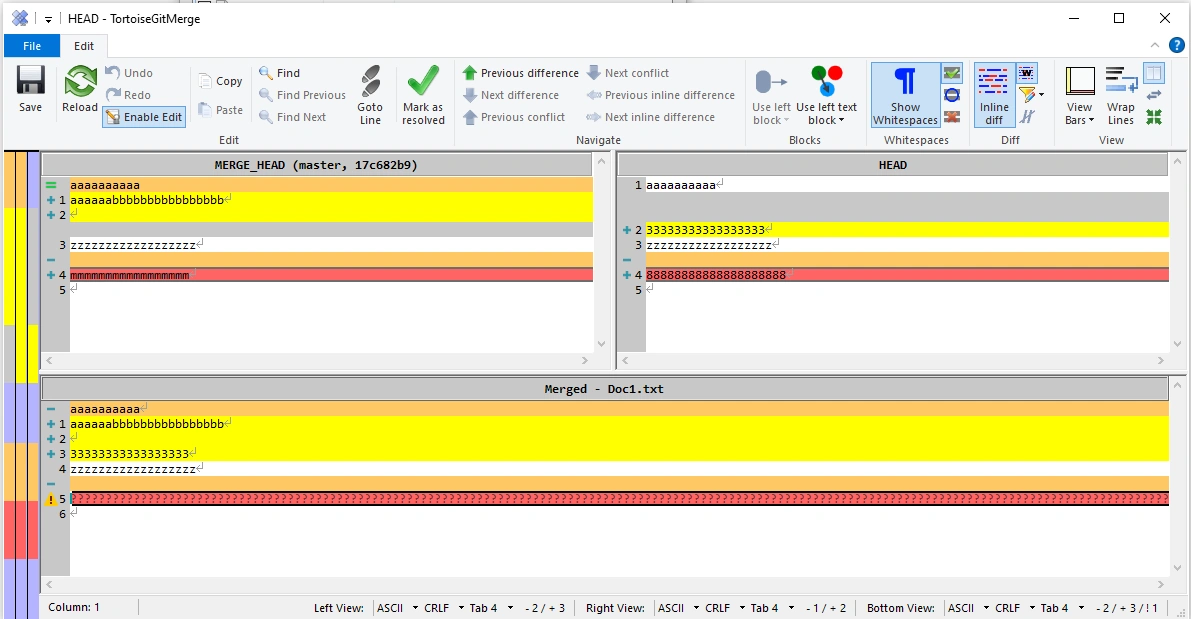
Then we tried to merge a branch (with conflicting files) to see what would happen. We got a number of dialogs. The below shows the merging of a branch/ Conflict file/Merge panel:
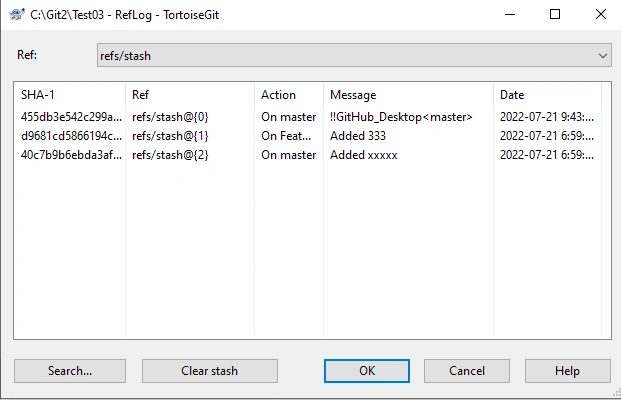
The Stashes panel shows basic stash info:
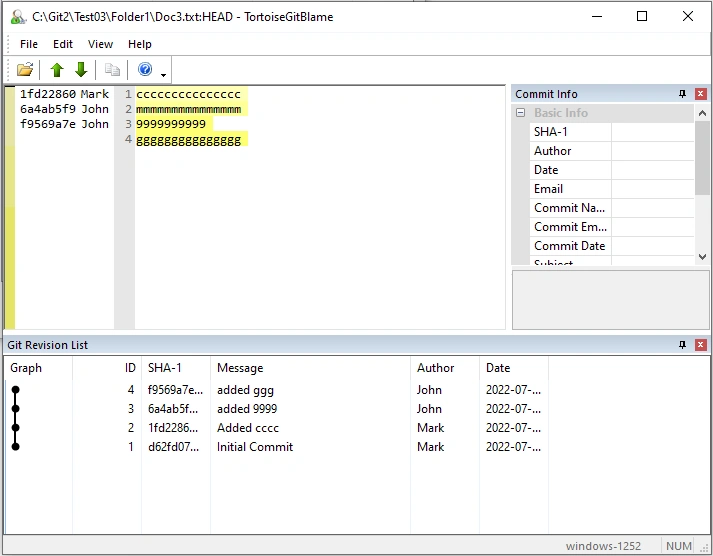
To get to the Blame panel, you need to right-click the file in the file explorer and browse through the context menu options:
7.3 Impressions
- Application is begun from the Context menu, and all menu options are listed also as context menu options, so users will have to do a lot of right-clicking. This is a bit strange/unfriendly for the average user.
- While it definitely has a lot of functionality, the user interface is fragmented into independent dialogs, and a bit of it does not follow a definition of what is assumed under “Gui Client.”
- We think that integrated Gui client solutions, which we saw in previous applications, offer more comfortable work for the average user.
- Since it is annoying that now when I right-click on the file I have too many options in the context menu from this application, I plan to uninstall this app very soon.
8. Conclusion
The clear winner of this testing is, by far is:
- SourceTree (https://www.sourcetreeapp.com/)
If you are looking for a stable, feature-rich graphical interface and easy-to-use FREE Gui Git client, SourceTree is your choice. SourceTree is the only Git client application you will ever need, and you can use it freely at home and at any workplace you will be working.
However, the other application that left a great impression is MeGit/EGit (https://github.com/eclipsesource/megit ). It gives a bit more detailed information to the power user. The only issue we noticed is that it is not regularly maintained. On the other hand, Git protocol is stable and does not change over time.
Of course, preferences and opinions differ, so everyone is entitled to choose his or her own favorite tool and use it at will.
9. References
- [1] https://www.sourcetreeapp.com/
- [2] https://bitbucket.org/product
- [3] https://www.atlassian.com/
- [4] https://community.atlassian.com/t5/Sourcetree-questions/Sourcetree-license-commercial-use/qaq-p/1790335
- [5] https://github.community/t/can-i-use-github-desktop-for-commercial-use/211489
- [6] https://github.com/gitextensions/gitextensions/wiki
- [7] https://news.microsoft.com/2018/06/04/microsoft-to-acquire-github-for-7-5-billion/
- [8] https://github.com/eclipsesource/megit
- [9] https://www.eclipse.org/egit/
- [10] https://git.eclipse.org/r/plugins/gitiles/egit/egit/+/e7c4cdb112614bd59e5e38a1412c627f740e811e/LICENSE
- [11] https://github.com/soramimi/Guitar
- [12] https://tortoisegit.org/about/
Join the conversation! Your thoughts help the community grow.