

Introduction
In this article, we will see how to install and set up Microsoft Teams PowerShell for Windows.
Teams PowerShell is a collection of cmdlets designed to interact with Team elements and elements from PowerShell. We can interact with Microsoft Teams objects like – channels, users, etc. via dedicated and simple PowerShell cmdlets. A few use cases where it can be used are,
-
Bulk update of users in Teams
-
Automate creation of Teams and Channels
-
Monitor activities in Teams
System Assumptions
This article assumes that the user is using Windows and Windows PowerShell or PowerShell ISE.
Version Releases
There are two releases of PowerShell modules:
-
General Availability
-
Public Preview
As per Microsoft recommendations, it is advisable to use either of them and not both.
Installation
Please follow the below steps to install Teams PowerShell
Install Windows Powershell ISE
Windows 10 and above have PowerShell ISE already installed in them. If it is not present in the system, it can be installed from here. Also, it is necessary to install PowerShell 5.1 or higher.
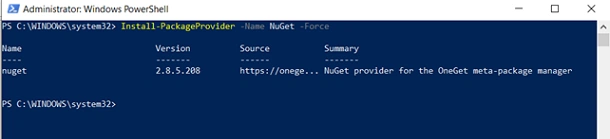
Install NuGet Package Manager
Nuget is a package manager that needs to be installed before moving to the next steps. It can be installed via the below code.
Install-PackageProvider -Name NuGet -Force
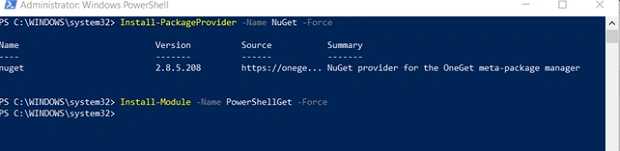
Install PowerShellGet
PowerShellGet is a module installer which is necessary for installing the Teams PowerShell module. It can be installed via the below command.
Install-Module -Name PowerShellGet -Force
Install Teams Powershell
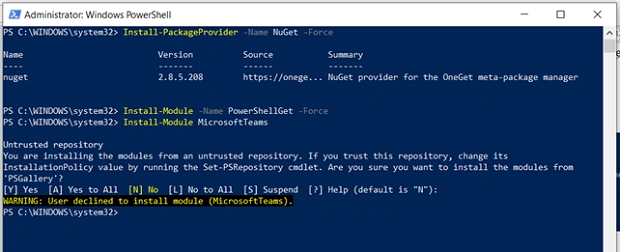
Finally, we can install Teams PowerShell via this command below.
In the first run, users will be warned about installing modules from an untrusted repository (as shown in the screenshot below). Continue with “yes to all” to finish the installation.
To check if TeamsPowershell in installed in your system, use the below command,
Get-Module -ListAvailable -Name MicrosoftTeams
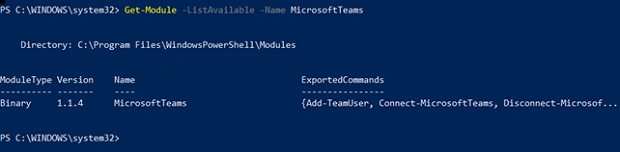
To update Teams Powershell, please use the below command
Update-Module MicrosoftTeams

This concludes the steps for installing Teams PowerShell.
Usage and Next Steps
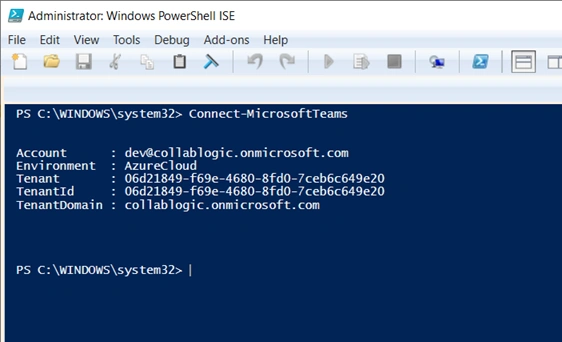
Now, we will establish a connection with our Teams (of Azure tenant) and test it out. For connecting to Teams, type the command:
Connect-MicrosoftTeams.
You will be prompted to enter a username and password.
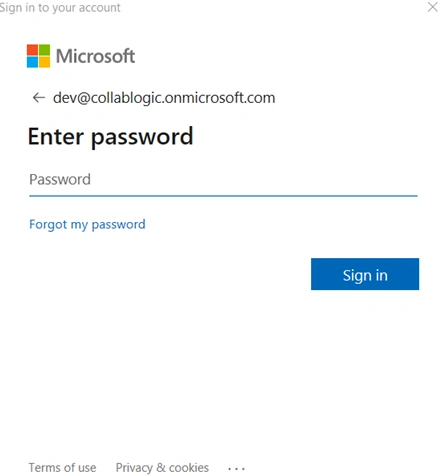
Upon successful authentication, the account and tenant details will be displayed on the screen. This indicates that the connection to Microsoft Teams was successful and we can proceed further.
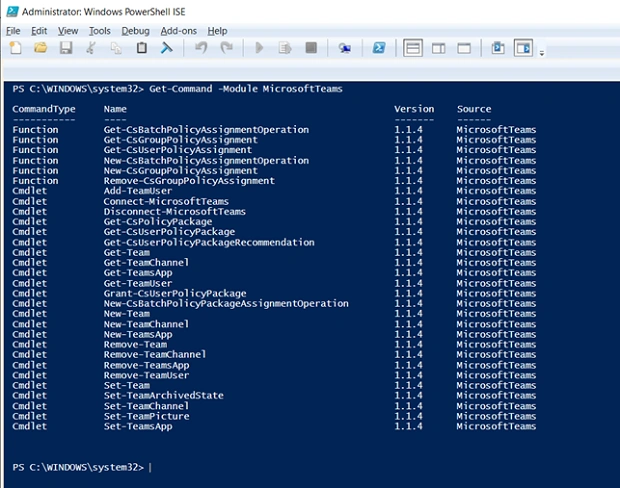
To get the list of available commands, you can use this cmdlet:
Get-Command -Module MicrosoftTeams
As of today, there are 24 cmdlets and 6 functions in TeamsPowershell
To disconnect from the Teams instance, use the command below,
Disconnect-MicrosoftTeams
The list of available commands is attached in this article. This article can also be found in my personal blog - CollabLogic. Happy exploring!!
References
- https://docs.microsoft.com/en-us/microsoftteams/teams-powershell-overview
- https://docs.microsoft.com/en-us/microsoftteams/teams-powershell-install
- https://docs.microsoft.com/en-us/powershell/scripting/gallery/installing-psget?view=powershell-7
- https://docs.microsoft.com/en-us/powershell/teams/?view=teams-ps
Join the conversation! Your thoughts help the community grow.