

- What are Shared Data Sources?
- How to create a Shared Data Source, using Wizard
- How to create a Shared Data Source, not using Wizard
- How to modify a Shared Data Source
- How to delete a Shared Data Source
What are Shared Data Sources?
Shared Data Source is a collection of the data source, which can be used with multiple reports, report models and subscriptions etc. We can create a Shared Date Source and run it on Reporting Service into a Report Server.
Prerequisite
We should have some basic knowledge in SQL Server query and Visual Studio tool to create SSRS Reports, using Visual Studio 2015.
- SQL Server basic query
- Visual Studio 2015
How to create a Shared Data Source, using wizard
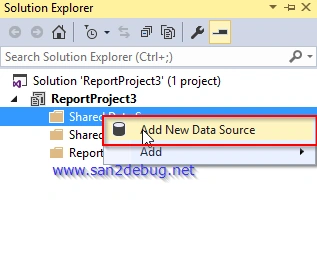
After creating SSRS Project successfully, go to the Shared Data Source folder, right-click Shared Data Source folder, point to Add New Data Source and click Add New Data Source.
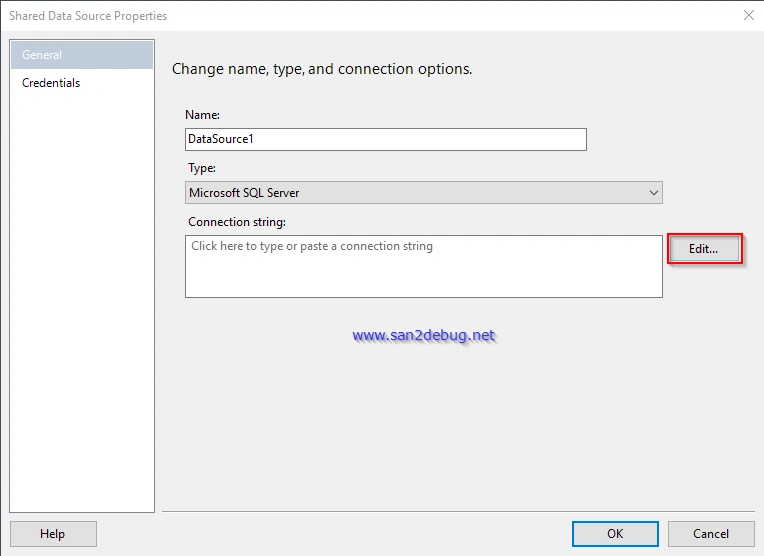
Shared Data Source Window will open and click Edit button.
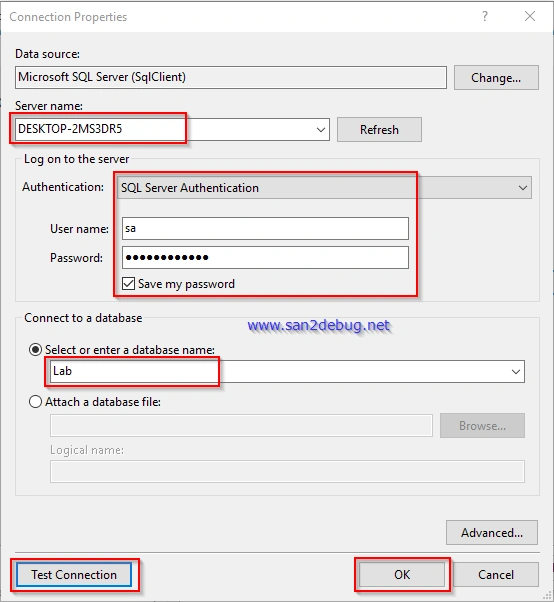
Connection Properties Window will open, where you are required to type the Server name, select the Authentication, user name, password, select or enter a database name and finally, you can check the database connection succeed, followed by clicking the Test Connection button. Now, click OK button.
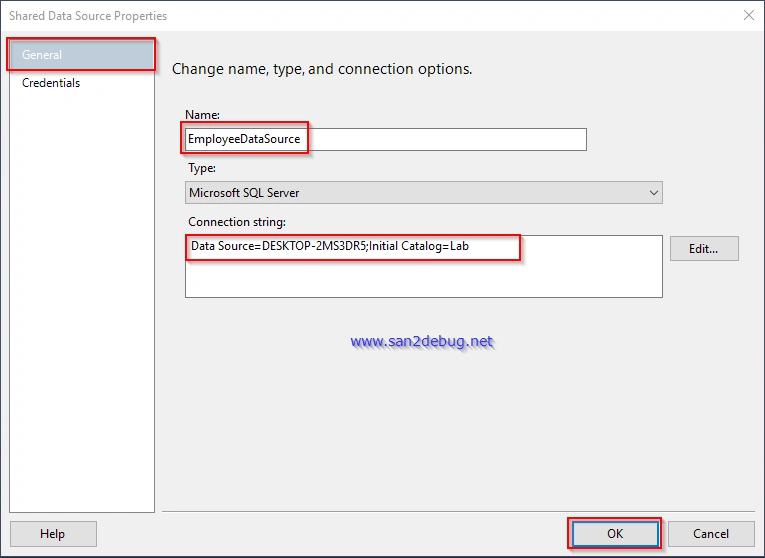
Shared Data Source Window will open. Select the new data source, connection string and click OK button.
After creating a new data source file, you can see Shared Data Source folder structure, as shown below.
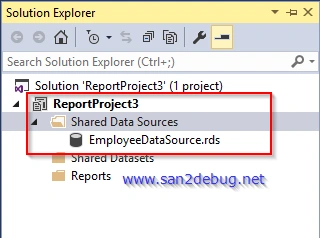
How to create a Shared Data Source, using without wizard
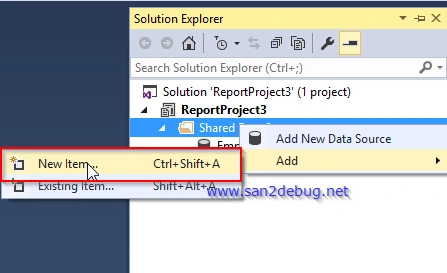
Go to Shared Data Source folder, right-click Shared Data Source folder and point to Add -> New Item, followed by clicking the New Item.
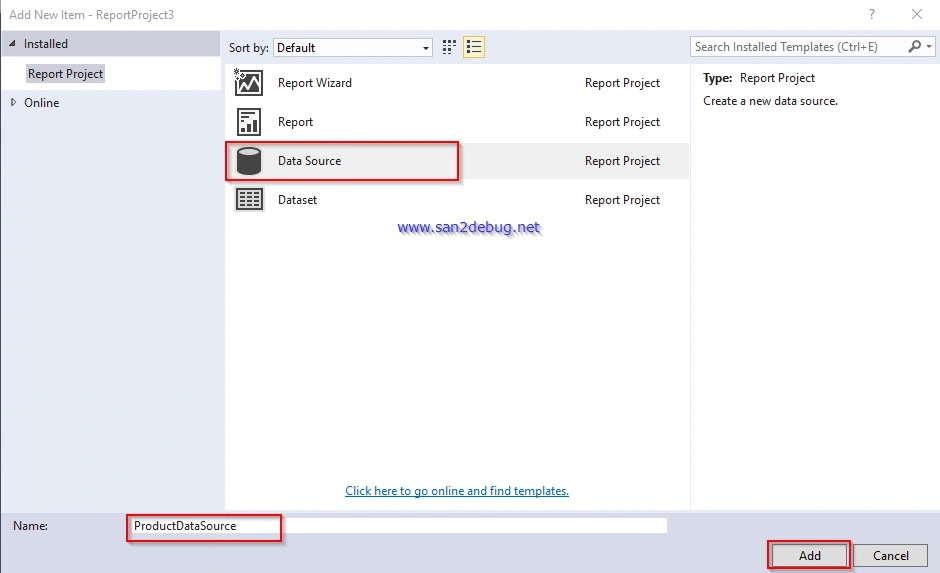
Add New Item Window will open and choose the Data Source template. Now, type the Data Source name as ProductDataSource and click Add button.
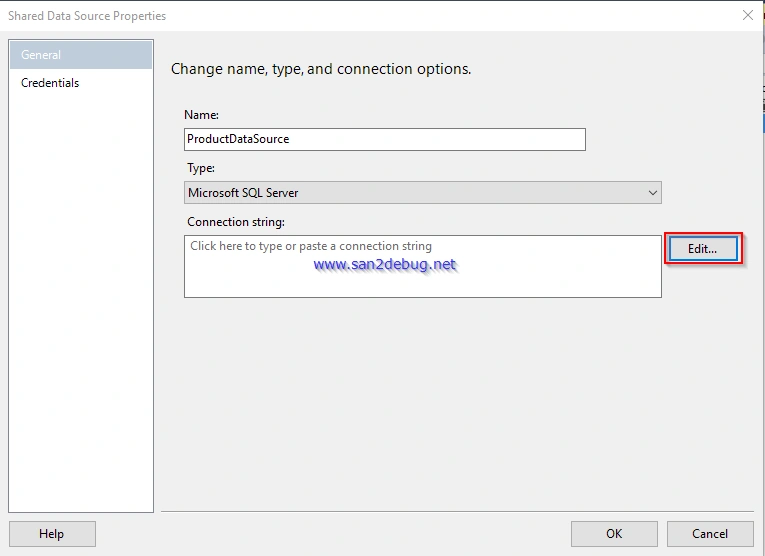
Shared Data Source Window will open and click Edit button.
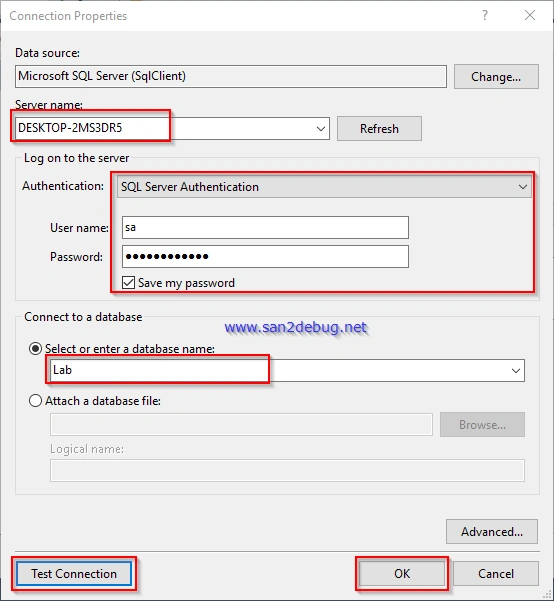
Connection Properties Window will open, type the Server name, select the Authentication, user name, password, select or enter a database name and finally, you can check the database connection succeed, followed by clicking the Test Connection button. Now, click OK button.
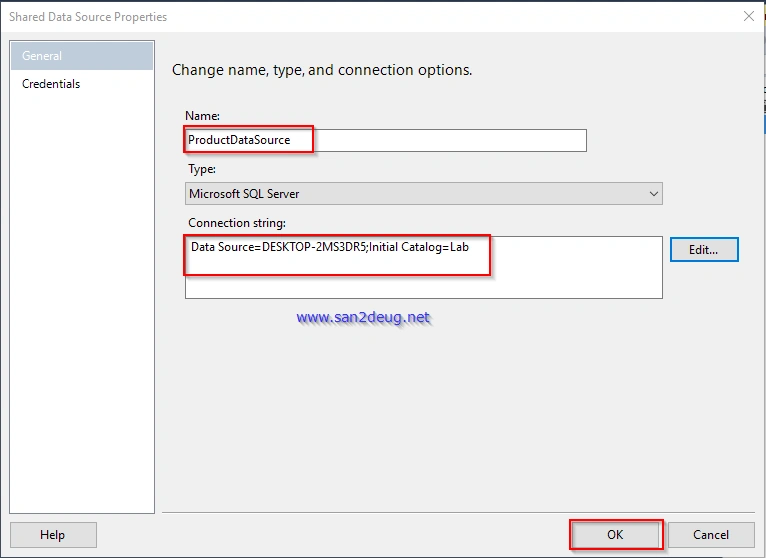
Shared Data Source Window will open. Select the new data source, connection string and click OK button.
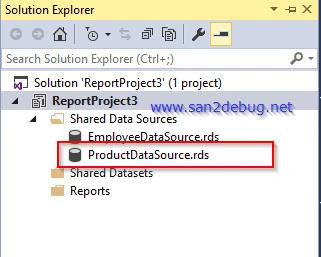
After creating a new data source file, you can see Shared Data Source folder structure, as shown below.
How to modify Shared Data Source
Go to Shared Data Source folder, click the ProductDataSource.rds data source name. Now, Shared Data Source Window will open, as shown below.
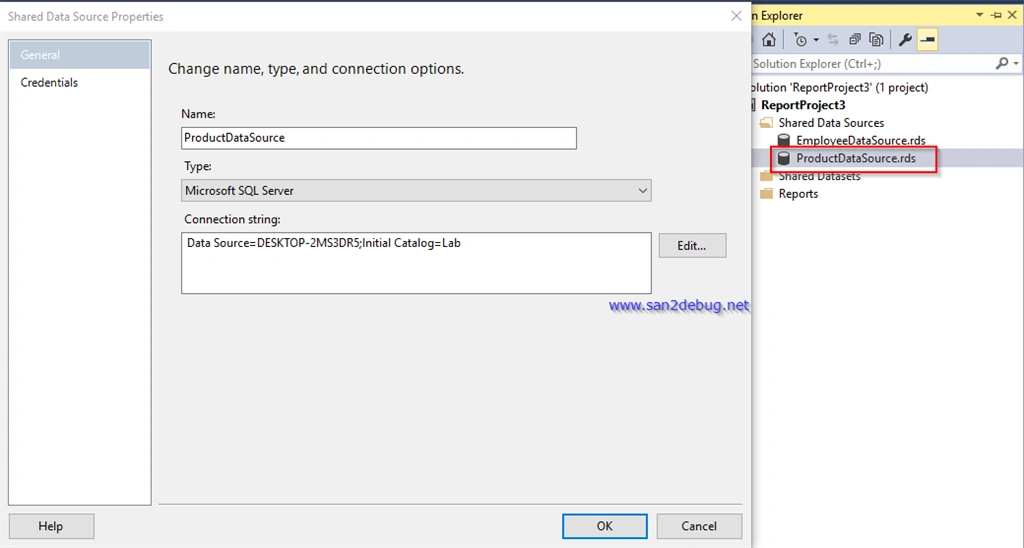
Now, you can change the name, type, connection string and data source credentials.
How to delete Shared Data Source
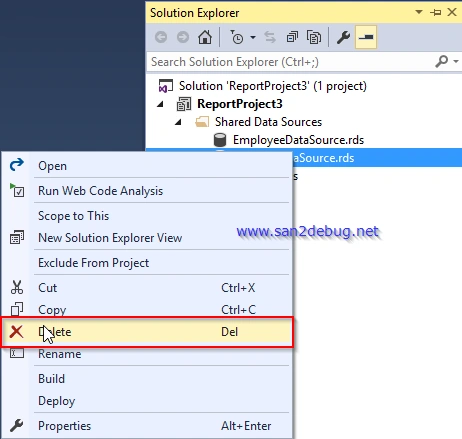
Go to Shared Data Source folder, right-click the ProductDataSource.rds and point to Delete context menu item, followed by clicking delete the item.
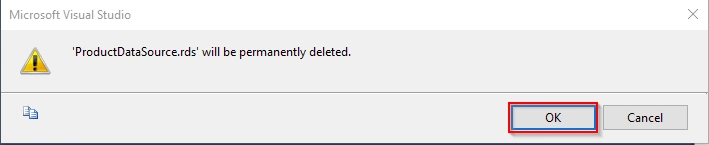
Microsoft Visual Studio Window will open and prompt delete confirmation option. Click OK button to delete the data source file, else click Cancel button to cancel the delete process, as shown below.
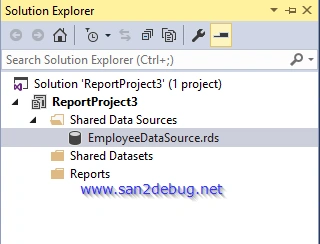
After deleting the ProductDataSource.rds file, you can see Shared Data Source folder structure, as shown below.
You can also read this article at my blog here
Conclusion
I hope you understood how we can create a Shared Data Source in SQL Server Reporting Services 2016, how to create a Shared Data Source, using Report wizard, how to create a Shared Data Source without using the Report wizard, how to modify Shared Data Source and how to delete Shared Data Sources. I have covered all the required things. If you find anything which I missed in this article, please let me know. Please share your valuable feedback or comments and suggestions to improve the future articles.
Sheriff SheriffPosted Apr 20, 2017, 7:53 AM
Would you help me in SSRS report, actually using custom assembly for localization in SSRS report. But getting error [rsErrorLoadingCodeModule] Error while loading code module: ‘Localized, Version=1.0.0.0, Culture=neutral, PublicKeyToken=null’. Details: Could not load file or assembly 'Localized, Version=1.0.0.0, Culture=neutral, PublicKeyToken=null' or one of its dependencies. The system cannot find the file specified.
Sheriff SheriffPosted Apr 20, 2017, 7:51 AM
Would you help me in SSRS report, actually using custom assembly for localization in SSRS report. But getting error [rsErrorLoadingCodeModule] Error while loading code module: ‘Localized, Version=1.0.0.0, Culture=neutral, PublicKeyToken=null’. Details: Could not load file or assembly 'Localized, Version=1.0.0.0, Culture=neutral, PublicKeyToken=null' or one of its dependencies. The system cannot find the file specified.
Anu VPosted Mar 7, 2017, 6:51 AM
Nice article.. thanks for sharing..