

SharePoint Framework is a new development model that eases the developer's life for developing and testing the application in automated ways when compared to other development models. It also enriches the user’s UI experience in SharePoint sites.
Given below are some references for developing the SharePoint framework applications:
Introduction to SharePoint Framework Development This link contains the summarization of the tools required for developing framework model web part, development prequisites, and how to create a project.
Tutorials and Walkthroughs This contains the below tutorial links to the starting point for SharePoint Framework development.
- Tutorial 1: HelloWorld Web Part
- Tutorial 2: HelloWorld Web Part, Talking to SharePoint
- Tutorial 3: HelloWorld Web Part, Served in a SharePoint Page
- Tutorial 4: Deploying a HelloWorld Web Part to a CDN
- Tutorial 5: Using the jQueryUI Accordion in a Web Part
- Tutorial 6: Using Office UI Fabric Components
In this article, we will create a HelloWorld Web Part to talk to SharePoint, by using PnP JavaScript Library (PnP JS version of Tutorial 2: HelloWorld Web Part, Talking to SharePoint).
Before creating a SharePoint Framework solution, we have to ensure the below items for development.
- The environment should be in Office 365 developer tenant. Due to the current release, it is in initial preview stage.
- SharePoint site should be a developer site collection.
- Node JS and npm JS tools.
- Yeoman and Gulp should be installed globally.
- Yeoman SharePoint Generator should be installed globally.
- Upload the workbench.aspx file to Documents Library in a developer site collection.
Create a new SharePoint Framework project
- Open any command line tool. I prefer to use Cmder.
- Navigate to a folder or create a new folder.
- Run the Yeoman Generator to create SharePoint Framework solution package.
- Fill the details required for creating a new SharePoint solution.
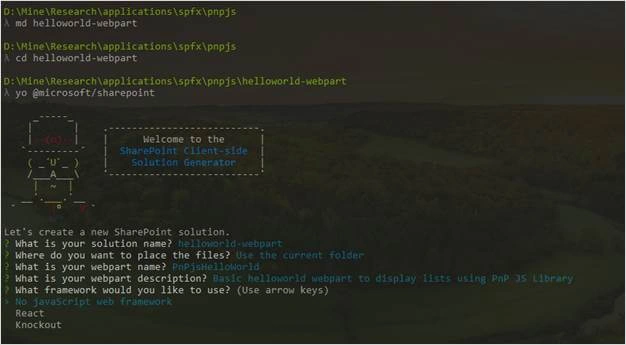
- After getting the Success message, we can also run “gulp serve” command to host the application and start the local workbench. The local workbench enables us to test the application in many ways.
We can also launch the workbench.aspx file from the SharePoint site to test the application in SharePoint Framework. - To include the PnP JS library to the project, run the following npm command
npm i sp-pnp-js –save-dev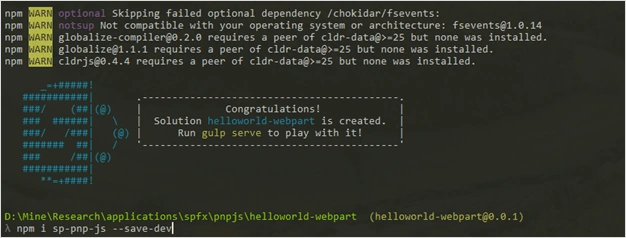
- The command will include the PnP JS file and its dependencies to the project folder.
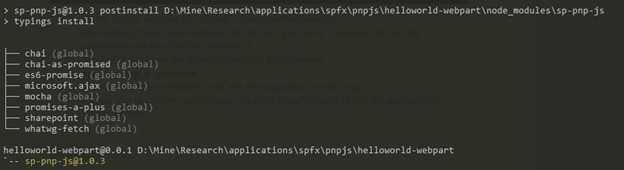
Now, we have created the solution structure and with dependencies. Next, we will see on updating the code in the generated project to retrieve the list information and render with custom styles.
Updating the Code
The below steps and code snippets are used to populate the visible lists in SharePoint Framework from the SharePoint site.
- Navigate to solution folder.
- Define List Model.
- Style the DOM structure.
- Retrieve the mockup information for local workbench.
- Retrieve the actual information from SharePoint site.
- Render the data based on the environment type (Local / SharePoint).
Navigate to solution folder
- Open the solution folder in source code editor. I’ll prefer to use Visual Studio Code because it is light weight and available across platforms.
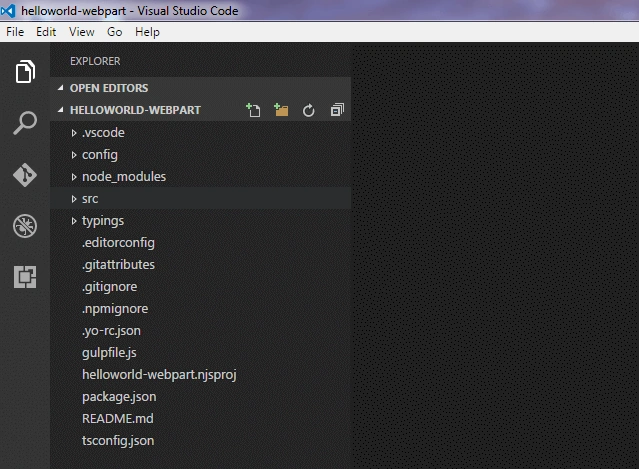
- Expand src > webparts > PnPjsHelloWorld folder and then select PnPjsHelloWorldWebPart.ts file to edit the code.
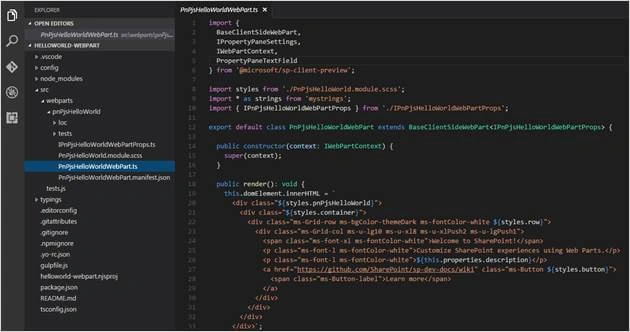
Define List Model
- Define the interface for the List Model in the code. To define that, open PnPjsHelloWorldWebPart.ts file.
- Paste the following interface code just below the PnPJsHelloWorldWebPart class.The ISPList interface holds the SharePoint lists title and id information.
- export interface ISPList {
- Title: string;
- Id: string;
- }
Style DOM structure
SharePoint uses the SaaS language for stylesheets generation. SaaS extends CSS language and allows you to use features, like variables, nested rules, inline imports in the organized way and create efficient style sheets for your web parts.
The SharePoint Framework already comes with a SCSS compiler that converts your Sass files to normal CSS files and also provides a typed version to use it during the development.
Follow these steps to add styles to the entire list collection and particlular list row.
- Open PnPjsHelloWorld.Module.scss file.
- Add the following styles below the .button style.
- .list
- {
- color: #333333;
- font-family: 'Segoe UI Regular WestEuropean', 'Segoe UI', Tahoma, Arial, sans-serif;
- font-size: 14px;
- font-weight: normal;
- box-sizing: border-box;
- margin: 10;
- padding: 10;
- line-height: 50px;
- list-style-type: none;
- box-shadow: 0 4px 4px 0 rgba(0, 0, 0, 0.2), 0 25px 50px 0 rgba(0, 0, 0, 0.1);
- }
- .listItem
- {
- color: # 333333;
- vertical - align: center;
- font - family: 'Segoe UI Regular WestEuropean',
- 'Segoe UI',
- Tahoma,
- Arial,
- sans - serif;
- font - size: 14 px;
- font - weight: normal;
- box - sizing: border - box;
- margin: 0;
- padding: 0;
- box - shadow: none; * zoom: 1;
- padding: 9 px 28 px 3 px;
- position: relative;
- }
- Save the file.
After running the gulp build or run tasks, the styles from .scss file are converted to the .css file and generate the corresponding typings in .scss.ts file. So, we can import the styles and use them as reference in other typescript files.
To import the styles in the web part file, add the below line (Auto generated).
import styles from './PnPjsHelloWorld.module.scss';
By using the below syntax, we can add style references to the typescript files,
${styles.<style name>}
Retrieve List info (mock data) from local environment
We have to ensure the local workbench to display some data in the web part to simulate as same as in SharePoint site. For that, we have to create mockup data.
- Create a new file “MockHttpClient.ts” inside the src > webparts > PnPjsHelloWorld.
- Copy the following code to the file.
- //import ISPList interface to this file from PnPjsHelloWorldWebPart.ts
- import {
- ISPList
- } from './PnPjsHelloWorldWebPart';
- //Declare ISPList array and returns the array of items whenever MockHttpClient.get() method called
- export default class MockHttpClient {
- private static _items: ISPList[] = [{
- Title: 'Mock List',
- Id: '1'
- }];
- public static get(restUrl: string, options ? : any): Promise < ISPList[] > {
- return new Promise < ISPList[] > ((resolve) => {
- resolve(MockHttpClient._items);
- });
- }
- }
- Save the file.
- Then, we have to import the MockHttpClient module in PnPjsHelloWorldWebPart.ts file.
So, pen PnPjsHelloWorldWebPart.ts file.
Copy the following code just below the line import { IPnPjsHelloWorldWebPartProps }
from './IPnPjsHelloWorldWebPartProps';
import MockHttpClient from './MockHttpClient'; - Add the following private method inside the PnPjsHelloWorldWebPart class.
- private _getMockListData(): Promise < ISPList[] >
- {
- return MockHttpClient.get(this.context.pageContext.web.absoluteUrl).then(() => {
- const listData: ISPList[] = [{
- Title: 'Mock List',
- Id: '1'
- }, {
- Title: 'Mock List Two',
- Id: '2'
- }, {
- Title: 'Mock List Three',
- Id: '3'
- }];
- return listData;
- }) as Promise < ISPList[] > ;
- }
- Save the file.
Retrieve List info from SharePoint site
- Let’s update the files to retrieve the information from SharePoint site.
- Open PnPjsHelloWorldWebPart.ts file.
- Add the following line to import the PnP JavaScript library in PnPjsHelloWorldWebPart.ts and use the PnP JS methods and properties.
import pnp from 'sp-pnp-js'; - Add the following private method inside the PnPjsHelloWorldWebPart class to retrieve the visible lists from SharePoint, using PnP JavaScript Library.In the above code, we are retrieving the list collection and filtering it to get the non-hidden lists. The response variable returns the array of List objects in the form of ISPList[].
- private _getListData(): Promise < ISPList[] >
- {
- return pnp.sp.web.lists.filter('Hidden eq false').select('Title,Id').get().then((response) => {
- return response;
- });
- }
Render the retrieved lists information
We have to render two different informations based on the workbench environment. For Local workbench, we have to render the mockup data. For SharePoint site workbench, we have to render the actual lists information.
- Open PnPjsHelloWorldWebPart.ts file.
- Add the following line to the import section in top of the page.
import { EnvironmentType } from '@microsoft/sp-client-base'; - Add the following private method to determine the environment and based on that call, the required get methods to retrieve the array of ISPList collection for appropriate environment.
- private _renderListAsync(): void
- {
- // Local environment
- if (this.context.environment.type === EnvironmentType.Local) {
- this._getMockListData().then((response) => {
- this._renderList(response);
- });
- }
- //SharePoint Site environment
- else {
- this._getListData().then((response) => {
- this._renderList(response);
- });
- }
- }
- Add the following method to render the information to the UI based on the retrieved ISPList array collection,We can apply the style to the element from another file by importing the css mod.
- private _renderList(items: ISPList[]): void
- {
- let html: string = '';
- items.forEach((item: ISPList) =>
- {
- html += `
- <ul class="${styles.list}">
- <li class="${styles.listItem}">
- <span class="ms-font-l">${item.Title}</span>
- </li>
- </ul>`;
- });
- const listContainer: Element = this.domElement.querySelector('#spListContainer');
- listContainer.innerHTML = html;
- }
${styles.list} applies the style to the Ul element the style information is retrieved from. - Replace the WebPart render method contents with the following one.
- this.domElement.innerHTML = `
- <div class="${styles.pnPjsHelloWorld}">
- <div class="${styles.container}">
- <div class="ms-Grid-row ms-bgColor-themeDark ms-fontColor-white ${styles.row}">
- <div class="ms-Grid-col ms-u-lg10 ms-u-xl8 ms-u-xlPush2 ms-u-lgPush1">
- <span class="ms-font-xl ms-fontColor-white">Welcome to SharePoint!</span>
- <p class="ms-font-l ms-fontColor-white">Customize SharePoint experiences using Web Parts.</p>
- <p class="ms-font-l ms-fontColor-white">${this.properties.description}</p>
- <a href="https://github.com/SharePoint/sp-dev-docs/wiki" class="ms-Button ${styles.button}">
- <span class="ms-Button-label">Learn more</span>
- </a>
- </div>
- </div>
- <div id="spListContainer" />
- </div>
- </div>`;
- this._renderListAsync();
- Save the file.
Test the application
- Run “gulp serve” command in command line tool. That compiles the project and generates the JS and CSS files required for the application.
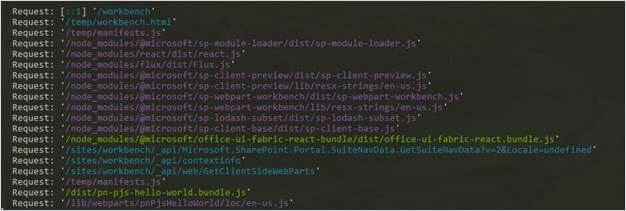
- Local workbench automatically starts after running the command. The default location for local workbench is
http://localhost:4321/temp/workbench.html
The typescript files and PnP js files are bundled into
http://localhost:4321/dist/pn-pjs-hello-world.bundle.js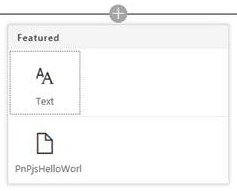
- Click + icon and select WebPart name “PnPjsHelloWorld” to insert the WebPart to the workbench to test the application. In local workbench, we will get the mockup data in the output.
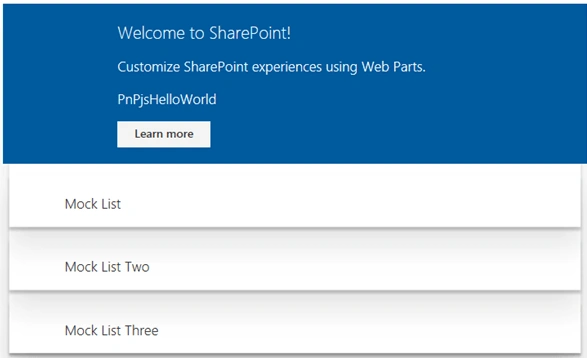
- Open SharePoint site where we have uploaded workbench.aspx file, to test the application. Allow unsafe scripts to load in the page to access JavaScript and other dependent files from localhost.
- In the workbench page, click + icon and then select the web part name to insert the SharePoint framework web part to the page,
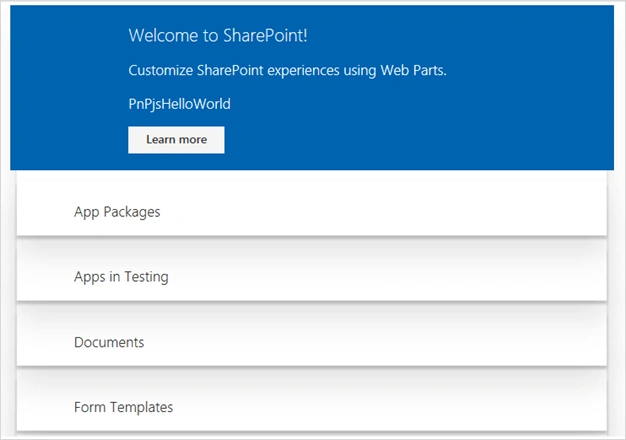
Now, we have retrieved the lists which are not hidden in a current site. PnP JavaScript Library returns the success response as a collection of objects, whereas REST returns the response in a JSON format and then we have to convert the JSON value to object or object collection. Click here to view the same article from my blog.
Conclusion
In this article, we learned how to use a PnP JavaScript Library to access the SharePoint list collection and render the data in SharePoint Framework web part.
Prasanna MuraliPosted Sep 5, 2016, 11:07 AM
Nice post......
Tarun DPosted Sep 1, 2016, 1:06 AM
Thanks for sharing..