


Introduction
This article shows how to use a mongoDB to communicate with ASP.NET. We will create a simple MVC application that retrieves pictures from a mongoDB.
You can see my other articles of mongoDB from here.
Previous articles have provided an introduction to mongoDB, the installation of it and communicating with ASP.NET. You can get them from the following:
Let us start creating the project from scratch using the following step-by-step procedure.
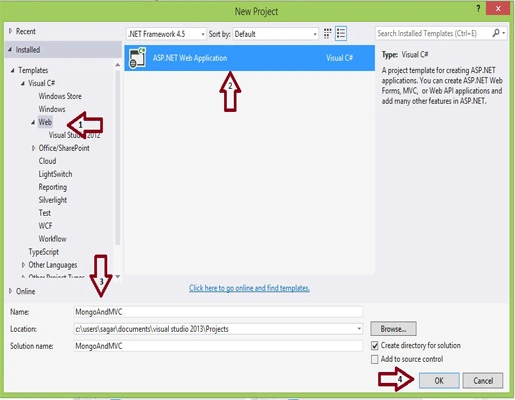
- Step 1 Create a new project; open Visual Studio 2013 then click "File" -> "New" -> "Project..." then create an "ASP.NET Web Application".
In the Templates pane, select "Installed Templates" and expand the Visual C# node. Under Visual C#, select "Web". In the list of project templates, select "ASP.NET MVC Web Application". Name the project "MongoAndMVC".
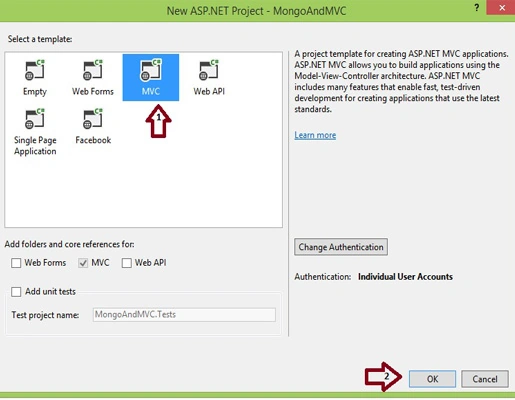
In the New ASP.NET Project dialog, select the MVC template.
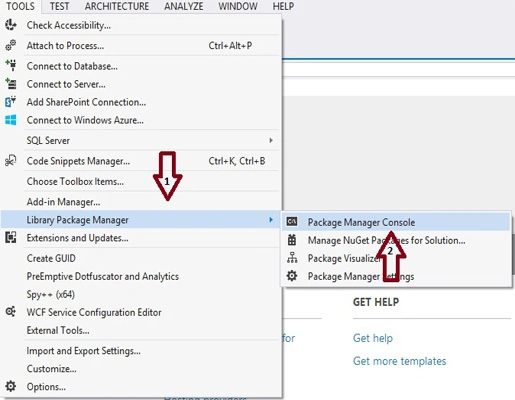
- Step 2 Now add mongocsharpdriver using the Library Package Manager as in the following:
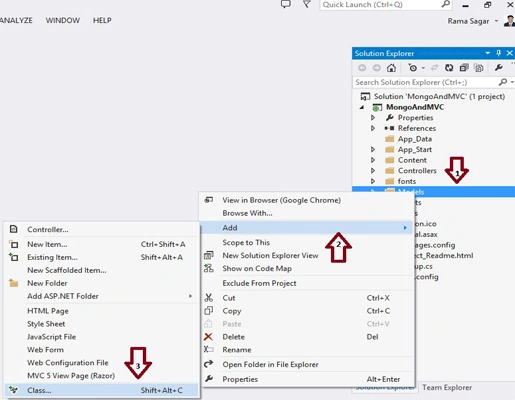
- Step 3 Next, add classes for domain models. In Solution Explorer, right-click the Models folder. Select "Add", then select "Class". Name the class "MongoPictureModel".
Add the following properties to the model class:
- using MongoDB.Bson;
- namespace MongoAndMVC.Models
- {
- public class MongoPictureModel
- {
- public class MongoPictureModel
- {
- public ObjectId _Id { get; set; }
- public string FileName { get; set; }
- public string PictureDataAsString { get; set; }
- }
- }
- }
- Step 4 Now add the controller as in the following:
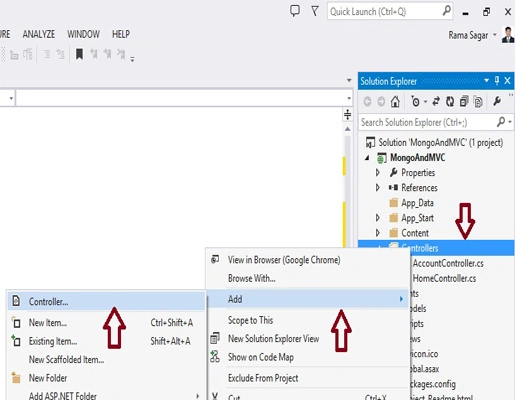
- using MongoDB.Bson;
- using MongoDB.Driver;
- using MongoDB.Driver.Builders;
- using MongowithMVC.Models;
- using System;
- using System.Collections.Generic;
- using System.IO;
- using System.Linq;
- using System.Web;
- using System.Web.Mvc;
- namespace MongowithMVC.Controllers
- {
- public class ImageGalleryController : Controller
- {
- //
- // GET: /ImageGallery/
- public ActionResult Index()
- {
- var theModel = GetTheImages();
- return View(theModel);
- }
- public ActionResult AddImage()
- {
- return View();
- }
- [HttpPost]
- public ActionResult AddPicture(HttpPostedFileBase theFile)
- {
- if (theFile.ContentLength > 0)
- {
- //get the file's name
- string theFileName = Path.GetFileName(theFile.FileName);
- //get the bytes from the content stream of the file
- byte[] thePictureAsBytes = new byte[theFile.ContentLength];
- using (BinaryReader theReader = new BinaryReader(theFile.InputStream))
- {
- thePictureAsBytes = theReader.ReadBytes(theFile.ContentLength);
- }
- //convert the bytes of image data to a string using the Base64 encoding
- string thePictureDataAsString = Convert.ToBase64String(thePictureAsBytes);
- //create a new mongo picture model object to insert into the db
- MongoPictureModel thePicture = new MongoPictureModel()
- {
- FileName = theFileName,
- PictureDataAsString = thePictureDataAsString
- };
- //insert the picture object
- bool didItInsert = InsertPictureIntoDatabase(thePicture);
- if (didItInsert)
- ViewBag.Message = "The image was updated successfully";
- else
- ViewBag.Message = "A database error has occured";
- }
- else
- ViewBag.Message = "You must upload an image";
- return View();
- }
- /// <summary>
- /// This method will insert the image into the db
- /// </summary>
- /// <param name="thePicture"></param>
- /// <returns></returns>
- private bool InsertPictureIntoDatabase(MongoPictureModel thePicture)
- {
- var thePictureColleciton = GetImageCollection();
- var theResult = thePictureColleciton.Insert(thePicture);
- return theResult.Ok;
- }
- /// <summary>
- /// This method will return just the id's and filenames of the images to use to retrieve the image from the db
- /// </summary>
- /// <returns></returns>
- private List<MongoPictureModel> GetTheImages()
- {
- var thePictureColleciton = GetImageCollection();
- var thePictureCursor = thePictureColleciton.FindAll();
- //use SetFields to just return the id and the name of the picture instead of the entire document
- thePictureCursor.SetFields(Fields.Include("_id", "FileName"));
- return thePictureCursor.ToList() ?? new List<MongoPictureModel>();
- }
- /// <summary>
- /// This action will return an image result to render the data from the picture as a jpeg
- /// </summary>
- /// <returns></returns>
- public FileContentResult ShowImage(string id)
- {
- var thePictureColleciton = GetImageCollection();
- //get pictrue document from db
- var thePicture = thePictureColleciton.FindOneById(new ObjectId(id));
- //transform the picture's data from string to an array of bytes
- var thePictureDataAsBytes = Convert.FromBase64String(thePicture.PictureDataAsString);
- //return array of bytes as the image's data to action's response. We set the image's content mime type to image/jpeg
- return new FileContentResult(thePictureDataAsBytes, "image/jpeg");
- }
- /// <summary>
- /// This will return the mongoDB image collection object to use do data related actions
- /// </summary>
- /// <returns></returns>localhost:27017
- private MongoCollection<MongoPictureModel> GetImageCollection()
- {
- //set this to what ever your connection is or from config
- var theConnectionString = "mongodb://localhost";
- //get the mongo db client object
- var theDBClient = new MongoClient(theConnectionString);
- //get reference to db server
- var theServer = theDBClient.GetServer();
- //gets the database , if it doesn't exist it will create a new one
- string databaseName = "PictureApplication";//replace with whatever name you choose
- var thePictureDB = theServer.GetDatabase(databaseName);
- //finally attempts to get a collection, if not there it will make a new one
- string theCollectionName = "pictures";
- var thePictureColleciton = thePictureDB.GetCollection<MongoPictureModel>(theCollectionName);
- return thePictureColleciton;
- }
- }
- }
MongoAndMVC.Models;
MongoDB.Bson;
MongoDB.Driver;
MongoDB.Driver.Builders;
We also added the "System.IO" namespace for some of the byte manipulation that we'll be doing.
Now add the index view and add an image view in the imagegallery folder with the following implementation:
- @model List<MongoAndMVC.Models.MongoPictureModel>
- @{
- ViewBag.Title = "Gallery";
- }
- <h2>Image Gallery</h2>
- @Html.ActionLink("Add a new Picture", "AddPicture")
- @foreach (var image in Model)
- {
- <div>
- @image.FileName<br />
- <img src="@string.Format("/Gallery/ShowPicture/{0}", image._id.ToString())" alt="@image.FileName" />
- </div>
- }
- @{
- ViewBag.Title = "Upload an image";
- }
- <h2>Upload a new image</h2>
- @Html.ActionLink("View Gallery", "Index")
- <div>
- @if (ViewBag.Message != null && ViewBag.Message != "")
- {
- @ViewBag.Message
- }
- </div>
- <form action="" method="post" enctype="multipart/form-data">
- <input type="file" id="theFile" name="theFile" />
- <br />
- <button type="submit">Upload Image</button>
- </form>
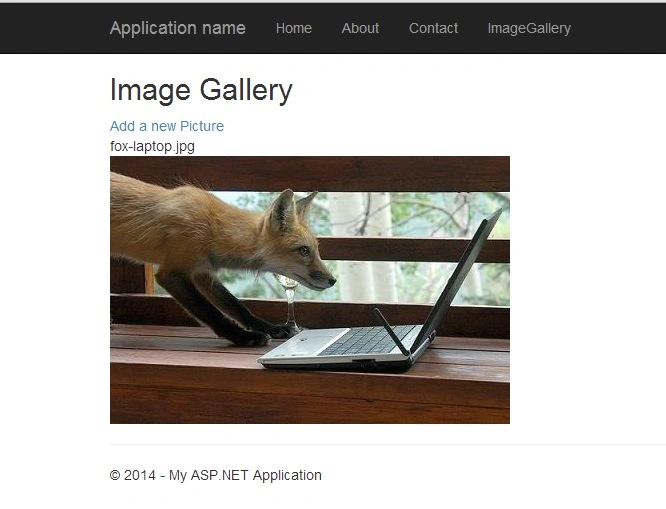
Parag NaikPosted Sep 8, 2015, 11:41 AM
i m getting the error in this program.. plz help me to solve this
Parag NaikPosted Sep 8, 2015, 11:41 AM
MongoDB.Driver.WriteConcernResult' does not contain a definition for 'Ok' and no extension method 'Ok' accepting a first argument of type 'MongoDB.Driver.WriteConcernResult' could be found (are you missing a using directive or an assembly reference?) c:\users\devlopers\documents\visual studio 2013\Projects\MongoAndMVC\MongoAndMVC\Controllers\ImageGalleryController.cs 75 30 MongoAndMVC
parag nPosted Apr 15, 2015, 2:56 AM
Enable to download the image