

In this article, I have explained how Microsoft Graph API works; then how to create an app to consume Microsoft Graph API in your web applications, mobile apps, and web API. Then, we will also discuss how to fetch access token to consume Graph API data from your applications.
Microsoft Graph API
Microsoft Graph API allows the data to interact with millions of users in the cloud.
Using Microsoft Graph API, you are able to create applications for your organization with single Graph API endpoints.
Endpoint URL : http://graph.microsoft.com
Use of Microsoft Graph API
- Create, manage, and view Office 365 calendar events and also find your meeting times.
- Access information for the relevant people from Office 365 users.
Getting Started with Graph API
- Register your application from Microsoft apps registration portal
- Authenticate the user to fetch the access token through OAuth Protocol
- Consume the data using Microsoft Graph API
- Run the application.
Navigate to the app registration portal https://apps.dev.microsoft.com
Log in to your tenant account.

Click "Add an app" button to register your app.
Click "Add an app" button to register your app.
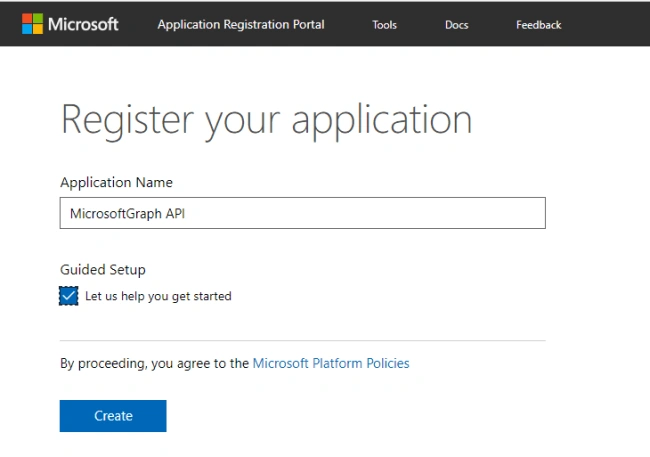
Provide the Application Name and click Create.
After successful creation of the app, it shows what kind of application is going to consume the data from Microsoft Graph API.
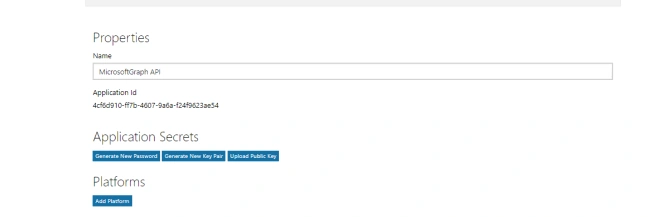
Copy the unique Application Id later used in an API to fetch access token.
Generate the application secrets to authenticate the app.
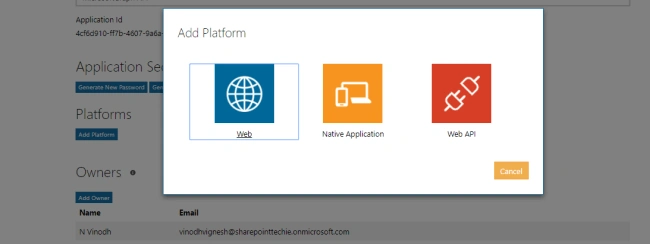
In a Platform for web-based applications, use "WEB Platform" for Web API; you can choose "WEB API Platform" and for mobile based applications use "Native Platform".
Now, I have chosen "Web platform" to play with SharePoint.
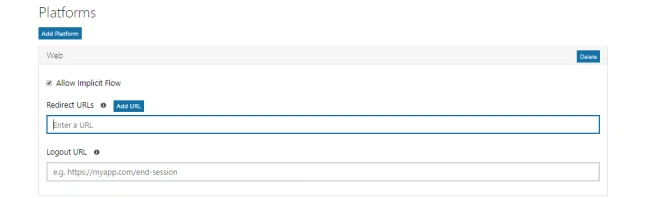
Provide the redirect URL for the application.
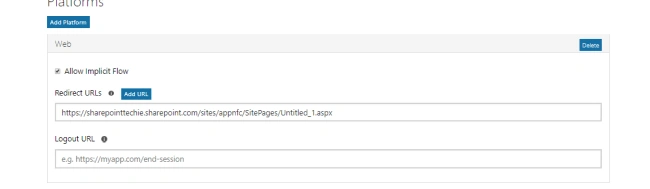
Provide the redirect URL of your web application
Provide the redirect URL of your web application
The "Allow implicit flow" allows the option to enable the Open Id to connect hybrid and implicit flows. The hybrid flow enables the user to receive sign-in info for obtaining the access token.
Click "Save" to complete the App registration.

Fetch Access Token
- Host : https://login.microsoftonline.com
- POST: /{tenant}/common/oauth2/v2.0/token
- Content Type: application/x-www-form-urlencoded
- Client ID: *****************
- Client Secret: ********************
- grant_type: client_credentials
Tenant: The directory you want to request permission from (for ex; contoso.onmicrosoft.com).
Client ID: The unique Id generated from the app registration portal
Client Secret: The password generated from the app registration portal.
Scope: http://graph.microsoft.com/.default. This applies all the application permissions to the app.
grant_type: It will be client_credentials
Code
- <script src="https://ajax.googleapis.com/ajax/libs/jquery/1.11.1/jquery.min.js"></script>
- <script type="text/javascript">
- $(document).ready(function() {
- requestToken();
- });
- var token;
- function requestToken() {
- $.ajax({
- "async": true,
- "crossDomain": true,
- "url": "https://cors-anywhere.herokuapp.com/https://login.microsoftonline.com/sharepointtechie.onmicrosoft.com/oauth2/v2.0/token", // Pass your tenant name instead of sharepointtechie
- "method": "POST",
- "headers": {
- "content-type": "application/x-www-form-urlencoded"
- },
- "data": {
- "grant_type": "client_credentials",
- "client_id ": "8baf0301-27df-44b1-b4fe-7911b9a918de", //Provide your app id
- "client_secret": "**********", //Provide your client secret genereated from your app
- "scope ": "https://graph.microsoft.com/.default"
- },
- success: function(response) {
- console.log(response);
- token = response.access_token;
- document.getElementById('content').innerHTML = token;
- }
- })
- }
- </script>
- <p id="content"></p>
Open SharePoint site -> Add a content editor webpart -> link the HTML file; it contains the above script -> Click OK.
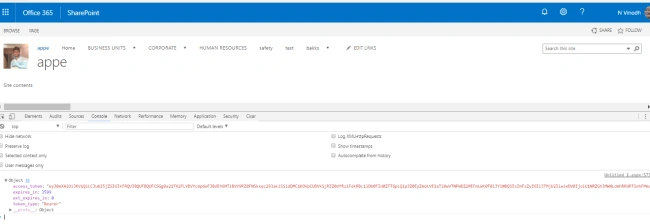
Here is the result in the console window. Now, we have successfully fetched the access token.
In my next article, let's see how to fetch users, groups, calendar events and a lot more stuff using Microsoft Graph API.
Happy SharePointing!
ahmed elagamyPosted Aug 17, 2021, 6:40 AM
How to solve issue of Access-Control-Allow-Origin
Nishanth SPosted Jun 9, 2021, 2:03 PM
HI Vinodh, i am getting the cors error can i know how to fix it ??
MyhPosted Dec 16, 2020, 11:53 AM
How to use same scenario but for ms word add-in?
Jiniv ThakkarPosted Oct 30, 2019, 4:16 AM
Whats is https://cors-anywhere.herokuapp.com ??
Deepika GuptaPosted Oct 24, 2018, 5:25 AM
Hi,how to use lifetime access token. I am getting invalid token after an hour.
chetan chauhanPosted Aug 1, 2018, 1:30 AM
I am getting error: "The identity of the calling application could not be established". Do you have any idea?
Guest UserPosted Jun 14, 2018, 11:25 AM
Could you please provide an example on how it works for a GET request?
fortes varelaPosted Jun 11, 2018, 5:15 AM
Hi followed all steps and I am getting error: "The identity of the calling application could not be established". Do you have any idea?
Sajith G HPosted Jun 10, 2018, 2:07 PM
I am also not able to create client ID. What is the app domain can be used?
Bhanuprakash BysaniPosted Jun 10, 2018, 7:11 AM
Hi, I have created a new app in https://apps.dev.microsoft.com, as per my understanding app id can be used as client id. could you please help me from where I can get client secret id.
amod tiwariPosted Apr 21, 2018, 6:52 AM
Hi, At which page i need to add content editor web part, is it same as we provided under redirect url or others. I dont see same result.