

Introduction
If you've been hearing the name "Claude" pop up everywhere lately in developer forums, LinkedIn posts, or that one colleague who just won't stop talking about AI then you're probably wondering what all the fuss is about. Trust me, I was in the same boat not too long ago.
So I decided to actually sit down, download it, and try it out myself on my Windows machine. And honestly? It surprised me in the best way possible. This article is my attempt to walk you through what Claude is, why it stands out, and exactly how to get it running on your Windows PC step by step, with no fluff.
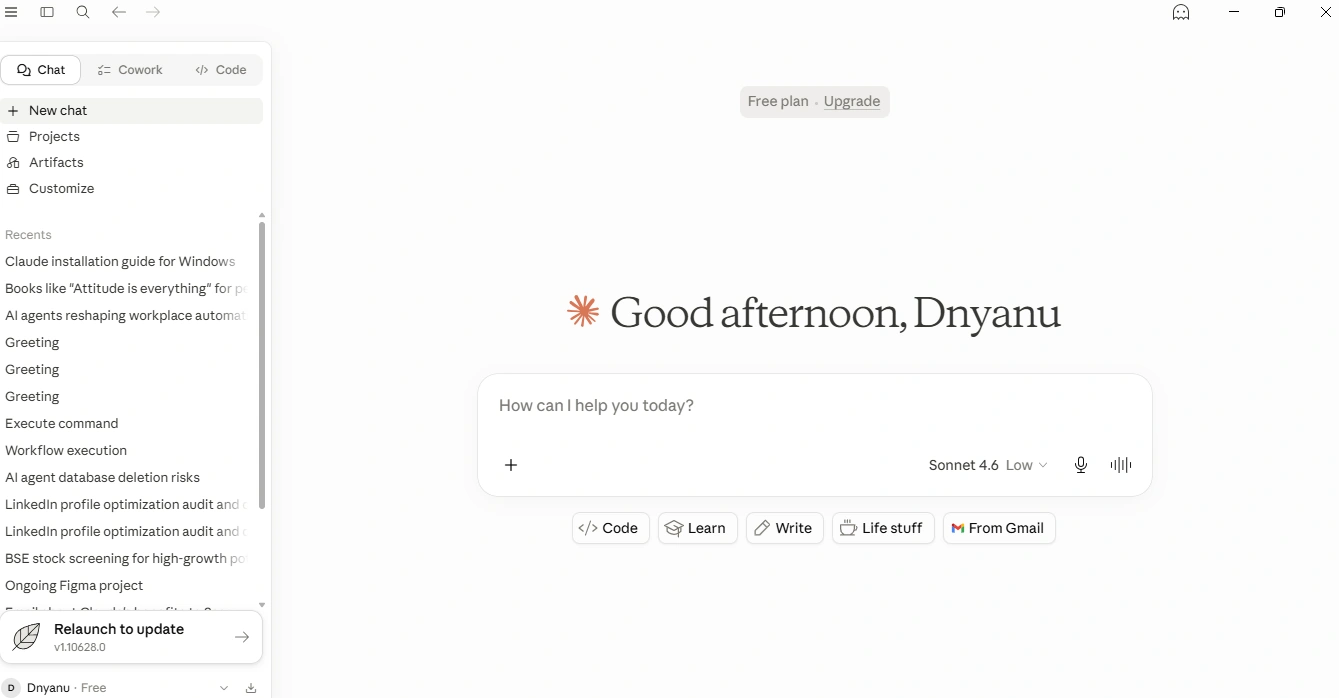
What Is Claude?
Claude is an AI assistant built by Anthropic a safety-focused AI research company founded in 2021 by former OpenAI researchers, including Dario Amodei and Daniela Amodei. If ChatGPT is the name most people know, Claude is the one developers and power users are quietly switching to.
What makes Claude different? A few things stood out to me right away:
It handles long, complex documents really well — we're talking 100,000+ tokens of context in the paid plans.
Its responses feel more natural and less "AI-ish". It doesn't pad answers with unnecessary fluff.
It's built with safety and honesty as core principles — Anthropic calls this "Constitutional AI".
It's great at coding, analysis, writing, summarization, and reasoning tasks.
As of 2026, the Claude family includes models like Claude Opus, Claude Sonnet, and Claude Haiku — each tuned for different use cases, ranging from deep reasoning tasks to fast, lightweight responses.
Why Use the Desktop App Instead of the Browser?
You can absolutely use Claude from your browser at claude.ai and for many people, that's perfectly fine. But once I switched to the desktop app, I found myself reaching for it a lot more often. Here's why:
Global shortcut (Ctrl + Alt + Space): Summons a quick chat window over whatever you're working on — no tab-switching needed.
Local file access: Claude can read and write files directly on your machine (within folders you explicitly allow).
Desktop Extensions: Connect Claude to your calendar, email, local files, and more — similar to how browser extensions work.
MCP (Model Context Protocol) support: Lets developers connect Claude to external tools and services with minimal setup.
System Requirements
Before we dive in, let's make sure your system is ready. The Claude desktop app is pretty lightweight, so most modern Windows machines will handle it just fine.
Operating System: Windows 10 or Windows 11 (64-bit)
Architecture: x64 (ARM64 support was added in March 2026 — though some devices may still be unstable)
Account: A free Anthropic account (you can create one during installation)
Internet connection: Required for initial setup and to use the AI features
Step-by-Step Installation Guide
Alright, let's get into it. I'll walk you through exactly what I did on my Windows 11 machine. The whole process took me less than 5 minutes.
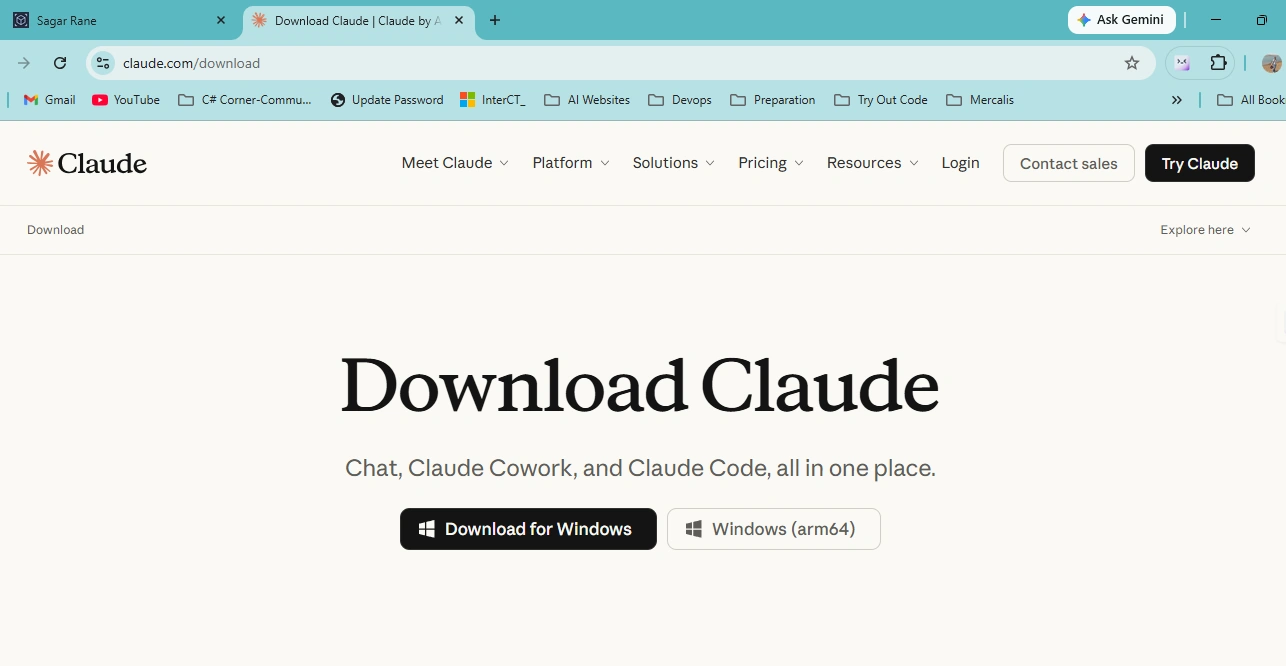
Step 1 — Visit the Official Download Page
Open your browser and navigate to the official Claude download page:
Make sure you're on the official Anthropic site — not a third-party mirror. You'll see download options for both macOS and Windows on this page.
Step 2 — Download the Windows Installer
Click the Download for Windows button. You'll get an MSIX installer file — this is the standard modern format for Windows app packages (similar to how apps are installed from the Microsoft Store).
The file will land in your Downloads folder. It's a fairly small file, so it should finish quickly depending on your connection speed.
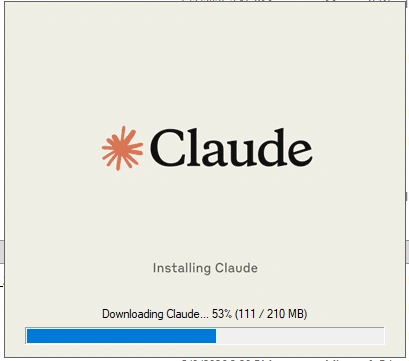
Step 3 — Run the Installer
Once the download finishes, open your Downloads folder and double-click the MSIX file. Windows will open an installation prompt — it's a clean, simple one-page installer.
Click the Install button. The installation process is quick — usually done in under a minute. You don't need admin privileges for a standard user install.
Step 4 — Launch Claude
Once the installation completes, you'll see a Launch button in the installer window — click it. Alternatively, you can search for 'Claude' in the Windows Start menu and launch it from there.
The first time it opens, you'll see a clean welcome screen. The app itself is lightweight and opens fast — noticeably quicker than the web version loading in a browser tab.
Step 5 — Sign In or Create an Account
When prompted, click Sign In. This will open a browser window where you can either log into your existing Anthropic account or create a new one for free.
If you're new, the sign-up is straightforward — just an email and password. You'll need to verify your email before you can proceed. Once done, head back to the desktop app.
On my machine, the handoff was seamless the desktop app recognized the login almost instantly. If it doesn't redirect automatically, just switch back to the Claude window and it should pick up the session.
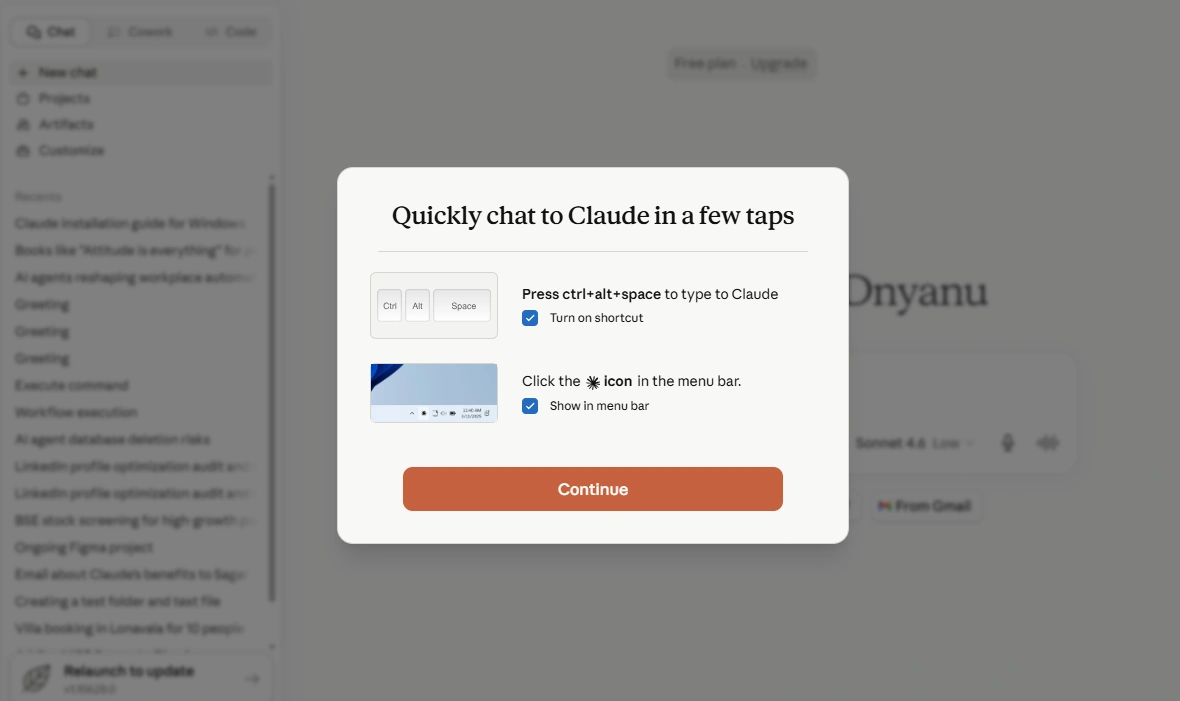
Step 6 — Configure the Global Shortcut (Optional but Recommended)
One of the best features of the desktop app is the quick-access overlay. By default, pressing Ctrl + Alt + Space summons a floating chat bar over whatever you're currently doing — no need to switch apps.
To verify or customize the shortcut, go to Settings (bottom-left icon) and look for the keyboard shortcut setting. I kept the default since it didn't conflict with anything on my setup.
Your First Chat — What Can You Ask?
With the app running, let's actually use it. Here are a few things I tried in my first session that gave me a good feel for what Claude can do:
Ask it to explain a concept: "Explain how JWT authentication works in simple terms."
Code help: "Write a C# method that reads a CSV file and returns a list of objects."
Summarize a document: Paste in a wall of text and ask "Summarize this in 5 bullet points."
Email drafting: "Write a professional email declining a meeting invite due to a scheduling conflict."
Debug code: Paste a broken snippet and ask "What's wrong with this code?"
What struck me most was the quality of responses, especially for technical questions. Claude gives reasoning behind its answers, not just the answer itself. That's a huge deal when you're trying to actually learn something.
Free vs. Paid Plans
Claude is free to use with some usage limits. For most casual users, the free tier is enough to get a feel for the tool. Here's a quick breakdown of what I've gathered:
Free: Access to Claude with daily usage limits, runs on Sonnet model
Pro: Higher usage limits, access to more powerful models (Opus), priority access during high traffic, and advanced features like extended context
Team/Enterprise: Collaborative features, admin controls, SSO, and the Cowork desktop automation feature
Wrapping Up
Setting up Claude on Windows is genuinely painless — the whole process is a few clicks, and you're in. What's more impressive is what waits for you on the other side: a fast, thoughtful AI assistant that handles complex tasks without making you feel like you're fighting the tool.
Whether you're a developer who wants a smarter coding partner, a writer looking for a sharp editing assistant, or just someone curious about what modern AI can actually do — Claude is worth a real try.
Start with the free version, play around with it for a week, and see if it changes how you work. For me, it quietly became one of those tools I just keep open all day.
If you run into any issues or have questions, drop them in the comments below — happy to help!
Suggested Article Titles
Here are some title options to consider for publishing:
Getting Started with Claude AI: A Beginner's Guide to Installing and Using Claude on Windows
Claude AI on Windows — What It Is, Why It Matters, and How to Install It in Under 5 Minutes
From Zero to Claude: Installing and Exploring Anthropic's AI Assistant on Windows
Meet Claude: Anthropic's AI Assistant — Introduction and Complete Windows Installation Guide
Your First Look at Claude AI: Installation, Features, and Getting Started on Windows
Join the conversation! Your thoughts help the community grow.