

Introduction to Blazor
Microsoft has recently announced the release of a new .NET web framework, Blazor. Blazor is a free, open source Web framework to build Web apps using C# that run in a Web browser. In this article, we will understand Blazor and setup Blazor development environment in our machine and execute our first program in ASP.NET core using Blazor and Visual Studio 2017. We will also create a sample calculator application using Blazor.
What is Blazor?
Blazor is a new .NET web framework for creating client-side applications using C#/Razor and HTML that runs in the browser with WebAssembly. It can simplify the process of creating single page application (SPA) and at the same time enables full stack web development using .NET.
Using .NET for developing Client-side application has multiple advantages that are mentioned below,
- .NET offers a range of API and tools across all platform that are stable and easy to use.
- The modern languages such as C# and F# offer a lot of features that make programming easier and interesting for developers.
- The availability of one of the best IDE in form of Visual Studio provides a great .NET development experience across multiple platforms such as Windows, Linux, and MacOS.
- .NET provides features such as speed, performance, security, scalability, and reliability in web development that makes full stack development easier.
Microsoft defined Blazor as an experimental project and since it is still in alpha phase (as of today March 30, 2018) so, it should not be used in a production environment.
What is WebAssembly?
WebAssembly (abbreviated Wasm) is low-level assembly-like language with a compact binary format that can run in modern web browser. Since it is a low-level binary code, it cannot be read/written by humans but we can compile the code from other languages to WebAssembly to facilitate their execution on the browser. It is a subset of JavaScript and is designed to complement and run alongside JavaScript. It enables us to run code written in multiple language on the web at near native speed.
WebAssembly is developed as a web standard and is supported by all the major browsers without plugins.
Why use Blazor?
Blazor makes web development easier and more productive by providing a full stack web development with .NET. It runs in all browsers on the real .NET runtime and have full support for .NET Standard without the need of any extra plugin. Blazor is fast, have reusable components and is open-source with a great support from the community.
Blazor also supports features of a SPA framework such as:
- Routing
- Layouts
- Forms and validation
- JavaScript interop
- Build on save during development
- Server-side rendering
- Dependency Injection
Prerequisites
The Blazor is not supported on versions below Visual Studio 2017 v15.7
Source code
Before proceeding, I would recommend you to get the source code from Github.
Getting Started with Blazor
To create our first Blazor application we need to install "ASP.NET Core Blazor Language Services extension" from here.
Install this extension and it will be added to your VS 2017.
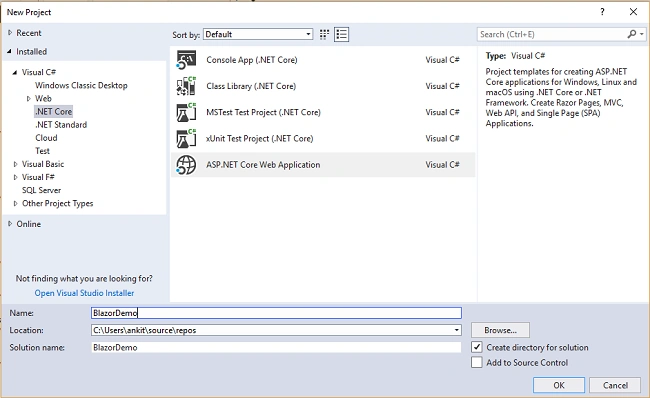
Open Visual Studio and select File >> New >> Project. After selecting the project, a "New Project" dialog will open. Select .NET Core inside Visual C# menu from the left panel. Then, select “ASP.NET Core Web Application” from available project types. Put the name of the project as BlazorDemo and press OK.
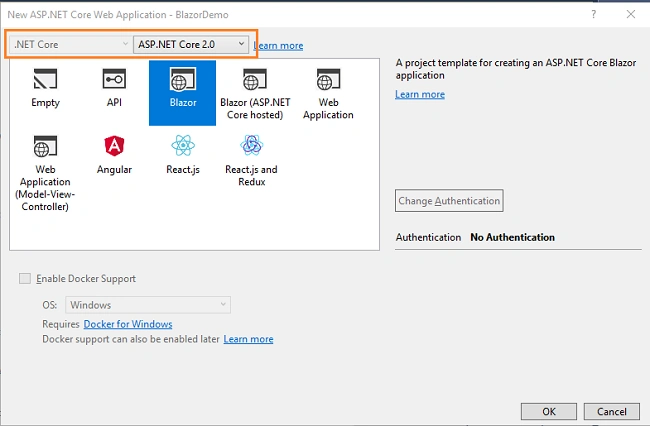
 After clicking on OK, a new dialog will open asking you to select the project template. You can observe two drop-down menus at the top left of the template window. Select “.NET Core” and “ASP.NET Core 2.0” from these dropdowns. Then, select “Blazor” template and press OK.
 Now, our first Blazor project will be created. You can observe the folder structure in Solution Explorer as shown in the below image.
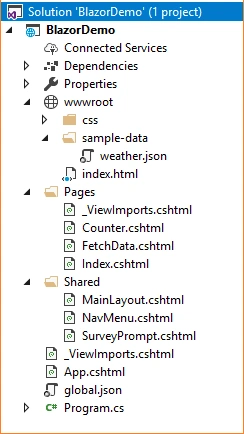 You can see that we have a “Pages” folder. We will be adding our view pages to this folder only and these pages will be rendered on the web. Execute the program, it will be open the browser and you will see a page similar to the one shown below.
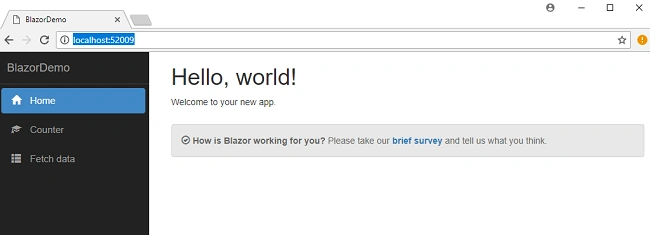 Here you can see a navigation menu on the left side, which contains the navigation links to all the pages we have in our application. By default, we have “Counter” and “Fetch Data” pages provided. We are going to add a “Calculator” page for our sample calculator application.
Create a Sample Calculator Using Blazor
We are going to create a basic calculator app, which is able to do addition, subtraction, multiplication, and division. Right click on Pages folder and select Add >> New Item. An “Add New Item” dialog box will open. Select Web from the left panel, then select “Razor View” from templates panel and put the name as Calculator.cshtml. Press OK.
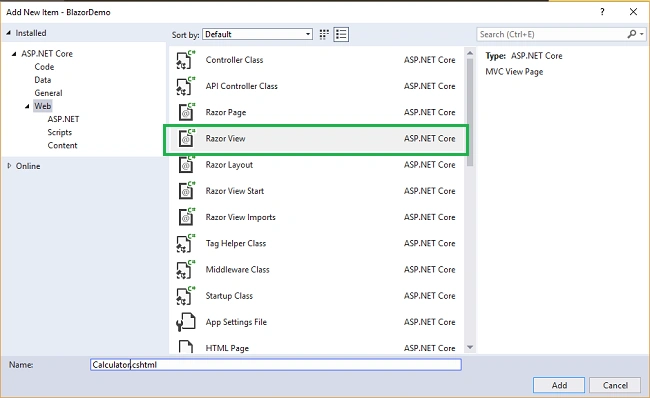 Open Calculator.cshtml and put the following code into it.
- @page "/calculator"
- <h1>Basic Calculator Demo Using Blazor</h1>
- <hr />
- <div>
- <div class="row">
- <div class="col-sm-3">
- <p>First Number</p>
- </div>
- <div class="col-sm-4">
- <input placeholder="Enter First Number" bind="@num1" />
- </div>
- </div>
- <br />
- <div class="row">
- <div class="col-sm-3">
- <p>Second Number</p>
- </div>
- <div class="col-sm-4">
- <input placeholder="Enter Second Number" bind="@num2" />
- </div>
- </div>
- <br />
- <div class="row">
- <div class="col-sm-3">
- <p>Result</p>
- </div>
- <div class="col-sm-4">
- <input readonly bind="@finalresult" />
- </div>
- </div>
- <br />
- <div class="row">
- <div class="col-sm-2">
- <button onclick="@AddNumbers" class="btn">Add (+)</button>
- </div>
- <div class="col-sm-2">
- <button onclick="@SubtractNumbers" class="btn btn-primary">Subtract (−)</button>
- </div>
- <div class="col-sm-2">
- <button onclick="@MultiplyNumbers" class="btn btn-success ">Multiply (X)</button>
- </div>
- <div class="col-sm-2">
- <button onclick="@DivideNumbers" class="btn btn-info">Divide (X)</button>
- </div>
- </div>
- </div>
- @functions {
- string num1;
- string num2;
- string finalresult;
- void AddNumbers()
- {
- finalresult = (Convert.ToDouble(num1) + Convert.ToDouble(num2)).ToString();
- }
- void SubtractNumbers()
- {
- finalresult = (Convert.ToDouble(num1) - Convert.ToDouble(num2)).ToString();
- }
- void MultiplyNumbers()
- {
- finalresult = (Convert.ToDouble(num1) * Convert.ToDouble(num2)).ToString();
- }
- void DivideNumbers()
- {
- if (Convert.ToDouble(num2) != 0)
- {
- finalresult = (Convert.ToDouble(num1) / Convert.ToDouble(num2)).ToString();
- }
- else
- {
- finalresult = "Cannot Divide by Zero";
- }
- }
- }
Let’s understand this code. On the top, we are defining the route of this page using @page directive. So in this application, if we append “/calculator” to base URL then we will be redirected to this page.
Then we have defined the HTML section to read two numbers from the user and display the result in another textbox. The attribute “bind” is used to bind the value entered in the textbox to the variables we have defined. We also created four buttons to perform our basic arithmetic operations. We are calling our business logic methods on button click.
At the bottom of the page, we have a @functions section which contains all our business logic. We have declared three variables, two to read the value from the user and another one to display the result. We have also defined four methods to handle addition, subtraction, multiplication, and division. The “bind” attribute will work only for string variables not for floating point values. Hence, we need to convert a string to double to perform our arithmetic operations.
Finally, we will add the link to our “calculator” page in the navigation menu, open /Shared/NavMenu.cshtml page and put the following code into it.
- <div class="top-row pl-4 navbar navbar-dark">
- <a class="navbar-brand" href="/">BlazorTest</a>
- <button class="navbar-toggler" onclick=@ToggleNavMenu>
- <span class="navbar-toggler-icon"></span>
- </button>
- </div>
- <div class=@(collapseNavMenu ? "collapse" : null) onclick=@ToggleNavMenu>
- <ul class="nav flex-column">
- <li class="nav-item px-3">
- <NavLink class="nav-link" href="/" Match=NavLinkMatch.All>
- <span class="oi oi-home" aria-hidden="true"></span> Home
- </NavLink>
- </li>
- <li class="nav-item px-3">
- <NavLink class="nav-link" href="/counter">
- <span class="oi oi-plus" aria-hidden="true"></span> Counter
- </NavLink>
- </li>
- <li class="nav-item px-3">
- <NavLink class="nav-link" href="/fetchdata">
- <span class="oi oi-list-rich" aria-hidden="true"></span> Fetch data
- </NavLink>
- </li>
- <li class="nav-item px-3">
- <NavLink class="nav-link" href="/calculator">
- <span lass="oi oi-list-rich" aria-hidden="true"></span> Calculator
- </NavLink>
- </li>
- </ul>
- </div>
- @functions {
- bool collapseNavMenu = true;
- void ToggleNavMenu()
- {
- collapseNavMenu = !collapseNavMenu;
- }
- }
Congrats! We have created our first application using ASP.NET Core and Blazor. Let's execute the code and see the output.
Execution Demo
Launch the application. You can see a “Calculator” link in the navigation menu on the left. Click on it to navigate to our calculator page. Notice the URL, it has /calculator appended to it.
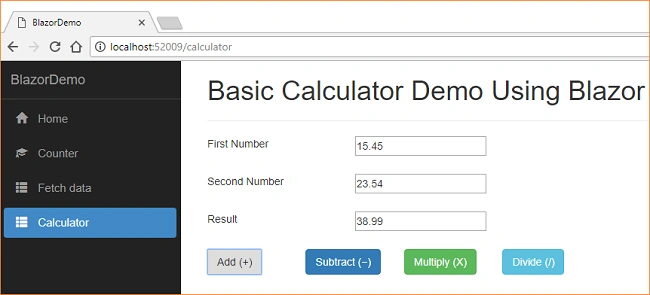
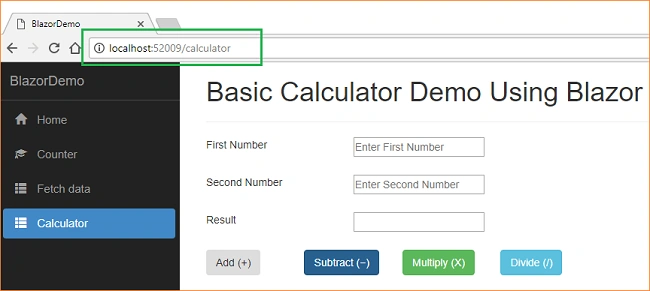 Let's perform add operation. Input two numbers and click on Add(+) button. You can see the addition result in the Result textbox.
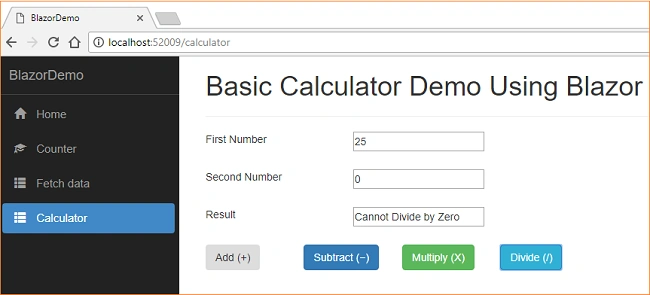
 Now try to perform division on two numbers. You can get the result in Result textbox. If you try to perform division by Zero, you will get an error message "Cannot Divide by Zero".
 Similarly, try other operations and see the result.
Conclusion
We learned about the new .NET framework – Blazor. We have also created a simple calculator application using Blazor and performed arithmetic operations on it. Please refer to the attached source code for better understanding.
You can also fork this application on Github. Try this new framework and let me know what you think of it in the comments section below.
See Also
- ASP.NET Core - CRUD Using Blazor And Entity Framework Core
- CRUD Operations With ASP.NET Core Using Angular 5 And ADO.NET
- ASP.NET Core - CRUD Using Angular 5 And Entity Framework Core
- CRUD Operation With ASP.NET Core MVC Web App Using ADO.NET
- CRUD Operation With ASP.NET Core MVC Using Visual Studio Code And ADO.NET
Hardik ShahPosted Oct 15, 2020, 2:10 AM
Hi Ankit, I would Like to see any Example Where First User Redirects to Login page and then Redirect to this Default Index page where we can do stuff. If you can PRovide me some sample like that would be great. So My Basic Idea is I have Already Login page with All the functionality with my MVC application . Now I want to move my Current Application to Blazor . So I first need to know How can we run first Login page and how to do Login and redirect to this MAster Page and all
Mike LowryPosted Feb 6, 2020, 10:46 AM
Trying your code in VS 2019 Preview, Version 4.8.03752. Getting error "Cannot convert method group 'AddNumbers' to non-delegate type 'object'. Did you intend to invoke the method?" I installed the NuGet package Microsoft.AspNetCore.Components.Web and added a using statement. Still get the error.
Chittaranjan SwainPosted Dec 17, 2019, 4:55 AM
Very nice and useful article.
Abhilash ABhiPosted Oct 21, 2019, 1:45 AM
Please update this article to latest blazor code. This code does not work in latest blazor
Ajay KumarPosted Jun 12, 2019, 4:40 AM
When I try to Install the latest preview of Visual Studio 2017 (15.7) from the above link it is installing Visual Studio Preview for 2019
Ricardo VivancoPosted Jun 11, 2019, 1:17 AM
Guys, I'm creating a platform to help build and deploy applications based on templates.Attached a link to build and deploy Blazor Apps https://medium.com/pipelinespace/setting-up-a-ci-cd-pipeline-in-azure-devops-for-blazor-and-deploy-to-azure-c262c58d8172
Sarathlal SaseendranPosted Sep 15, 2018, 4:21 AM
Nice article. Thanks for sharing
Peter MorrisPosted May 15, 2018, 11:13 AM
Nice overview! In the future I think I am going to switch to the code-behind files. I'm not sure yet though - it's difficult to decide. PS: Take a look at Blazor-Fluxor on GitHub! https://mrpmorris.github.io/blazor-fluxor/
Sudheshwer RaiPosted May 4, 2018, 8:17 AM
I tried to do calculator program then it's giving error like Severity Code Description Project File Line Suppression StateError CS0103 The name 'bind' does not exist in the current context BlazorDemo C:\Users\Sudheshwer\source\repos\BlazorDemo\BlazorDemo\Pages\Calculator.cshtml 11 Active And other error like 'Severity Code Description Project File Line Suppression StateError CS0103 The name 'onclick' does not exist in the current context BlazorDemo C:\Users\Mohit\source\repos\BlazorDemo\BlazorDemo\Pages\Calculator.cshtml 35 Active' Kindly suggest what kind of mistake I am doing here.
Sean MoranPosted Apr 18, 2018, 4:05 PM
As of 4/18/18 the required dotnet sdk is 2.1.300-preview2-008533
Tridip BhattacharjeePosted Apr 9, 2018, 6:41 AM
The code or function you write in calculator razor page void MultiplyNumbers() { finalresult = (Convert.ToDouble(num1) * Convert.ToDouble(num2)).ToString(); } which is c# code. so if something need to work at client side who will convert c# function MultiplyNumbers() to js code? the webassembly will do it behind the curtain ? no where mention how and who will convert c# code to js code to get it work at client side. so if you this things please mention in article. thanks
Joe WilsonPosted Mar 31, 2018, 5:12 AM
Thank you for sharing it.
Satyaprakash SamantarayPosted Mar 31, 2018, 3:05 AM
Nice article thanks for sharing