

In the last article, Fundamentals Of Azure Storage , we went through the nitty-gritty of Azure Unstructured storage. If you have not gone through the above article, please take a moment to look over the ‘Fundamentals of Azure storage’.
Let’s focus on the Advanced Azure Object (Blob) storage,
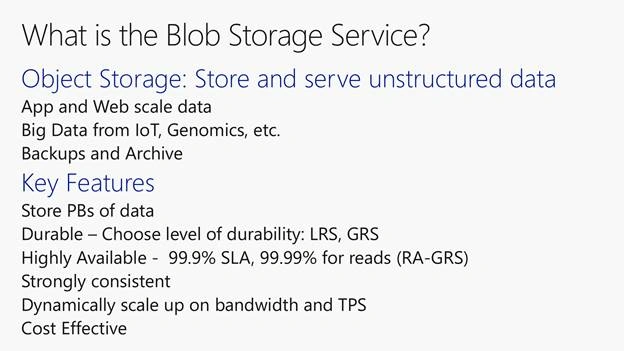
OBJECT STORAGE
- It is a service that stores unstructured data, any size from a few bytes to 100s of GB.
- Typical use cases are web and mobile application data, so if you have a website with very high scale services you would use BLOB storage.
- It can also be used for Big Data scenarios such as IoT and device telemetry. For example, Genomics, where a Genome sequence is for a single person. could be TBs to 100s of TBs of data.
- A more canonical use case for our world is backup and archiving of data. It’s a growing problem for Enterprises because its not cost effective to put that data on very expensive on premise HW and then have to manage it or migrate it when you retire the HW, so this is a great use case.
KEY FEATURES
- You can store PBs to 10s of PBs to 100s of PBs, scale is not a problem.
- I already talked about durability at Fundamentals , consistency and scaling up.
- The last point I’d like to touch on is cost effectiveness. Services like Cool Storage can be a very cost effective as compared to the on premise cost for the same thing. Starting with raw array cost, service and support, under provisioning, migration time when buying a new array, the TOC is typically much lower when using a public cloud service.
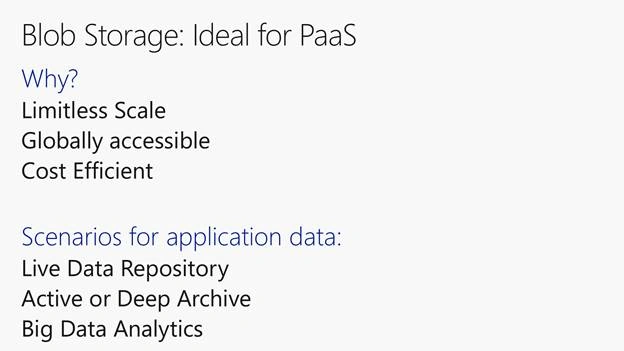
WHY Plateform as a Service (PaaS) ?
- We always say that BLOB storage is ideal for PaaS, the question is why? If you are building an application why is that the case?
- Limitless scale and not having to worry about provisioning. As an application developer if you need a TB of data or PB of data or even if you don’t know, you’re going to be able to scale what you need when you need it.
- It's globally accessible and has the ability to deploy your data where your users or customers are. If you are part of an enterprise that has a regional presence, or you have customers that are globally present you can store the data locally and reduce the round trip times and improve the customer experiences. e.g We could deploy our data at Canada and NewZeland with in NO TIME.
- Cost efficiency of course undeniable fact.
- Storage Capability - A Petabyte is approximately 1,000 Terabytes or one million Gigabytes. It's hard to visualize what a Petabyte could hold. 1 Petabyte could hold approximately 20 million 4-door filing cabinets full of text. It could hold 500 billion pages of standard printed text. (Just Visualize the Strength )
CONCEPTS
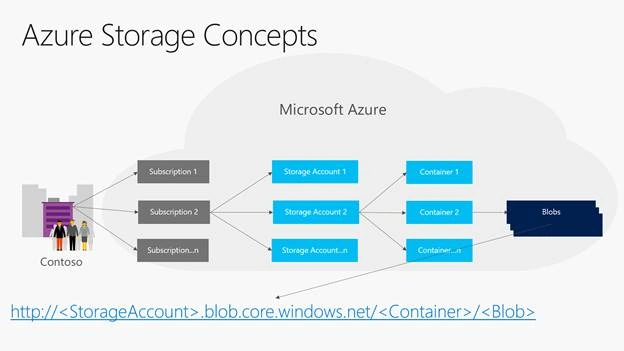
- Let’s looks at some key concepts for Azure Storage and ultimately BLOB Storage.
- Every Azure account has a subscription in which you can create one or more Storage Accounts, which are essentially logical containers for your data.
- Today you can put up to a 500TB in each Storage Account and you can have up to 250 of them, but really you can have as many of them as you want, even if you need 100s of PBs of data.
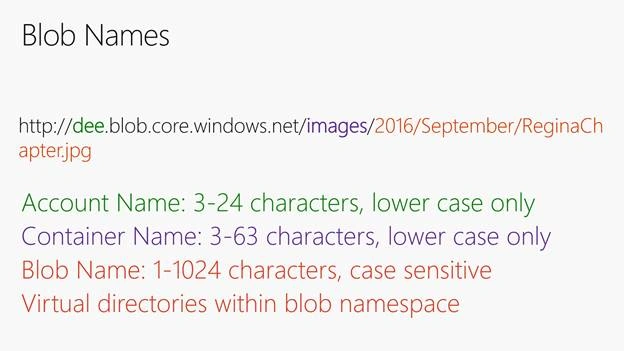
- Object Store systems don’t typically have traditional directory hierarchy's, they just have a name. So we added a layer of “folders” which we call Containers. You can put your BLOB data inside the Containers, or you could also just put it in the root without any container if you like.
- Every BLOB has a URI <ANNIMATE>.
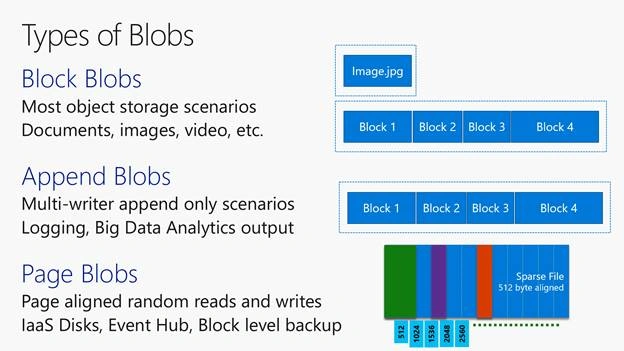
BLOCK BLOBS
- Probably the one you’ll use most often is called Block BLOBs. It’s called this because you store data in “blocks”. You can use it to store all kinds of unstructured data from small to large, pictures and videos for example (Youtube, LIVE Traffic Recording, Satellite Recording )
APPEND BLOBS
- We also have another kind of BLOB that is less frequently used, but for those who need it Append BLOBs are essential. They are very much like Block BLOBs except that they are optimized for multi-writer append scenarios.
- For example, Map Reduce jobs where you have multiple writers trying to append output data, or logfile writers from 100s or machines all trying to write logs. Append BLOBs function very well for append scenarios where you don’t have to lock the BLOB and incur concurrency issues.
PAGE BLOBS
- Page BLOBs are big sparse files in which you can store 512b “pages” of data. You can read and write data randomly into a Page BLOB, effectively like a disk. We built Page BLOBS to underlie the Disks implementation for our VMs in Azure.
- We also thought there may be some interesting customer use cases and scenarios for Page BLOBs so we exposed them externally through a REST API. Many of our internal Azure services use it, for example the Event Hubs Service stores data in Page BLOBs to make some of their access scenarios faster.
- Microsoft have also external storage partners using Page BLOBS for services like file systems that do de-duplication of data.
Now, lets create our first Blob Storage (Prerequisite, Azure portal account)
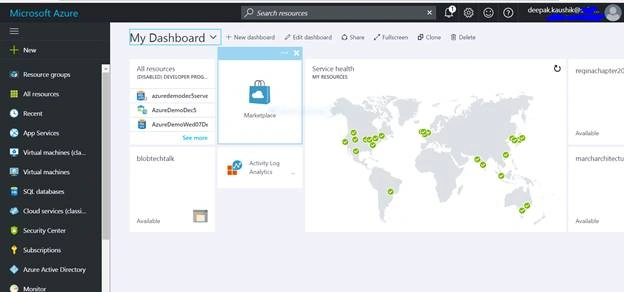
- Login to Azure Portal and you will landed to Dashboard
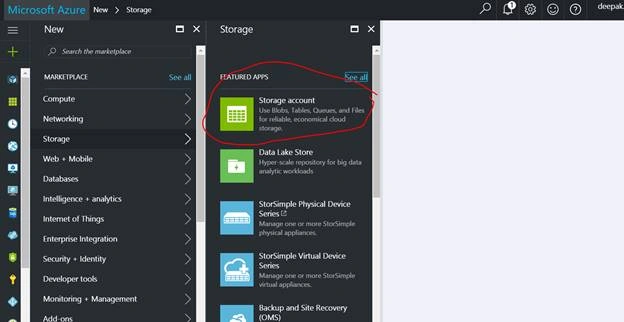
- Click + New ->Storage ->Storage Account under featured app, as shown below
- Give details as shown below.
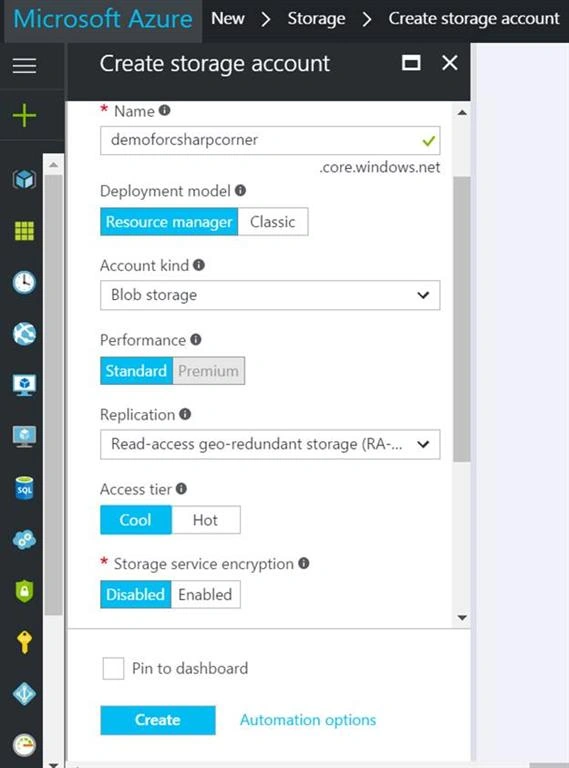
You could choose options as per your business need , and as we discussed earlier, you may click on ! sign for more details,

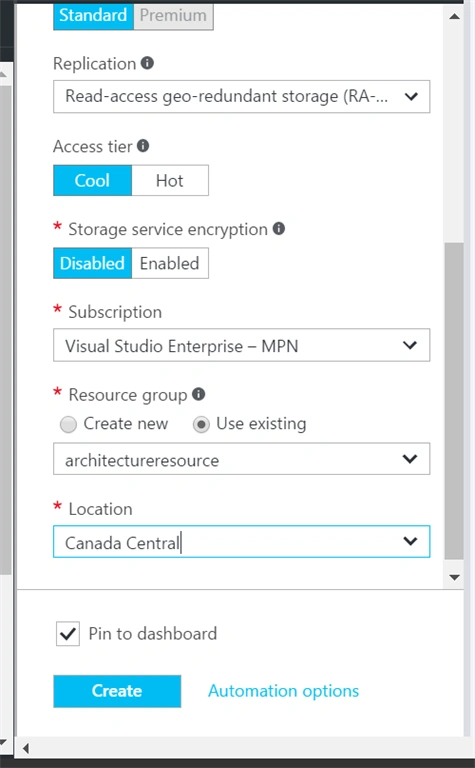
Choose location as per your geographical location, suggested data center at the same geographical location (Cental Canada in my case) and click ‘Create’.
It will start deployment as shown below,
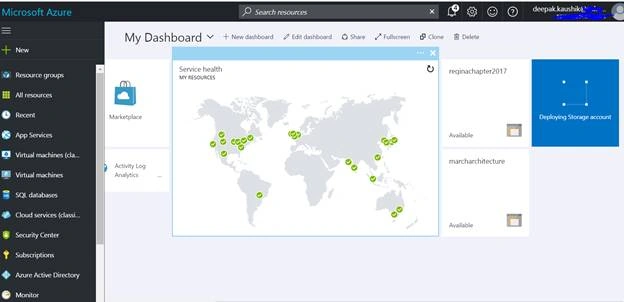
If you don’t have container, it asked for same as shown below,
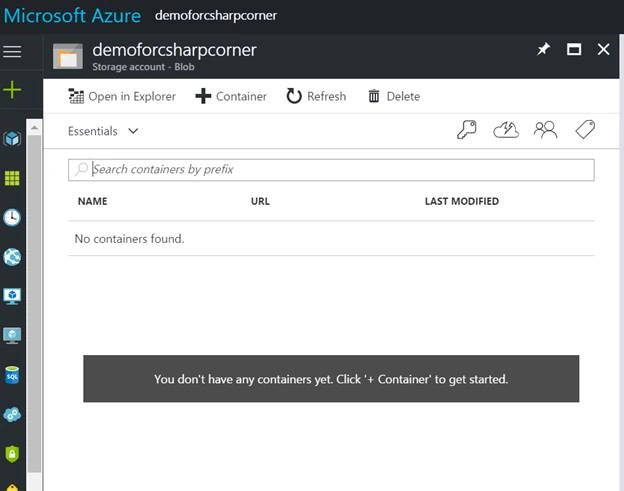
Give container details, as shown below,
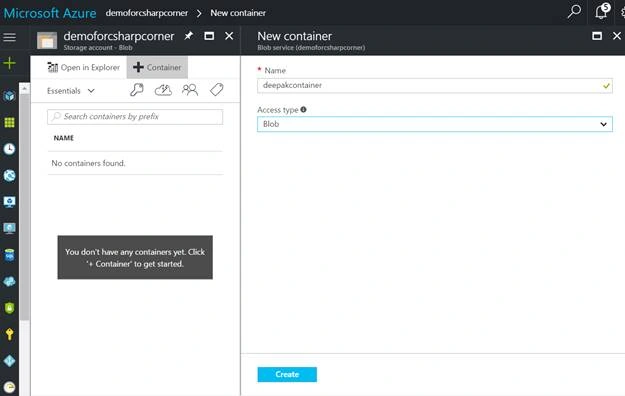
Choose options as per business need,

And click ‘Create’
You are now goof to move ahead
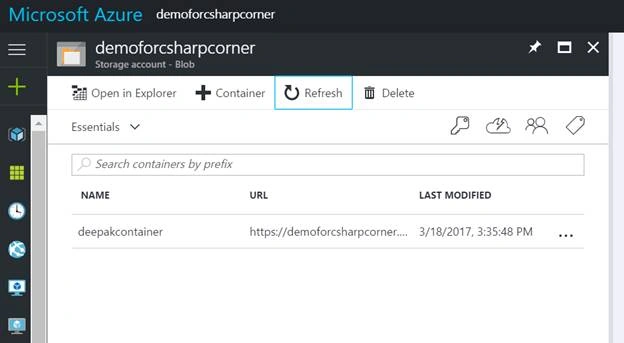
Let’s upload some Images, as shown below
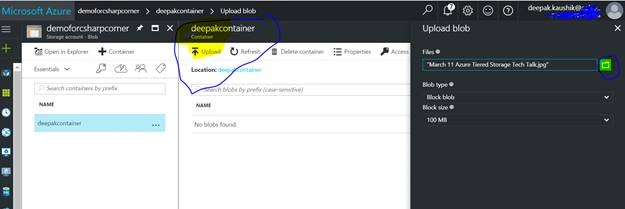
And Click Upload , Image will be uploaded
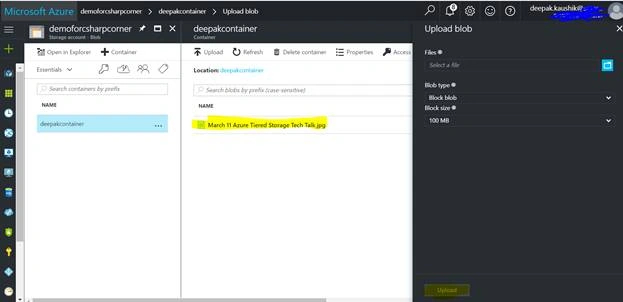
Access Blob Storage from Tool and Code
Now, let’s access Blob Storage 1st from Tool
- I have attached ‘Microsoft Storage Explorer’ tool to download and Setup.
- Please download and give your subscription and Storage account details and Sign in…
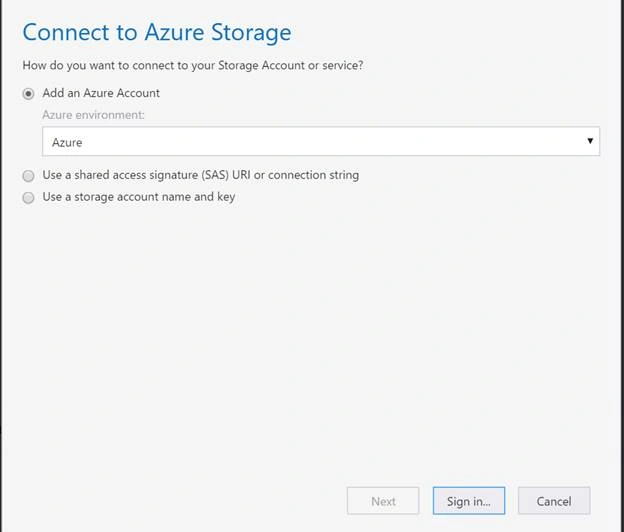
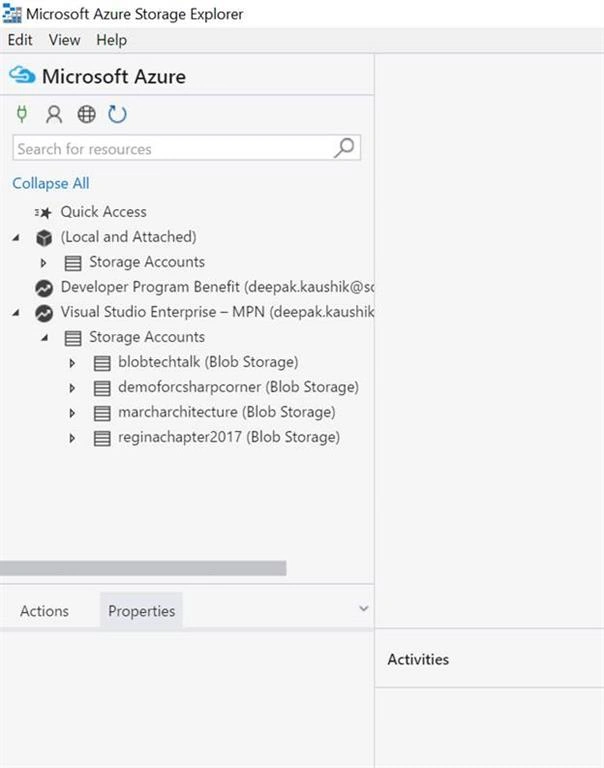
You can see the Image uploaded in the Storage account,
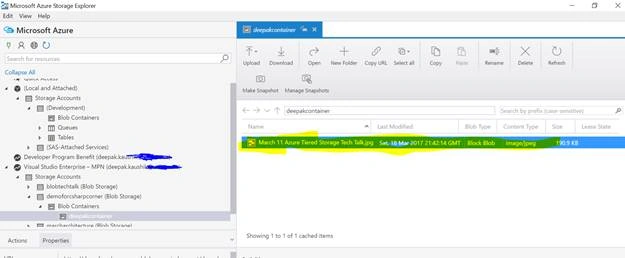
Now, Access by Code.
Please find attached C# Running Code for same, you only need to change App Config setting, as shown below.
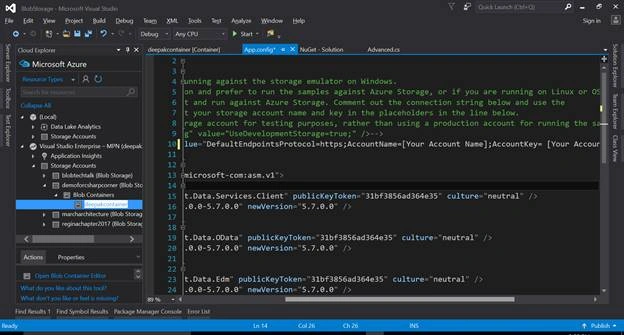
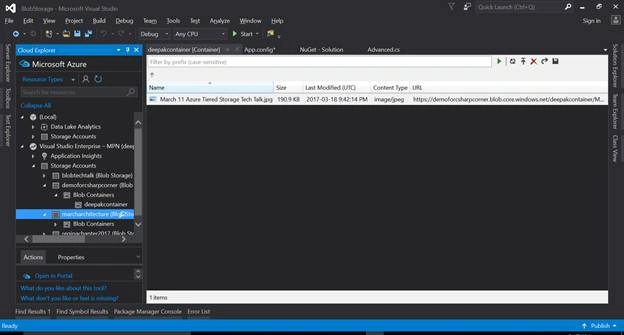
I have attached the ‘Demo Project’ and ‘Microsoft Azure Storage container’ for you to accelerate the understanding with practical implementation of the Storage Concept. I hope my Azure series of articles would be increasing the length and breadth of your Cloud knowledge base.
Until next time, happy learning!!
Join the conversation! Your thoughts help the community grow.