

Introduction
In this article, I am going to explain what is new in ASP.NET Core 2.1, its features and benefits, ASP.NET Core Versions, and why we use ASP.NET Core. Also, we will be learning how to set Visual Studio environment for developing ASP.NET Core 2.1 web application.
What is ASP.NET Core?
ASP.NET Core is a new version of ASP.NET, developed by Microsoft. It is an open-source framework for developing web applications and it can be run on Windows, Mac, or Linux. ASP.NET Core applications can run on both .NET CORE and traditional .NET Framework (.NET framework 4.x). It is completely rewritten from scratch and it was initially launched as ASP.NET 5 before it was renamed to ASP.NET CORE 1.0.
ASP.NET Core Versions
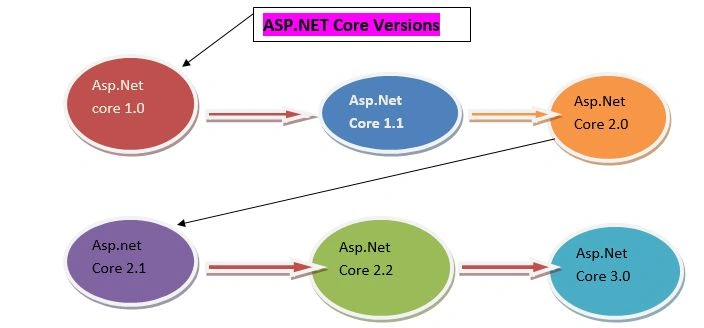
History of ASP.NET Core Versions
The below table shows the details of ASP.NET Core Versions.
|
Version
|
Release Date
|
Development/Editor Tool
|
Support
|
|
Asp.Net Core 1.0
|
Jun-27-2016
|
Visual Studio 2015 updated version 3
|
1.0
|
|
Asp.Net Core 1.1
|
Nov-18-2016
|
Visual Studio 2015,2017
|
1.0,1.1
|
|
Asp.Net Core 2.0
|
Aug-14-2017
|
Visual Studio 2017 Version 15.3
|
1.0,1.1,2.0
|
|
Asp.Net Core 2.1 Long Term Support
|
May-30-2018
|
Visual Studio 2017 Version 15.7
|
1.0,1.1,2.0,2.1
|
|
Asp.Net Core 2.2
|
Dec-04-2018
|
Visual Studio 2017 Version15.9
|
1.0,1.1,2.0,2.1,2.2
|
|
Asp.Net Core 3.0 Preview 9
|
Sep-04-2019
|
Visual Studio 2019
|
1.0,1.1,2.0,2.1,2.2,3.0
|
Note
ASP.NET Core and .NET Core, both are different, just like ASP.NET and .NET framework.
ASP.NET Core and .NET Core, both are different, just like ASP.NET and .NET framework.
Why Use ASP.NET Core?
- Cross-platform- It can run on Windows, Linux and Mac.
- Better performance- .NET Core does not depend on system.web.dll for communication between Browser-Server. In ASP.NET Core everything is packages which we need for our application. Packages reduce the request pipeline and improve application performance.
- Dependency Injection- Dependency Injection is in-built in Asp.Net Core.
- Integration with Modern UI Frameworks- It supports modern UI like Angular, ReactJS, Bootstrap, etc.
- Hosting-Net Core application can be hosted on multiple Web server such as IIS, Apache, Docker, etc. It is not dependent on IIS.
- Open Source- It is a fully open-source framework.
- Testability- Unit testing is very easy in Asp.Net core applications.
- Side-by-side App Versioning-Net Core runs on .NET Core, which supports simultaneously running in multiple versions of applications.
- Unified Programming Model for MVC and Web API-In Asp.Net Core both MVC Controller and API Controller are Inherits from the same controller base class.
Setting up a machine for ASP.NET Core 2.1 development
We need to install 2 software tools for developing ASP.NET Core 2.1 application.
- An Editor/ Integrated Development Environment (IDE)
- .NET Core 2.1 SDK (Software Development Kit)
Step 1 - Download and Install an editor for Asp.NET Core 2.1 Development
I am using Visual Studio 2017 updated version 15.3.9 as the editor for Asp .NET Core 2.1 application development. You can use any editor of your choice.
- Visual Studio
- Visual Studio Code
- Sublime
- Vim
- Atom
- Etc.
Download and install Visual Studio
- I am using Visual Studio 2017, so I need to install Visual Studio 2017 Community Edition because this is free.
- You can download Visual Studio 2017 from this Link here.
- To develop Asp .NET Core 2.1 applications in Visual Studio 2017, please select .NET Core cross-platform development workload when installing.
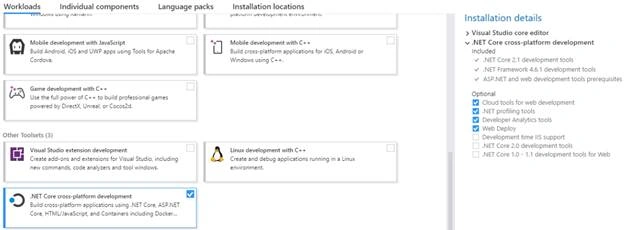
Step 2 - Download and install .NET Core 2.1 SDK
You can download the .NET Core 2.1 SDK from this link here.
- Depending on your operating system you have, download and install the SDK.
- The SDK includes everything you need to build and run .NET Core applications.
- The .NET Core Runtime is already included in the SDK. So, there is no need to install .NET Core Runtime
- The .NET Core Runtime includes just the resources required to run existing .NET Core applications.
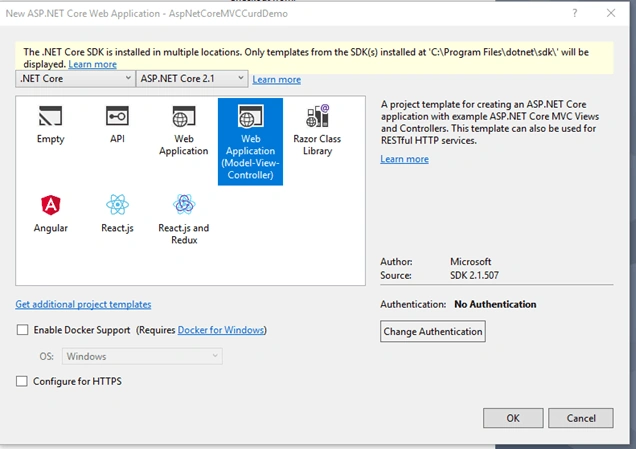
After installing .NET Core SDK 2.1, for checking I am creating a new ASP.NET Core 2.1 Application. Notice, in the .NET Core Dropdown list ASP.NET Core 2.1 is came. So our software installation completed successfully.
Conclusion
In this article, we explained the basics of ASP.NET Core 2.1 and how to set up a machine to develop the ASP.NET Core 2.1 applications.
Anand NavalePosted Oct 1, 2019, 5:21 AM
Nice One..!
Pankajkumar PatelPosted Sep 30, 2019, 12:28 AM
Nice article
Sourav Kumar DasPosted Sep 27, 2019, 11:19 PM
Nice Article Bro for basics.
Mohamed TawanePosted Sep 27, 2019, 11:31 AM
Greate articale