

This is in continuation of the articles of the series “Learning Ansible”. In our previous articles, we have learned about loops, variables, and their precedence.
So, in this article we will be covering the below topics:
- Install NTP service along with other packages on all servers
- Set up local NTP configuration for RedHat and Ubuntu servers
So, let’s get started now.
Here we are going to write a playbook to deploy NTP service. NTP keeps the system time in check so that it doesn’t drift because if the servers time is not in sync, then there could be a lot of issues as all our log files contain logs with the timestamp.
This service will be syncing the machine time with global NTP servers.
One thing to note here is when you set up any servers (VM, EC2 or physical machines) then make sure that all the machines have NTP service.
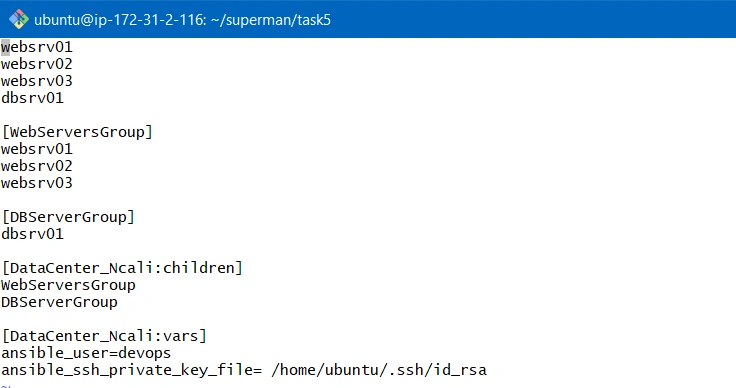
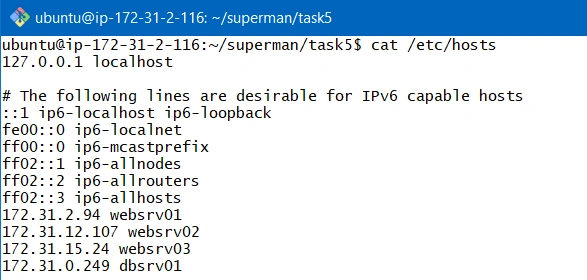
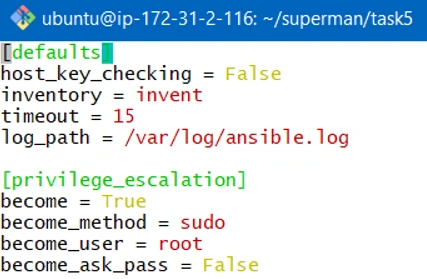
Before getting started let’s see what all do we have. We have a local ansible config and inventory file with the name invent which we created in the previous articles with the screenshot below:
Inventory File
Hosts file at /etc/hosts
Local ansible config file
Our Directory

Install NTP service along with other packages on all servers
Now, let’s write a playbook to install NTP service with other packages on all servers.
Create a playbook with the below command
- vim ntp_playbook.yml
Below is the code for the playbook,
- ---
- - name: Deploying NTP Service
- hosts: all
- become: yes
- tasks:
- - name: Install packages on RedHat OS
- yum:
- name: "{{item}}"
- state: present
- loop:
- - ntp
- - unzip
- - git
- - wget
- - zip
- when: ansible_os_family == "RedHat"
- - name: Install packages on Debian OS
- apt:
- name: "{{item}}"
- state: present
- loop:
- - ntp
- - unzip
- - git
- - wget
- - zip
- when: ansible_os_family == "Debian"
- - name: Start and Enable NTP service in RedHat OS
- service:
- name: ntpd
- state: started
- enabled: yes
- when: ansible_os_family == "RedHat"
- - name: Start and Enable NTP service in Debian OS
- service:
- name: ntp
- state: started
- enabled: yes
- when: ansible_os_family == "Debian"
Let’s run the playbook and see the output.
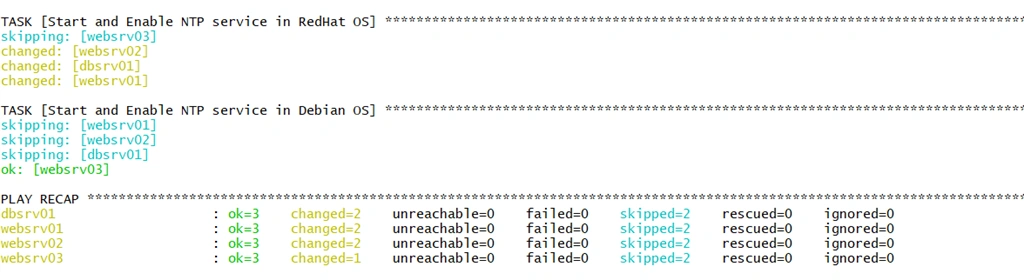
We can see that all the packages along with NTP have been installed successfully and service has also been started.
Set up local NTP configuration for RedHat and Ubuntu servers
As the NTP service has been installed so we can log in to any server and can see the NTP config file.
-
Login to the web server 01 with the below command
ssh devops@websrv01
- Open the configuration file with the below command
vim /etc/ntp.conf
- Setting present in /etc/ntp.conf file

Now if we want to use the NTP service from any of the global NTP servers then these 4 lines need to be changed. So, what we do now is we will copy the entire /etc/ntp.conf file and paste it inside the directory in our ansible machine.
Suppose we have 100 servers then we will have to manually login to each server and change this setting which is a pretty cumbersome and inefficient approach.
Steps to create NTP configuration in ansible machine for RedHat OS based servers
- Create a folder named files and the create a file for RedHat OS based servers,
mkdir files
vim files/ntp_redhat.conf
- Copy all the information from websrv 01 ntp configuration and paste it inside ansible machine ntp_redhat.conf file.
- We are going to use NTP server for, suppose, North America region… keeping in mind that our servers reside in North America from here
- Then we will update the server 0,1,2 and 3 in ntp_redhat.conf file from the below information for north America region.
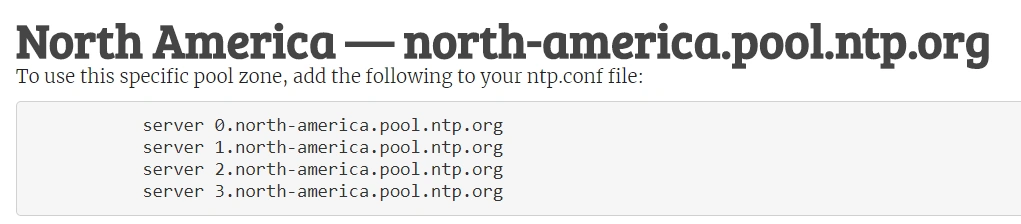
Below is the updated ntp_redhat.conf file.

Steps to create NTP configuration in ansible machine for Debian OS based servers
Now we will do the same for Debian based OS server which is our web server 03.
- Create an NTP configuration file for Debian OS based servers.
vim files/ntp_debian.conf
- Login to the websrv03 and copy all the information from websrv 03 ntp configuration and paste it inside ansible machine ntp_debian.conf
- Update the pool 0,1,2 and 3 in ntp_debian.conf file with the information for the North America region as done above.
Below is the updated ntp_debian.conf file.

Now our files directory contains 2 NTP configuration files.
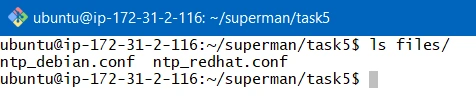
Now, we are going to deploy these NTP config files for RedHat and Debian based systems on our servers and will restart the NTP service. For this, we need to add 4 more tasks in our playbook.
Below is the updated playbook code.
- ---
- - name: Deploying NTP Service
- hosts: all
- become: yes
- tasks:
- - name: Install packages on RedHat OS
- yum:
- name: "{{item}}"
- state: present
- loop:
- - ntp
- - unzip
- - git
- - wget
- - zip
- when: ansible_os_family == "RedHat"
- - name: Install packages on Debian OS
- apt:
- name: "{{item}}"
- state: present
- loop:
- - ntp
- - unzip
- - git
- - wget
- - zip
- when: ansible_os_family == "Debian"
- - name: Start and Enable NTP service in RedHat OS
- service:
- name: ntpd
- state: started
- enabled: yes
- when: ansible_os_family == "RedHat"
- - name: Start and Enable NTP service in Debian OS
- service:
- name: ntp
- state: started
- enabled: yes
- when: ansible_os_family == "Debian"
- - name: Deploy the NTP configuration file for Debian OS
- copy:
- src: files/ntp_debian.conf
- dest: /etc/ntp.conf
- backup: yes
- when: ansible_os_family == "Debian"
- - name: Deploy the NTP configuration file for RedHat OS
- copy:
- src: files/ntp_redhat.conf
- dest: /etc/ntp.conf
- backup: yes
- when: ansible_os_family == "RedHat"
- - name: Restart NTP service in RedHat OS
- service:
- name: ntpd
- state: restarted
- when: ansible_os_family == "RedHat"
- - name: Restart NTP service in Debian OS
- service:
- name: ntp
- state: restarted
- when: ansible_os_family == "Debian"
OUTPUT
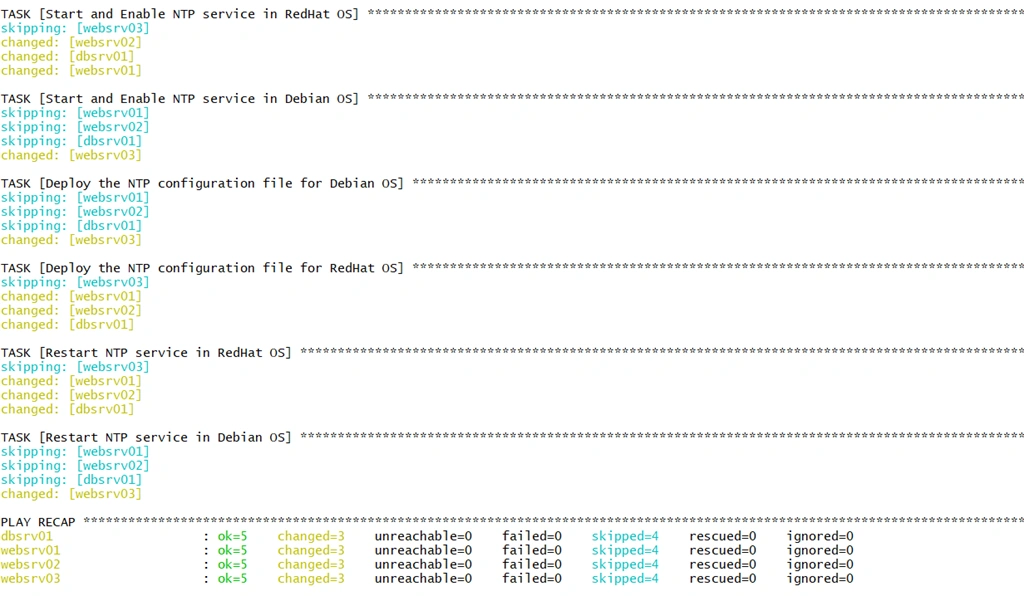
So, we can see that our newly added tasks have been executed successfully and our local NTP configuration files have been deployed and the service has restarted.
Summary
In this article, we have learned how we can install NTP service and how we can set up the local NTP configuration which can be deployed on multiple machines rather than setting up on each machine one by one.
In the next article in this series, we will be learning some more interesting concepts.
I hope you find this article helpful. Stay tuned for more … Cheers!!
You can also check out some of my previous articles of the series “Learning Ansible” here:
- Introduction to Configuration Management and Ansible
- Getting started with Ansible – Part 1
- Getting started with Ansible – Part 2
- Getting started with Ansible – Part 3
- Getting started with Ansible – Part 4
- Getting started with Ansible – Part 5
- Getting started with Ansible – Part 6
- Getting started with Ansible – Part 7
- Getting started with Ansible – Part 8
Join the conversation! Your thoughts help the community grow.