

Introduction
- Eclipse + ADT plugin
- Android SDK Tools
- Android Platform-tools
- The latest Android platform
- The latest Android system image for the emulator

Step 1: Start Eclipse, extracted from the adt-bundle, i.e %….%adt-bundle-windows/eclipse/eclipse.exe
Step 2: A workspace launcher will popup and you have to define the workspace for your android apps. A workspace is a place where all the source files are kept.
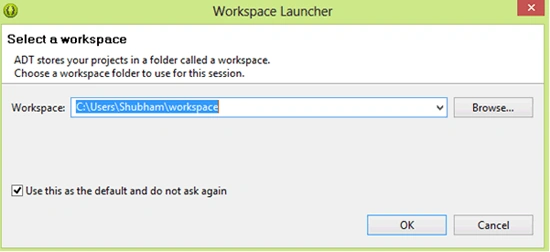 Step 3: Once you have selected your workspace now your IDE is ready for you. Go to File > New > Android Application Project. See:
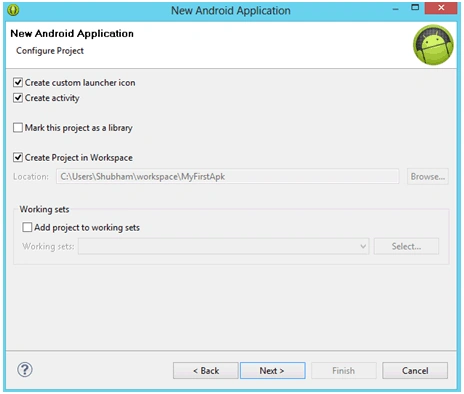
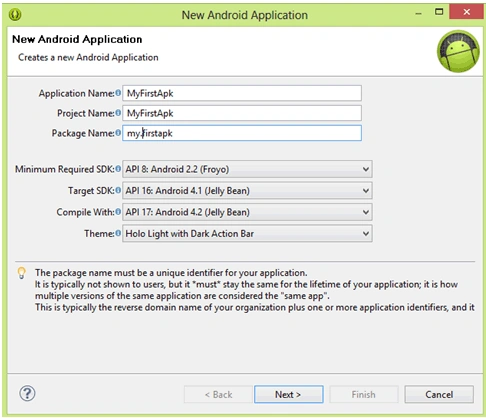 Step 4: The next step is to configure your project, it will have options like creating custom launcher and adding activity, etc. See:
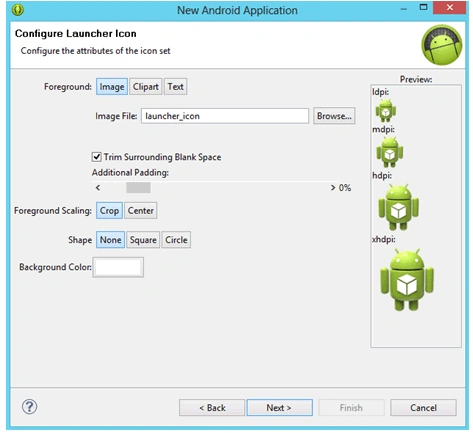
 Step 5: Hence we have checked the Create custom launcher icon in the previous screen, this screen allows adding our custom launcher icon. Here I'm using the default icons.
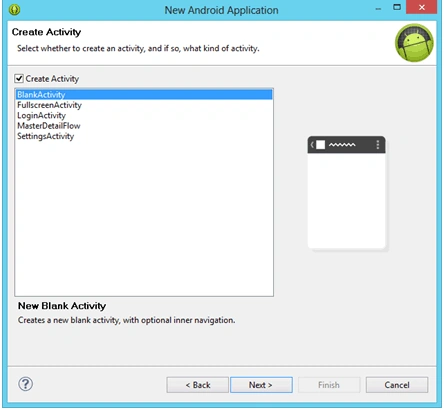
 Step 6: Next we must decide the activity for our app, there are various types of activities available but for beginners, we will start with BlankActivity.
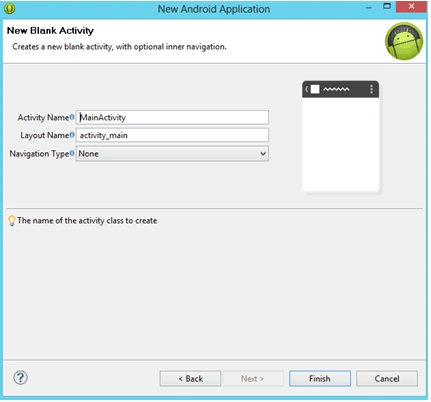
 Step 7: On this screen you can provide the name of your activity.
This was all the configuration part, it's done. Now you can start your real coding. After completing the preceding steps, you will see a designer screen, where you can design and code your app.
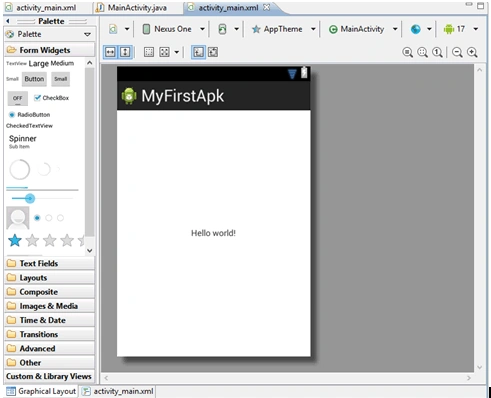 Now we have the blank app with the title MyFirstApk and "Hello world!" text in the center. This is just a hello world app, let's start running the Android App.
Suraj KumarPosted Mar 21, 2020, 1:09 PM
Very good article.
Mohamed Taimor Ahmed MohamedPosted Mar 17, 2013, 1:26 PM
Very Good I will try to start with it
swati shindePosted Jan 3, 2013, 6:48 AM
really nice tutorial thnx to give us this data.....
Santosh BhosalePosted Dec 30, 2012, 10:20 AM
Good one for beginners...
Shubham SaxenaPosted Dec 28, 2012, 7:23 PM
my pleasure Rama :)
Ramasagar PulidindiPosted Dec 14, 2012, 12:27 PM
well Explained i am a newbie in android developemnt...interested in android development got an idea with this..
Shubham SaxenaPosted Dec 11, 2012, 1:48 PM
thanks :)
Grabsi AminePosted Dec 11, 2012, 1:44 PM
nice
Shubham SaxenaPosted Dec 10, 2012, 1:27 AM
thanku anil :)
Anil KumarPosted Dec 10, 2012, 1:20 AM
good start Shubham!!
Shubham SaxenaPosted Dec 8, 2012, 3:35 PM
thanks Ibrahim :)
Ibrahim ErsoyPosted Dec 8, 2012, 3:19 PM
Good start! Keep going