

Introduction
In this article we will create a Metro style application that shows information of the selected text of a text box at run time. The information such as the from - to index of the selected text, the length of the selected text and what the selected text is. To create this application we will use one text box for the input; the text and three Text Blocks to show the information on the MainPage.
To get the information about the selected text, we will use the SelectionChanged event of the text box and put the logic on it. In this application you can put your input in the text box and select all or part of the text of the text box; you will see the related information below.
Step 1 : First, you will create a new Metro Style Application. Let us see the description with images of how you will create it.
- Open Visual Studio 2012
- File -> New -> Project
- Choose Template -> Visual C# -> Metro Style Application
- Rename the application
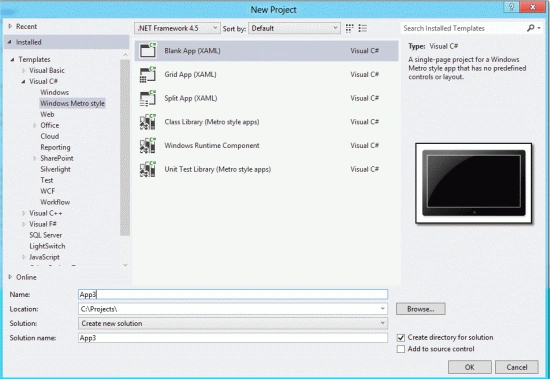
Step 2 : In the Solution Explorer there are two files that we will primarily work with; the MainPage.xaml and MainPage.xaml.cs files.

Step 3 : The MainPage.xaml file is as in the following code:
Code :
<Page
x:Class="App3.MainPage"
IsTabStop="false"
xmlns="http://schemas.microsoft.com/winfx/2006/xaml/presentation"
xmlns:x="http://schemas.microsoft.com/winfx/2006/xaml"
xmlns:local="using:App4"
xmlns:d="http://schemas.microsoft.com/expression/blend/2008"
xmlns:mc="http://schemas.openxmlformats.org/markup-compatibility/2006"
mc:Ignorable="d">
<Grid Background="LemonChiffon">
<Grid.ColumnDefinitions>
<ColumnDefinition Width=".103*"></ColumnDefinition>
<ColumnDefinition Width=".103*"></ColumnDefinition>
<ColumnDefinition Width=".333*"></ColumnDefinition>
</Grid.ColumnDefinitions>
<Grid.RowDefinitions>
<RowDefinition Height=".051*" ></RowDefinition>
<RowDefinition Height=".021*"></RowDefinition>
<RowDefinition Height=".021*"></RowDefinition>
<RowDefinition Height=".021*"></RowDefinition>
<RowDefinition Height=".351*"></RowDefinition>
</Grid.RowDefinitions>
<TextBox x:Name="MyTextBox" Margin="8" Text="TextBox" TextWrapping="Wrap"
SelectionChanged="MyTextBox_SelectionChanged"
Grid.ColumnSpan="2" Grid.Row="0" HorizontalAlignment="Center"
Height="40" Width="200"></TextBox>
<TextBlock Text="Selected Position" Grid.Column="0" Grid.Row="1"
FontSize="20" HorizontalAlignment="Center" Foreground="Red" FontWeight="Bold">
</TextBlock>
<TextBlock Text="Selected Length" Grid.Column="0" Grid.Row="2"
FontSize="20" HorizontalAlignment="Center" Foreground="Red" FontWeight="Bold">
</TextBlock>
<TextBlock Text="Selected String" Grid.Column="0" Grid.Row="3"
FontSize="20" HorizontalAlignment="Center" Foreground="Red" FontWeight="Bold">
</TextBlock>
<TextBlock x:Name="txtb1" Grid.Column="1" Grid.Row="1"
FontSize="20" HorizontalAlignment="Center" Foreground="Green" FontWeight="Bold">
</TextBlock>
<TextBlock x:Name="txtb2" Grid.Column="1" Grid.Row="2"
FontSize="20" HorizontalAlignment="Center" Foreground="Green" FontWeight="Bold">
</TextBlock>
<TextBlock x:Name="txtb3" Grid.Column="1" Grid.Row="3"
FontSize="20" HorizontalAlignment="Center" Foreground="Green" FontWeight="Bold">
</TextBlock>
</Grid>
</Page>
Step 4 : The MainPage.xaml.cs file is as in the following code:
Code :
using System;
using System.Collections.Generic;
using System.IO;
using System.Linq;
using Windows.Foundation;
using Windows.Foundation.Collections;
using Windows.UI.Xaml;
using Windows.UI.Xaml.Controls;
using Windows.UI.Xaml.Controls.Primitives;
using Windows.UI.Xaml.Data;
using Windows.UI.Xaml.Input;
using Windows.UI.Xaml.Media;
using Windows.UI.Xaml.Navigation;
namespace App3
{
public sealed partial class MainPage : Page
{
public MainPage()
{
this.InitializeComponent();
}
protected override void OnNavigatedTo(NavigationEventArgs e)
{
}
private void MyTextBox_SelectionChanged(object sender, RoutedEventArgs e)
{
txtb1.Text = String.Format("From {0} To {1}", MyTextBox.SelectionStart,
(MyTextBox.SelectionLength + MyTextBox.SelectionStart) - 1);
txtb2.Text = String.Format("{0}", MyTextBox.SelectionLength);
txtb3.Text = String.Format(" \"{0}\"", MyTextBox.SelectedText);
}
}
}
Step 5 : After running this code the output looks like this:

Write in the Textbox and select the text.

Join the conversation! Your thoughts help the community grow.